

The purpose of this article is to help you learn how to:
Override the provider's time for a booking.
Apply the updated time from Time Logs to provider schedules after a booking is completed.
Overview
The "Divide Provider Length" enhances the flexibility of booking time allocation across multiple providers. Previously, there were two options for assigning booking lengths to providers:
Full Assignment: The total booking time is fully assigned to each provider, regardless of the number of providers involved.
Equal Division: The booking length is equally divided among all the providers.
With the new feature, merchants can now assign individual length to each provider for a specific booking. This allows for more precise scheduling based on the specific requirements of each provider.
How does it work?
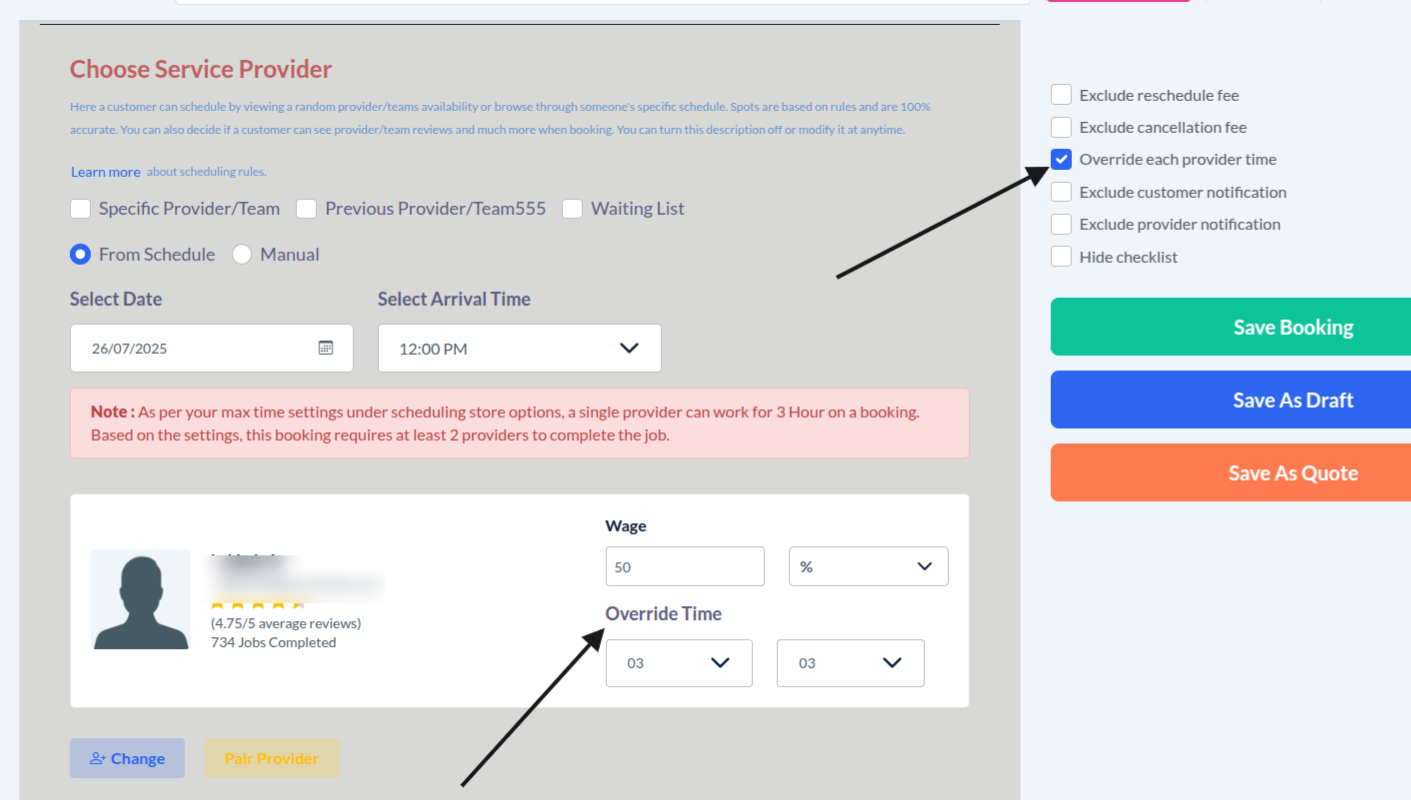
Override Time for Each Provider - To give each provider a different booking length, the merchant must check the "Override each provider's time" checkbox. This will show separate time fields for each provider in the booking.
Independent Time Selection - After enabling the checkbox, you can manually set the booking time for each provider. This will let you assign custom times based on each provider’s schedule or service needs.
Store Settings: Managing Provider Changes
Managing Overridden Times for Providers
When working with bookings that involve overriding provider times, it's important to handle changes in providers carefully. To make sure these changes are managed efficiently, we’ve introduced settings that help you decide how to handle overridden times. Below are some scenarios you might encounter and how to manage them:
To set up the Provider Time feature under your Provider Store Options, go to:
Settings > General > Store Options > Provider
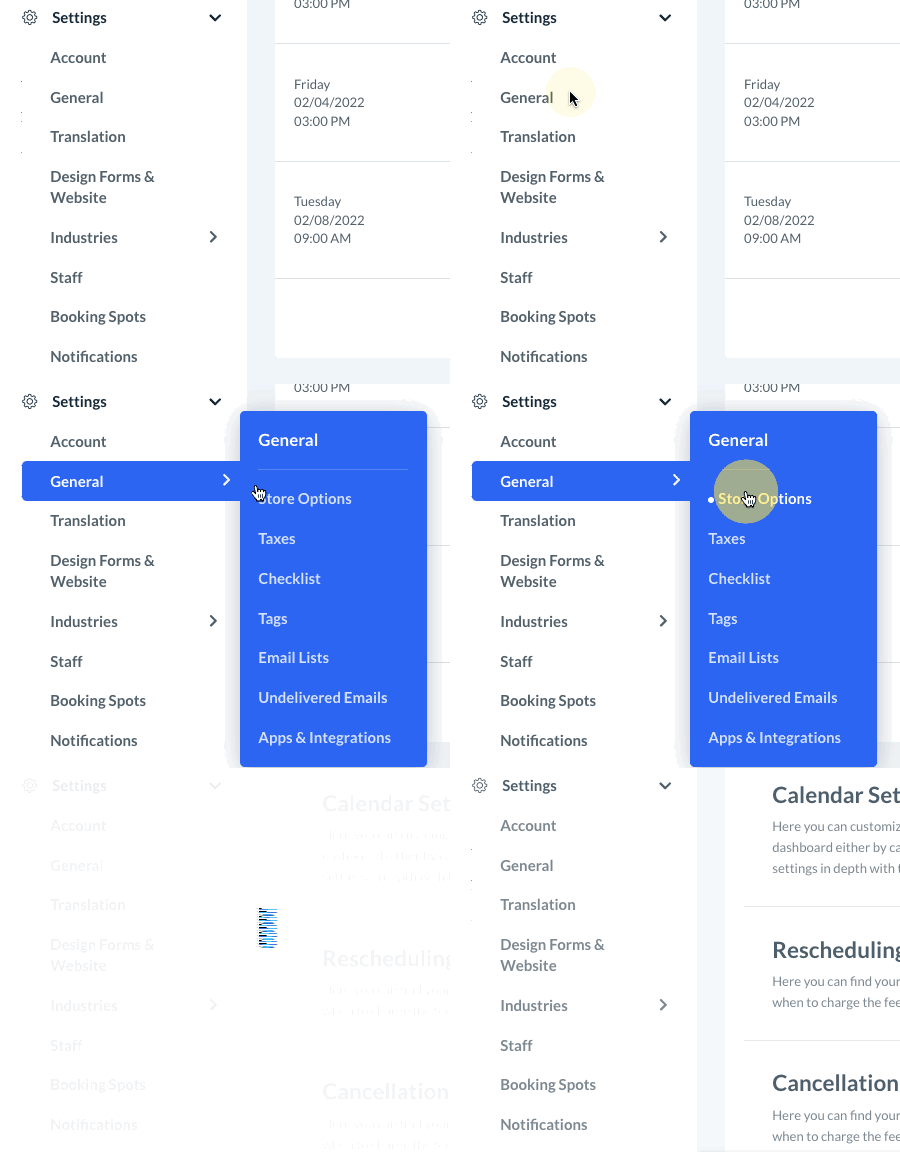
Click the plus sign icon to expand the "Bookings" section.

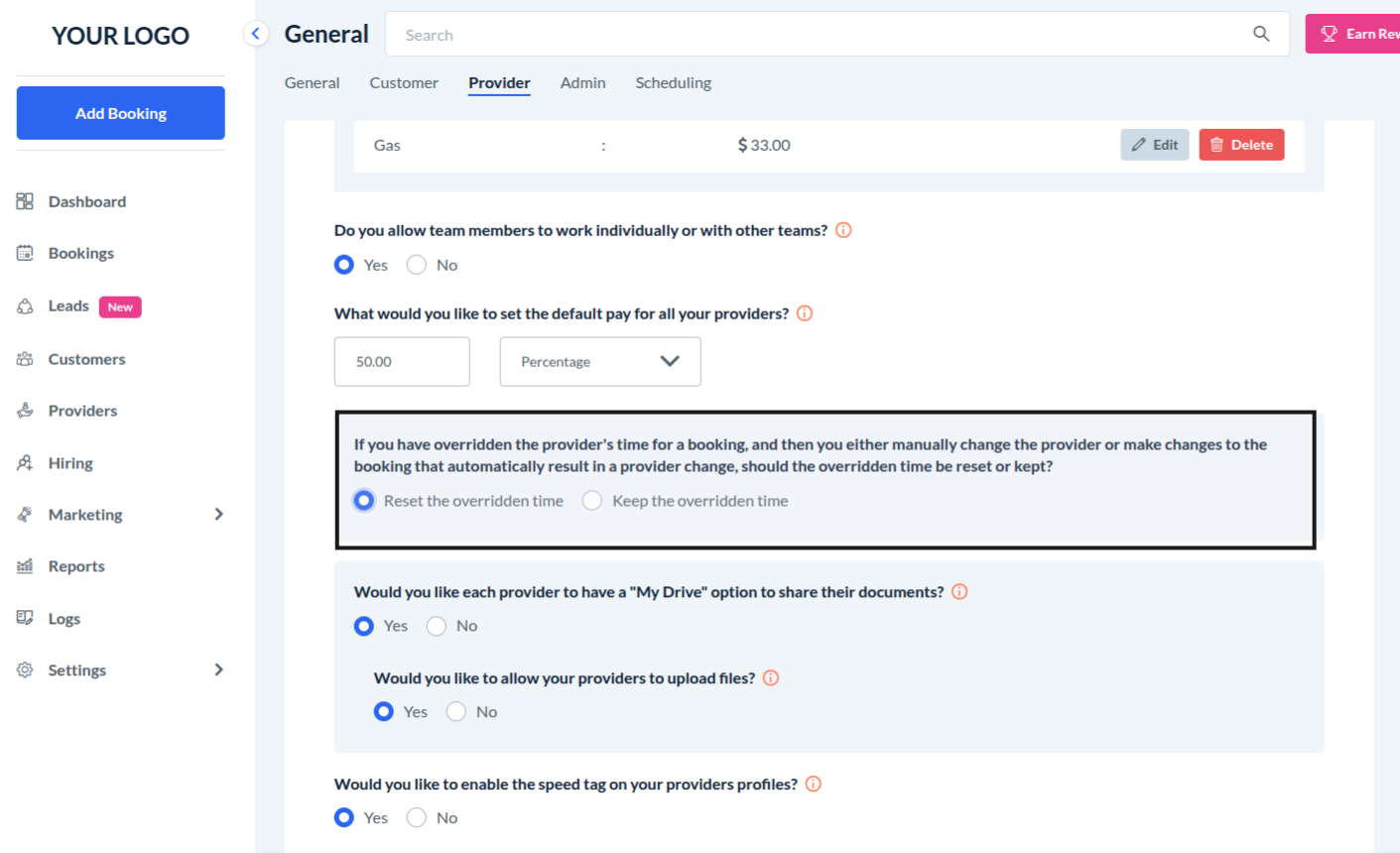
Question 1: Handling Provider Changes (If you have overridden the provider's time for a booking, and then you either manually change the provider or make changes to the booking that automatically result in a provider change, should the overridden time be reset or kept?)
Reset the overridden time: If you manually change the provider, or if an automatic provider change occurs (e.g., a provider accepts or rejects an invitation), you can choose to reset the overridden time. This option ensures that it resets the overridden time and provider's length again pick from the booking.
Keep the overridden time: If you prefer to keep the overridden time even after a provider change; you will need to manage it carefully in subsequent scenarios.
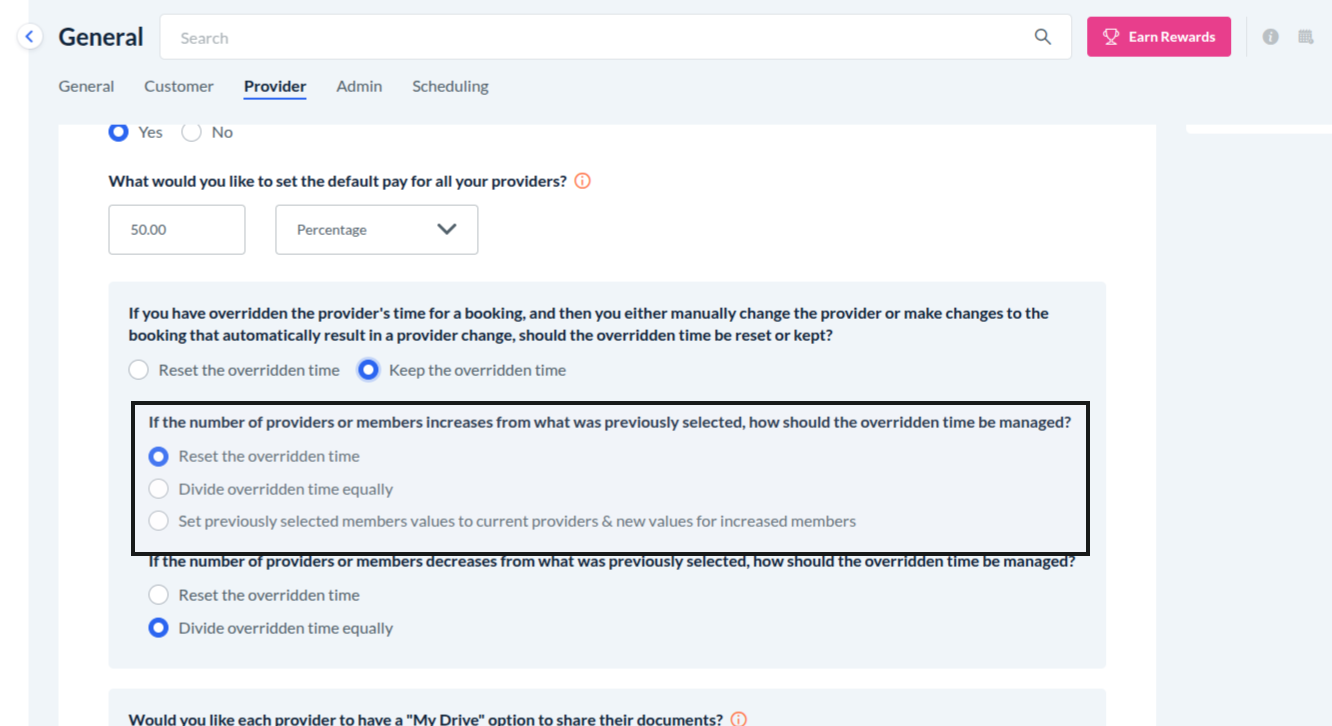
If you select "Keep the overridden time" for the above question, then also consider the following:-
Question 2: Managing Increased Providers (If the number of providers increases from what was previously selected, how should the overridden time be managed?)
Reset the overridden time: When the number of providers increases, resetting the overridden time might be the simplest approach to avoid confusion with the new provider.
Divide overridden time equally: Alternatively, you can divide the overridden time equally among all providers. This ensures a fair distribution of time.
Set previously selected members' values to current providers & new values for increased members: If you want to keep track of previous settings, you can transfer the overridden times to the current providers and set new values for any additional members.
If you choose "Set previously selected members' values to current providers & new values for increased members" for the previous question, then consider the following:-
Question 3: Default Value for Increased Members (What should be the default value for the increased members?)
Zero (0): You can set the default value for new members to zero. This means they won't have any overridden time initially.
Provider length: Alternatively, you can set the default value to the length of the provider's schedule. This ensures new members have a consistent time setting with the current provider schedule.
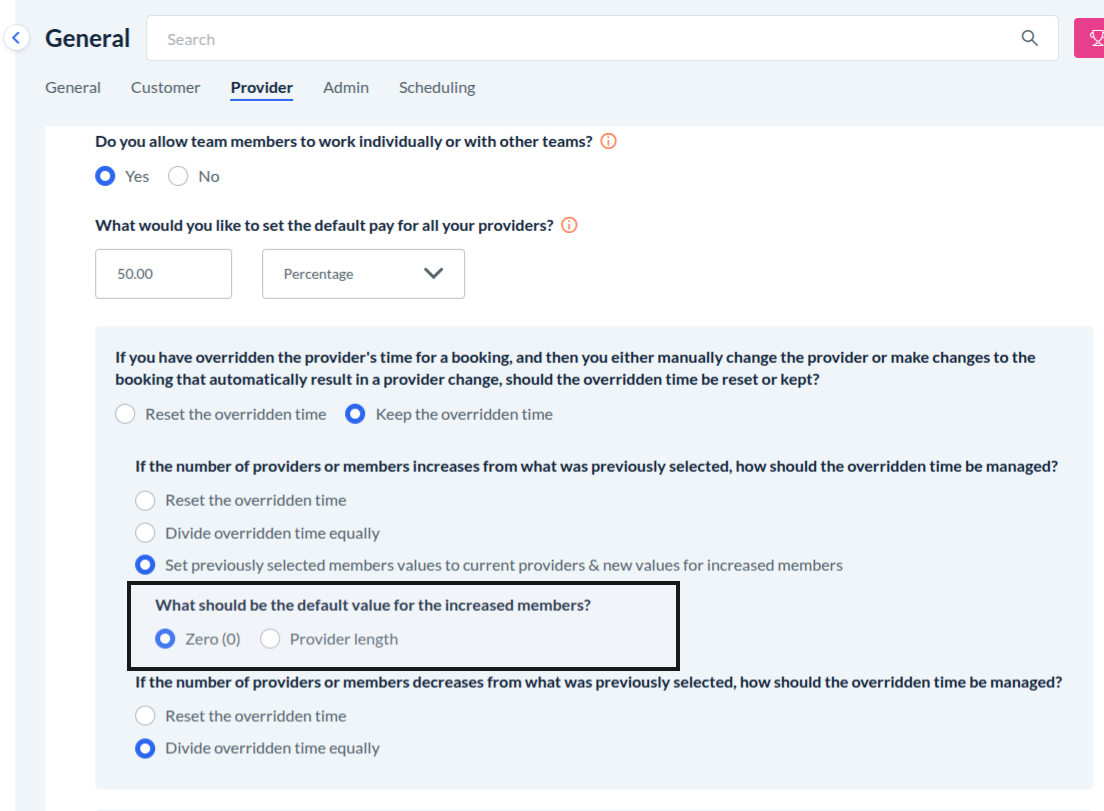
Question 4: Managing Decreased Providers (If the number of providers decreases from what was previously selected, how should the overridden time be managed?)
Reset the overridden time: When the number of providers decreases, you might choose to reset the overridden time to avoid mismatches with the reduced team.
Divide overridden time equally: Another option is to divide the overridden time equally among the remaining providers or members.
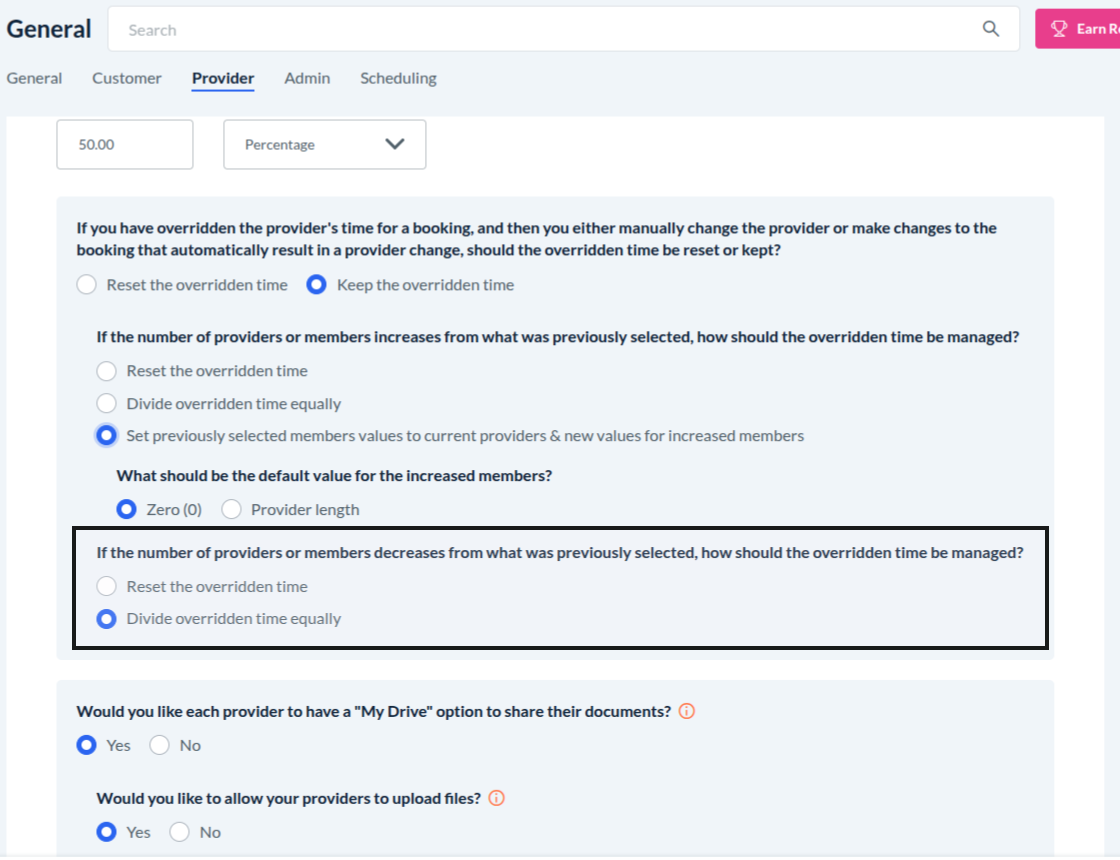
These settings help you adjust when provider assignments or team sizes change. They make sure time settings stay accurate. Choose the options that work best for your team and how you operate.
TimeLog: Enhanced Time Update Options
Currently, when a booking is completed and the merchant updates the time via TimeLog, the updated time is automatically applied to the provider(s). To offer more flexibility, we've introduced new features that give merchants the freedom to control how time updates are applied to providers. Now, the merchant can decide whether the time update should affect the provider(s) or not and even assign separate times for different providers.
To approve the booking time logs, go to:
Bookings->Booking Time Logs
Scroll to the right of the row until you see a grey "Pending" button below the "Status" column. You will see this drop-down menu with options for approving the time log once the job has been completed.
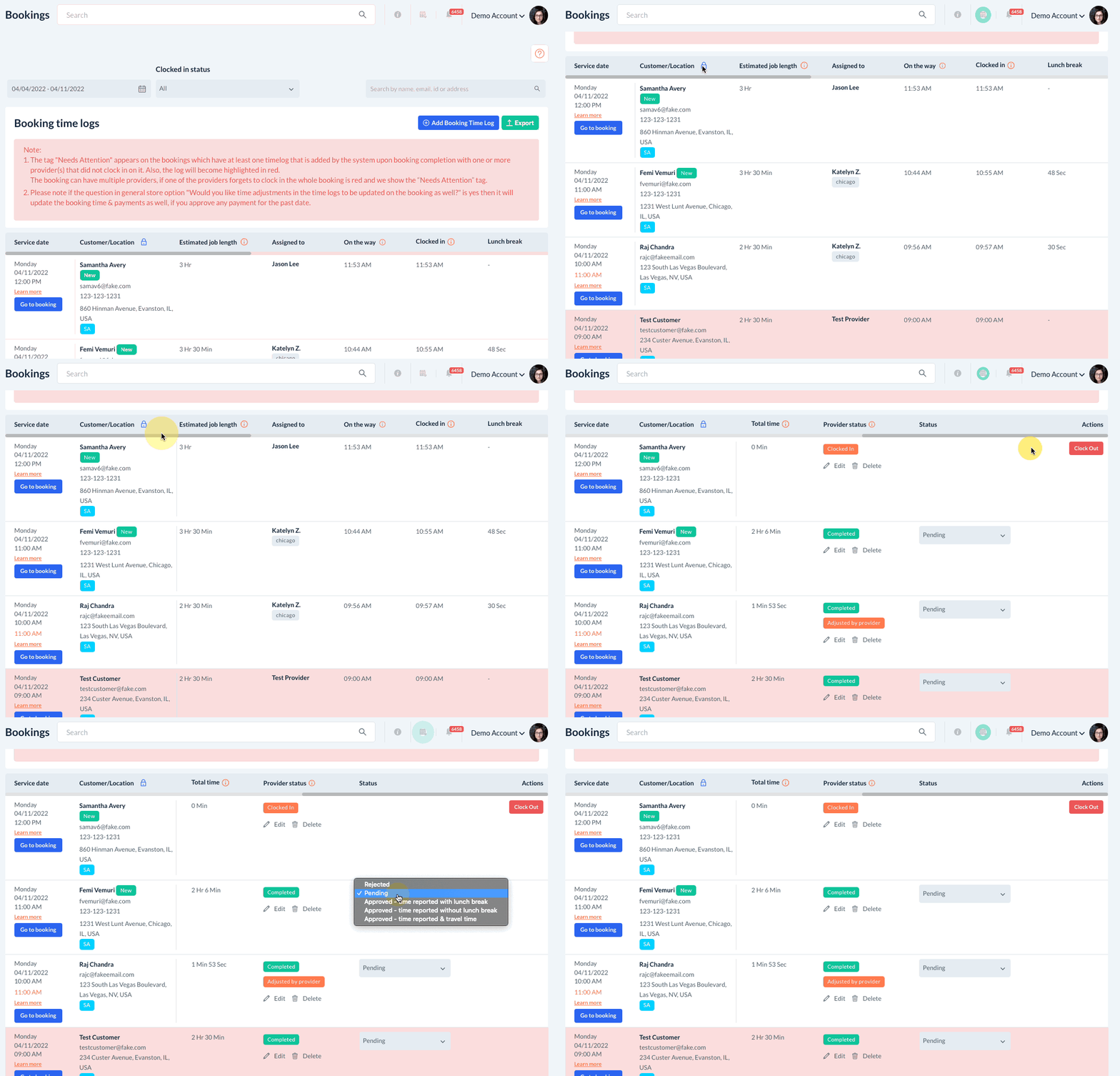
A confirmation pop-up will appear, asking
Question: Would you like to override the provider's time with the updated time on booking?
Yes: Choosing "Yes" will apply the updated time from the TimeLog to the provider(s). This means that the provider's time will be adjusted to reflect the new time as per the update.
No: Selecting "No" will leave the provider’s time unchanged, even if there is an updated time in the TimeLog. This option allows you to keep the existing time for the provider(s) without any modifications.
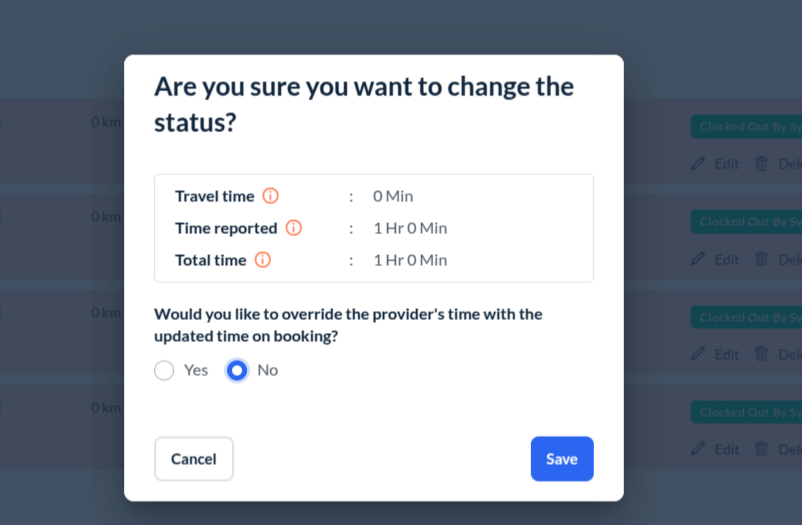
This feature enables you to customize how time updates are handled, providing you with the flexibility to ensure that time adjustments align with your specific operational needs.
For any further assistance, please feel free to contact our support team.