

The purpose of this article is to help you understand:
How provider can sign up on their own
How the admin can oversee and control the provider sign-up process
Provider Sign-Up Overview
The provider sign-up process is tailored to your business needs, with full flexibility for both providers and admin.
1. Merchant Settings:
1.1. Allow Providers to Sign Up Independently
The admin has the option to enable or disable sign-ups for providers.
The "Can providers sign up for an account on their own?" option should be set to "Yes" in order to permit provider sign-ups.

If set to “No”, then as usual, only the admin can add the providers.
1.2. Decide the Level of Access for Provider Sign-Up
Once provider sign-up is enabled, the admin can determine “What kind of access would you like to give for provider signup?” i.e. what happens after a provider submits their details:

Give full access:
Like any other active provider, the provider is automatically added to the system and has instant access to the platform.
Need approval of admin:
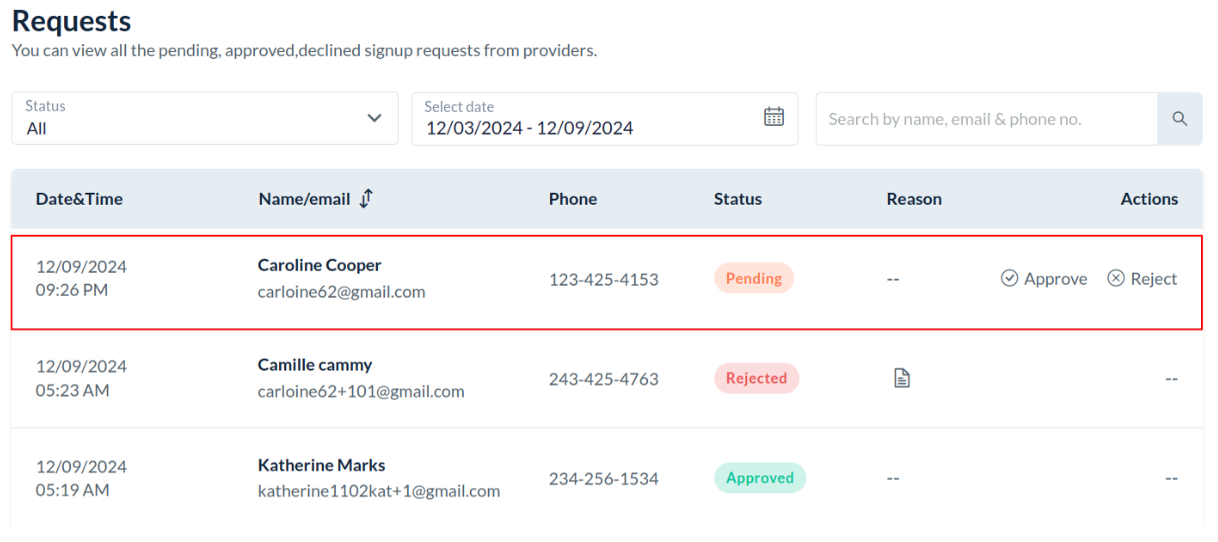
The provider's request to sign up won't be accepted right away. Rather, the sign-up request needs to be reviewed, approved, or denied by the admin.
1.3. Control the Hiring Module Access
Whether to add the recently signed up provider to the Hiring Module right away is up to the admin, irrespective of the access the provider will have on sign up.
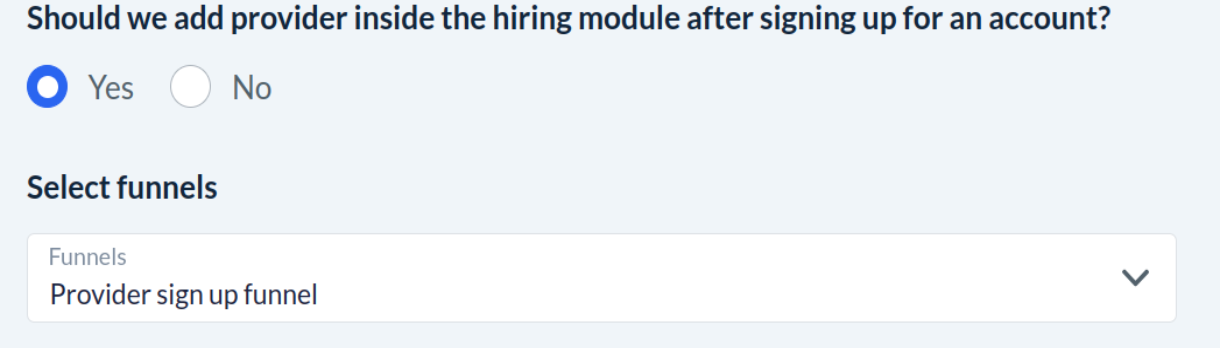
If “Should we add a provider inside the hiring module after signing up for an account?” is “Yes”, the admin can select the funnel where the provider will be placed after signing up.
If the admin does not have any setup for hiring, i.e. the admin has never used hiring before. Then the admin first needs to check hiring,and then select the funnel in which the provider is to be added on sign up.

2. Steps for the Provider Signup:
2.1. Fill Out the Provider Sign-Up Form
Providers will need to select the provider radio button to begin their sign-up.
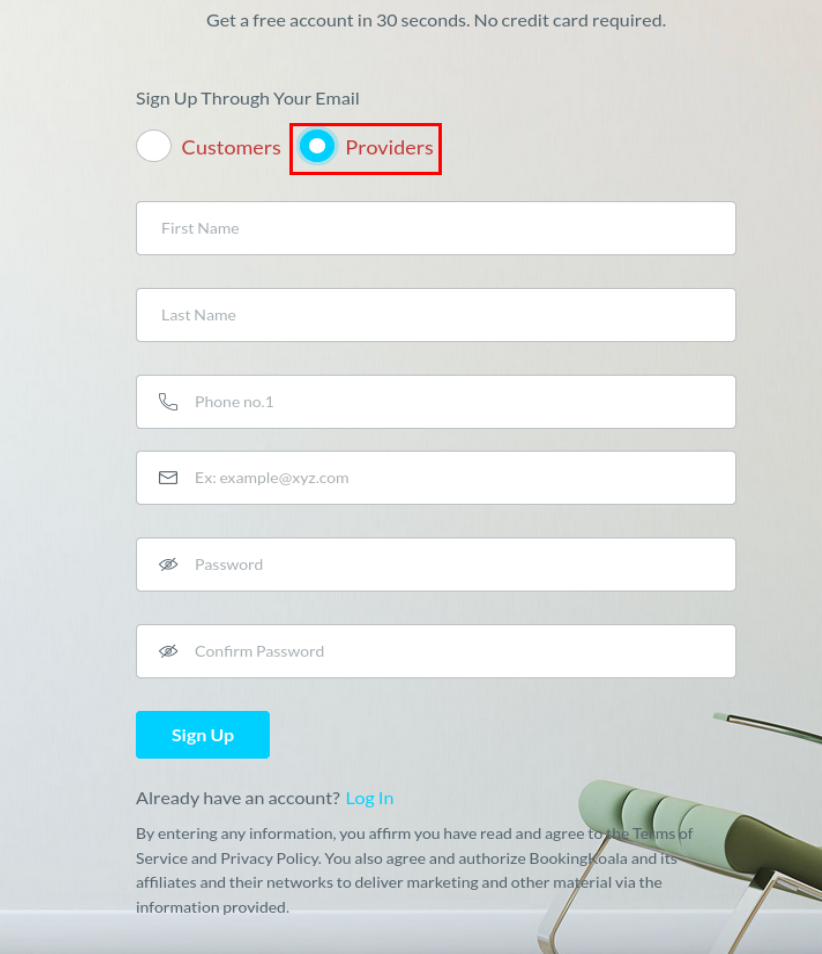
They will fill in their required details, such as name, contact information, and any other necessary fields.
2.2. Verify Email
After submitting their details, the provider will receive an email verification link.
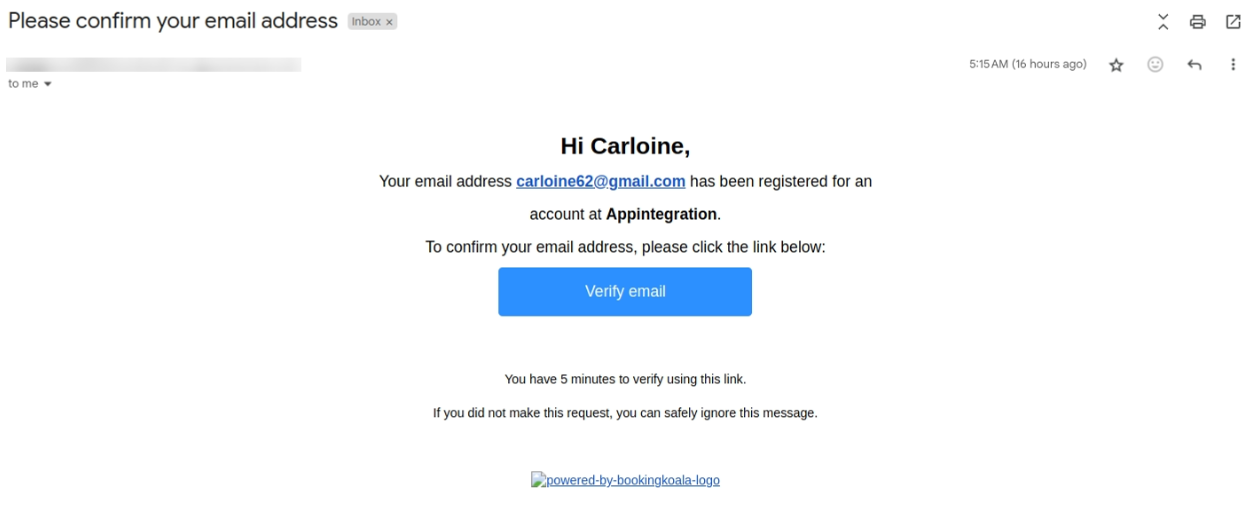
They must click on the "Verify Email" button to confirm their email address.
2.3. Login
Upon email verification, the provider will be directed to the login page to enter their username and password.
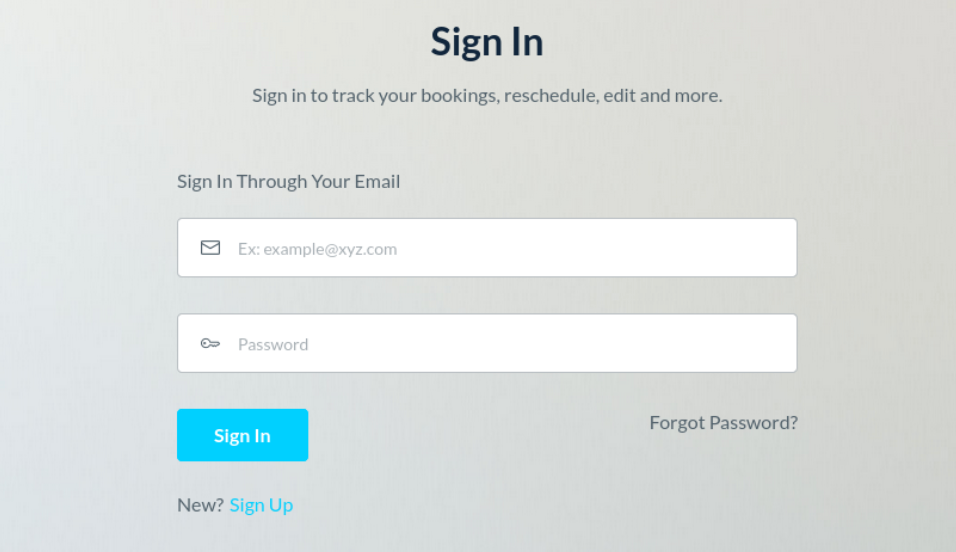
Then click on sign up.
If “Can providers sign up for an account on their own?” is set to “Yes” then the new provider will be created and simply logged into their account, i.e. the provider will have immediate access to their account.
Otherwise, proceed to the next step.
2.4. Review provider sign-up request (if applicable)
The admin is required to review provider sign-up requests, under the Providers > Sign-up Request, where the admin will get the listing of all the provider sign-up requests.
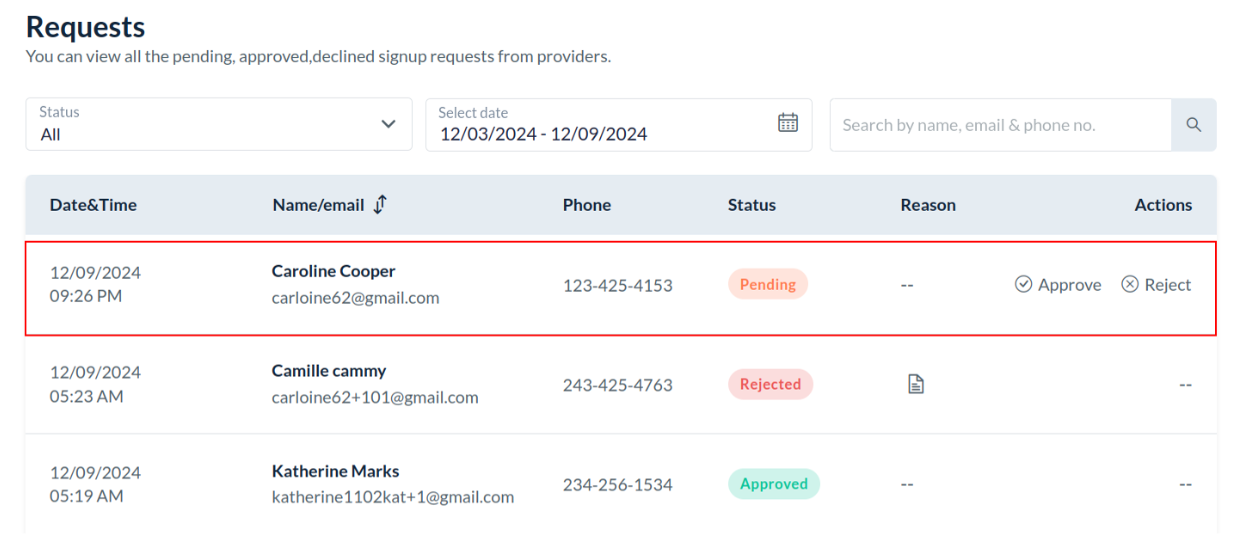
2.4.1. Admin Actions for Provider Sign-Up Requests
Approve provider sign-up request
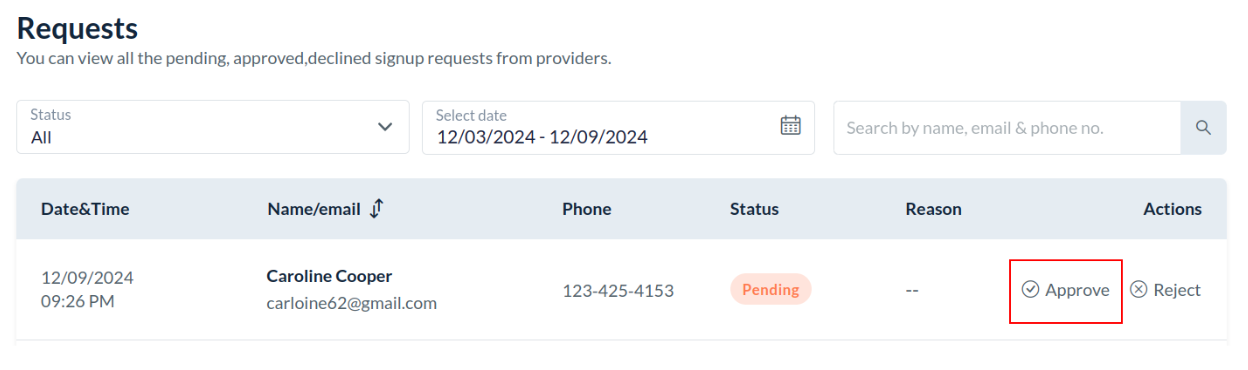
The admin can approve the sign-up request by simply clicking on the approve button.
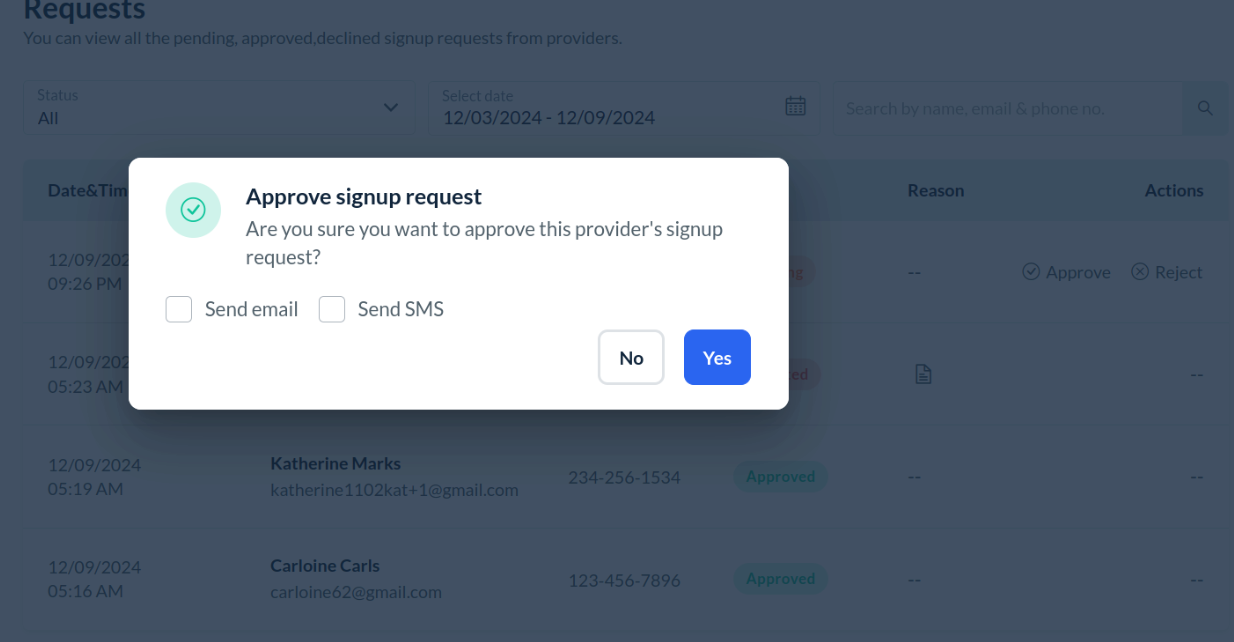
A confirmation prompt will appear, and once confirmed, the provider is added to the system as an active provider.
Reject provider sign-up request
The admin can also reject the provider sign-up request by simply clicking on the decline, in the provider sign-up requests.
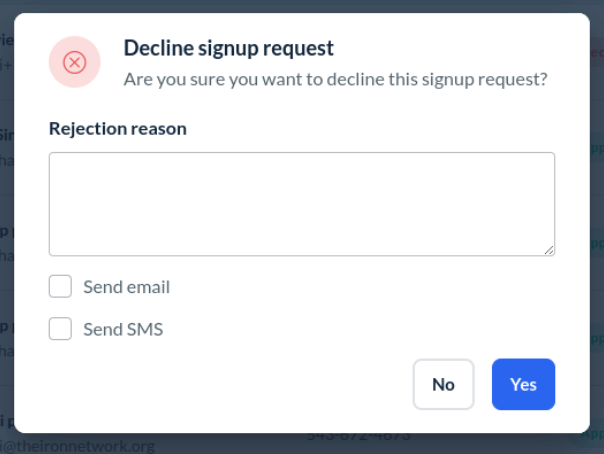
Admin can provide a rejection reason for future reference, and choose whether to notify the provider via email or SMS.
3. Signed up provider under the hiring module:
If “Should we add a provider inside the hiring module after signing up for an account?” is set to “Yes”, then the signed up provider will be added into hiring as a prospect, into the funnel selected for provider sign up.
Click here to learn more about the Hiring Module.
Note: The funnel selected for provider sign-up cannot be deleted or archived until the admin changes it in the store options.
4. Staff Permissions:
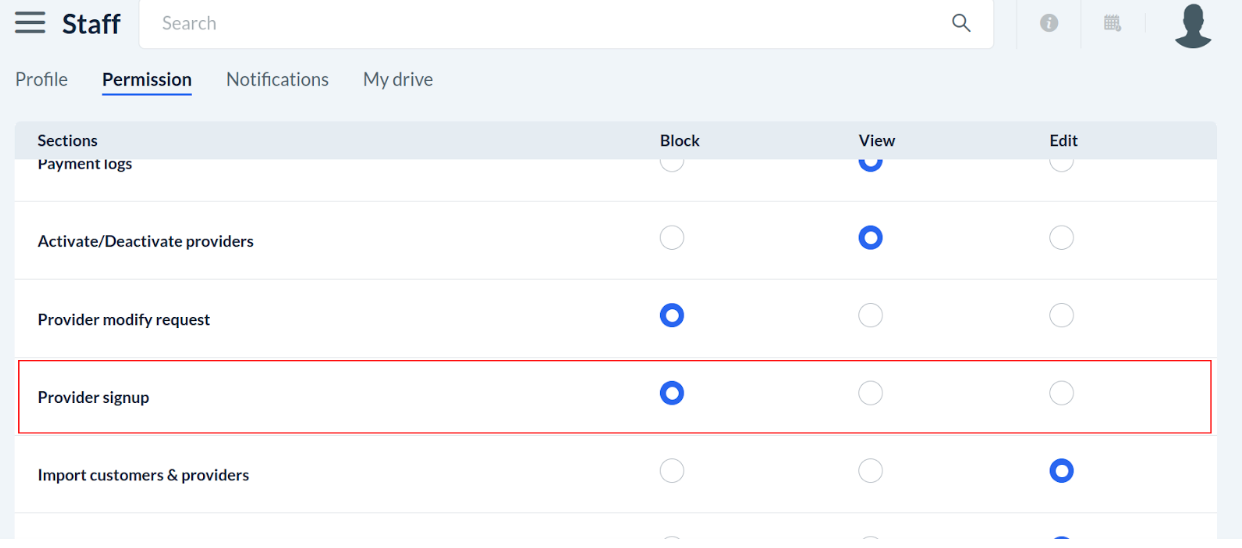
The admin can select whether the staff member can :
Edit Access: Staff can approve or reject provider sign-ups.
View Access: Staff can view the list of provider sign-up requests but cannot take action.
Blocked Access: Staff cannot access the provider sign-up requests.
These permission settings ensure that only authorized staff have the ability to review and approve provider sign-ups.
5. Website Builder & Themes
You can design your sign-up form with the help of the website builder & themes section.
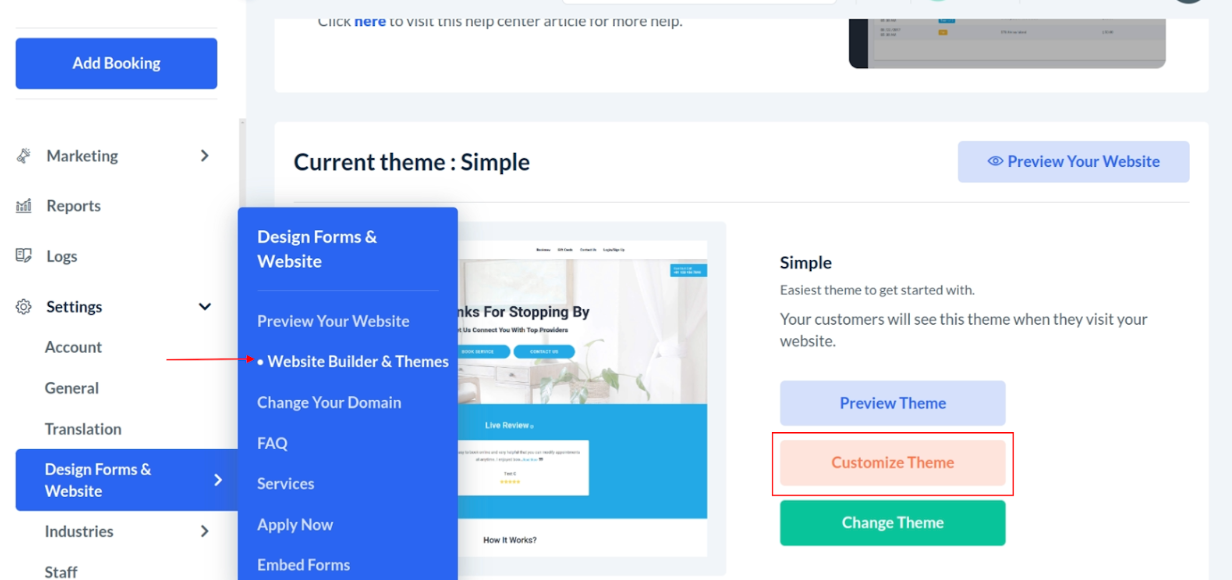
Simply go to Settings > Design Forms & Website > Website Builder & Themes > Customize Theme.
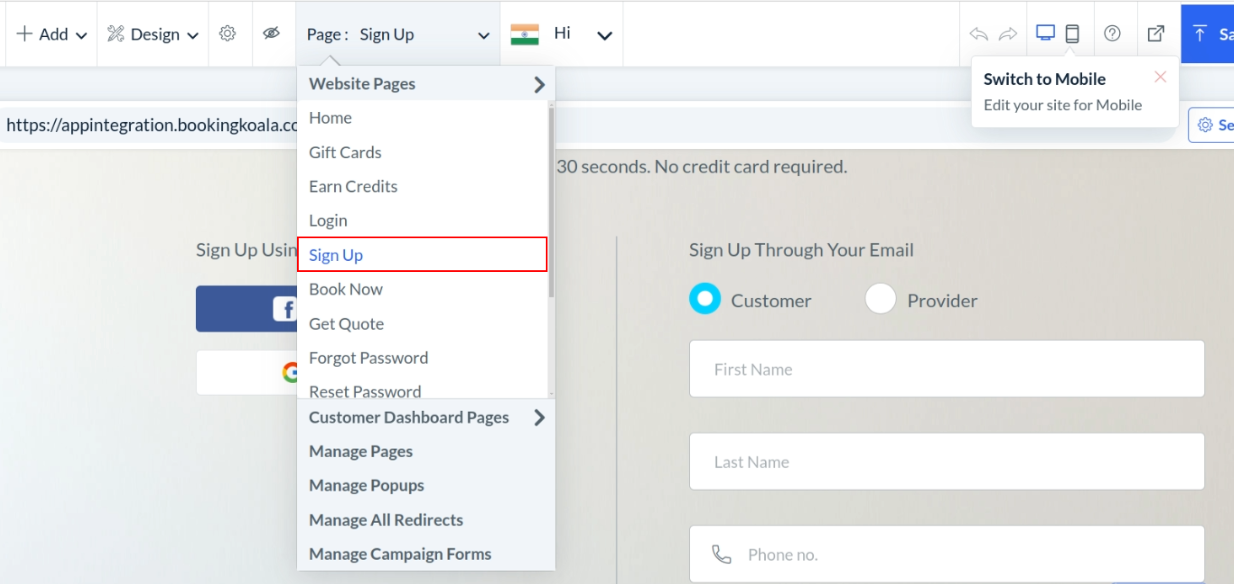
Here, select the Sign Up page and you can design your own sign-up page.
6. Notifications
6.1. Email Notifications
6.1.1. Admin Emails
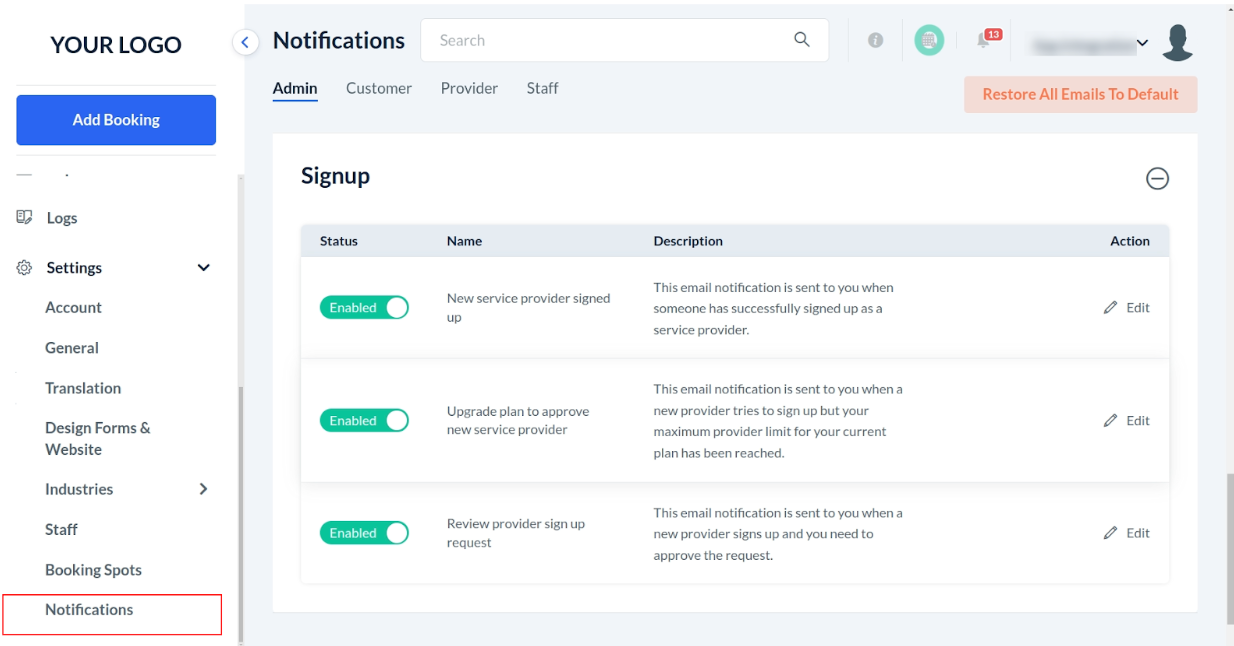
Admin can get the emails regarding:
Whenever a provider is directly signed up into the system.
When the provider tries to sign up, the active provider as per plan permissions has been reached.
When there is a new provider sign-up request.
These notifications can be accessed from Settings > Notifications > Emails > Admin > Signup.
6.1.2. Provider Emails
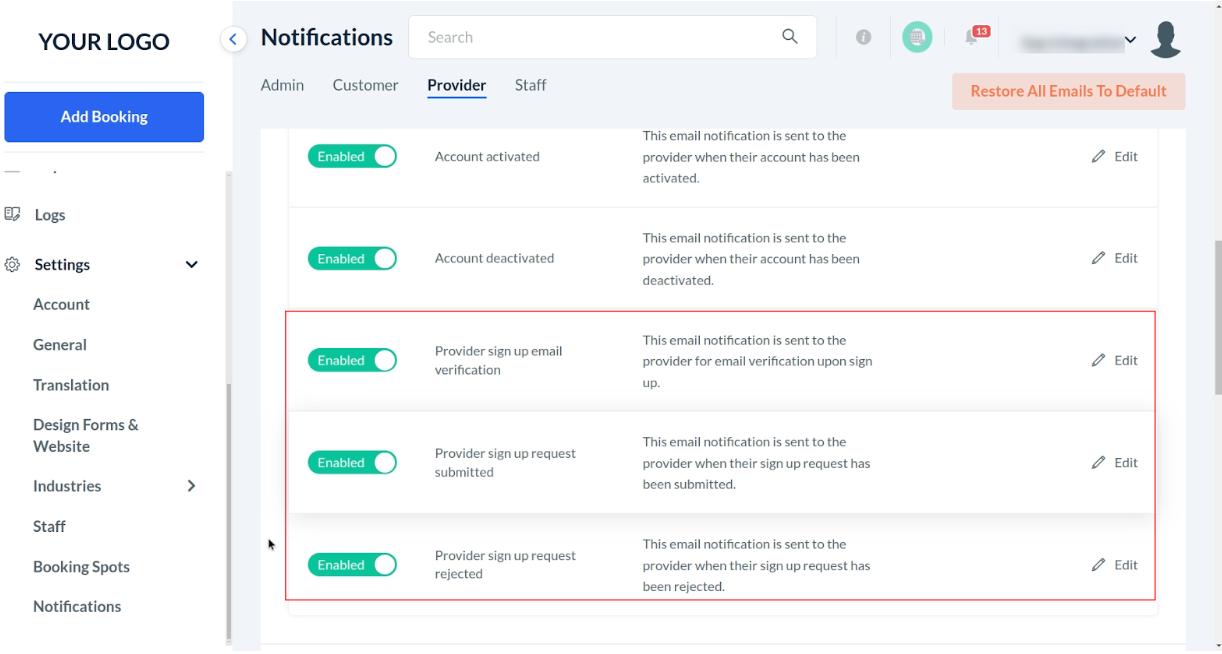
The following emails can also be sent to the signing-up provider:
Provider’s email verification.
Provider’s sign-up request has been submitted and awaits admin’s approval.
Provider’s sign-up request has been rejected.
These notifications are accessible from Settings > Notifications > Emails > Provider > Account.
6.2. Sms Notifications
6.2.1. Admin Sms
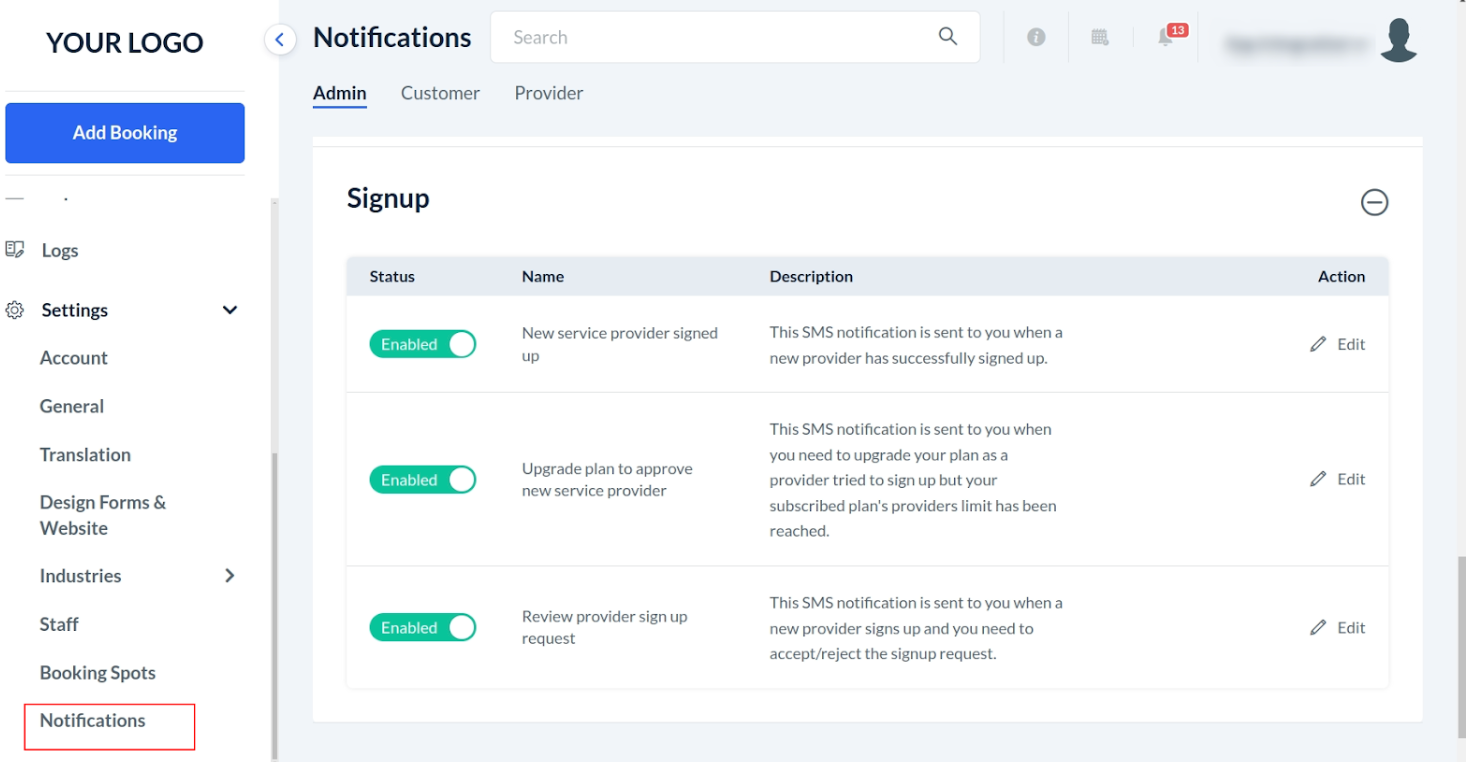
Admin can get the SMS regarding:
Whenever a provider is directly signed up into the system.
When the provider tries to sign up, active providers as per plan permissions have been reached.
When there is a new provider sign-up request.
These notifications can be accessed from Settings > Notifications > SMS > Admin > Signup.
6.2.2. Provider SMS
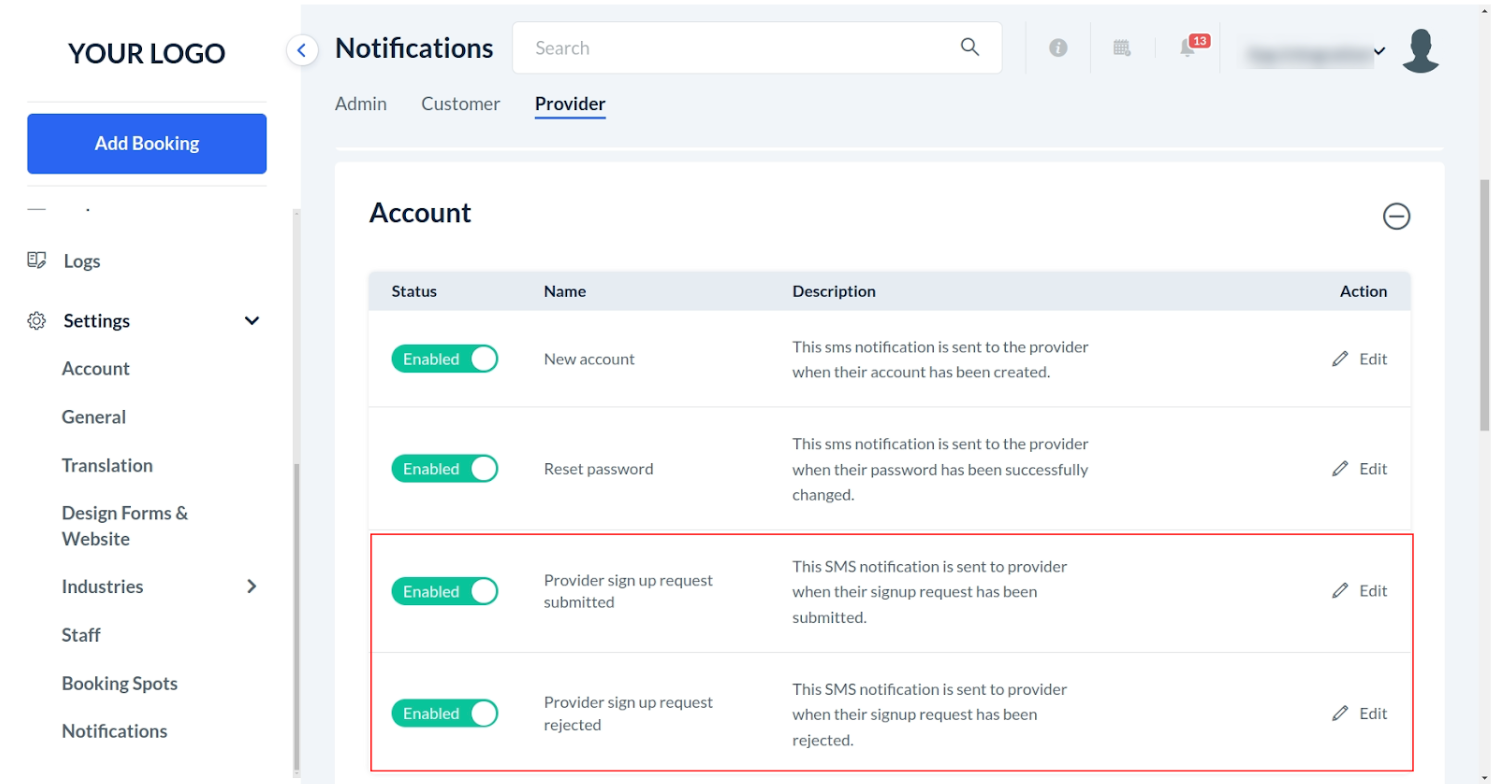
The following SMS can also be sent to the signing-up provider:
Provider’s sign-up request has been submitted and awaits admin’s approval.
Provider’s sign-up request has been rejected.
These notifications can be accessed from Settings > Notifications > SMS > Provider > Account.
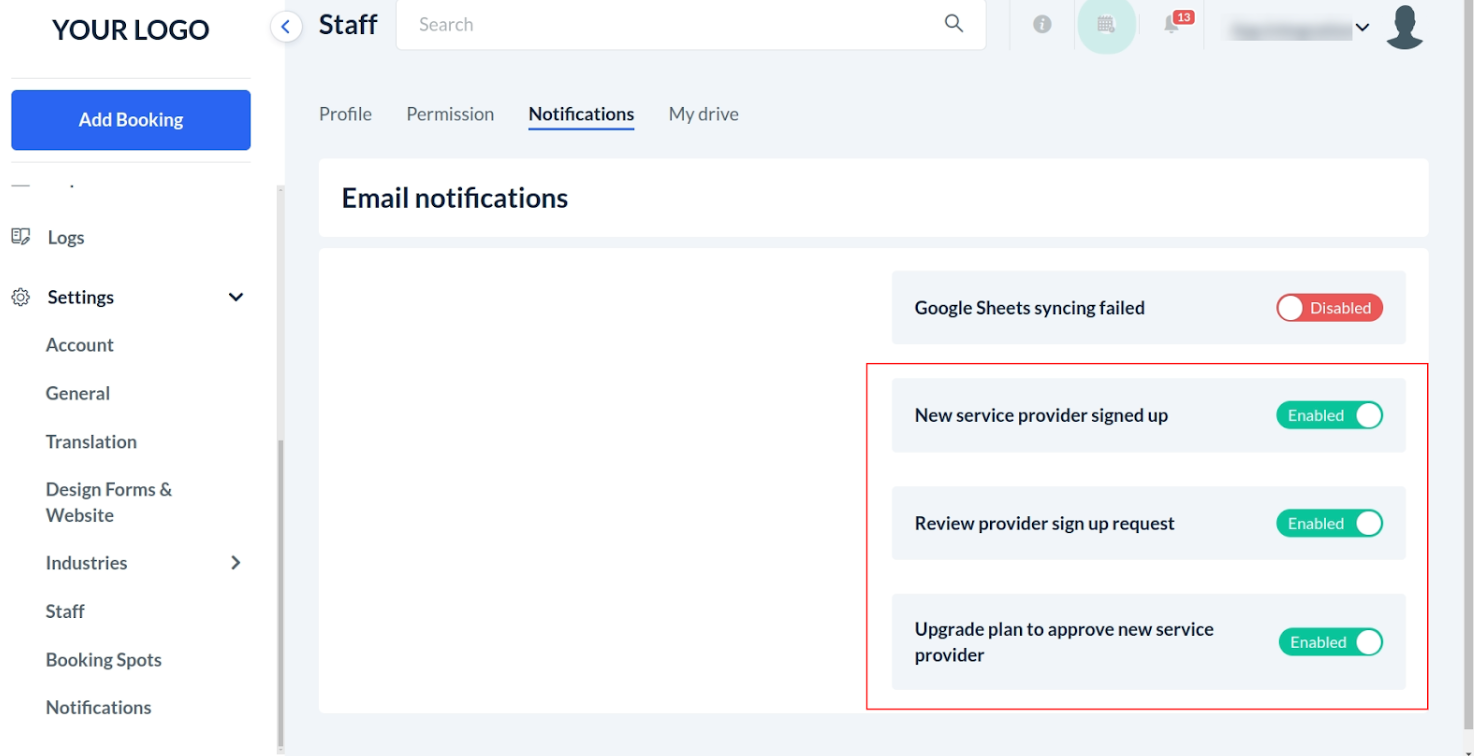
6.3. Staff Notifications
Admin can select whether the following email notifications should be sent to the particular staff member or not:
Whenever a provider is directly signed up into the system.
When the provider tries to sign up, active providers as per plan permissions have been reached.
When there is a new provider sign up request.
These notifications are accessible from Settings > Staff > Staff Members > [particular staff member’s profile] > Notifications.
In Summary
With the Provider Sign-Up feature, you have the flexibility to streamline the sign-up process for providers while maintaining the necessary admin oversight. Whether you choose to allow providers to sign up independently or require approval, the system gives you full control to manage your provider network efficiently.
For any further assistance, please feel free to contact our support team at [email protected].