

Overview
With this new feature, you can edit details on a paid custom invoice directly from your dashboard without needing to issue a new invoice. Whether it’s correcting line items, enhancing the customizations, updating the invoice summary, and many more—this feature gives you the flexibility to keep your financial records accurate and professional, even after payment has been completed.
This enhancement is designed to streamline post-payment adjustments, reduce friction in your invoicing process, and give you more control over your business documentation.
Edit Paid Custom Invoice
To edit the paid custom invoice, please visit Bookings > Booking Charges > Invoices
Click on the "View" button to edit the paid custom invoice.

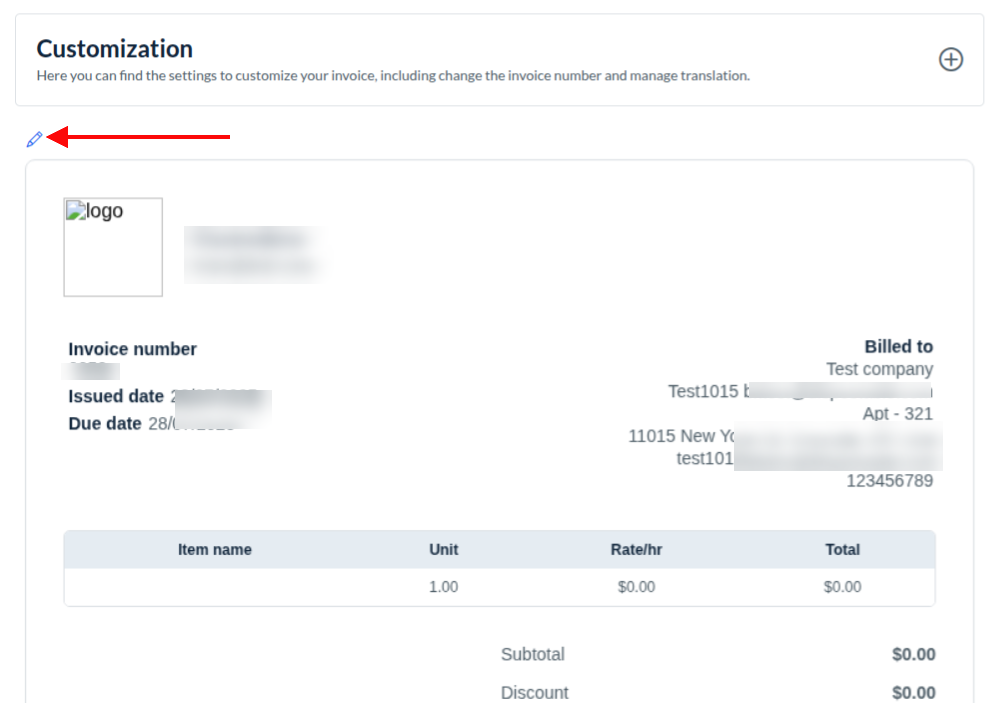
Click on the pencil icon if you want to edit your paid invoice. Once you click on the button, your invoice will be editable. As soon as you make the changes, you can save them changes by clicking on the Save & continue button.
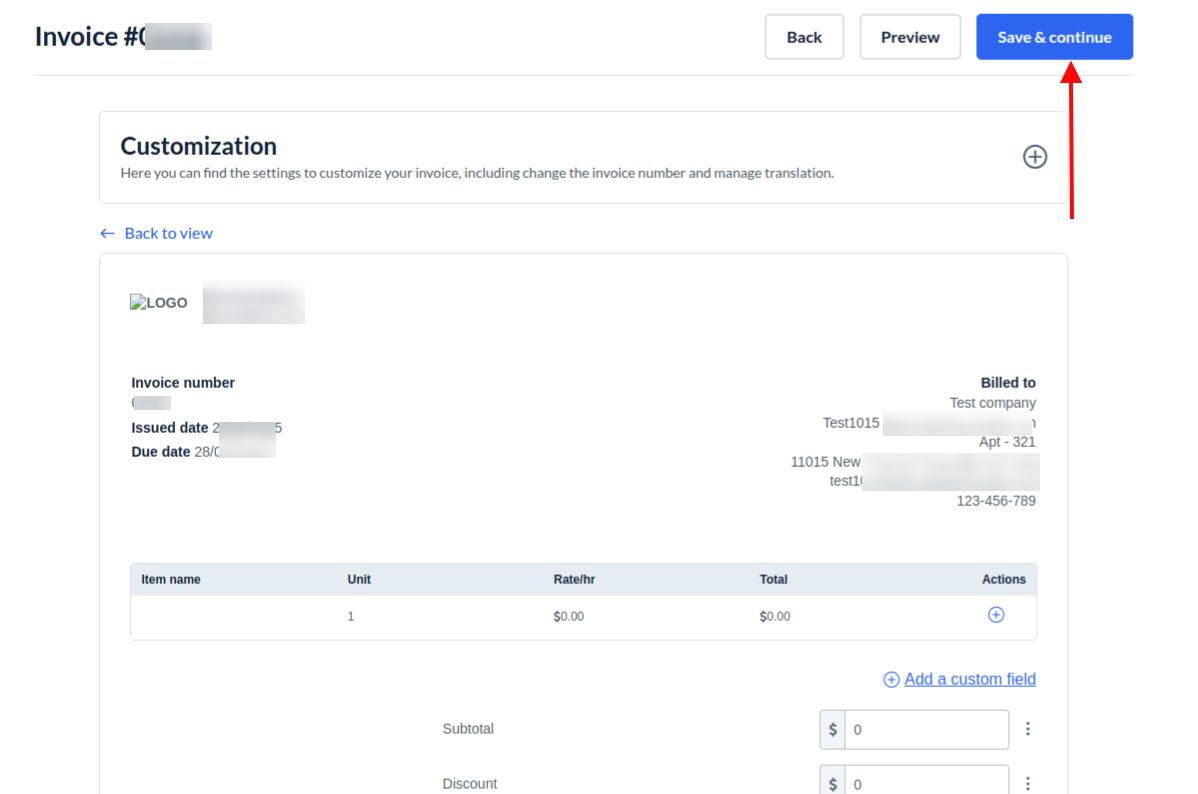
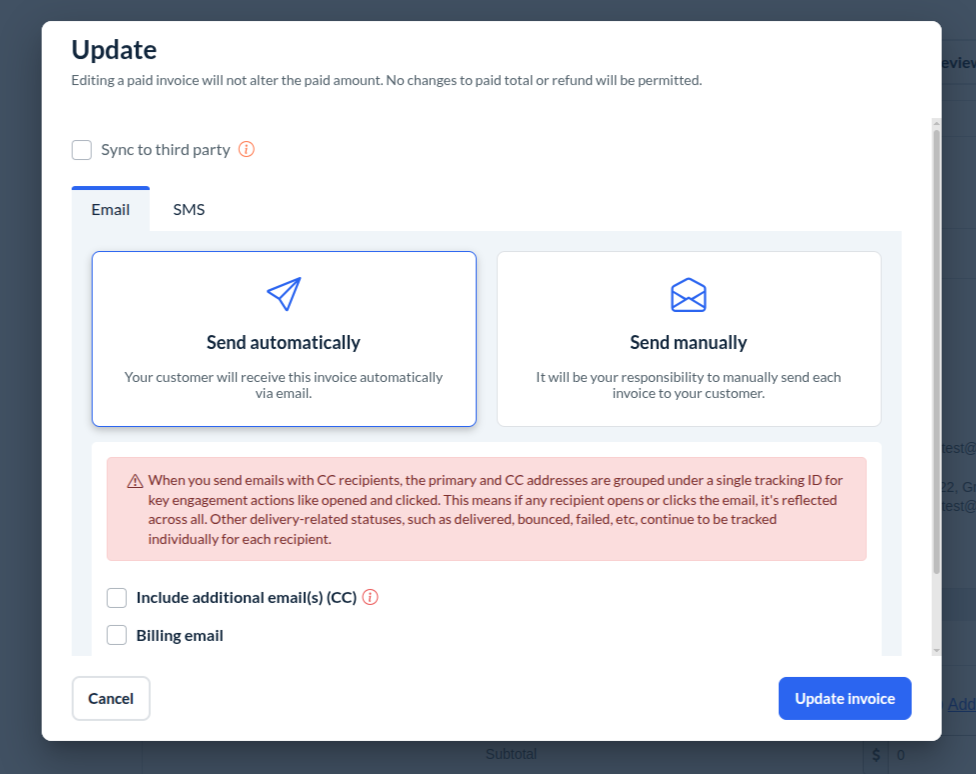
If any changes were made, a pop-up will be initiated on Save & continue, which gives you flexibility to select whether you want to send a notification to the customer or not.
Similarly, if you want your changes to be synced with a third party, then check the checkbox "Sync to third party" given on the popup.
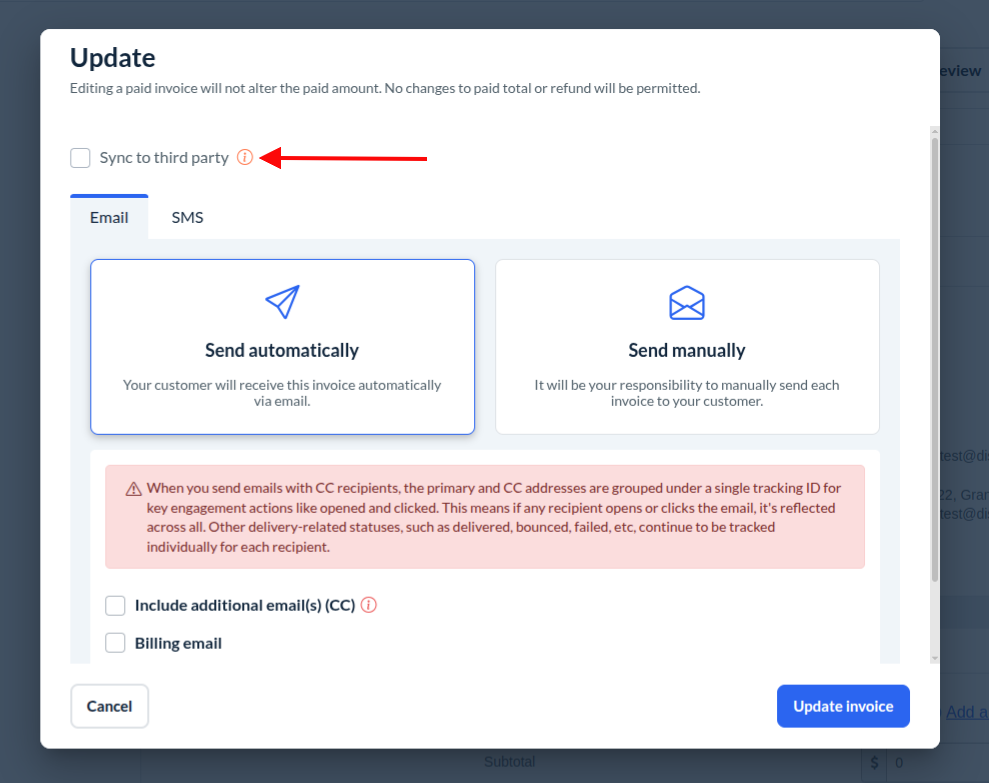
Finally, by clicking the "Update Invoice" button, you will be able to update your paid invoice.