

In this article, you will learn more about:
How to hide job length via the service category
How to hide job length via the Website & Theme Builder
Hide Job Length: Editing Your Service Categories
There are two ways to hide the job length from your customers or providers. The first is in your service categories. Service categories allow you to show or hide the estimated job length from the customers and providers, giving you the option to customize this per service type. To edit your service categories, go to:
Settings > Industries > [Industry Name] > Form [#] > Service Categories
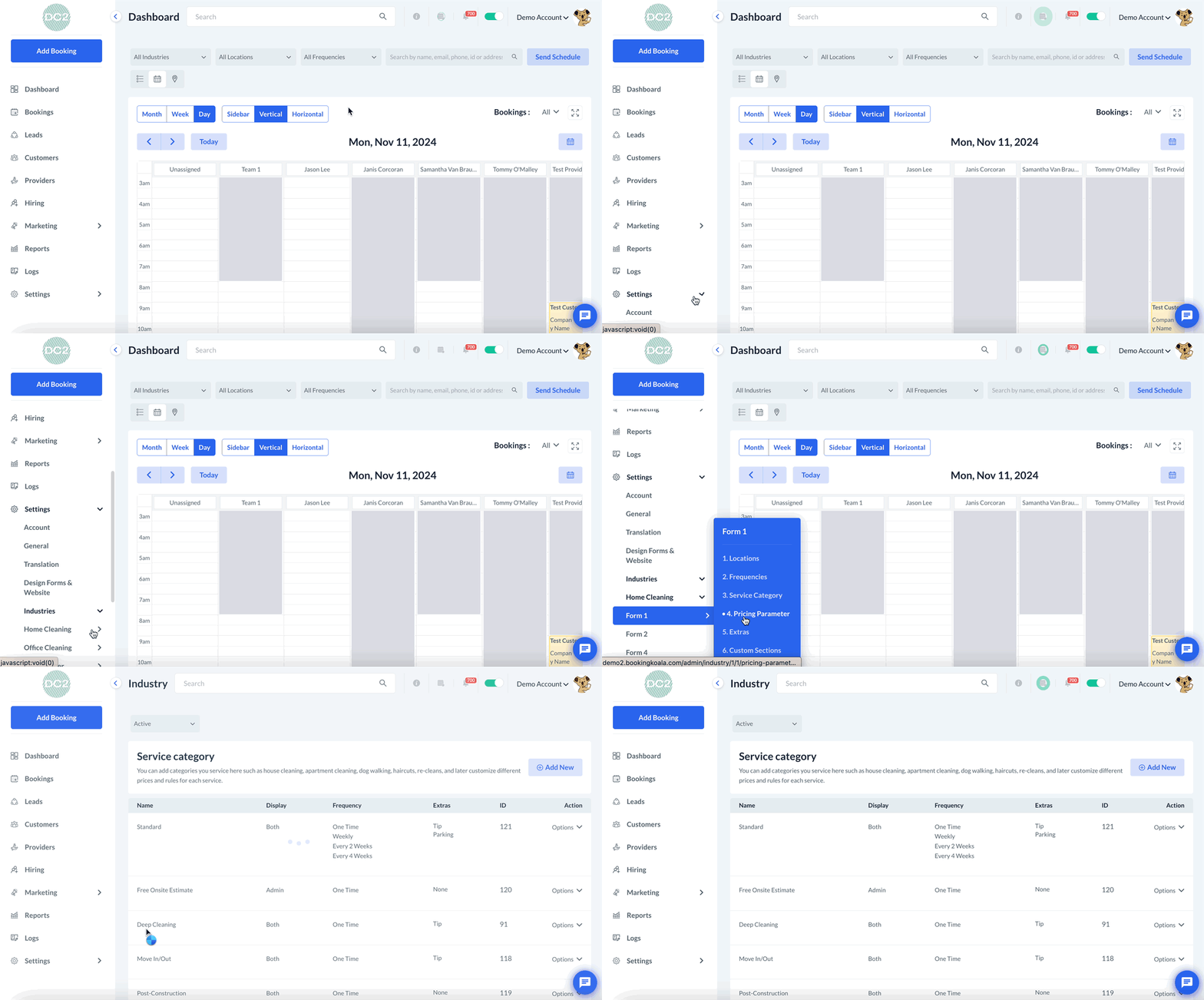
Under the Action column, click Options, then Edit.
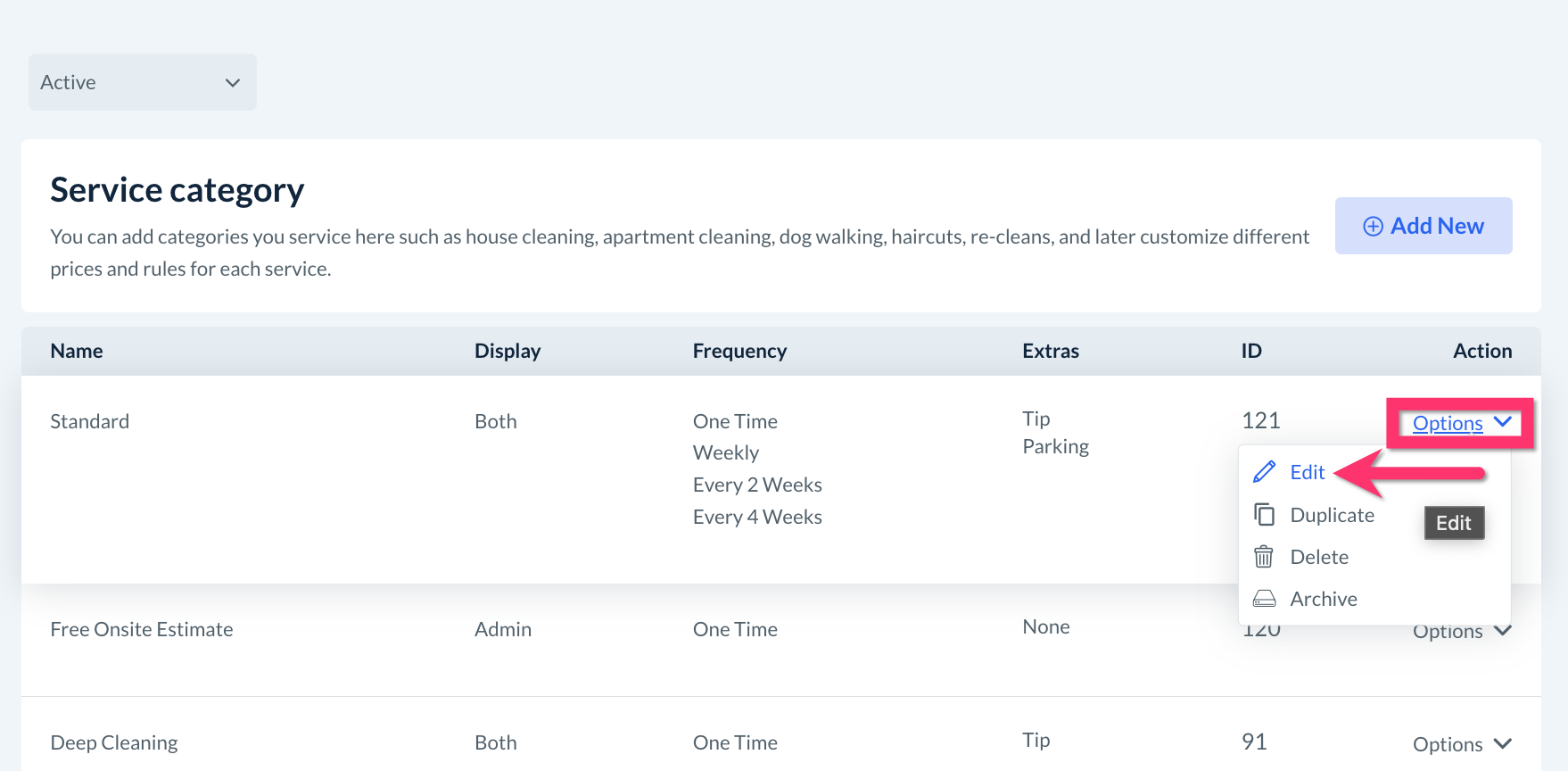
Scroll down the page until you reach where it says "Display service length on customer end". There are three possible options for this setting:
Customer frontend, backend, & admin - New customers, returning customers, and admin/staff will be able to see the service length
Customer backend & admin - Only returning customers and admin/staff will be able to see service length
Admin only - Only the admin and staff can see the estimated service length
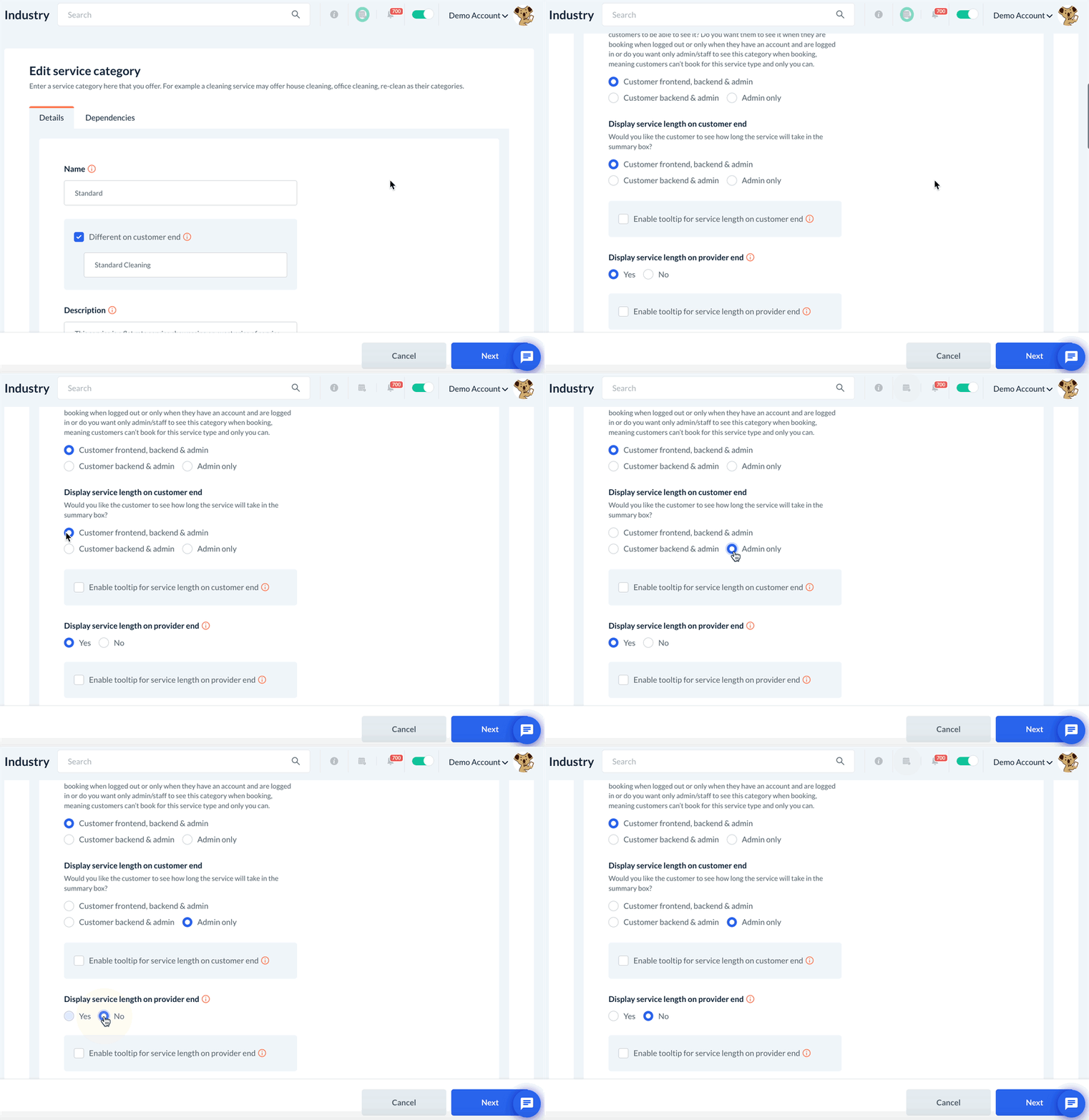
Just below this setting, you will see the option "Display service length on provider end". If you select Yes, providers will be able to see the estimated service length for this service category. If you select No, the service length as well as the service length label will be hidden.
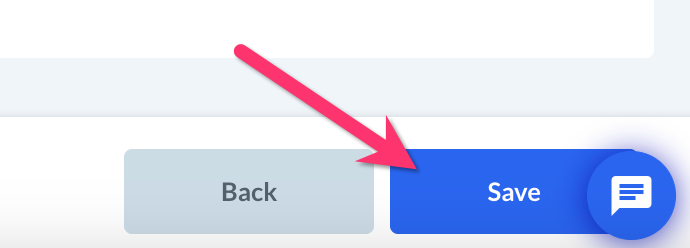
If you make any changes, be sure to click the "Next" button until you reach the final page, then click "Save" to update your service category.
Hide Job Length: Updating the Website & Theme Builder
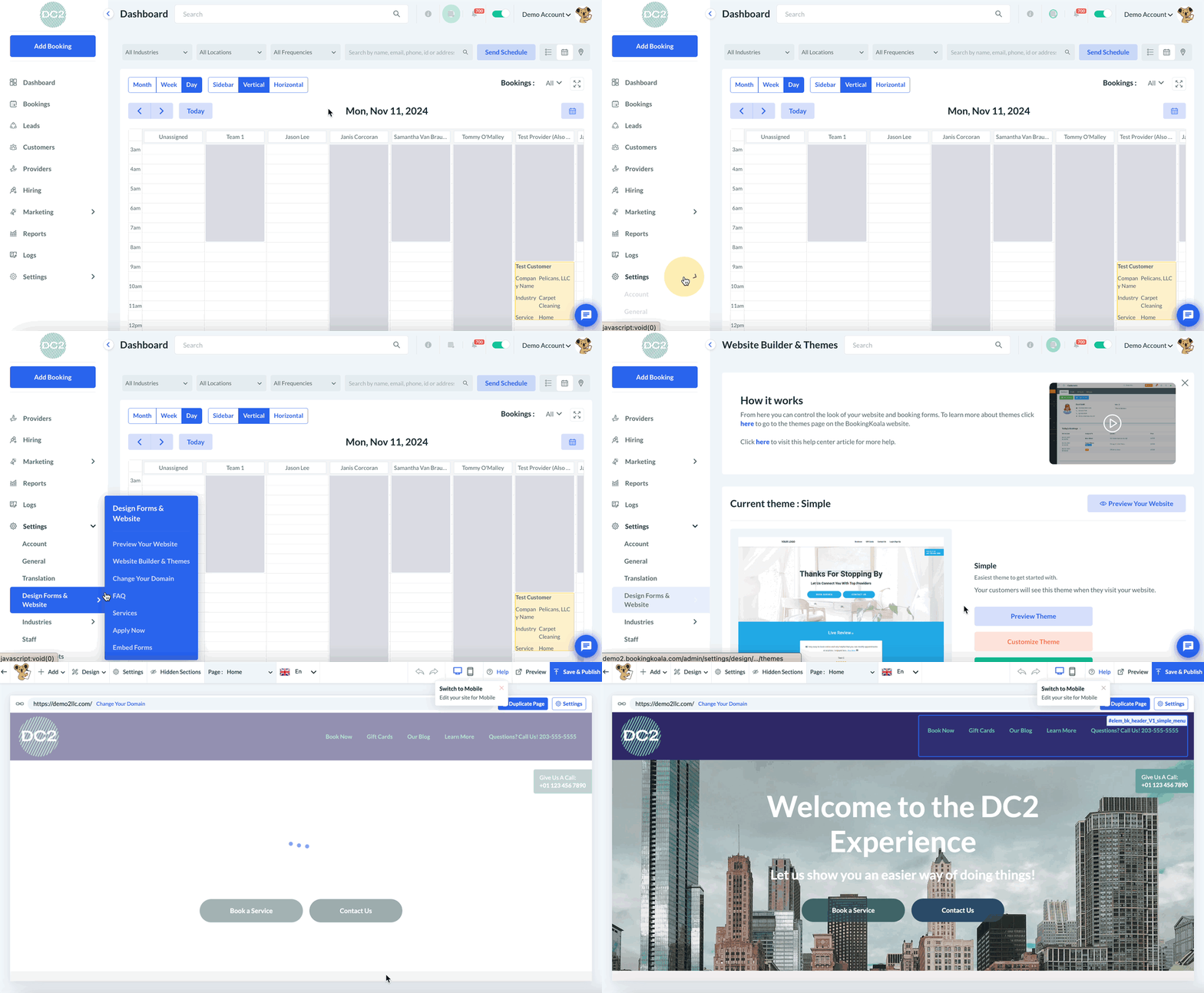
The other way to hide the job length from your customers and providers is to update the job length visibility settings via the Website & Theme Builder. The Website & Theme Builder controls many visual aspects of your booking form, including the ability to show or hide job length from providers, customers, and admin/staff. To see these options, go to:
Settings > Design Forms & Website > Website Builder & Themes
Click on the "Customize Theme" button.
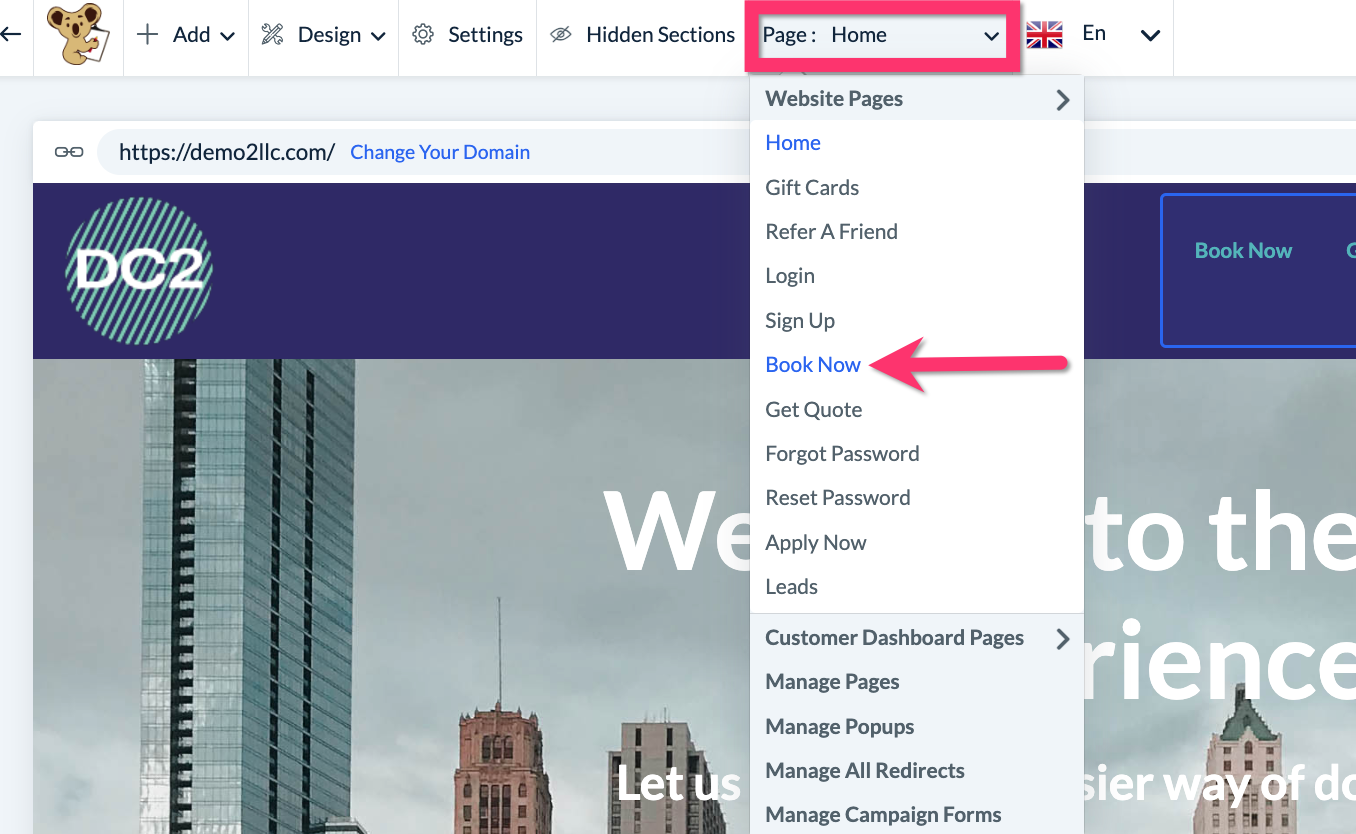
Next, click on the top center Page menu and navigate to the Book Now page (or whatever you have named your booking form).
Once you are on your booking form page, scroll down and locate the Booking Summary (normally along the right side of the page or at the bottom beneath the form for the mobile version). Click on the labels within the booking summary to reveal the Edit and Rearrange buttons. Click "Edit".
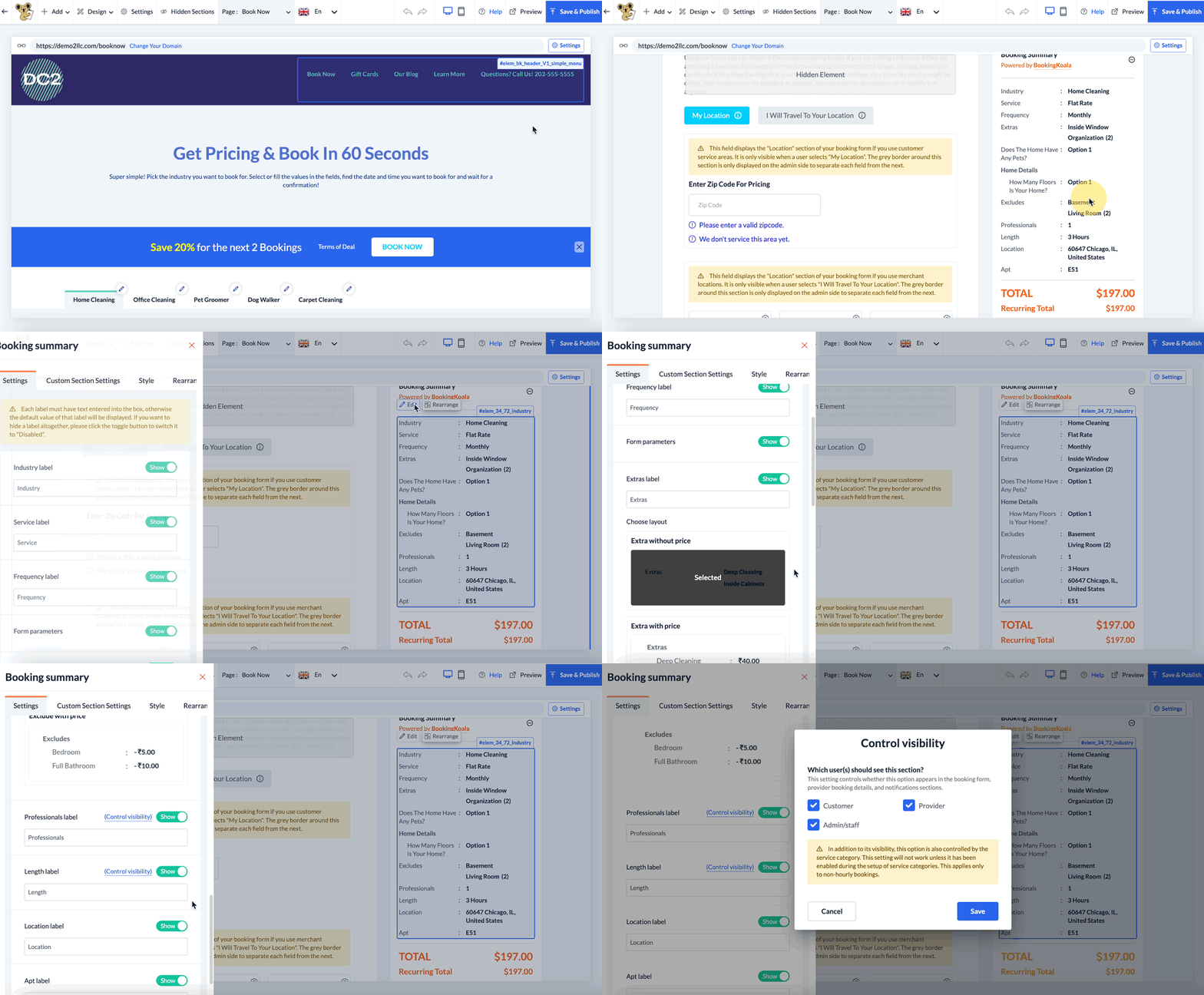
Scroll down the left side menu that appears until you see the "Length" or "Job Length" label. Click on the "Control visibility" link to view the Control Visibility popup.
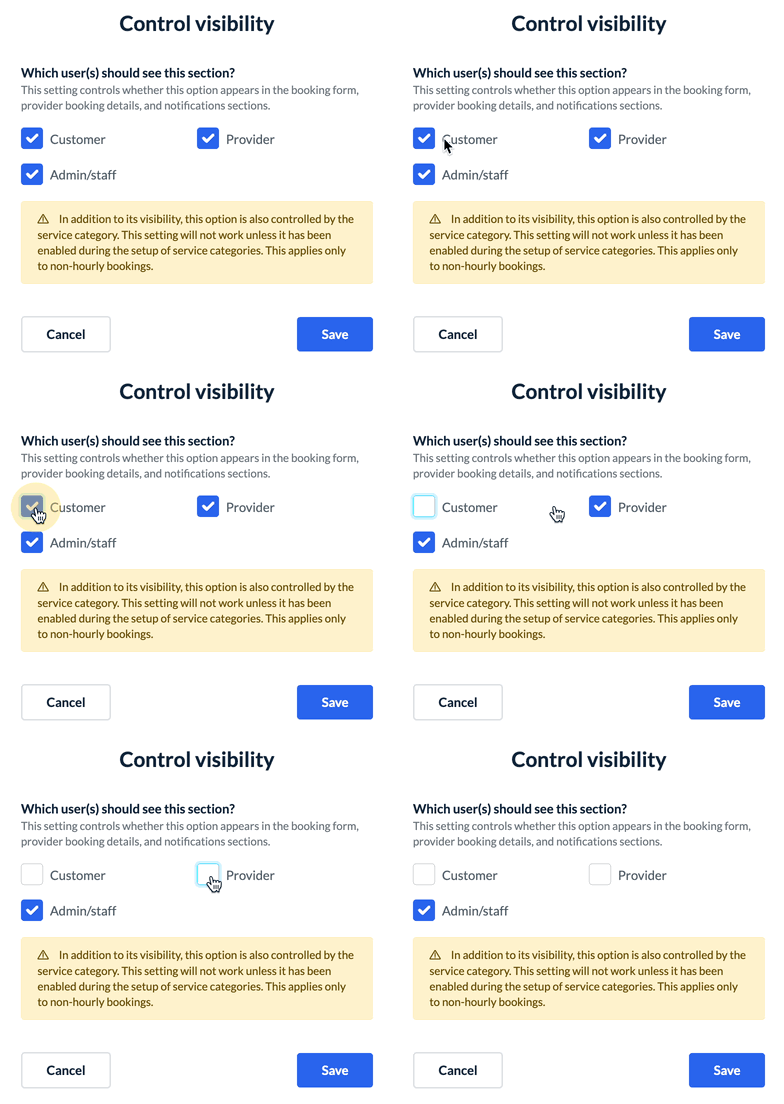
Under the text "Which user(s) should see this section?", uncheck the box(es) next to any user(s) you do not want to see the estimated job length. Please note the following:
This setting controls whether the job length appears in the booking form, provider booking details, and notifications sections.
This setting works in juxtaposition with the option located in the service category settings.
This setting only to non-hourly bookings. By nature, hourly bookings will always display the job length to all users.
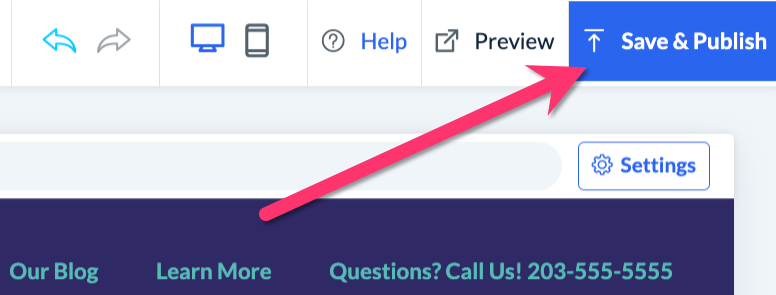
Once you have made your selections, click the blue "Save" button at the bottom corner of the pop-up. To apply these changes right away, please click the blue "Save & Publish" button in the top right corner of the Website & Themes Builder.
Upon making this update, the selected users will be able to see the estimated job length, while the unselected users will not.