

In this article, you will learn:
How to consolidate locations
How to delete a location
Consolidate Locations
Whether you are restructuring your business locations/service areas or looking to downgrade your subscription to the Starter Plan, you can consolidate your locations into one primary location. This can be done a few different ways depending on the type of locations you have set up. To learn more about each setting up each kind of location, click here.
Consolidating Name-Based Locations
To consolidate name-based locations, the admin will need to come up with a name that encompasses their entire location/service area and rename one of their locations to that name.
For example, if you service the cities of Dallas, Austin, San Antonio, and Houston, you could consider renaming your one central location as "Texas".
If you service multiple locations that do not have a clear grouping, you could include the name of each location separated by commas like "Illinois, Texas, and Massachusetts" for your location name.
Next, you will need to create any current bookings as new bookings under your one central location. This step is necessary as any active bookings in your other locations will eventually need to be deleted. Once you have created all of your bookings under a single location, you are ready to proceed with deleting the other location(s).
Consolidating Zip Code-Based Locations
Consolidating zipcode-based locations will require the admin to take the additional step of moving their zip/postcodes from all locations to one central location. To do this, you need to remove the zip codes from your other locations and add them to your soon-to-be single location. Once this is complete, you are ready to proceed with deleting the other location(s).
Consolidating Merchant Locations
Currently, there is no way to list multiple addresses for a single merchant location. This means that the admin must pick one address to list as the primary merchant location per BookingKoala account.
Delete a Location
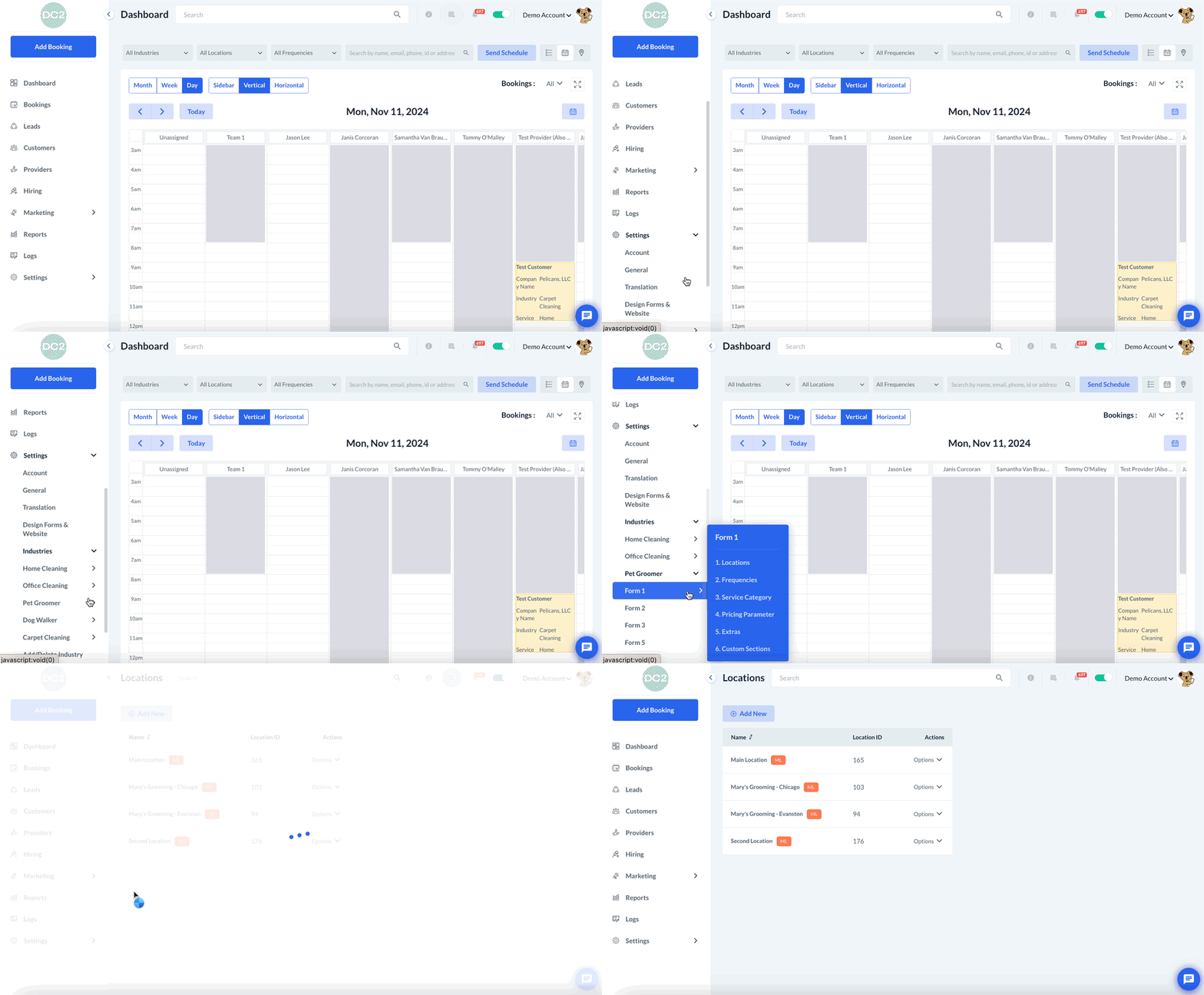
If you do not plan on using a location any longer, you can go to the "Locations" section for each form and industry to delete it. Please go to:
Settings > Industries > [Industry Name] > Form [#] > Locations
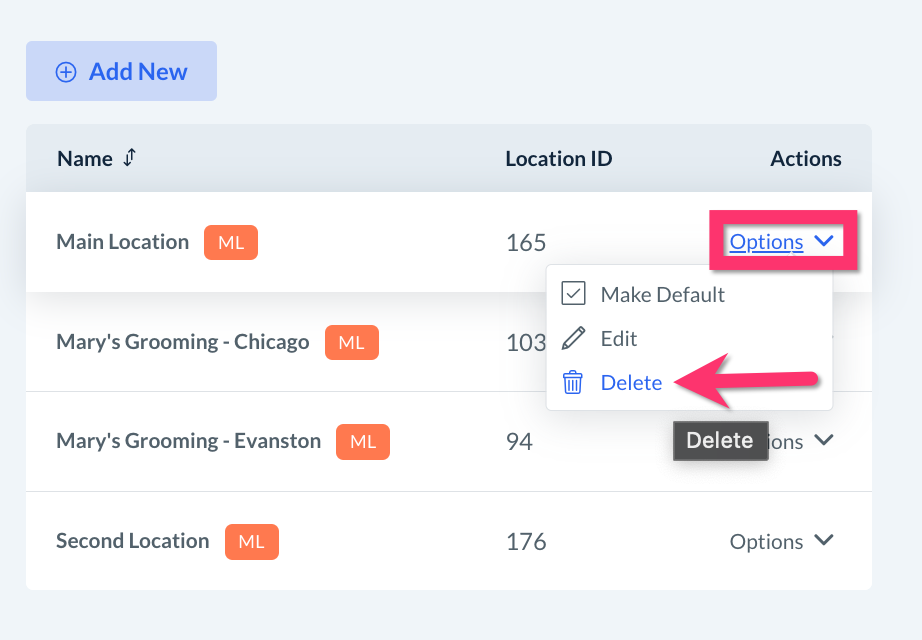
Click on the "Options" button under the Actions column and select "Delete".
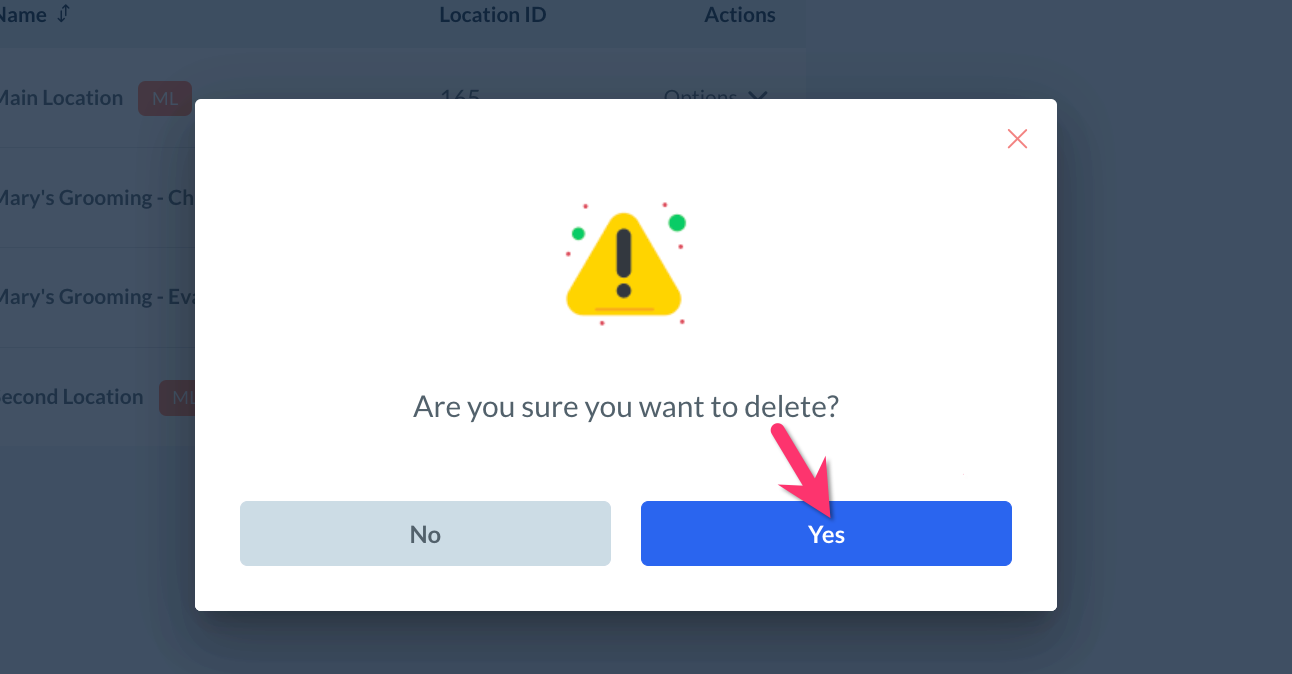
A pop-up will ask if you are certain you would like to delete this location. This will permanently remove all data associated with that location from your account. If you are certain you are ready to proceed, click "Yes" to proceed.
Please note that all active bookings and pending booking invitations (unassigned bookings) must be canceled or rescheduled before the system will allow you to delete the location.
A green system notification will confirm once the location has been deleted successfully.
Repeat these steps for each form and industry that includes the location(s) you would like deleted, as deleting a location from one form or industry does not automatically delete it from all forms and industries.