

The purpose of this article is to help you understand:
How to import leads
How to sync leads from your BookingKoala account
If you are looking to add a single new lead to the system or a funnel, click here.
Import Leads
To import leads from a file, click on the Settings tab near the top right corner of the page and select Imports.
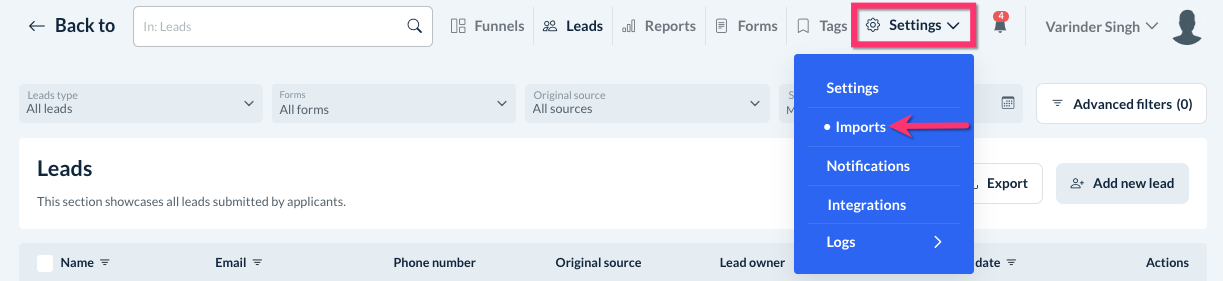
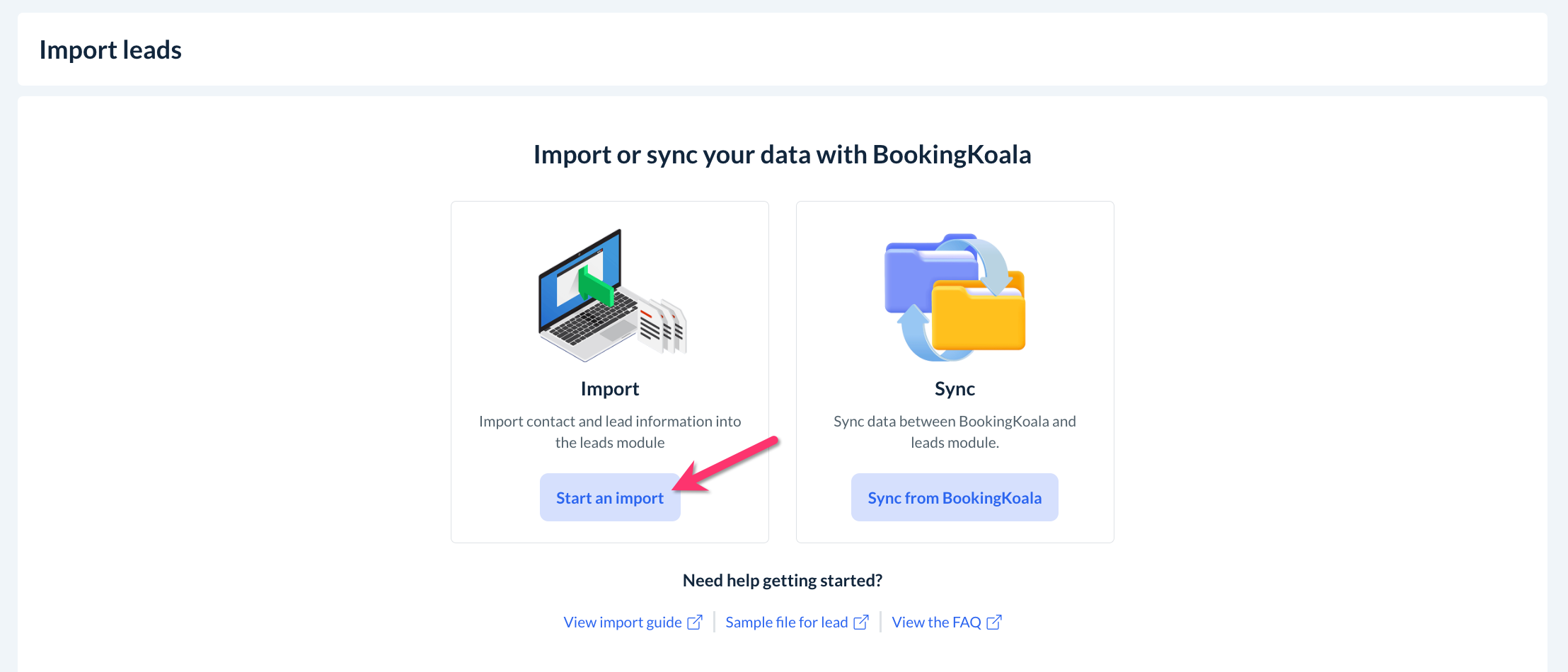
Next, click on Start an Import from the options depicted below.
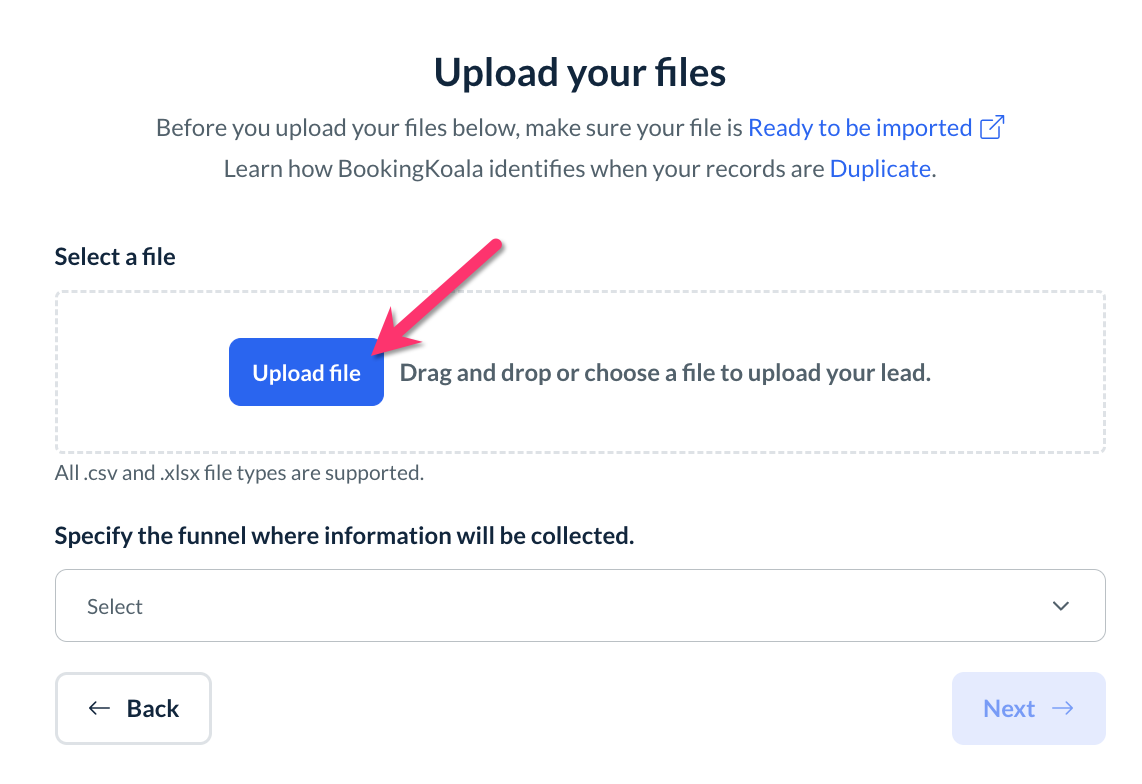
On the next page, click the blue "Upload File" button to select the file you would like to import. Please note that only .CSV and .XLSX files are accepted.
Import limits:
File size: 50MB
Contacts: 50000 leads per day
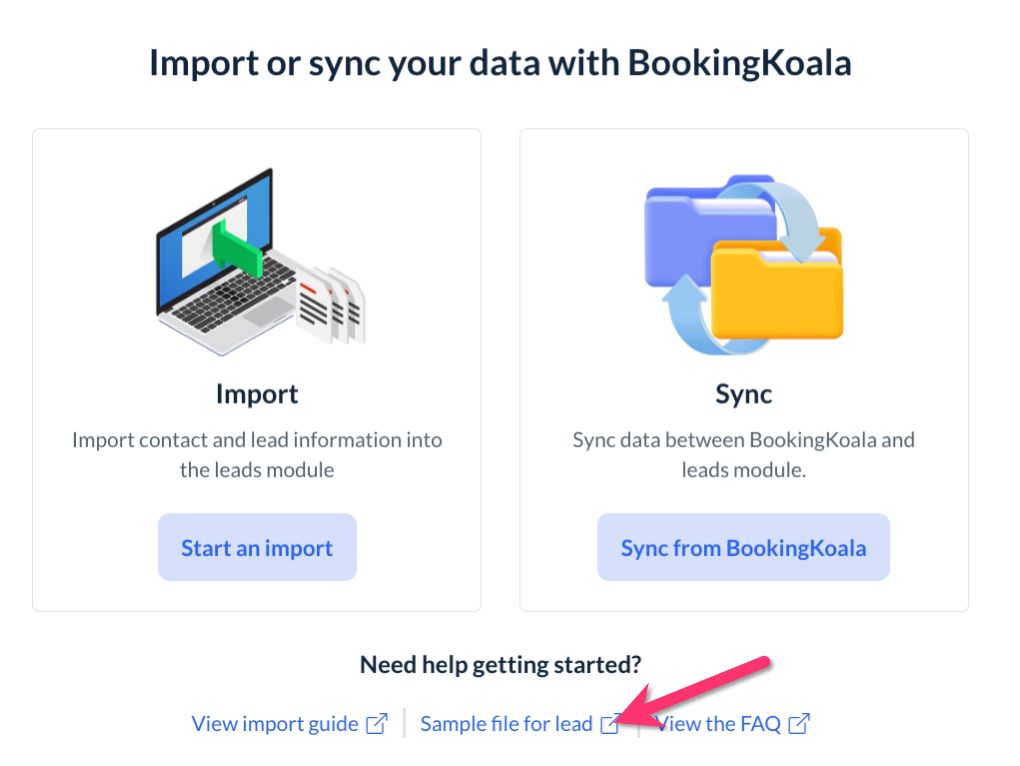
You can also download a sample file by clicking on the Sample file for lead link below the Import and Sync options and use this as a point of reference when formatting your own file.
Next, specify which funnel(s) you would like to add the imported leads to (if any).
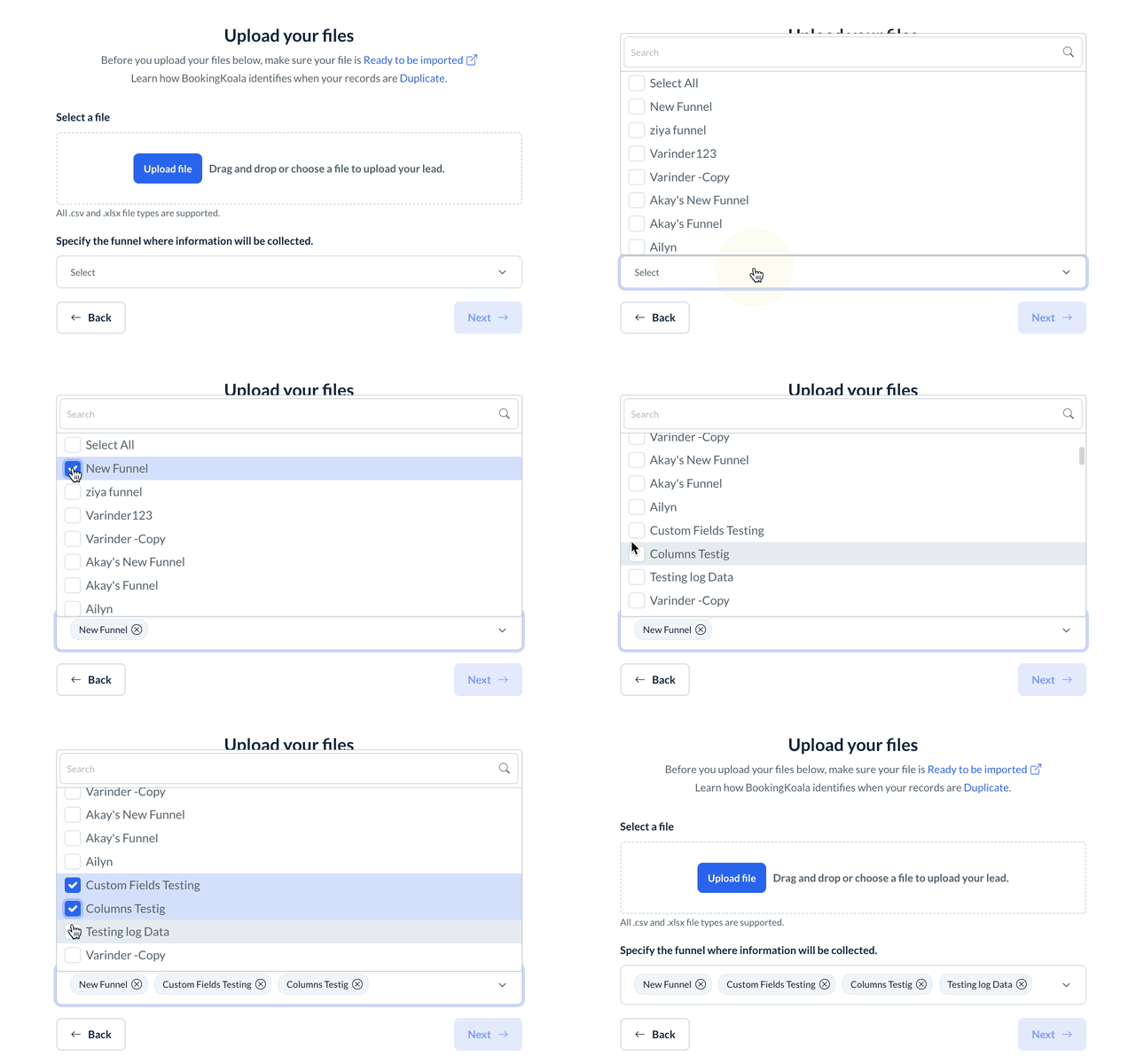
Then click the blue Next button to proceed to the next step.
You will see a list of your data in columns which you must match to the form fields so they can be imported and mapped properly.
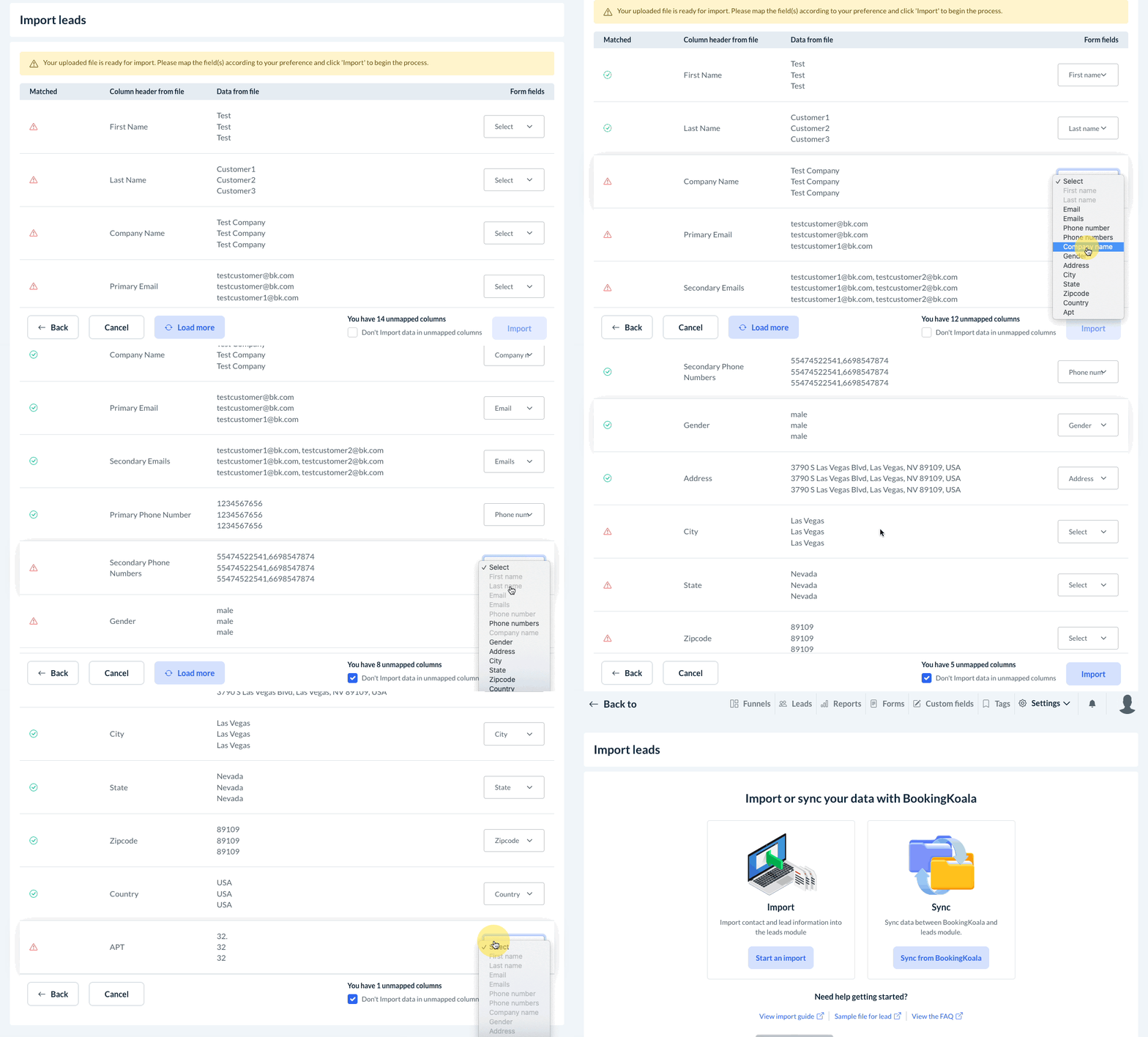
Once all columns have been mapped, click the blue Import button at the bottom right side of the page.
Your import will begin processing immediately. You can view it as well as any other previous imports in the Import History section just below the Import and Sync options.
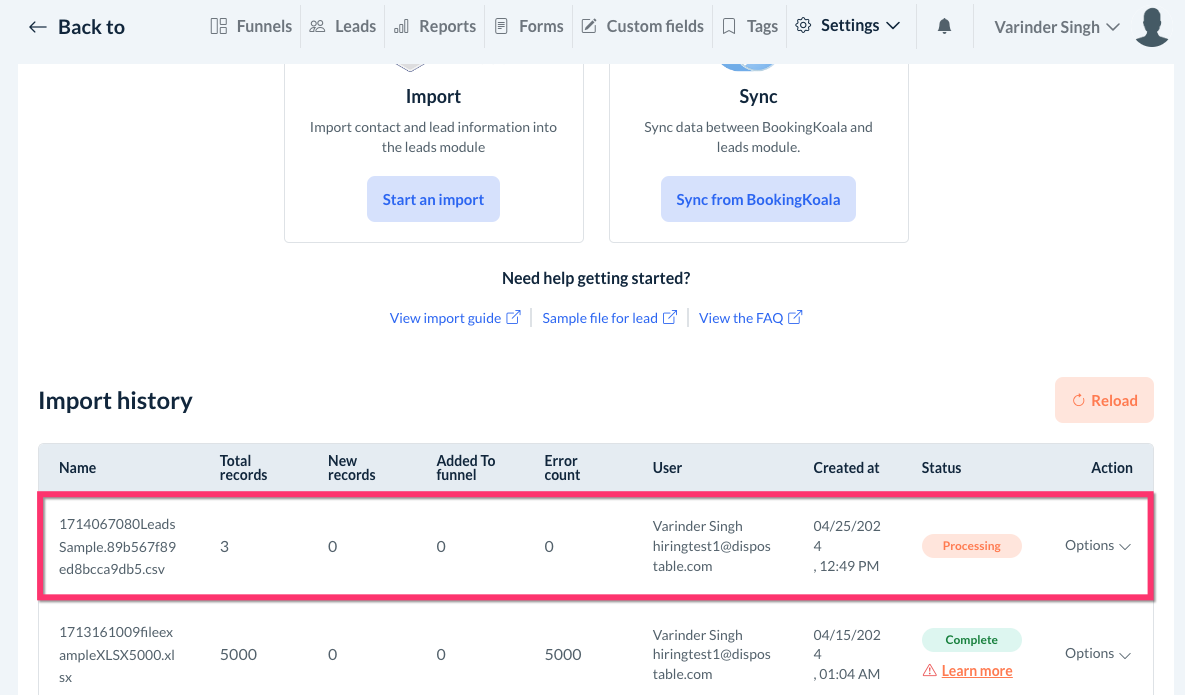
Click the orange Reload button to check on the progress of your import. The status will change from Processing to Complete.
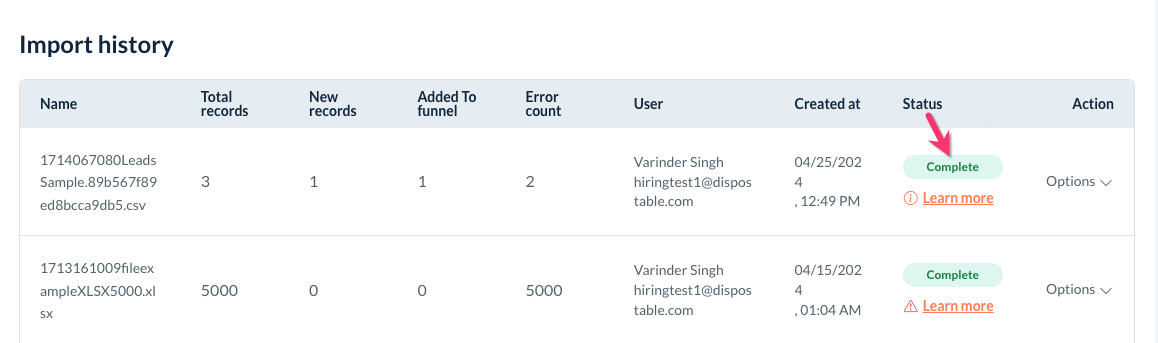
Once the import is complete, you can view how many total records were in the file, how many were new records, the number of leads added to your funnel(s), and an error count for records that were not added.
To download a file of the records that were not successfully imported, click the orange Learn More link below the Complete tag and select Download.
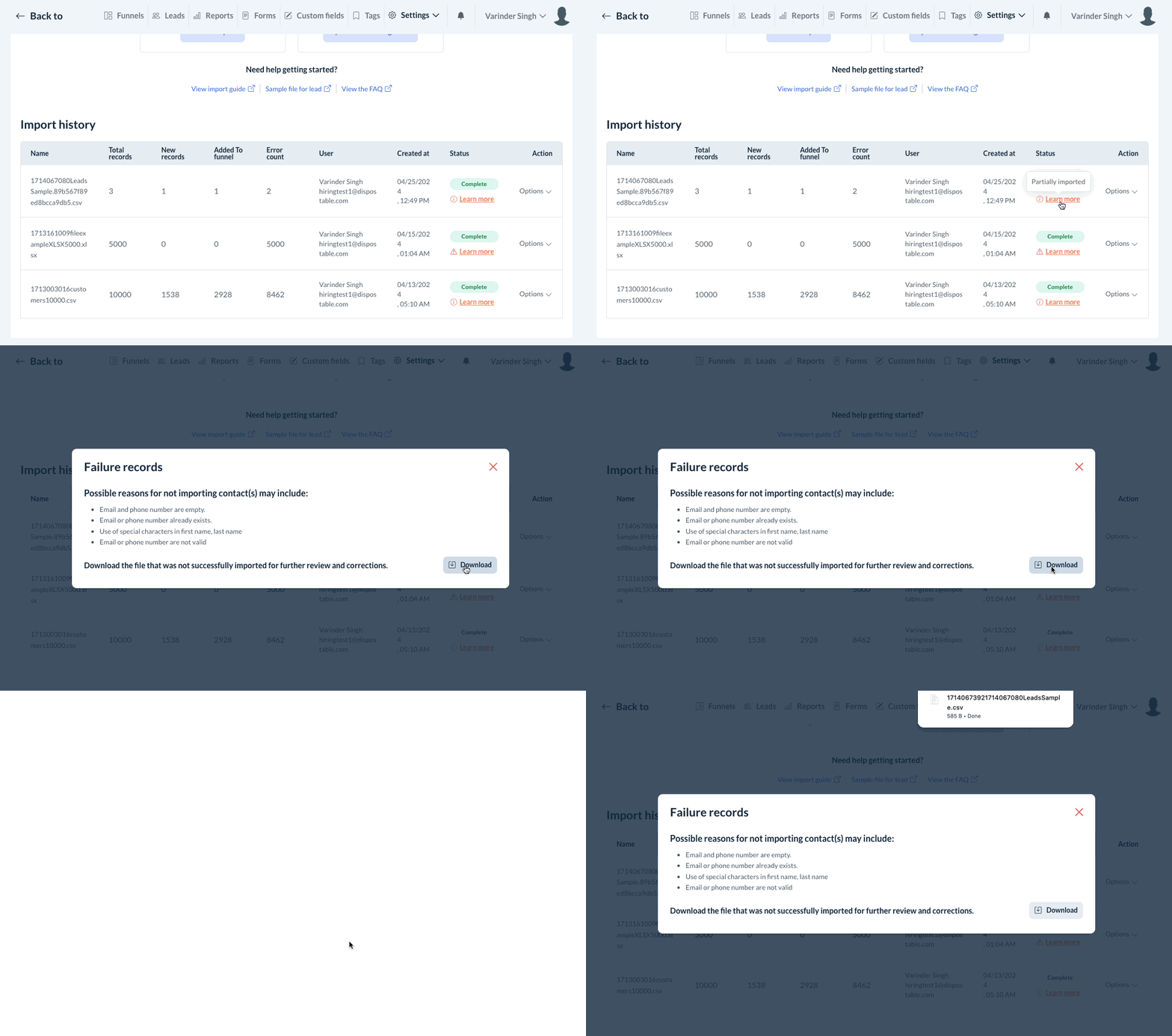
The Failure Records pop-up also explains the reasons why a record may fail to import successfully:
The email and phone numbers are empty.
The email or phone number already exists.
There are use of special characters in the first or last name.
The email or phone number is not valid.
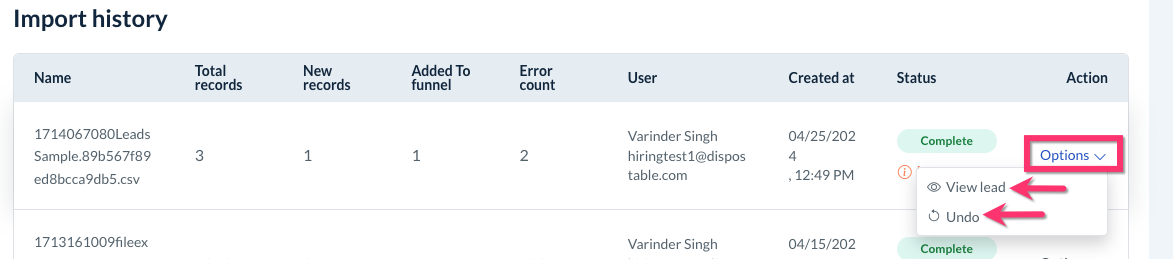
You can also use the action options to View lead(s) or Undo the import if you made an error.
How to Sync Leads
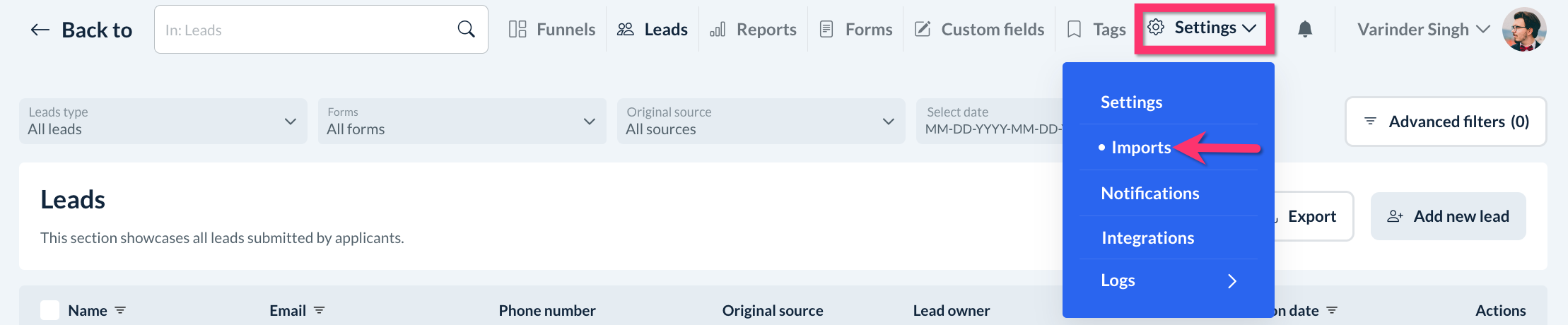
To pull leads from your BookingKoala account, click on the Settings tab near the top right corner of the page and select Imports.
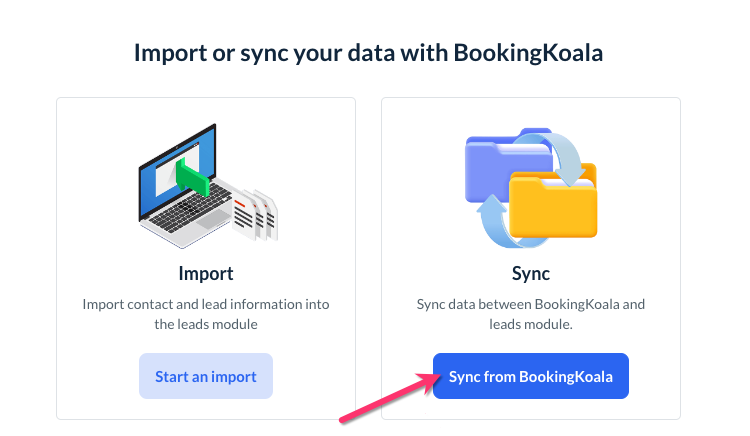
Next, click the blue Sync from BookingKoala button beneath where it says Sync.
From below the New Import tab, select one of the following options:
All booked customers - Sync customers who presently have a booking with your company.
Specific customers - Sync specific customers by name.
Not booked customers - Sync customers who currently do not have any bookings with your company.
Sync Specific Customers
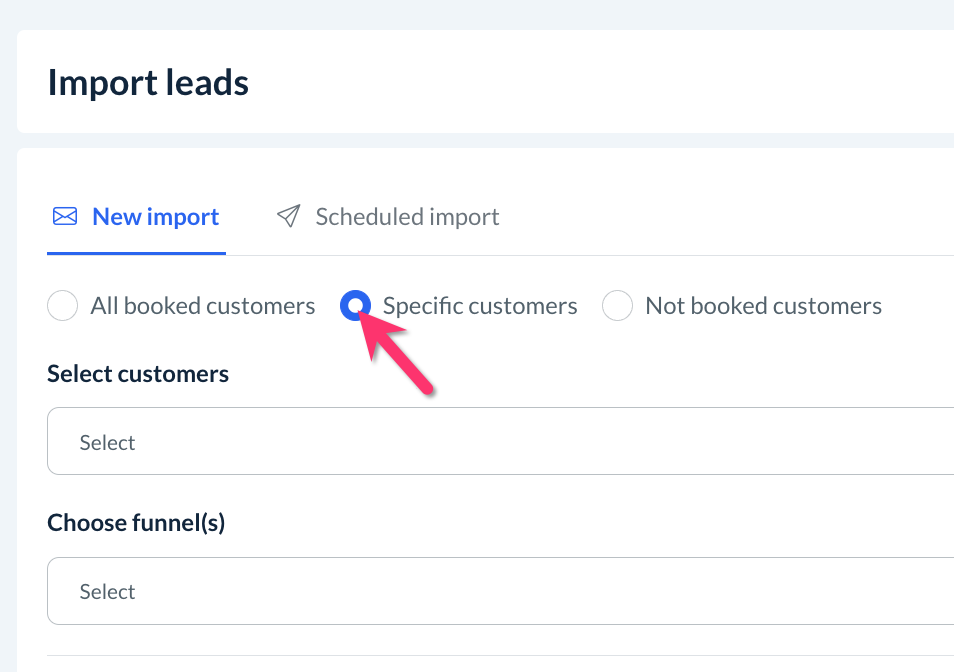
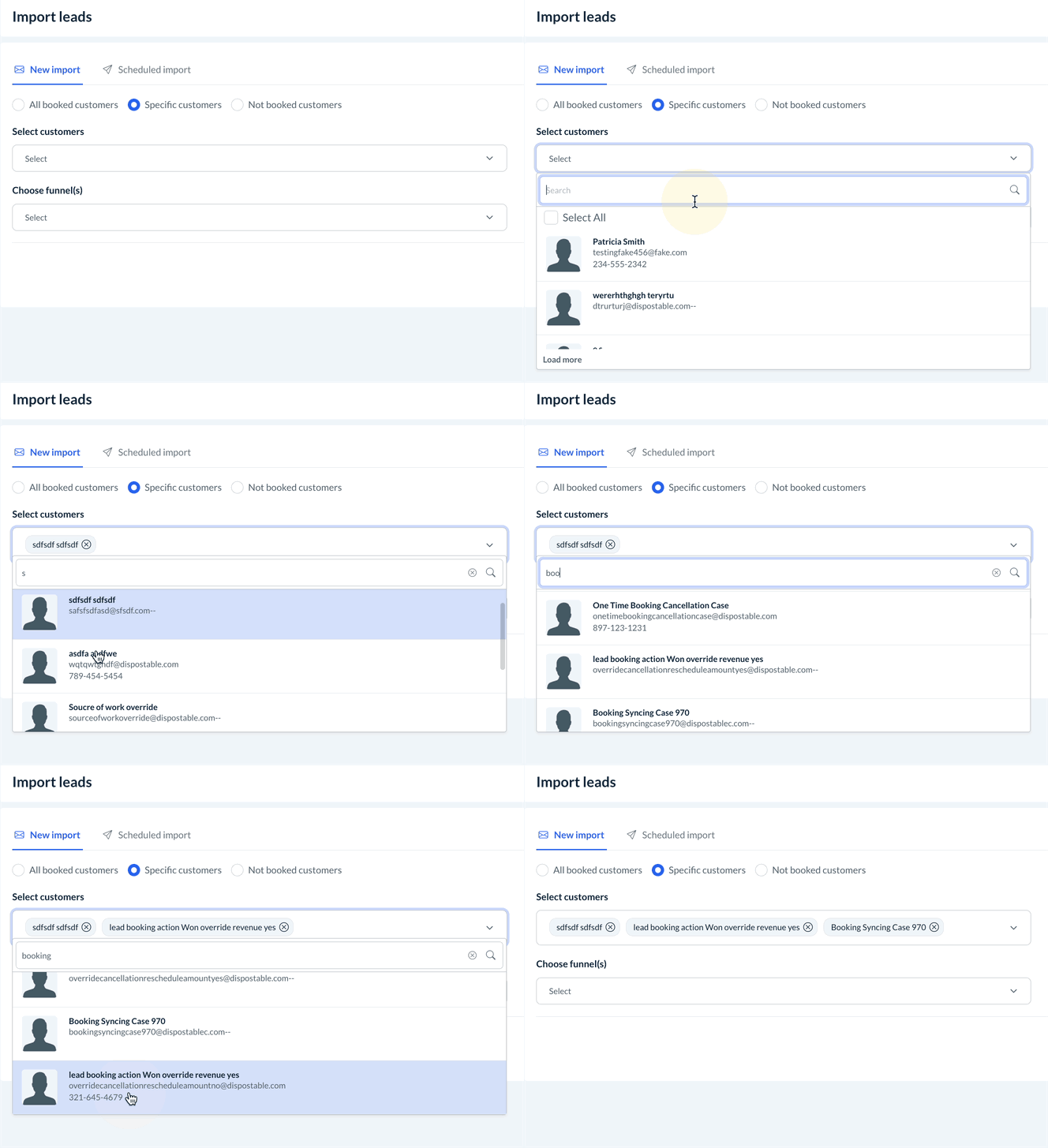
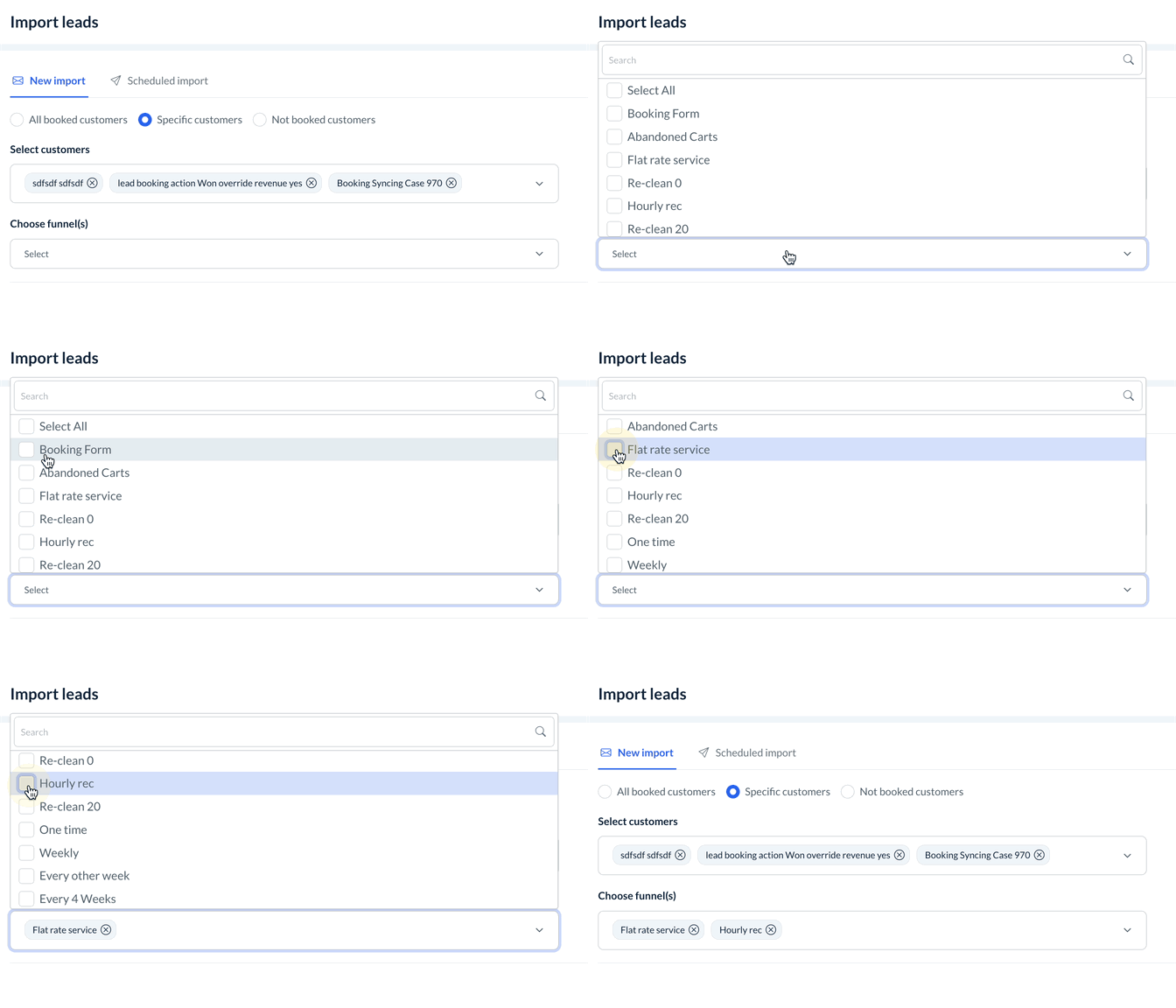
If you are looking to sync specific customers, select the Specific customers option and then use the Select customers field to search and select customers by name, email address, or phone number.
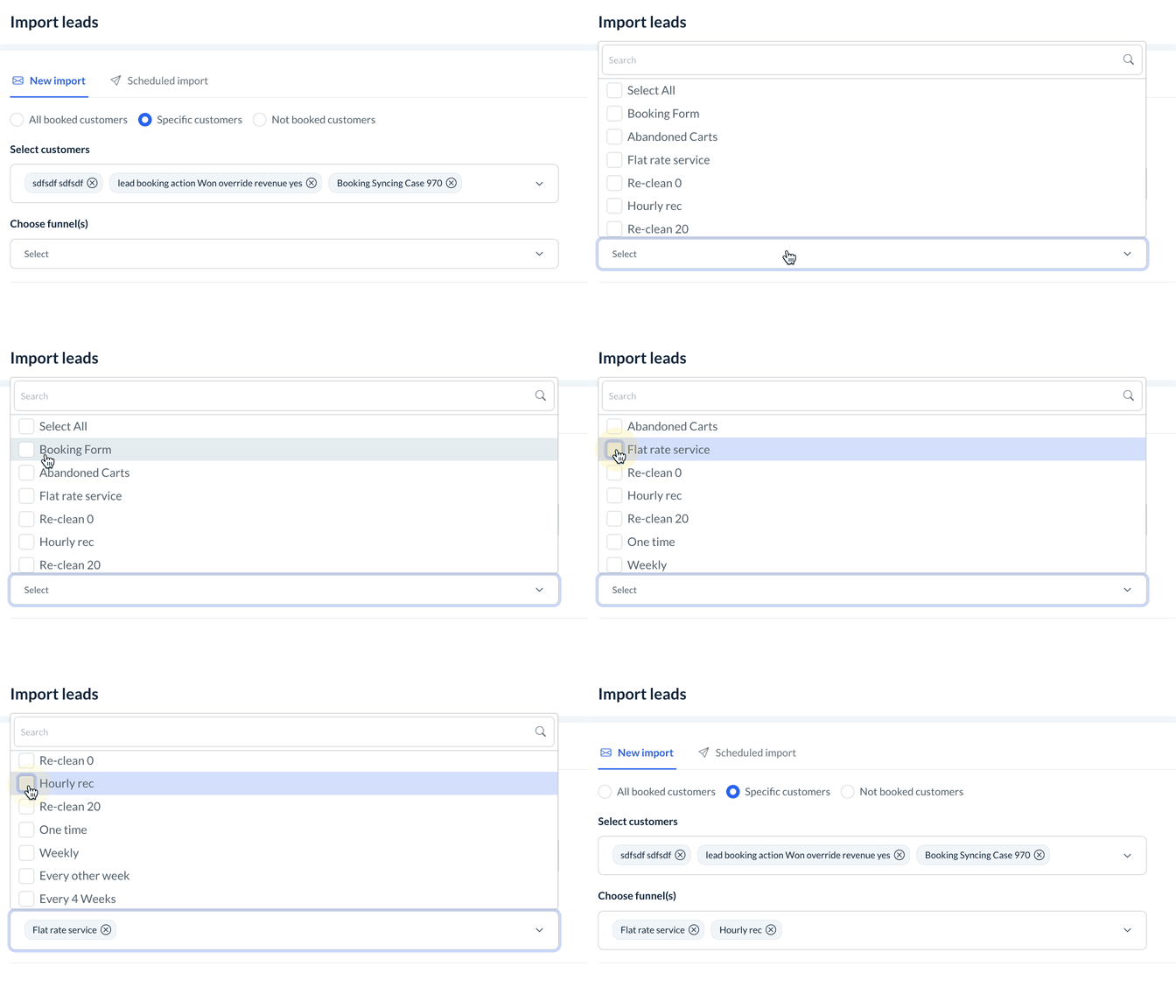
Next, choose which funnel(s) you would like to add the customers.
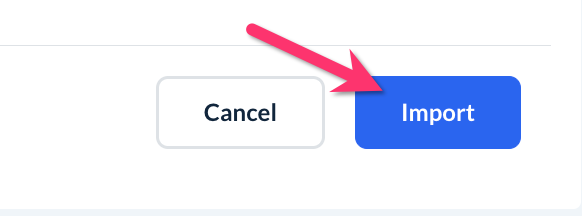
Finally, click the blue Import button to sync the data.
You will see a green system alert letting you know that the import has begun successfully and to check the system logs in a little while to see when it will be complete.
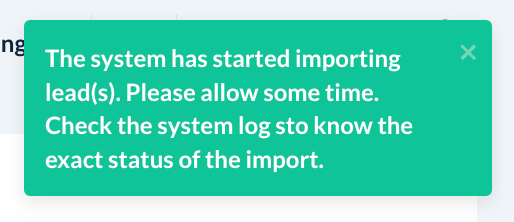
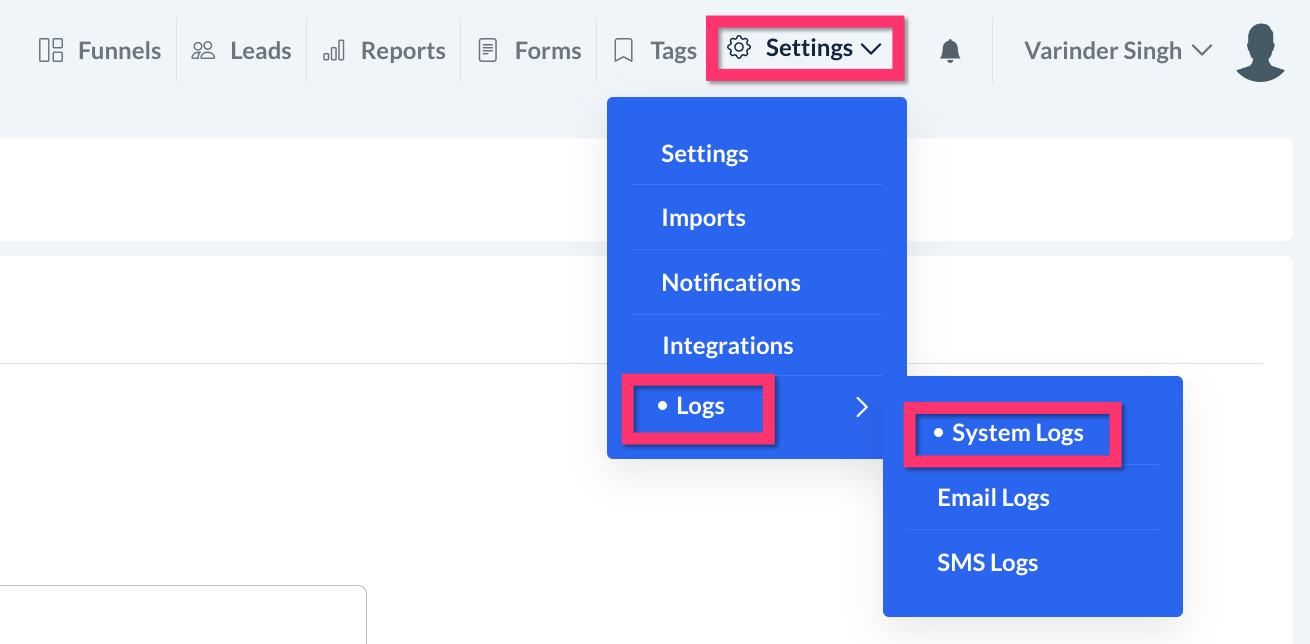
You can go to the system logs section to check your import status at any time by going to:
Leads > Settings > Logs > System Logs
Sync Not Booked or All Booked Customers: One Time
If you are looking to sync all booked customers or not booked customers, you have two options: run a one time import or set up a scheduled import that runs automatically at a set recurring rate. In this case, the one time option is explored.
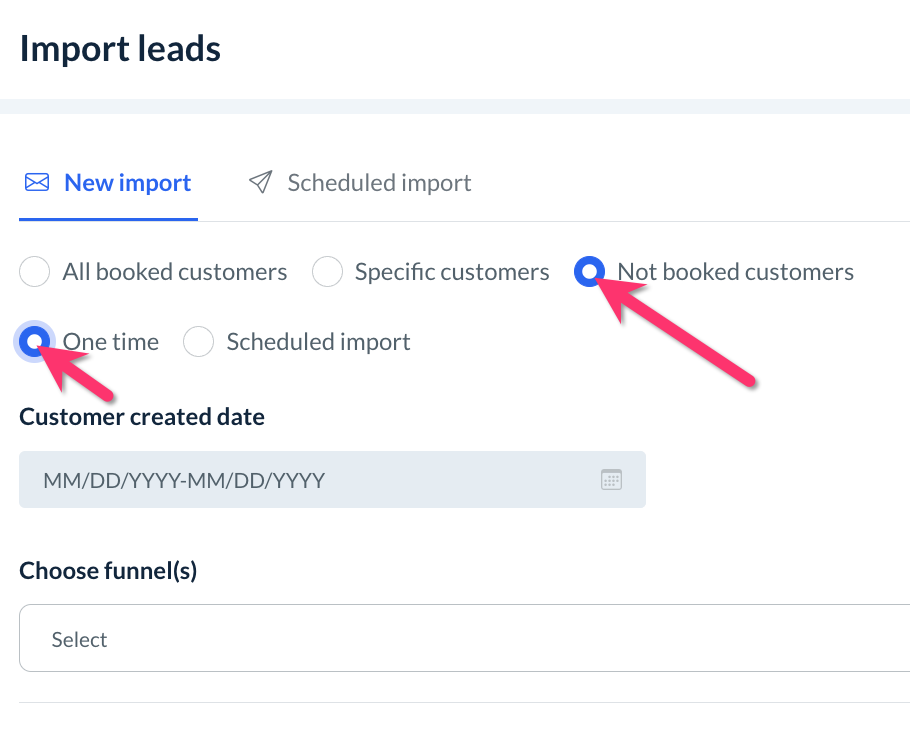
When running a one-time import, use the customer-created date field to select a date range for the import data.
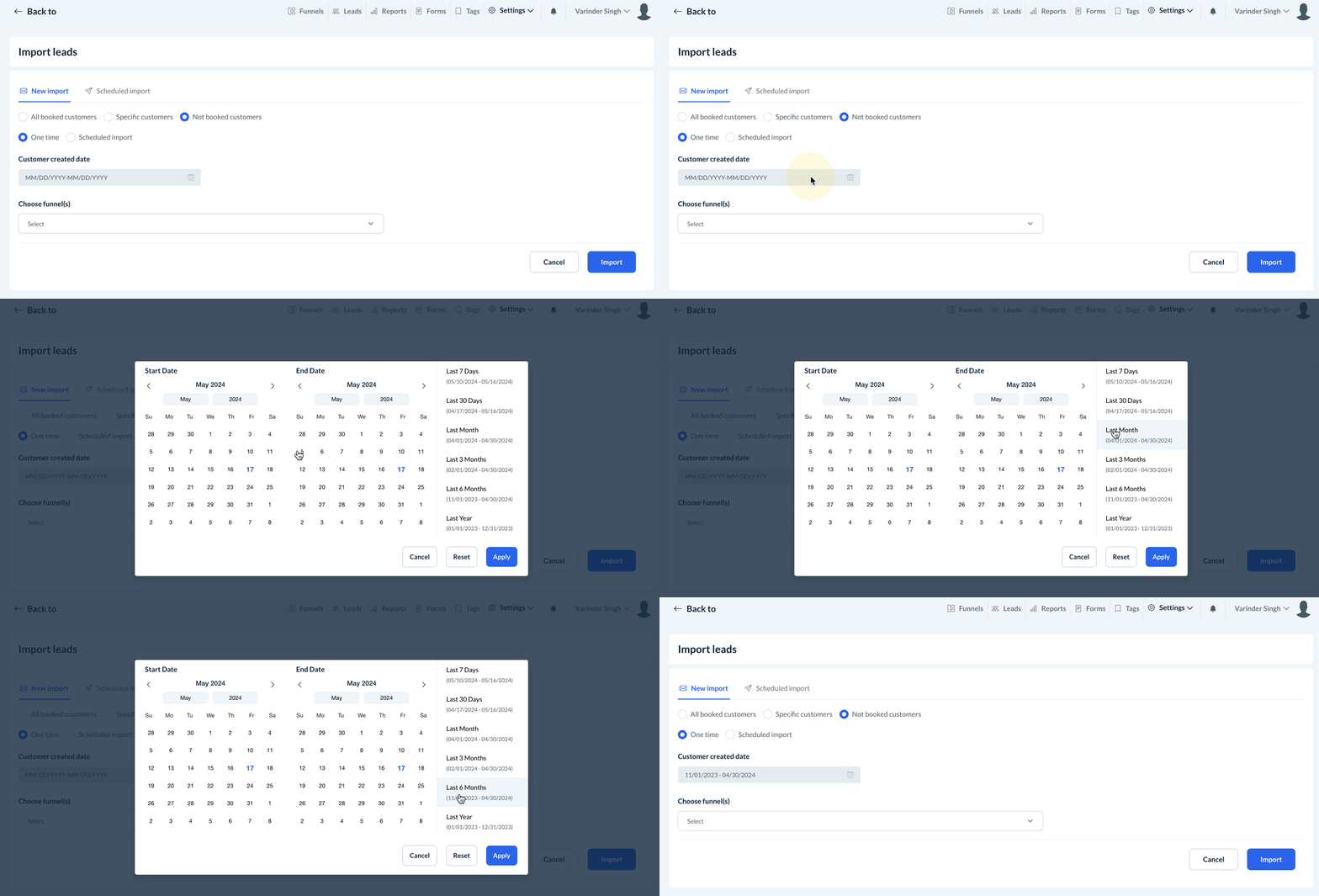
Next, choose which funnel(s) you would like to add the customers.
Finally, click the blue Import button to sync the data.
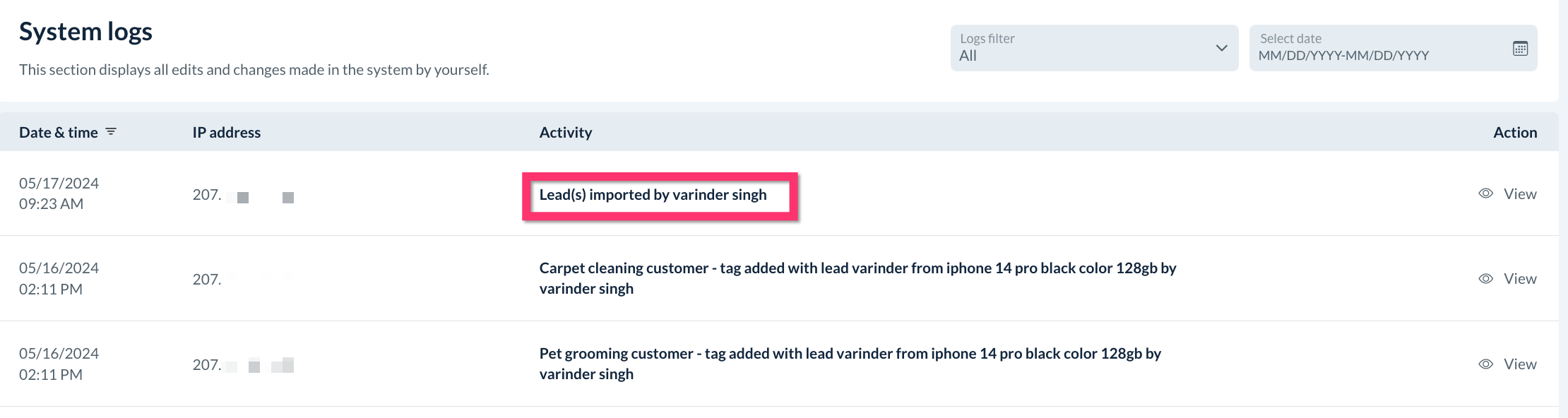
As mentioned above, one can check the lead module system logs for the status of any new import.
Leads > Settings > Logs > System Logs
fef
Sync Not Booked or All Booked Customers: Scheduled Import
If you are looking to sync all booked customers or not booked customers, you have two options: run a one-time import or set up a scheduled import that runs automatically at a set recurring rate. In this case, the scheduled import option is explored.
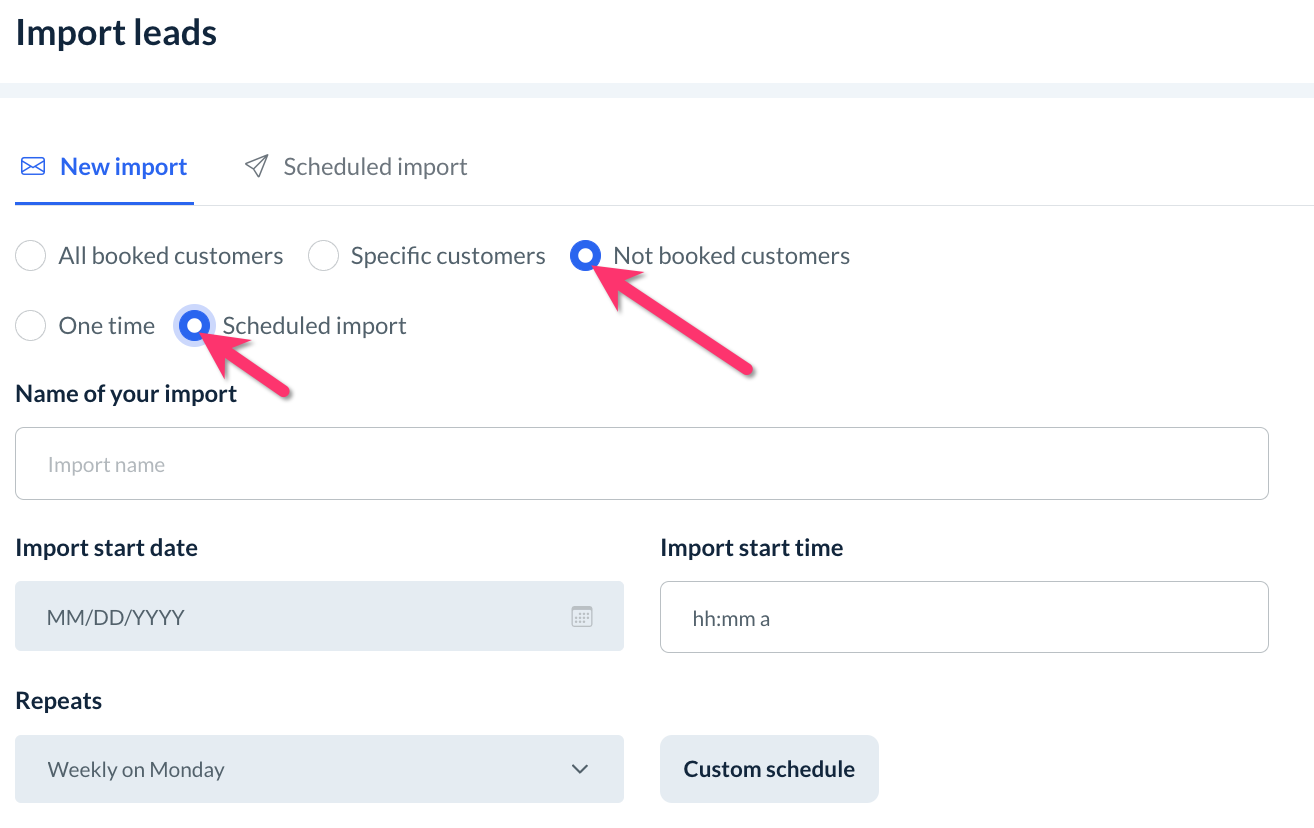
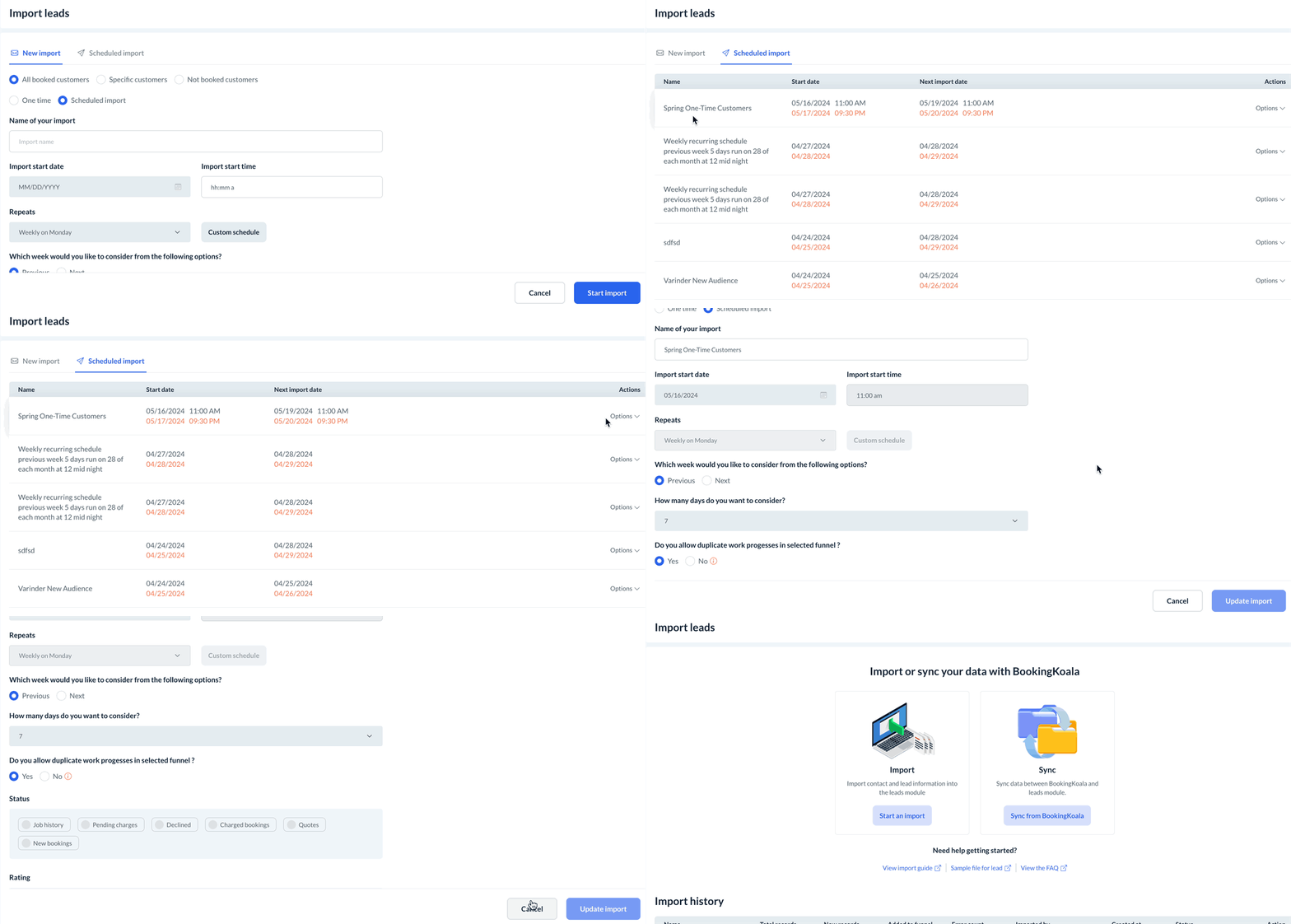
To create a recurring scheduled import, select the Scheduled import option and add a name to the import like "Spring One-Time Customers", for example, then select an import start date and import start time. For Repeats, your options are
Weekly on Monday
Every 2 weeks on Saturday
Monthly on the 15th of the month
Monthly on the 28th of the month
Use the Custom Schedule button to set your own repeating time frame.
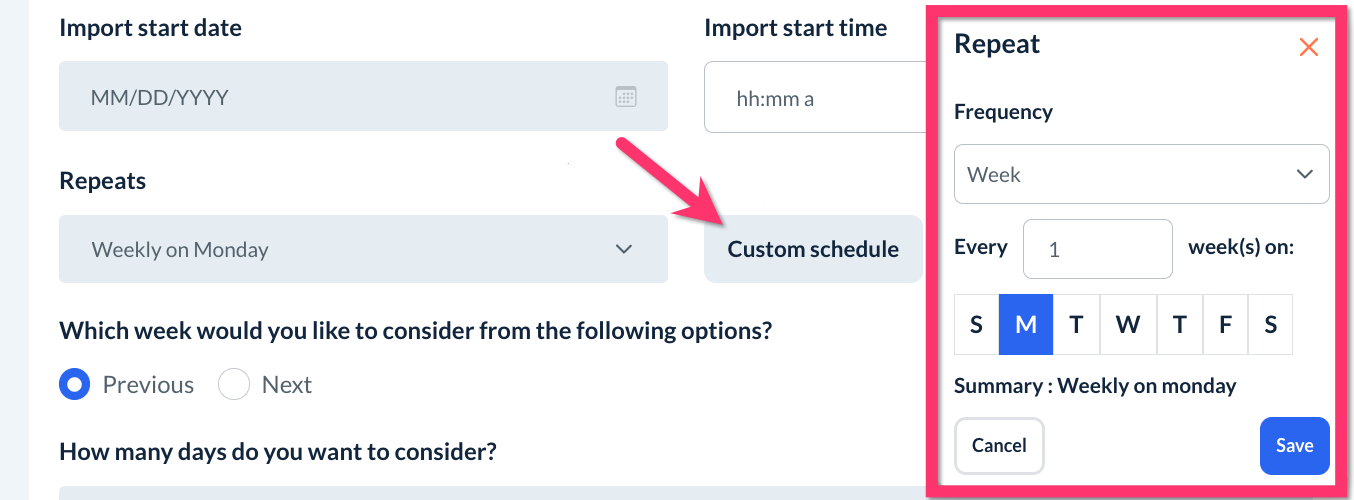
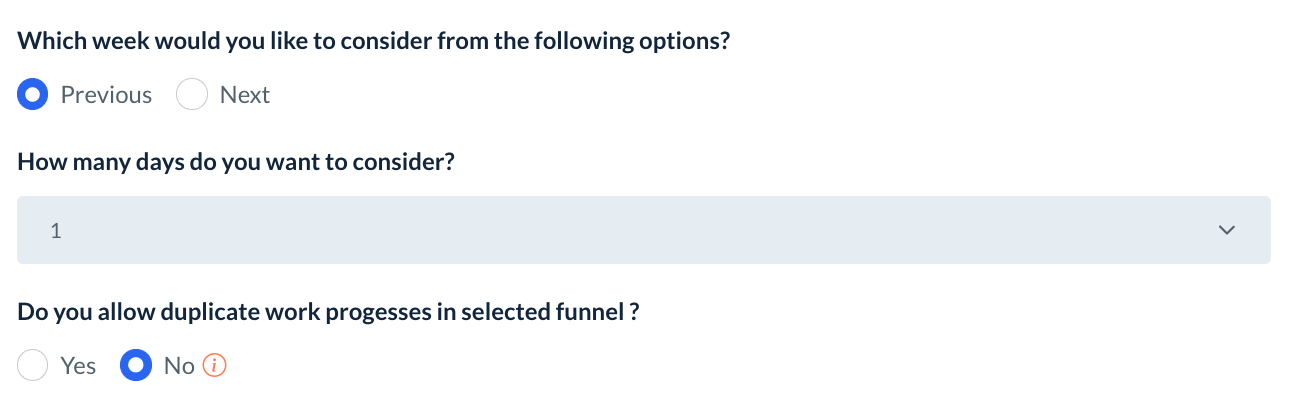
Next, decide which week you would like to consider for the import (Previous or Next), how many days you want to consider (1-7 days), and if you allow duplicate work progresses in the selected funnel(s) (Yes or No).
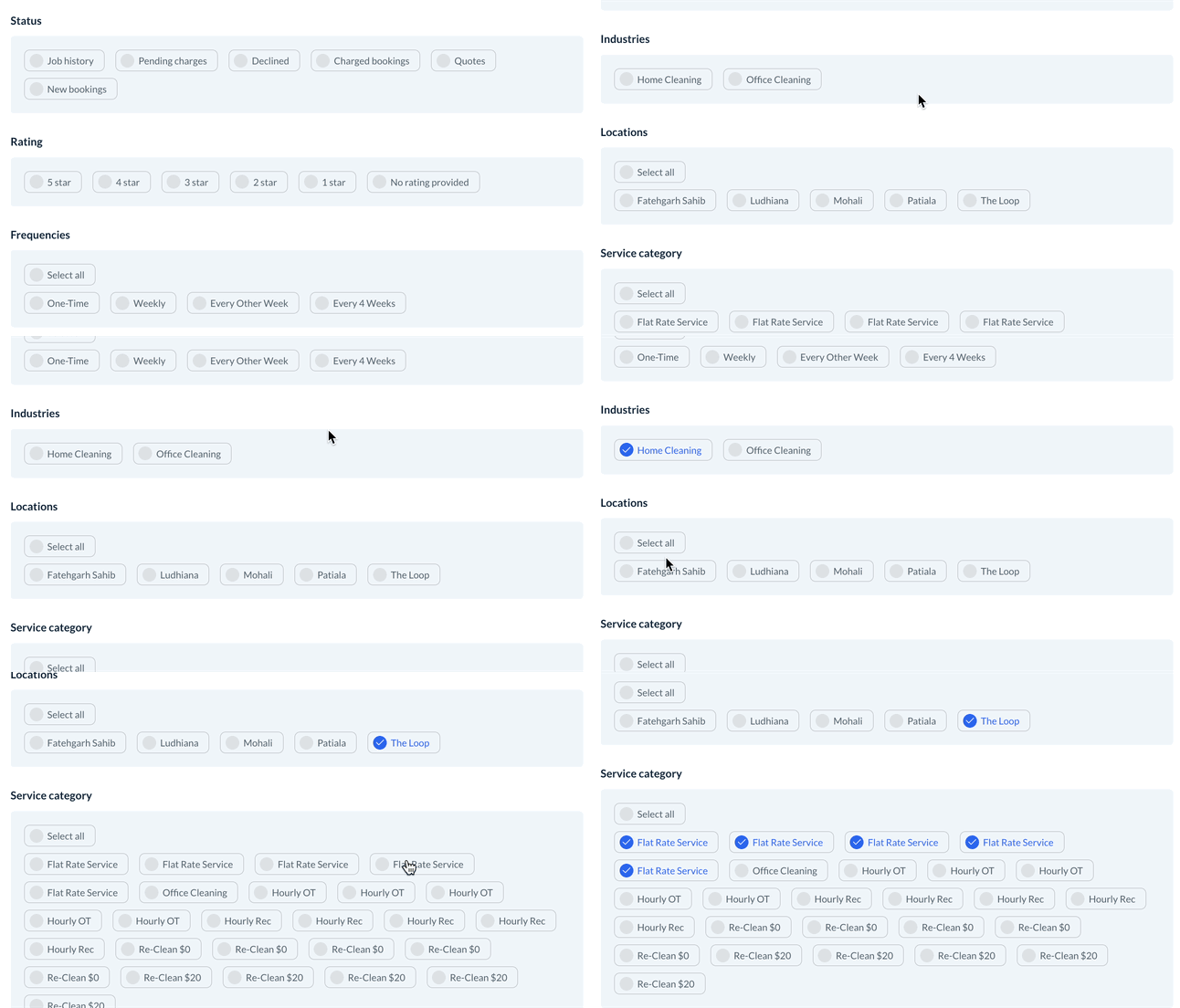
Next, select your filters for the import. The options are:
Status
Rating
Frequencies
Industries
Locations
Service Category
Next, choose which funnel(s) you would like to add the customers.
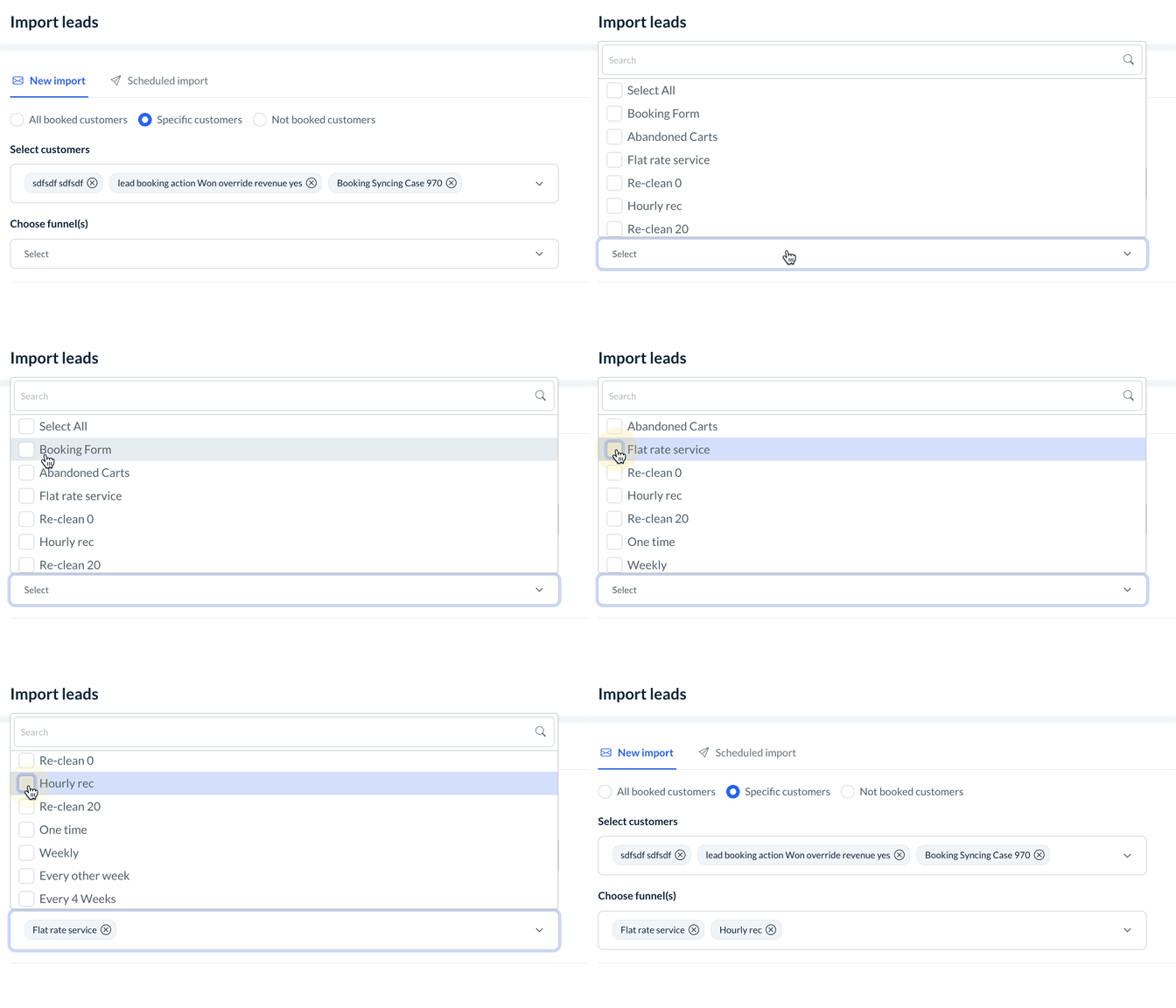
Finally, click the blue Import button to sync the data.
Import History
Once submitted, you can see your recurring scheduled imports under the Scheduled import tab.
Your import history is listed below the Import and Sync options on the main Imports page.
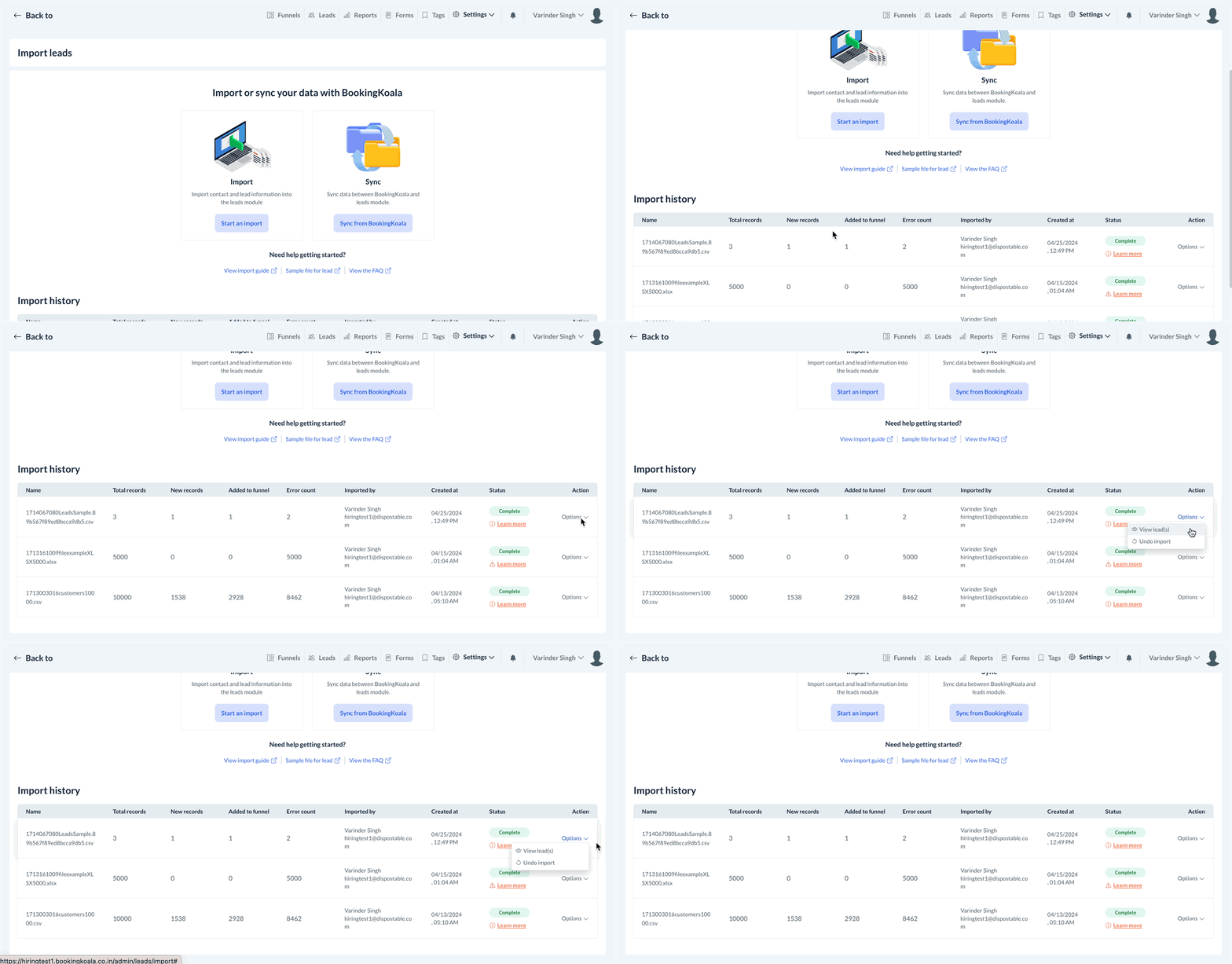
Each import provides the Option to View lead(s) that were imported or Undo import if perhaps you would like to redo a import for any reason.