

Change the A records for an existing connected domain or subdomain
If you already have a domain connected with your BookingKoala account, please follow the guidelines to change the A records and verify the domain.
Login to your domain's registrar account.
Locate and open the domain's DNS settings page to edit them. You may see a section called "Advanced DNS" or "Manage DNS settings".
Remove the A record with IP address 18.188.223.178
Now add following two IPs in the A record for the domain or subdomain
162.159.141.169
172.66.1.165
Repeat following steps to add both IP addresses in A records.Record Type:
Enter or select "A" or "A record"
Name:
For primary domains: Enter the @ symbol or leave the section blank if it says to leave the box empty to set up records for the primary domain.
For other subdomains: Enter the subdomain's name/extension here.
For example, you would enter the word "bookings" here to create a subdomain called "bookings.yourbusinessname.com".
Data/IP Address:
Add the IP address
TTL:
If you see this option when setting up the A record, you use the host's default selection such as "Automatic", "3600", or "60 minutes".
Click whichever option is offered to "Add", "Update", or "Save" your new/edited A record.
(this step is applicable only if you are connecting the main domain but not the subdomain)
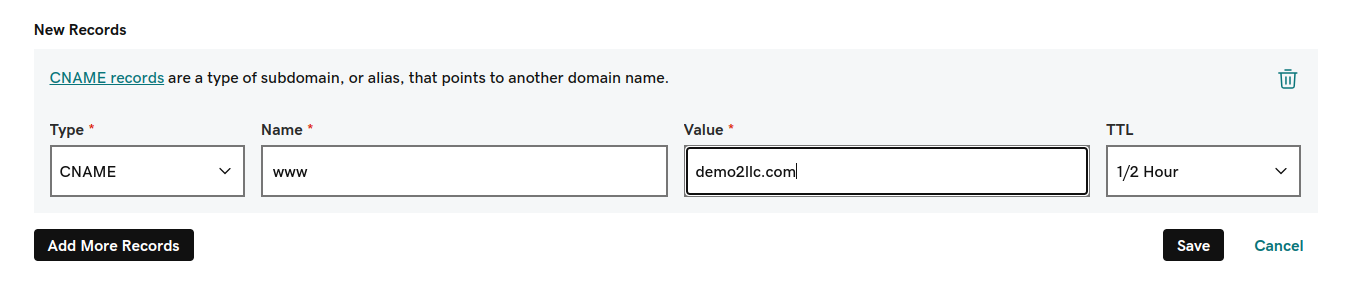
Once you have added the A records for the domain, make sure all other A records are removed.Next, you will need to add CNAME for the www subdomain as shown in the below example, make sure that value for CNAME contains your domain only. For example, if your domain is mydomain.com then the value should be mydomain.com.

Please refer to the link below on how to edit the DNS records for some of the most common domain registrars used by our clients.
If you do not see your host listed here, we recommend logging into your account and searching their help section for topics like "How to Edit DNS Records" or "How to Add an A Record", or contacting a member of their customer support team. You are always welcome to contact [email protected] and we can help you locate instructions for your registrar.
Once these changes are done, your domain will be ready to verify, please note that it might take upto few hours to update the A records and we recommend you checking them with this tool What's My DNS
Verify domain in the account
Once the A records have been added, please go to Settings > Design Forms & Website > Change Your Domain, click on the "Verify" button.
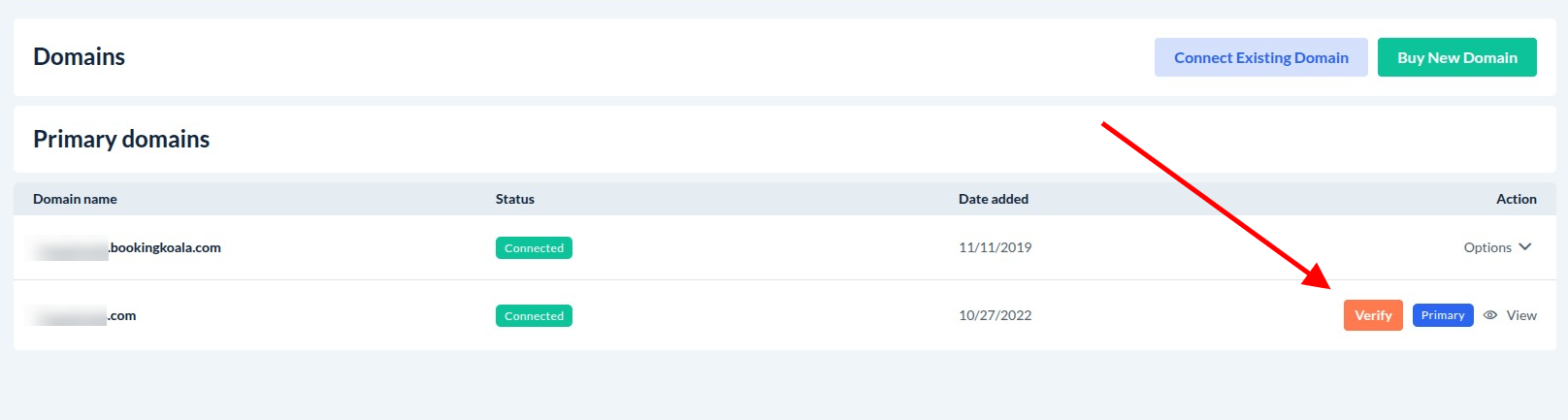
Note : It might take few minute or hours to populate the A records and install the SSL, please reach out to our support in case the domain is connected but not working, our development team will check and guide you if any changes are required or complete the process.
Check Your Domain A Records
Adding or updating your domain's A records can take up to 48 hours depending on the TTL period you set. To check if the process has been completed, you can use the What's My DNS tool to see where the IP address has been updated for your site.
After clicking on the link above, enter your domain name into the first box.
Then, select "A" for the record type.
Click "Search".
Please reach out to our support in case the domain is connected but not working, our development team will check and guide you if any changes are required or complete the process.