In this article, you will learn more about:
How to add a testimonial section to your website
How to customize the testimonial section
Add a Testimonial Section
In addition to the Live Reviews widget, you can display reviews on your website via a testimonial section. However, unlike the Live Reviews section, you can manually enter testimonials from any site or platform of your choice.
To get started, go to:
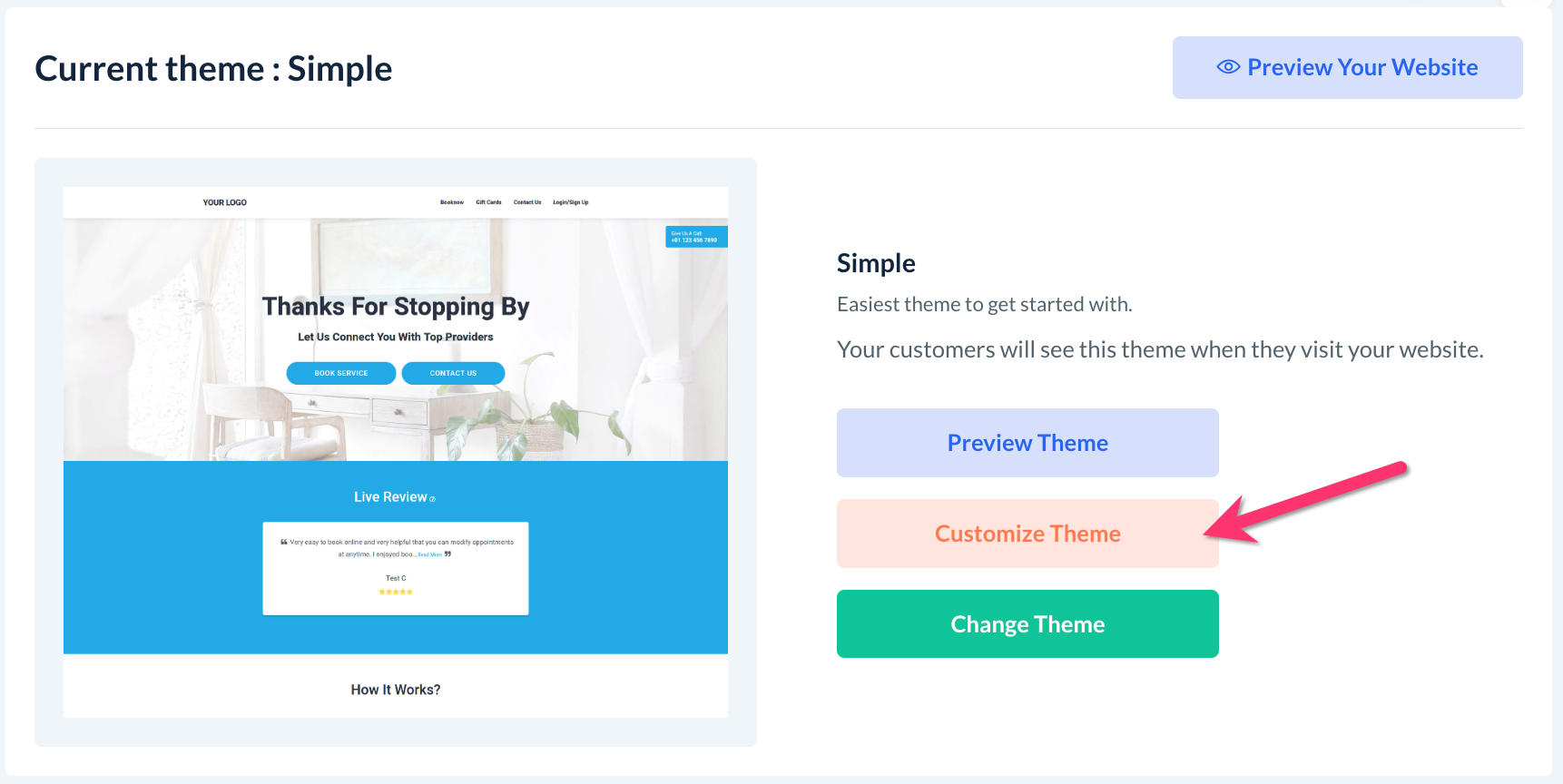
Settings > Design Forms & Website > Website Builder & Themes
Click on the orange "Customize Theme" button to open the Website & Theme Builder.
Use the top center Page menu to select which page you would like to add a testimonials section to.
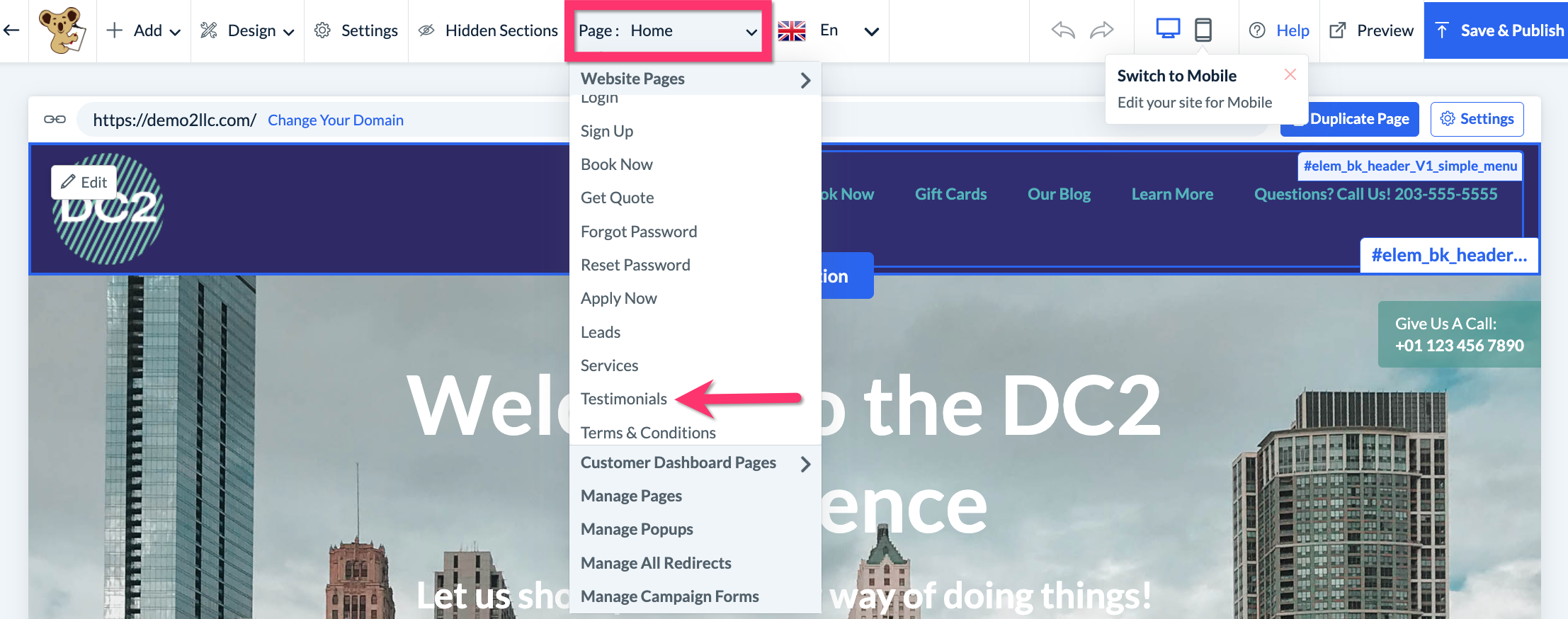
You can even create a new page specifically for sharing testimonials.
Click here to learn how to add a new page to your website.
Click here to learn how to add a new page to your header or footer.
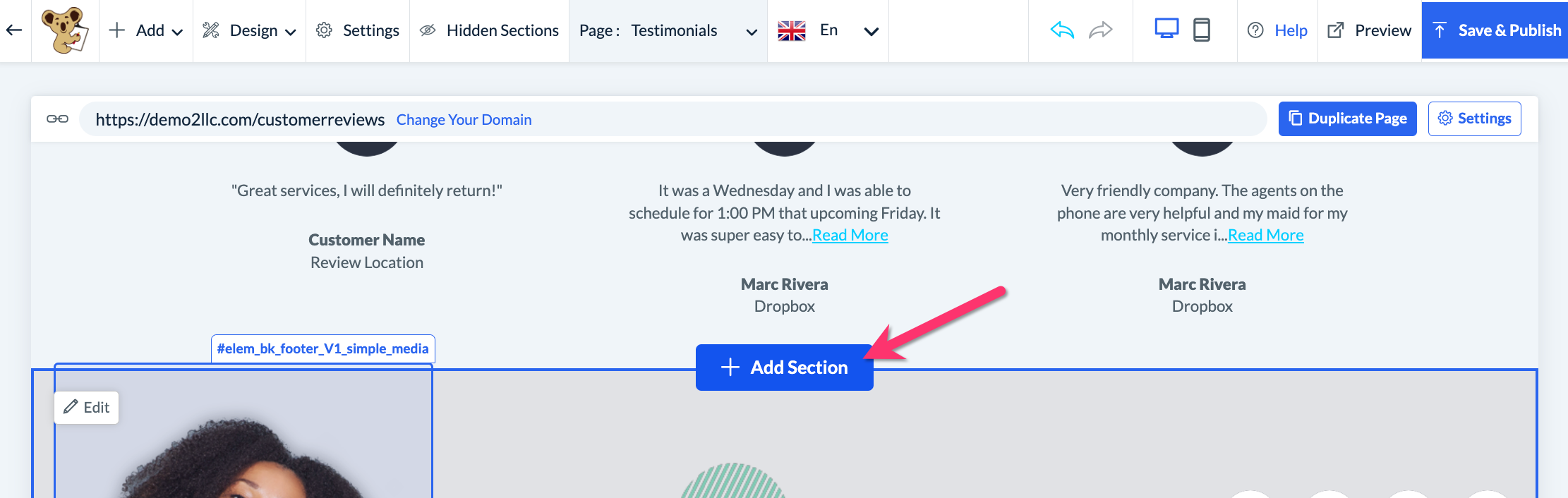
Once on the page, hover your cursor between sections and click the "Add Section" button.
A menu will appear on the left side of the screen. Scroll down and click on the "Testimonials" section. Then, select one of the four options and click "Add this section".
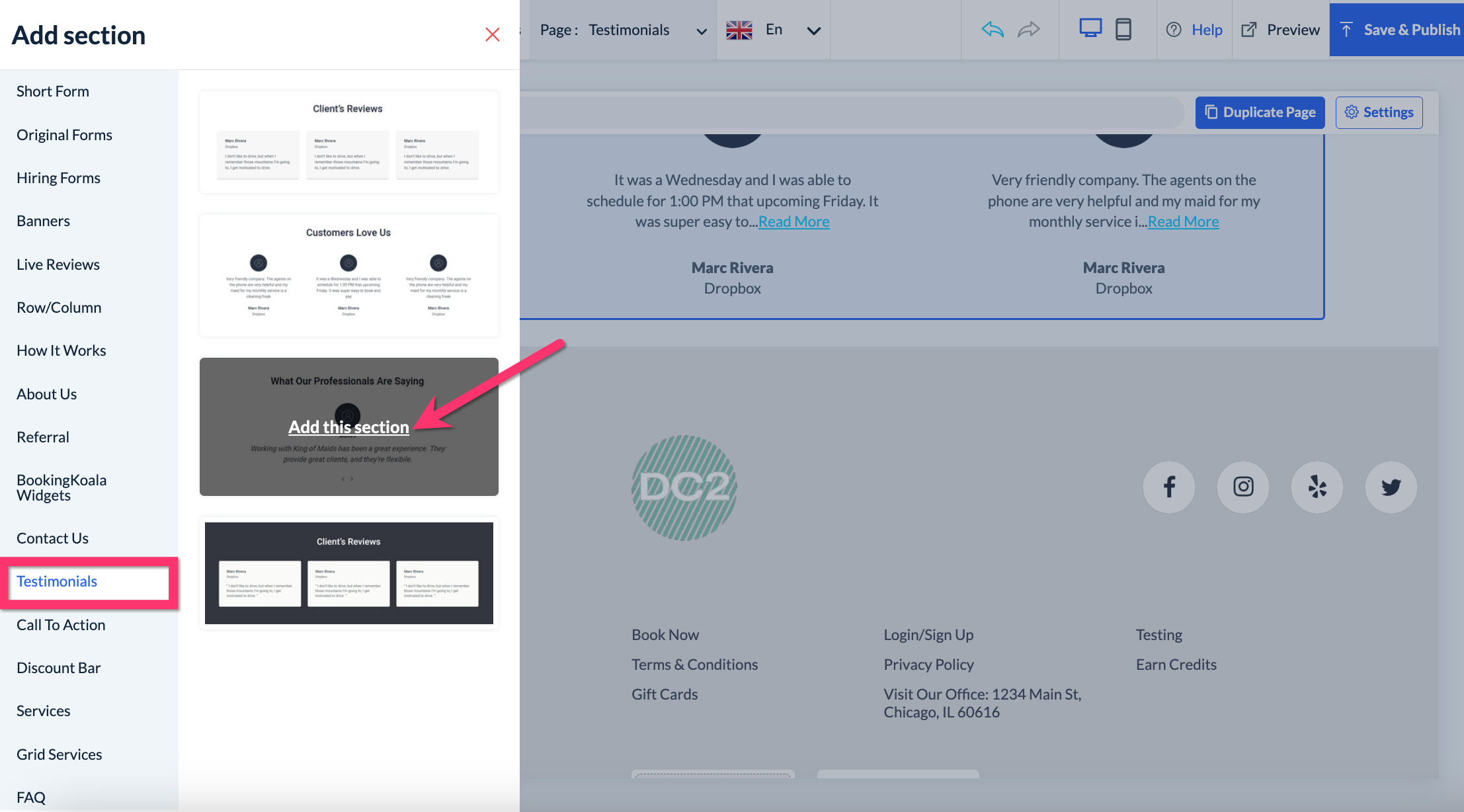
Once you've added the section, you can begin to customize it according to your needs.
You can change the title of the section by clicking on the title and selecting "Edit".
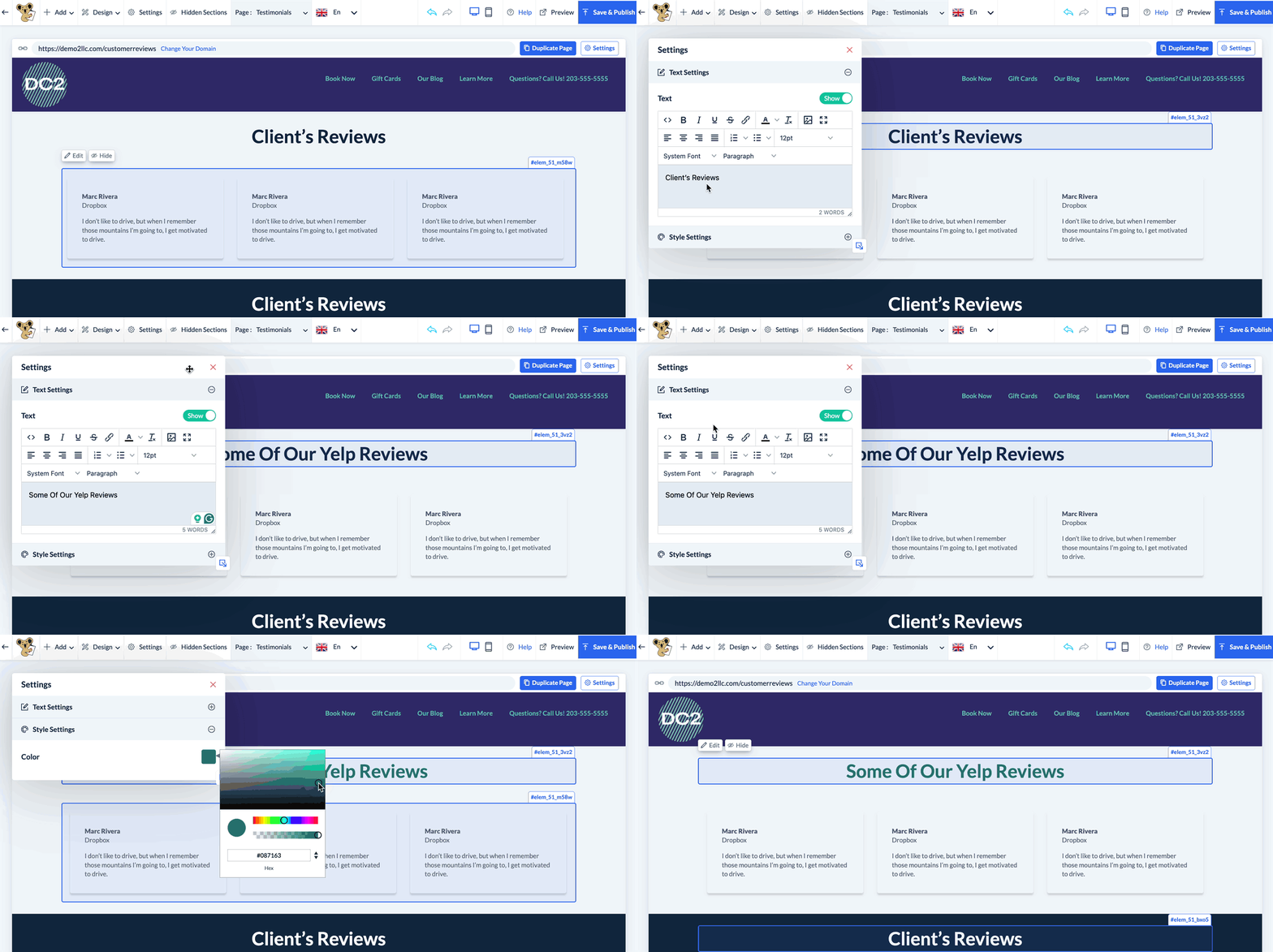
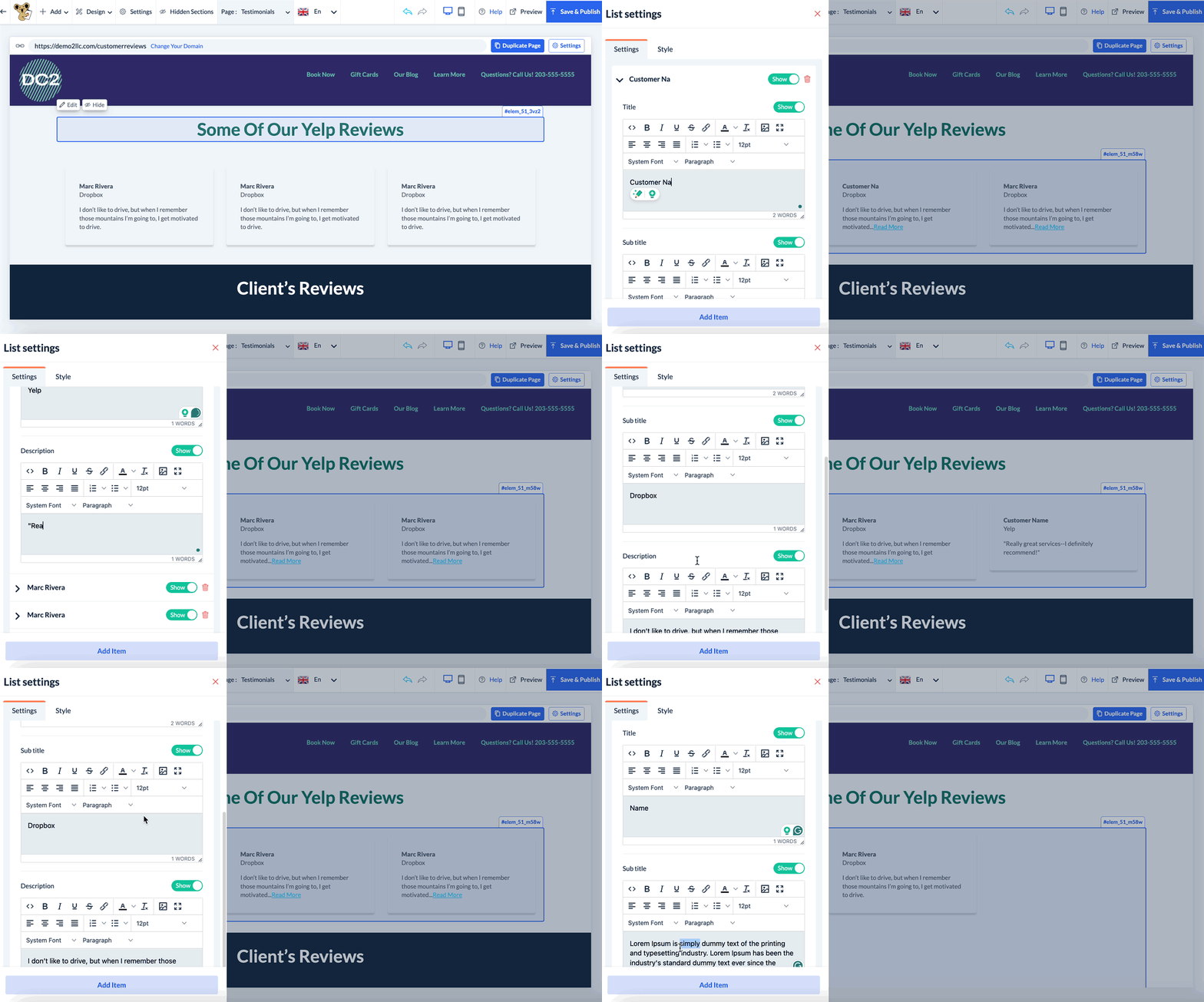
You can add, edit, and delete testimonials by clicking anywhere on the testimonials and selecting the "Edit" button that appears.
Click the arrow icon to open and edit an existing testimonial.
Click the Show/Hide button to show or hide part of the testimonial.
Click the red trashcan icon to delete a testimonial.
Click the blue Add item button to add a new testimonial.
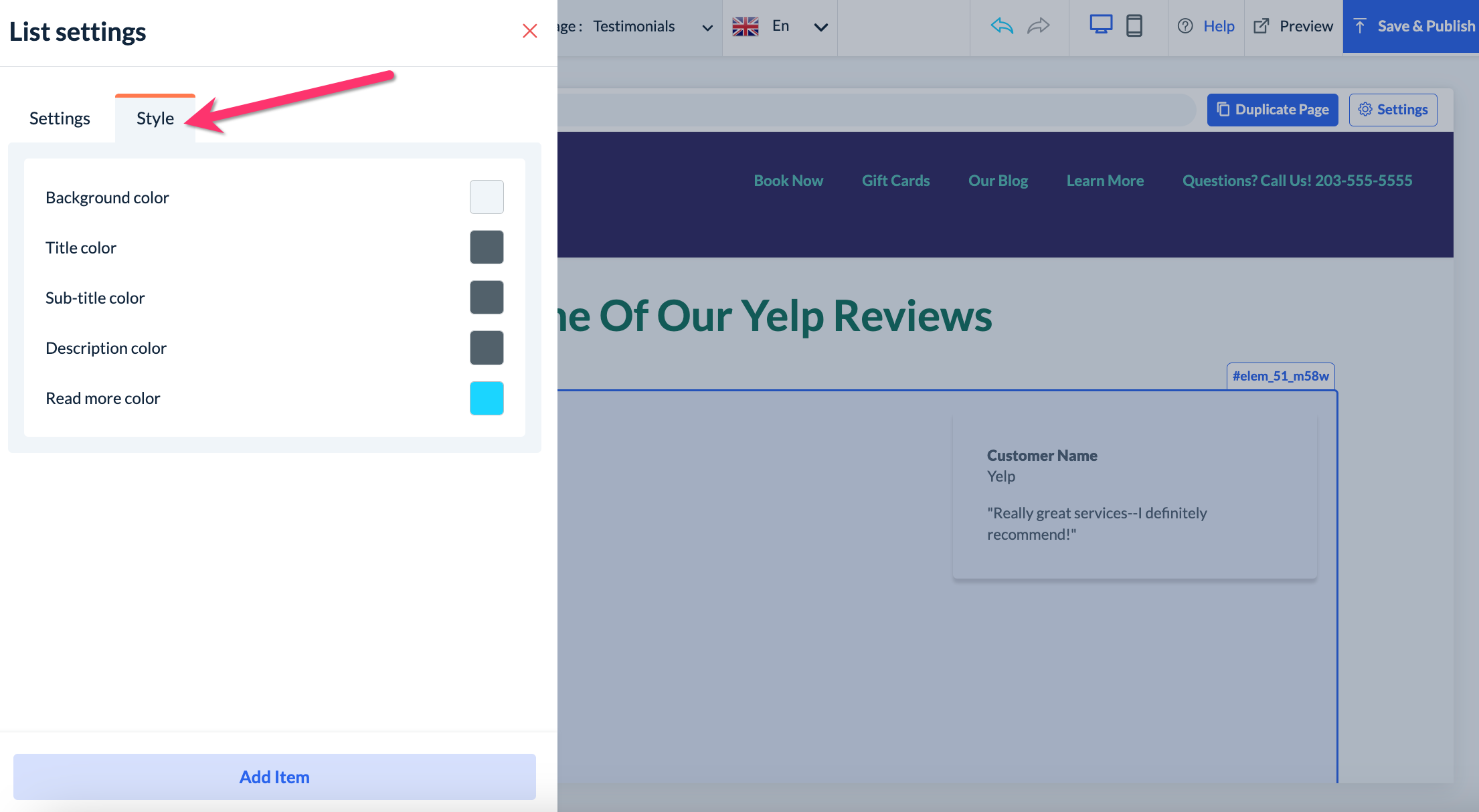
You can change the colors of your testimonials section by clicking "Edit" and selecting the "Style" tab.
You can edit the background color, title color, subtitle color, description color, and "read more" color for this particular testimonial section.
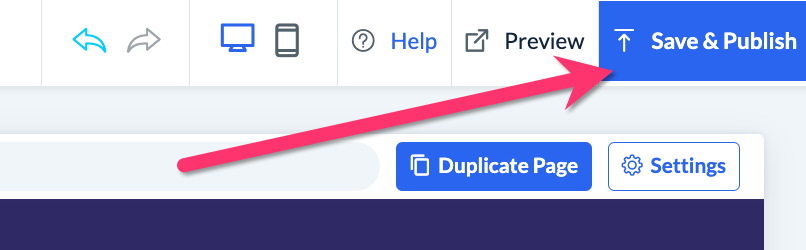
Once you are finished making your edits, be sure to click on the "Save & Publish" button at the top right corner of the page to save your changes.