The purpose of this article is to help you understand:
How to switch payment processors
Switching Your Payment Processor
Step 1: Migrate Your Customer Card Details
First, it is important to understand that your existing customer's cards need to be added again to your new payment processor account, as BookingKoala does not store cards on our platform.
You will first need to move your customer cards from your current payment processor account to your new payment processor account before you can proceed with switching.
We recommend contacting customer support for both your current and new payment processors to get assistance with migrating the customer's card details from the current account to the new account.
Click the links below to locate the support centers for each of our integrated payment processors.
Step 2:
Go to:
Settings > General > Store Options > General tab > Payment section
and ensure that you have selected the "No" option for the question "When a booking is pre-charged with a card, then updated to cash/check, should we refund the charge?".
This is to make sure that any precharged card transactions are not automatically refunded when you switch your bookings from an existing credit card to cash/check.
Step 3: Update Active Bookings to Cash/Check
The next step is to change all of your active bookings with existing cards to "cash/check".
As they are already associated with the old payment processor's keys, the system will not allow the addition of new payment processor keys until there are no bookings left with the existing keys.
For this, please check for the active bookings with existing card(s) in the "List View" at the following places:
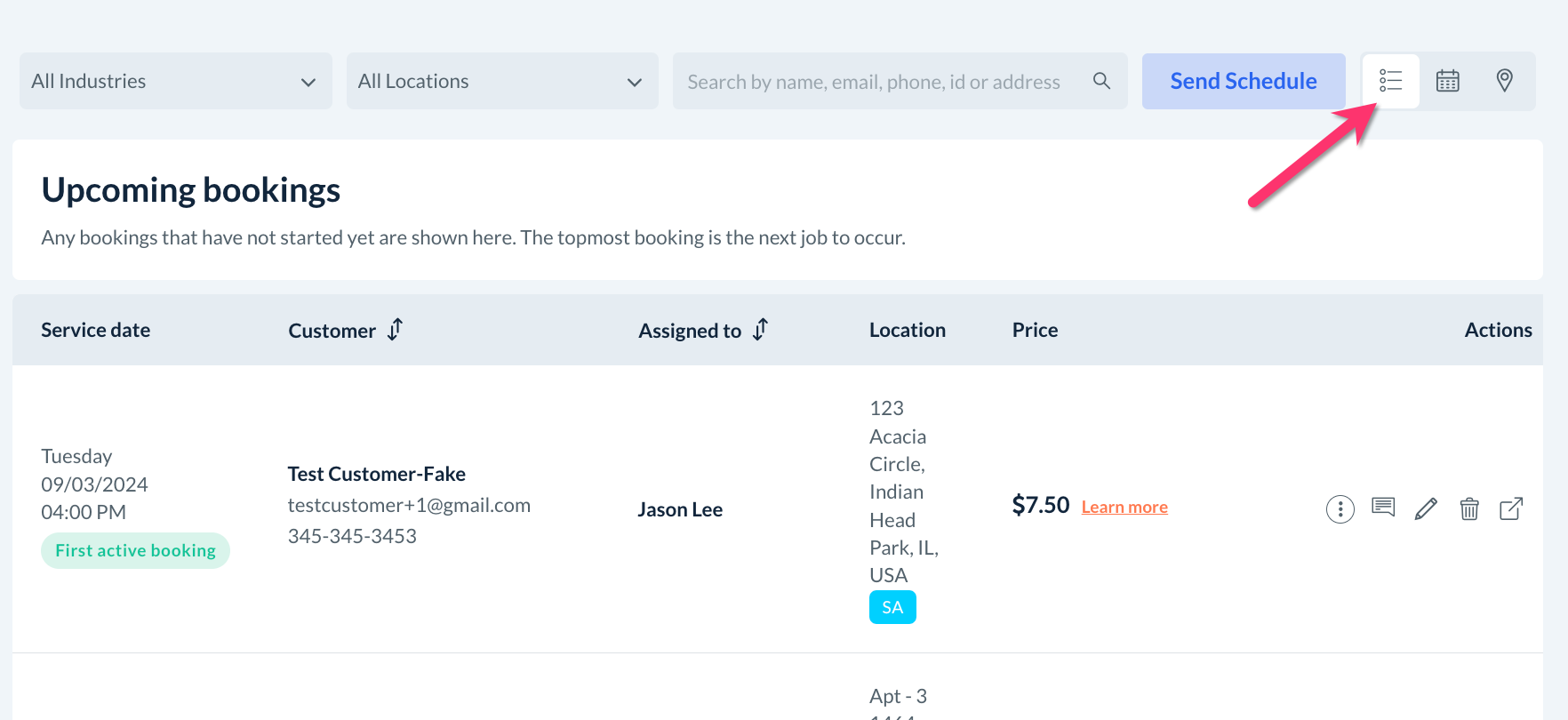
Bookings > Today's Booking
Bookings > Upcoming Bookings
Bookings > Unassigned Bookings
Bookings > Booking Charges > Pending Charges
Bookings > Booking Charges > Declined
Bookings > Booking Charges > Card Hold(s) / Decline(s) > Card Holds
Bookings > Booking Charges > Card Hold(s) / Decline(s) > Card Declined
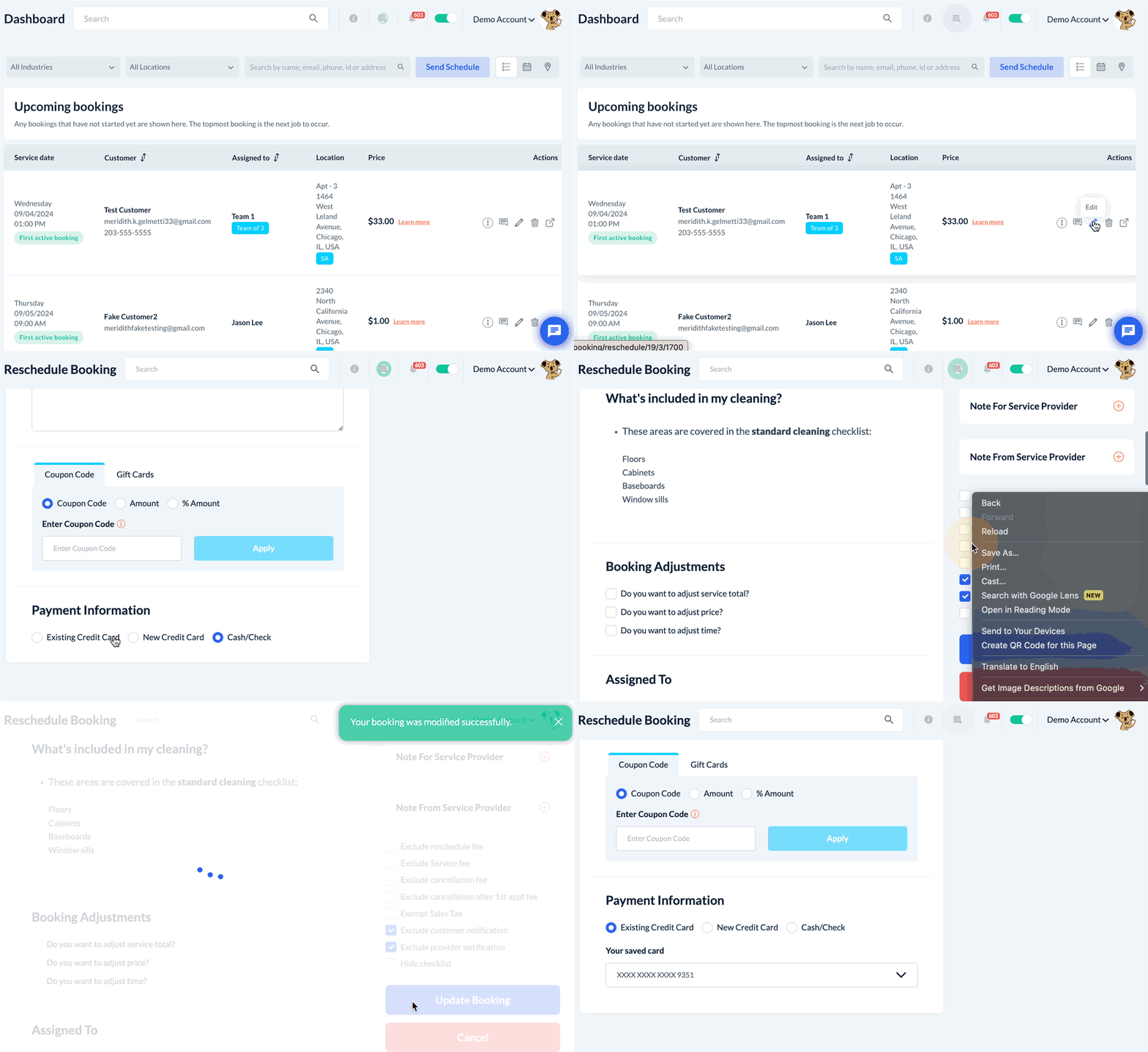
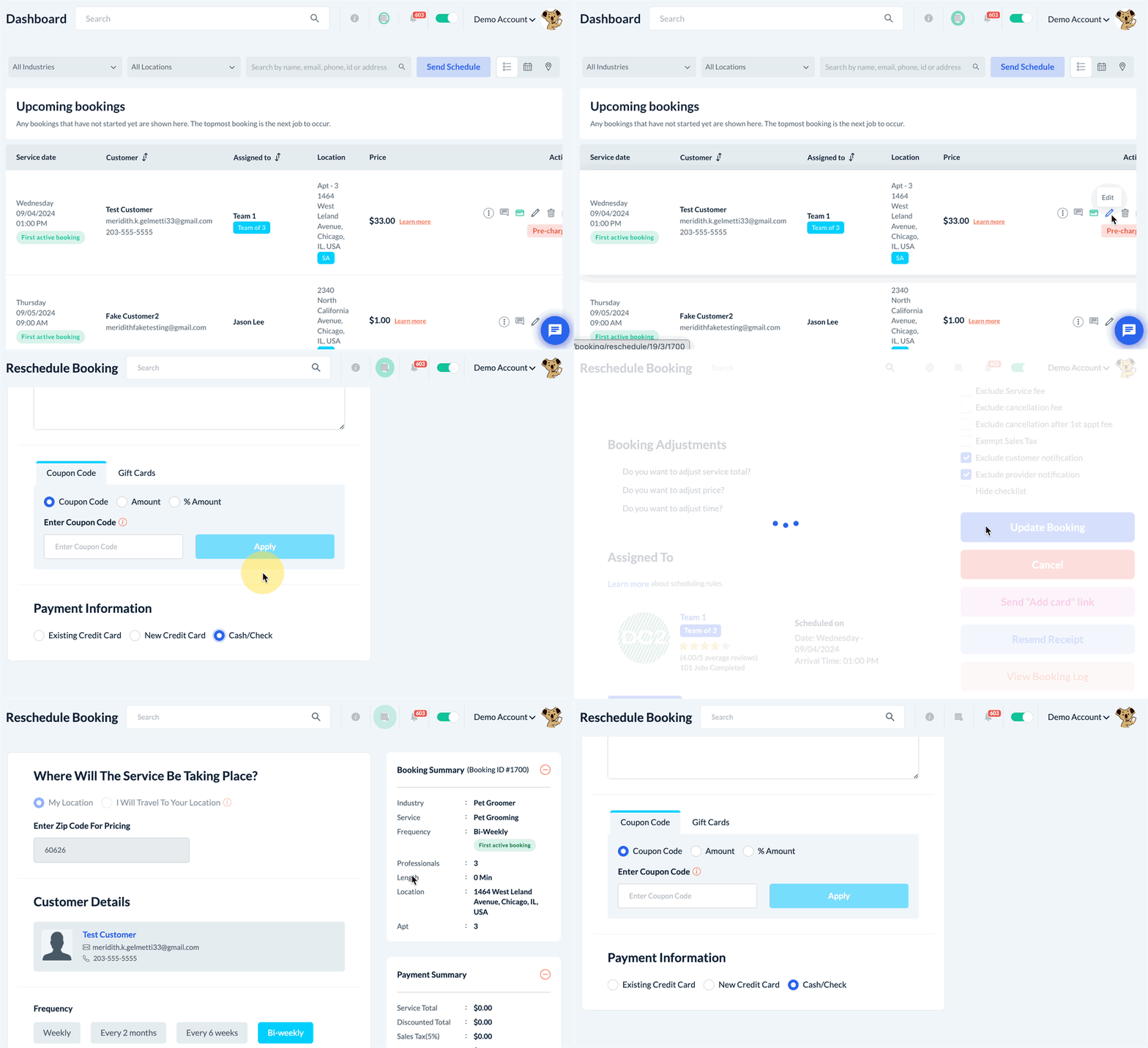
Click the pencil icon to edit the booking and scroll down to the bottom of the page to the Payment Information section. Select "Cash/Check" (or whatever you have named this option) as the payment method for the booking(s), then click the blue "Update Booking" button from the bottom or side menu.
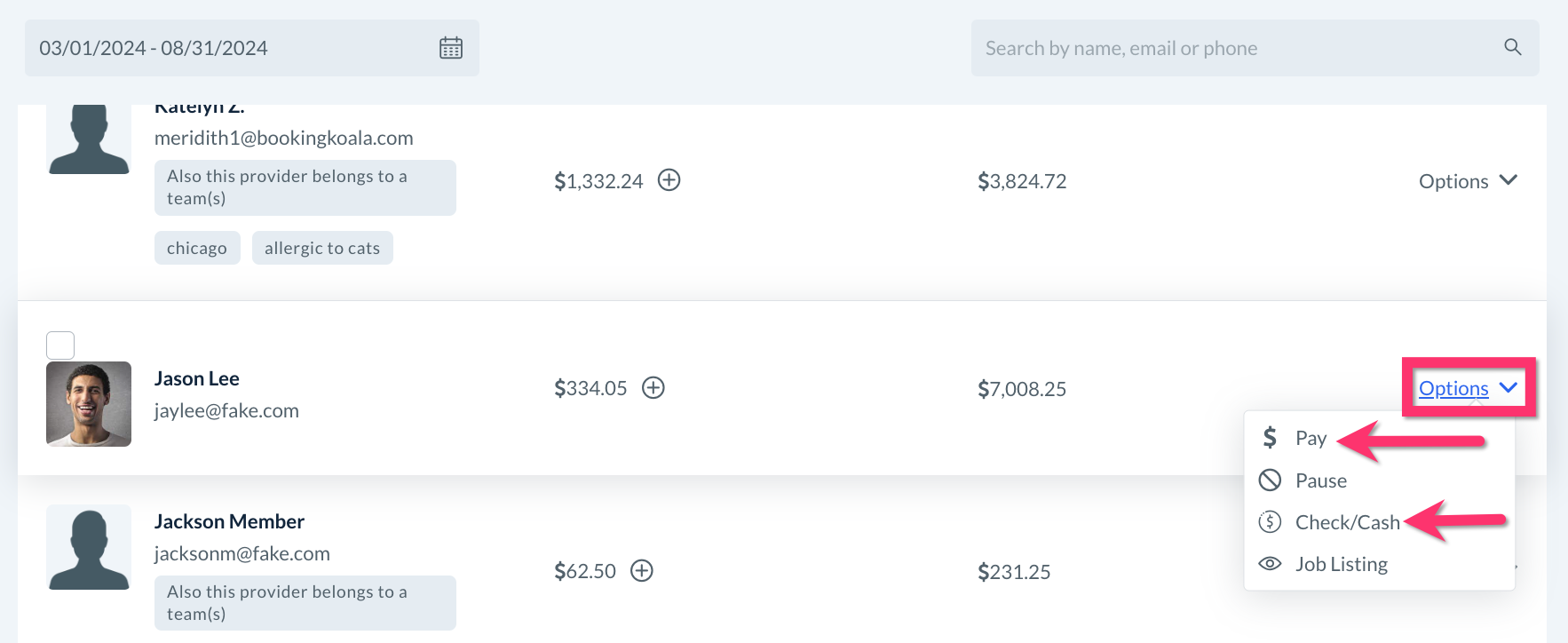
You will also want to ensure that there are no pending provider payments connected to your original payment processor. To check for these, please go to:
Providers > Payments
Select the last 6 months or longer for the pay period to check for outstanding payments.
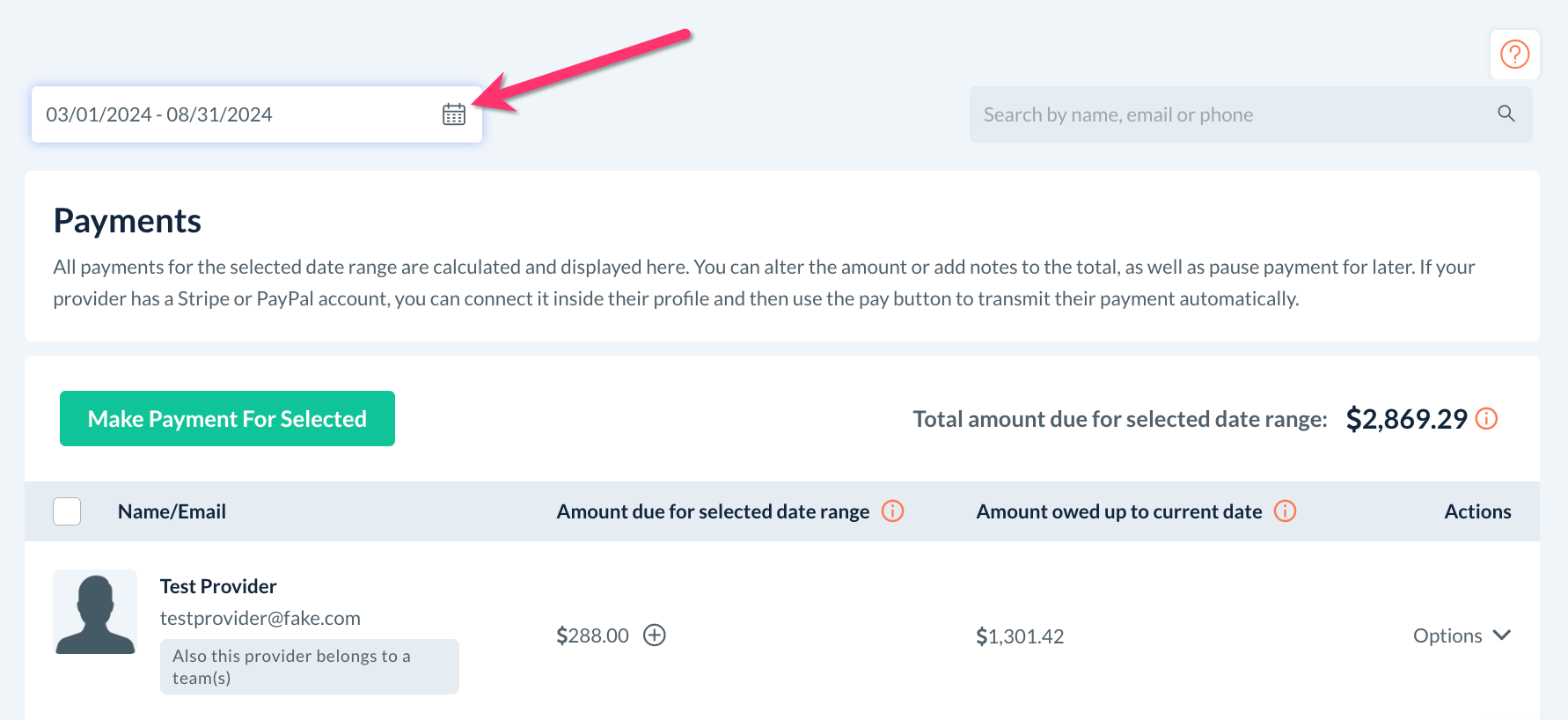
If there are outstanding provider payments, select "Options" then "Pay" (or "Cash/Check" if you are paying the provider outside of Bookingkoala).
Step 4: Connect Your New Payment Processor
Once you have switched all of your bookings to "cash/check", you are ready to integrate your new payment processor. Please follow the instructions linked below to set up and connect the new payment processor.
Step 5: Prepare and Share Your Client CSV File
Once the customer's card data is migrated from your original account into your new payment processor account, the customer will have a new ID. Export this information from your new payment processor and add it to a CSV file along with the client's other data like their first name, last name, address, email address, phone number, etc.
Next, share this file with us at [email protected] and request that we map the data via the backend of your BookingKoala account. Please be sure you have fully completed steps 1-3 before emailing with your request.
Step 6: Update Your Bookings
Update the bookings with your customer's card details. You can do this by going to:
Bookings > Today's Booking
Bookings > Upcoming Bookings
Bookings > Unassigned Bookings
Bookings > Booking Charges > Pending Charges
Bookings > Booking Charges > Declined
Bookings > Booking Charges > Card Hold(s) / Decline(s) > Card Holds
Bookings > Booking Charges > Card Hold(s) / Decline(s) > Card Declined
Click the pencil icon to edit the booking and scroll down to the bottom of the page to the Payment Information section. Select "Existing Credit Card", then click the blue "Update Booking" button from the bottom or side menu.