

The purpose of this article is to help you learn more about:
How to disable the unsubscribe link from emails, SMS, or both
Hot to edit your Campaign footer signature
How to set up your sender email address name and email
How to set up your sender phone number
Locating the Campaign Notification Settings
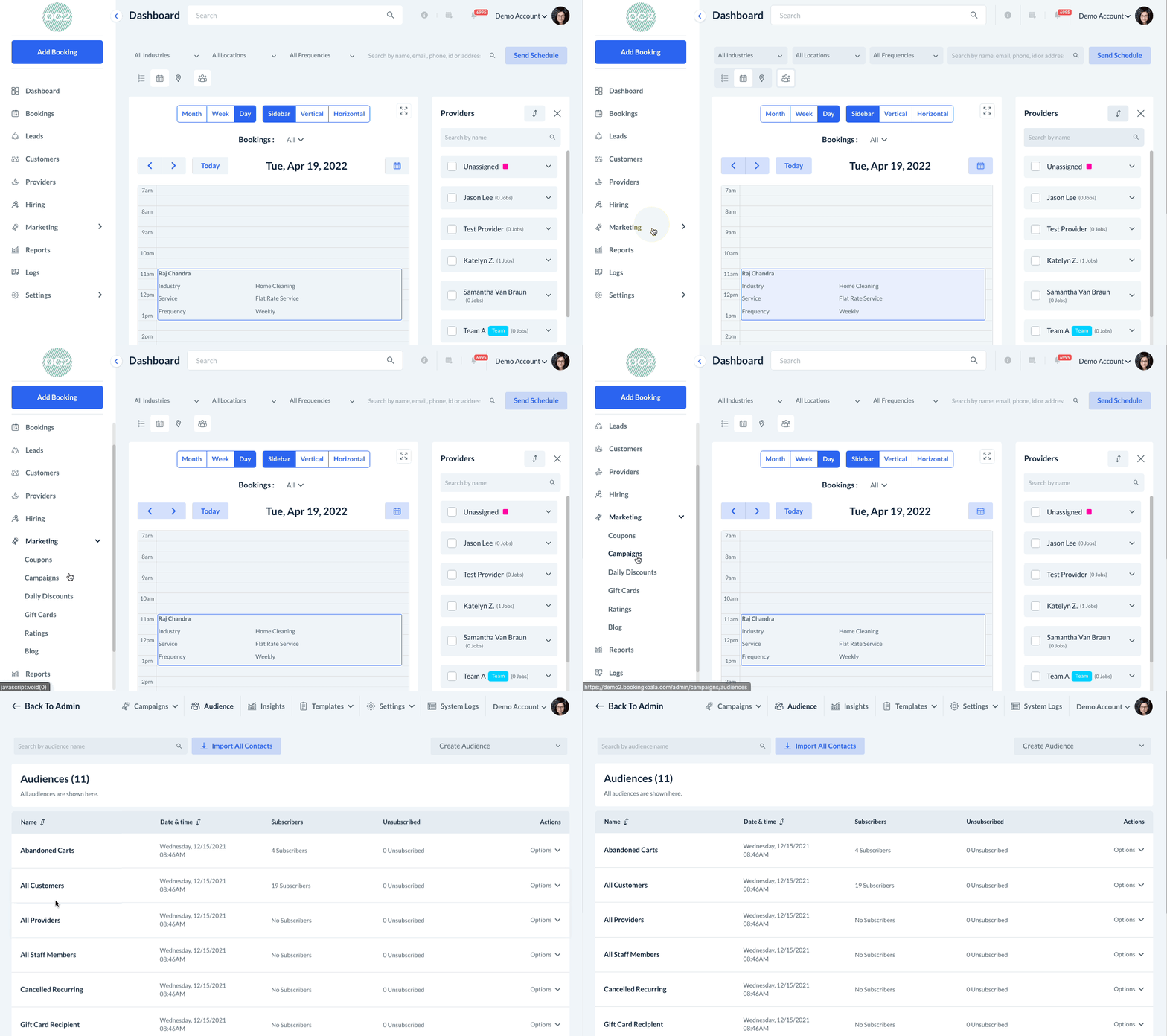
To open the Campaign Module, go to the main menu on the left of your Dashboard and click on the "Marketing" tab. Then, select "Campaigns".
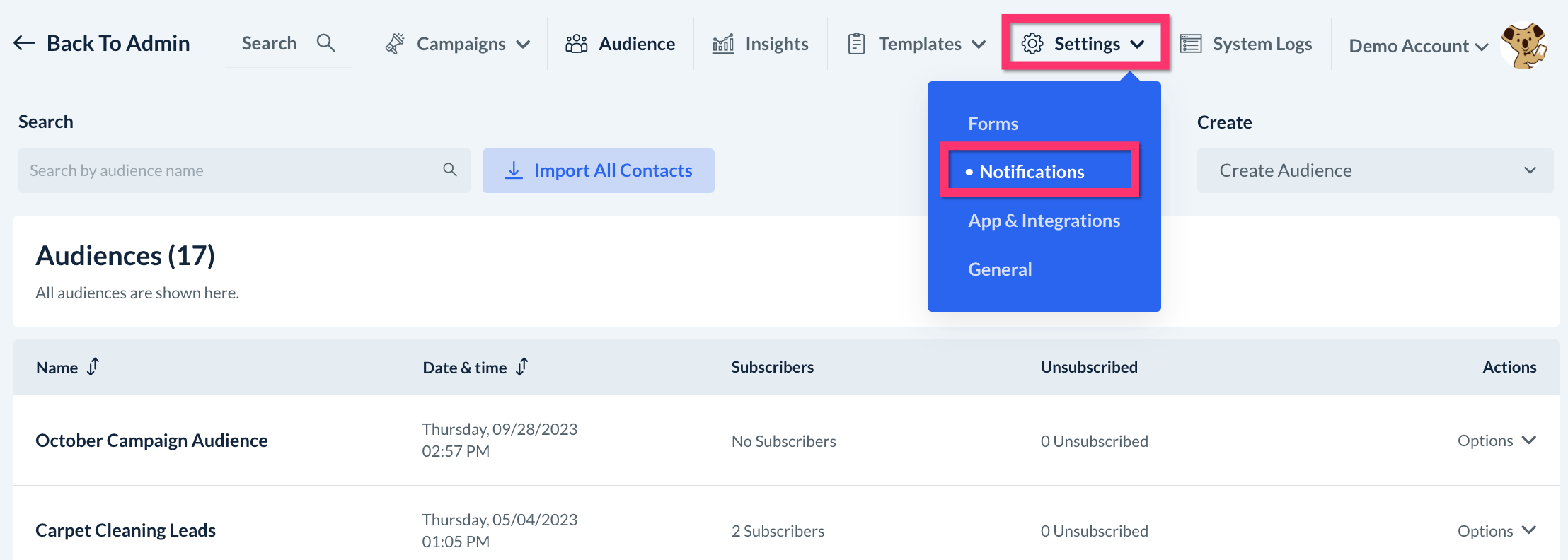
You will be redirected to the Campaign Module dashboard. From here, click on Settings then Notifications. You will be directed to the Lead Notifications page.
Sender Email Address Name
First, enter the name you would like displayed when sending out campaign emails.

Unsubscribe Link Text
Next, enter the text you would like displayed for the unsubscribe link in your texts and emails.

Remove Unsubscribe Link from Campaigns
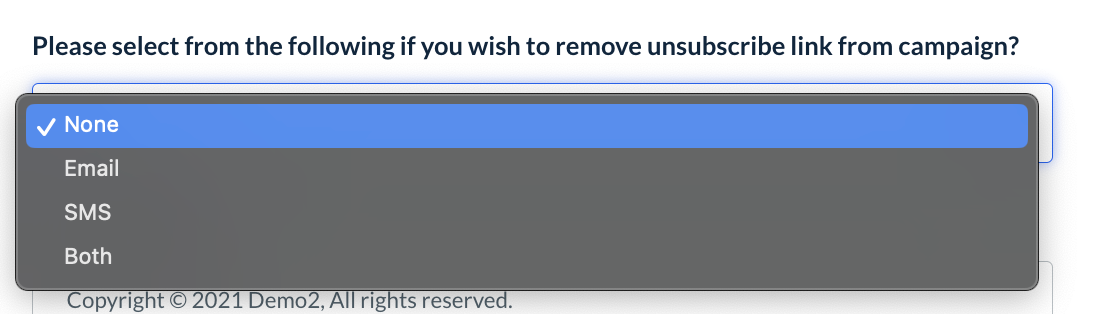
If you would like to remove the unsubscribe link from your campaigns, you can select "Email", "SMS", or "Both". If you would like to keep the unsubscribe link at the bottom/end of your campaigns, please select "None".
Footer Signature
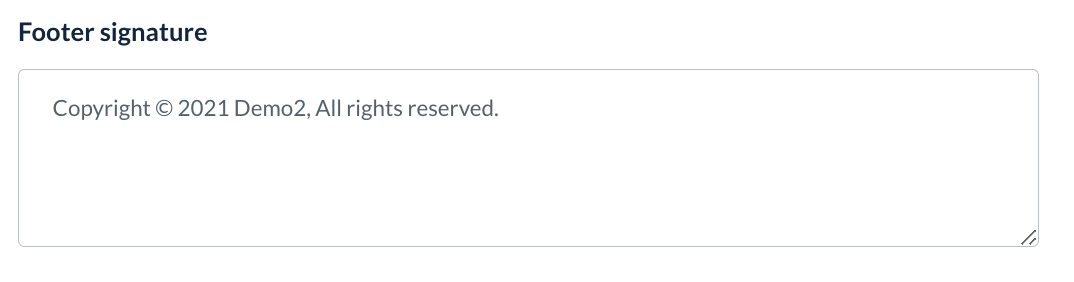
You can set up your footer signature by entering text into the field below.
Default Send-Out Email
Next, verify that your send-out email address is correct. If you'd like to use a different email address to send out your campaign emails, click the blue "Change" button.

Please note that for the campaign module, the system does not allow the use of a public domain email ID. We recommend you use a business email ID. If you don't have one, you can purchase a new business email ID. Additionally, you can use the links below to explore domain email options if you do not have a custom domain.
To set up a professional email address with Google Workspace.
To set up a business email hosted by GoDaddy.
To see business email packages by Microsoft 365.
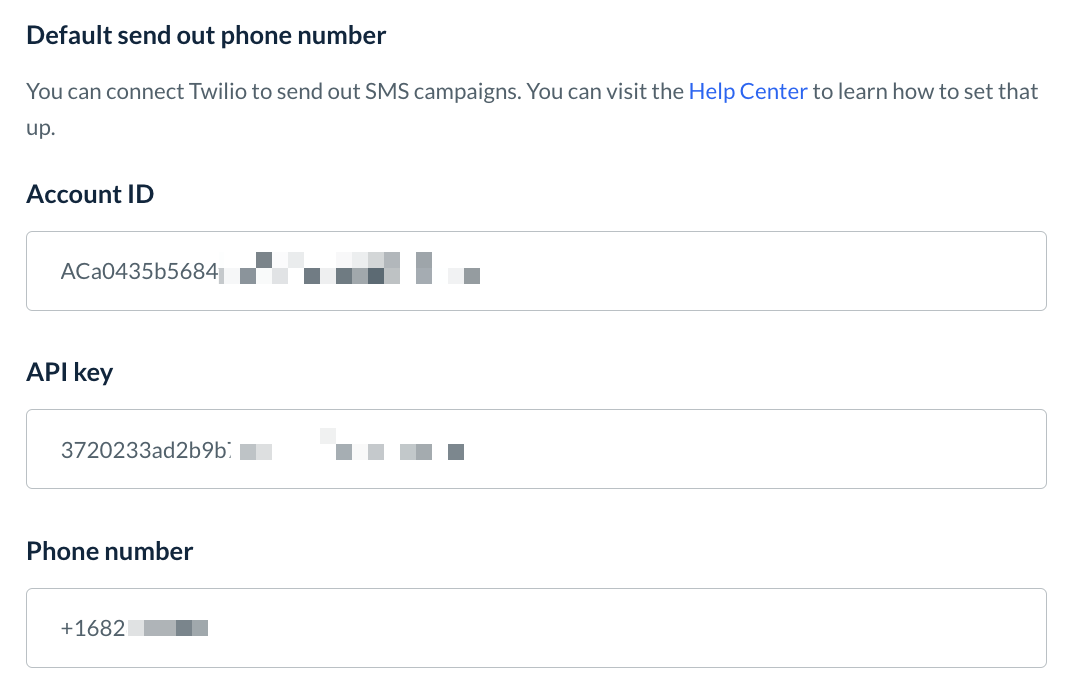
Default Send-Out Phone Number
If you would like to use a different send-out phone number than the one you use for general SMS notifications, you can enter your Twilio credentials into the fields below.
Click here for detailed instructions on how to connect your Twilio account to BookingKoala.