

In this article, you will learn how to:
Edit the FAQs/popular questions section on the booking/"Get a quote" page
Edit the dynamic FAQs section
Editing the Popular Questions/FAQs Section on the Booking and Lead Form
One of the optional components on the booking form or "Book Now" page is the FAQs/popular questions section. This section can help customers better understand your business and your services. Do you get a lot of common questions about your services? If so, this is the perfect place to address those questions while the customer looks at your pricing and availability.
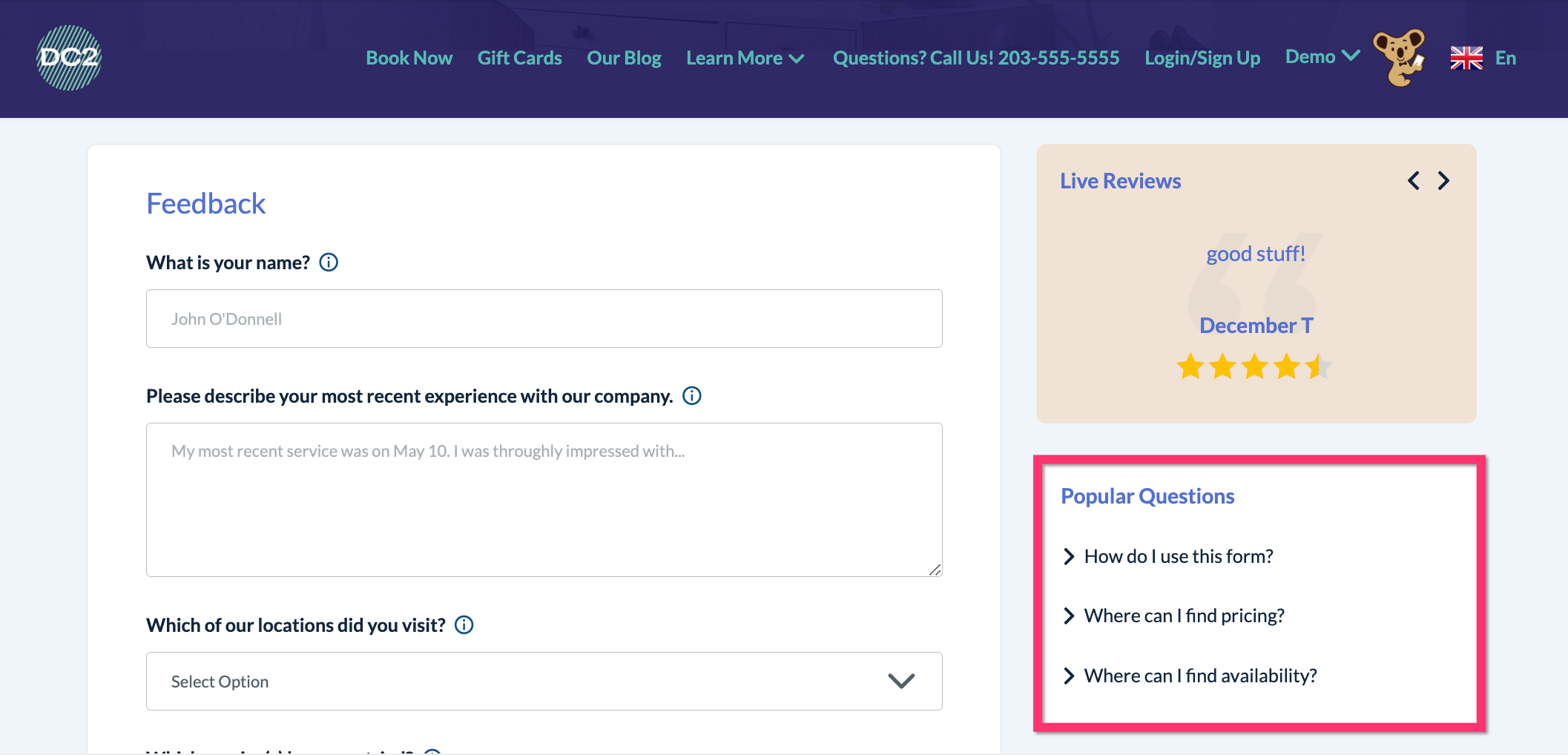
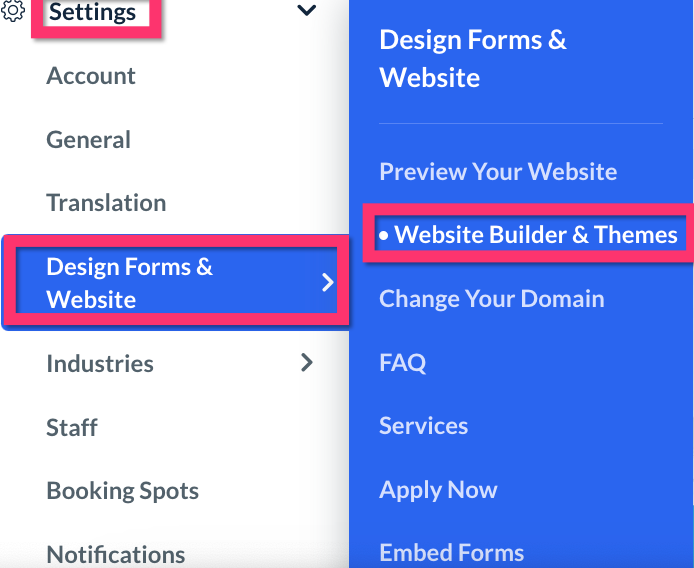
To edit the FAQs section, you must first open the Website and Theme Builder. To do so, please go to:
Settings > Design Forms & Website > Website Builder & Themes
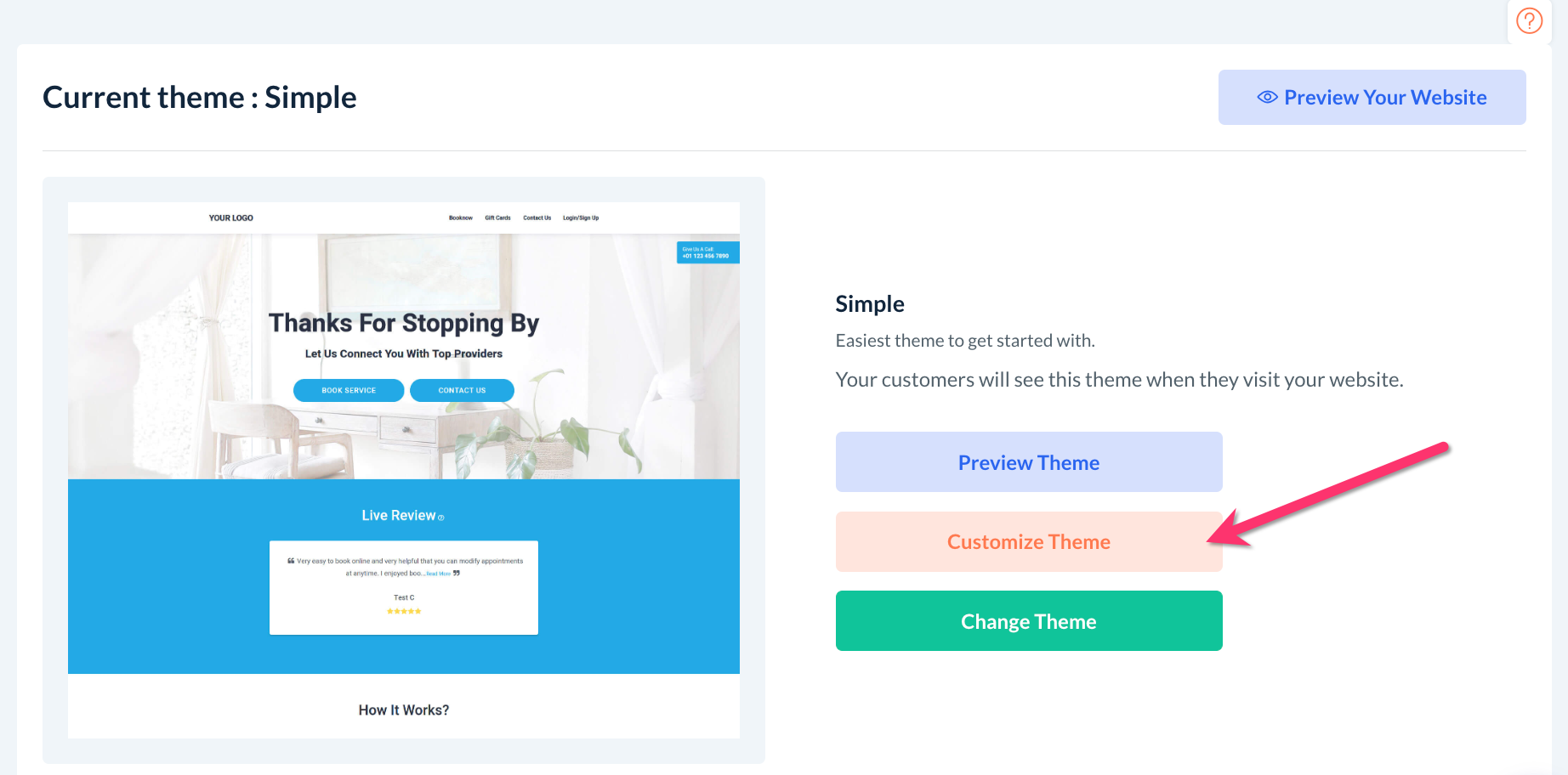
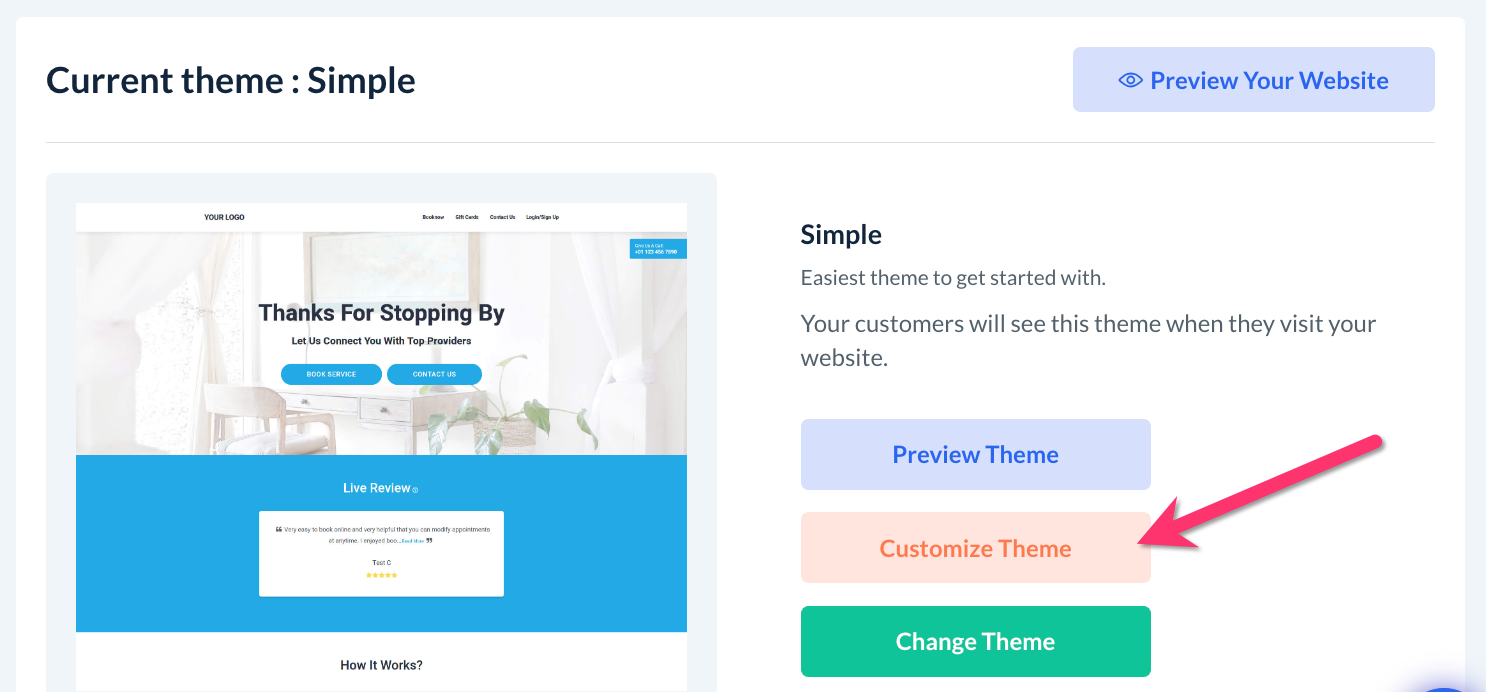
Next, click the orange "Customize Theme" button at the center of the page.
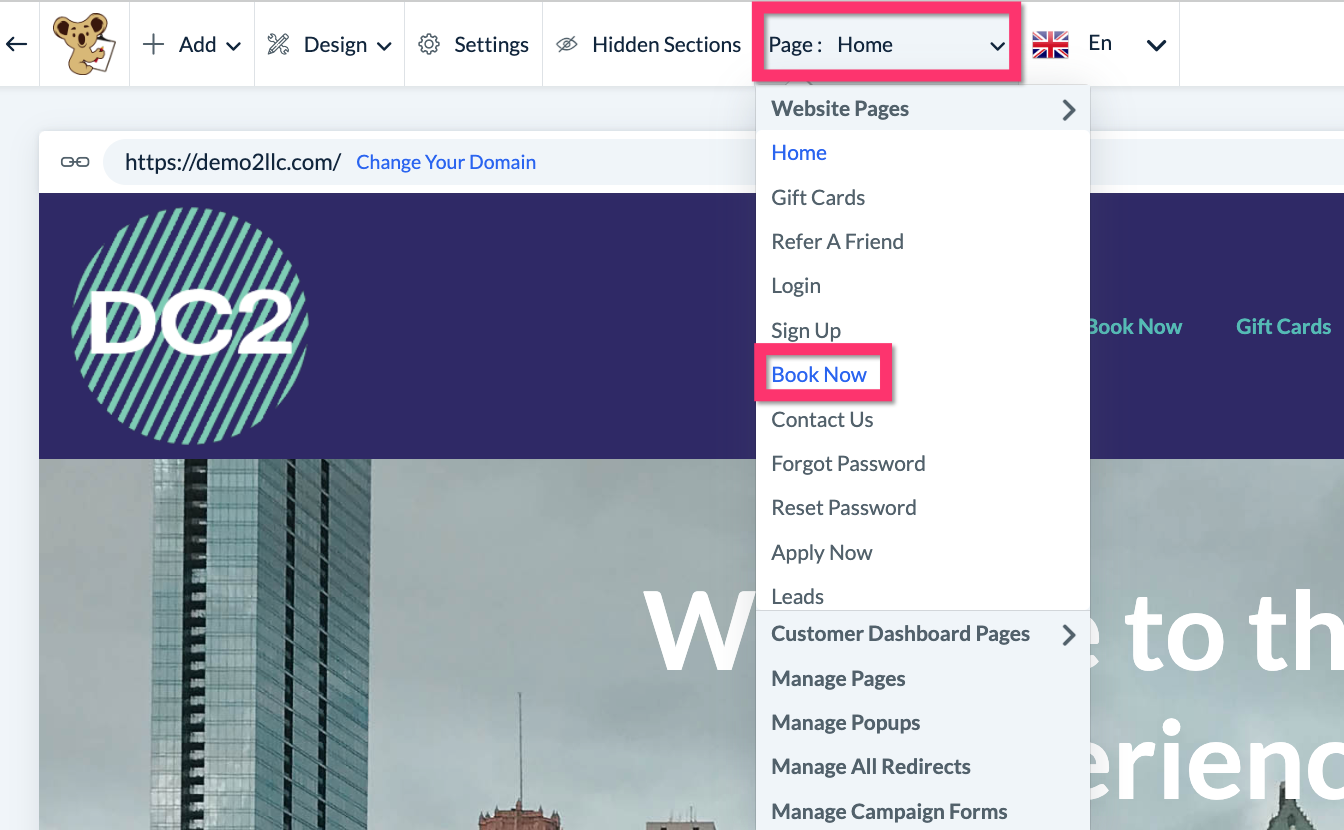
Once the website and theme builder have launched, click on the top-center Page menu and select the "Book Now" page. This is the default name of the booking form page.
Next, scroll down the Book Now page until you locate the FAQs section along the right side of the page. Click on the element number on the top right corner of the section to reveal the Edit button. Click Edit to launch the section editor.
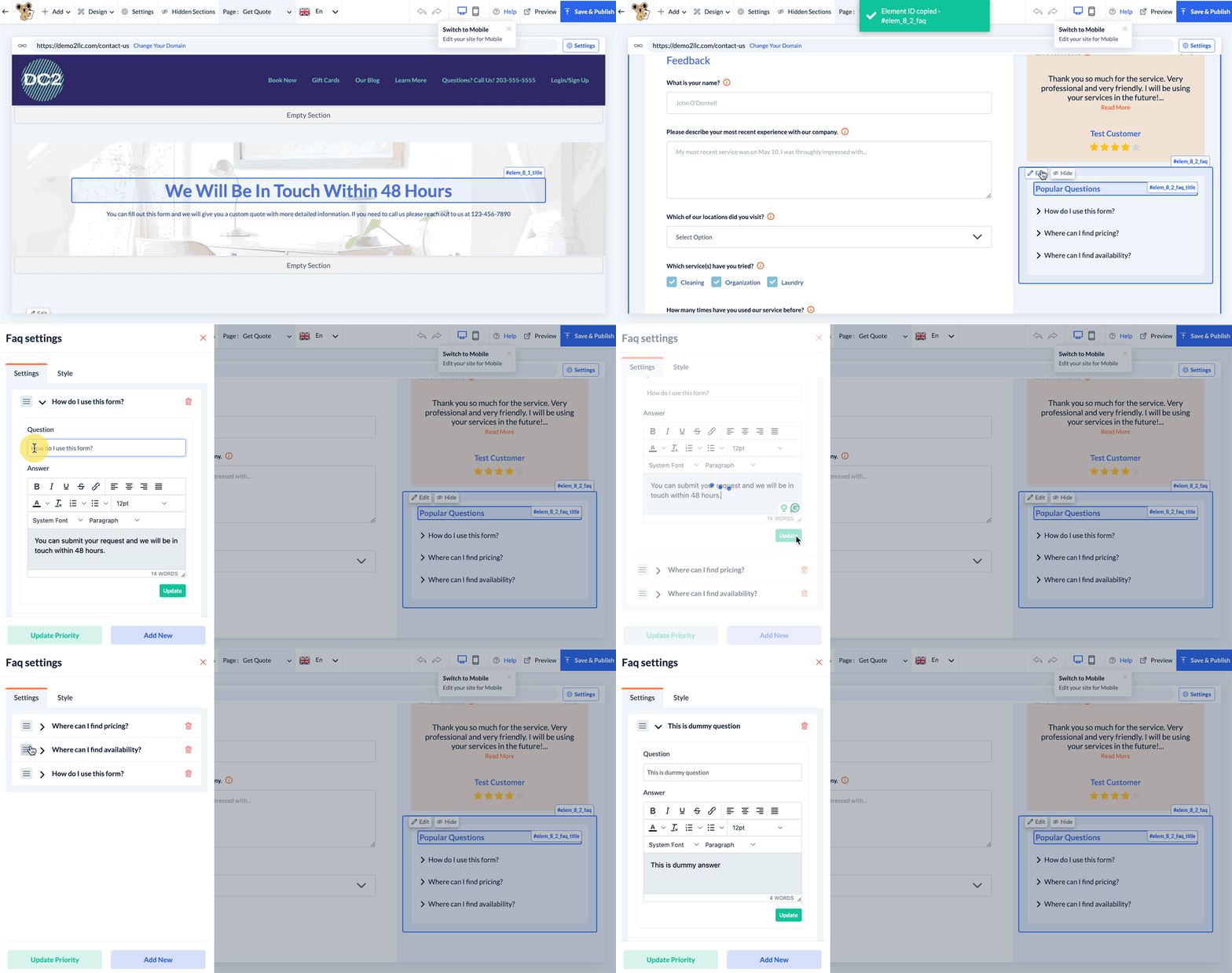
From here, you can edit or delete existing questions, add new questions, and change the priority order of the questions in this section.
To edit a question, click on the down arrow to reveal the editable fields for the question and answer.
To delete a question, click on the trash can icon and select "Yes" in the following pop-up.
To add a new question, click on the blue "Add New" button at the bottom of the side menu and then enter a question and answer into the fields.
To change the priority order of the questions, drag and drop a question by holding the sandwich icon and then click the green "Update Priority" button at the bottom of the side menu.
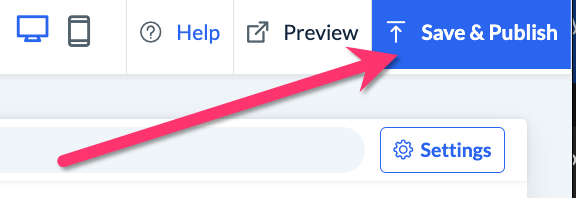
Once you are finished making your changes, you can click the red X icon to close the side menu. Don't forget to click the Save & Publish button in the top right corner of the page so your changes are pushed live to your booking form.
Editing the Dynamic FAQs Section
If you have added a "FAQs" section from the section menu, there is a separate section dedicated to creating a more complex question-and-answer page. To add this section to your BookingKoala website, please go to:
Settings > Design Forms & Website > Website Builder & Themes > Customize Theme
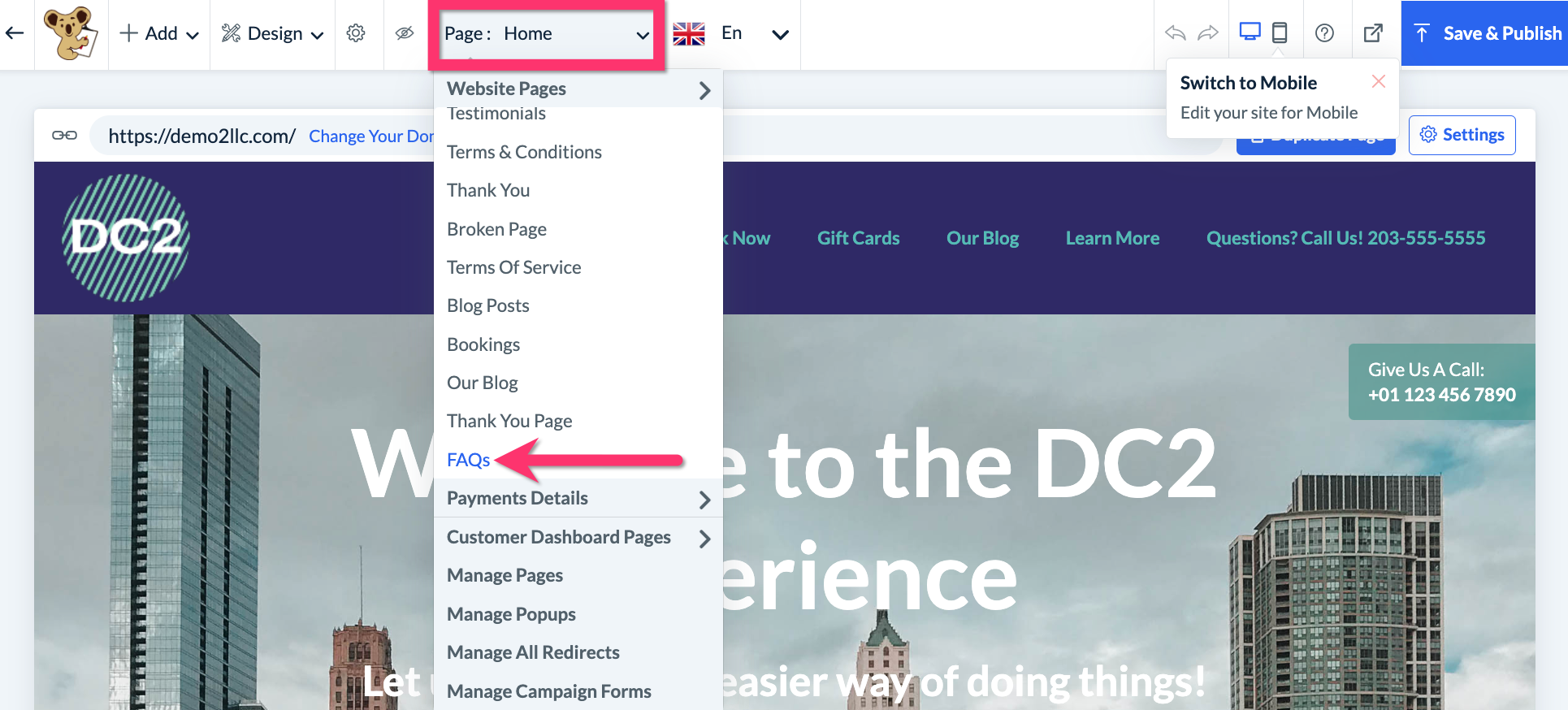
Select whichever page you would like to add the FAQ section to from the top-center Page menu.
If you'd like to create a designated FAQs page, click here to learn how to add a new page to your site.
Click here to learn how to add a new page to your header or footer.
Add the FAQ Section
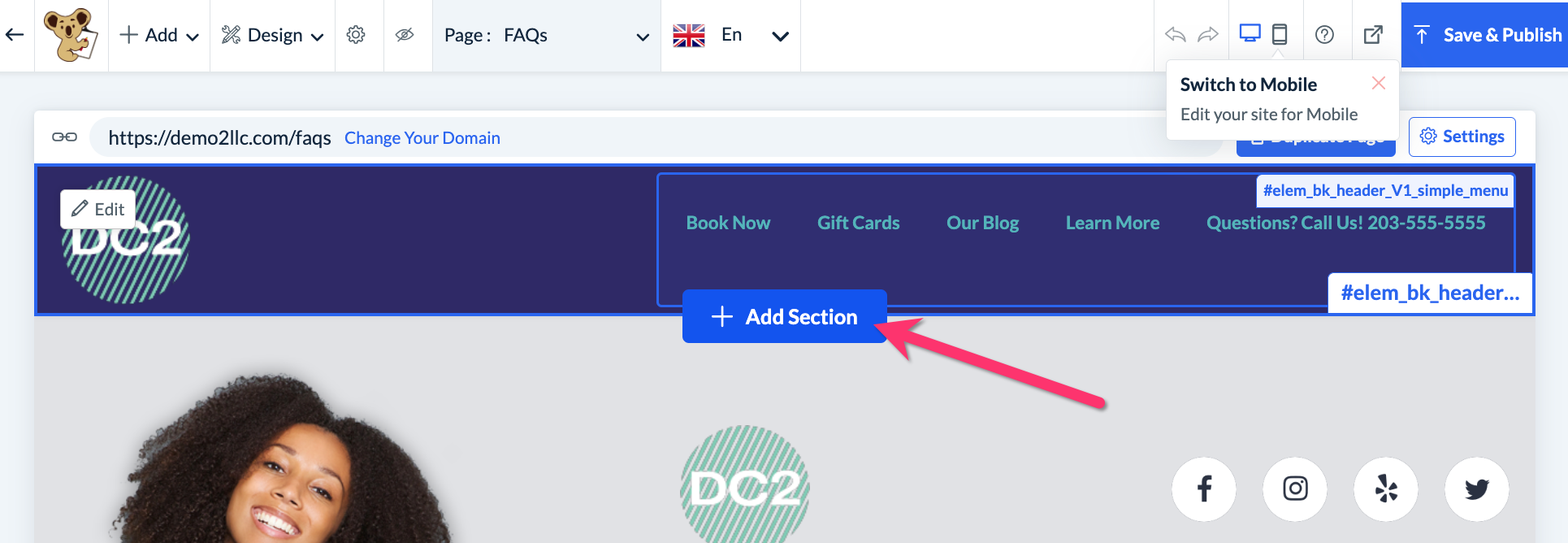
To add the FAQ section to your page, hover your cursor between two sections (such as the header and footer) and click the "Add Section" button that appears.
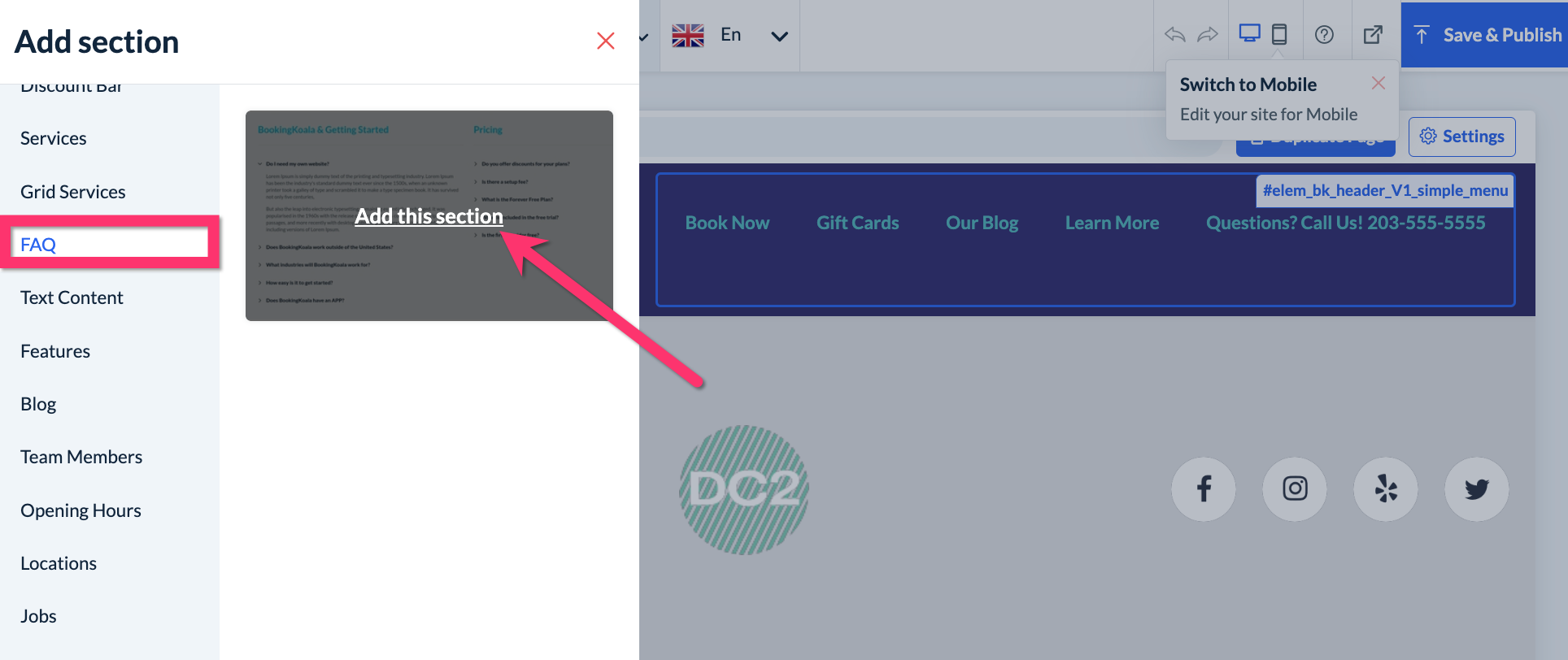
Scroll down the left side menu that appears and click on where it says "FAQ". Then click "Add this section".
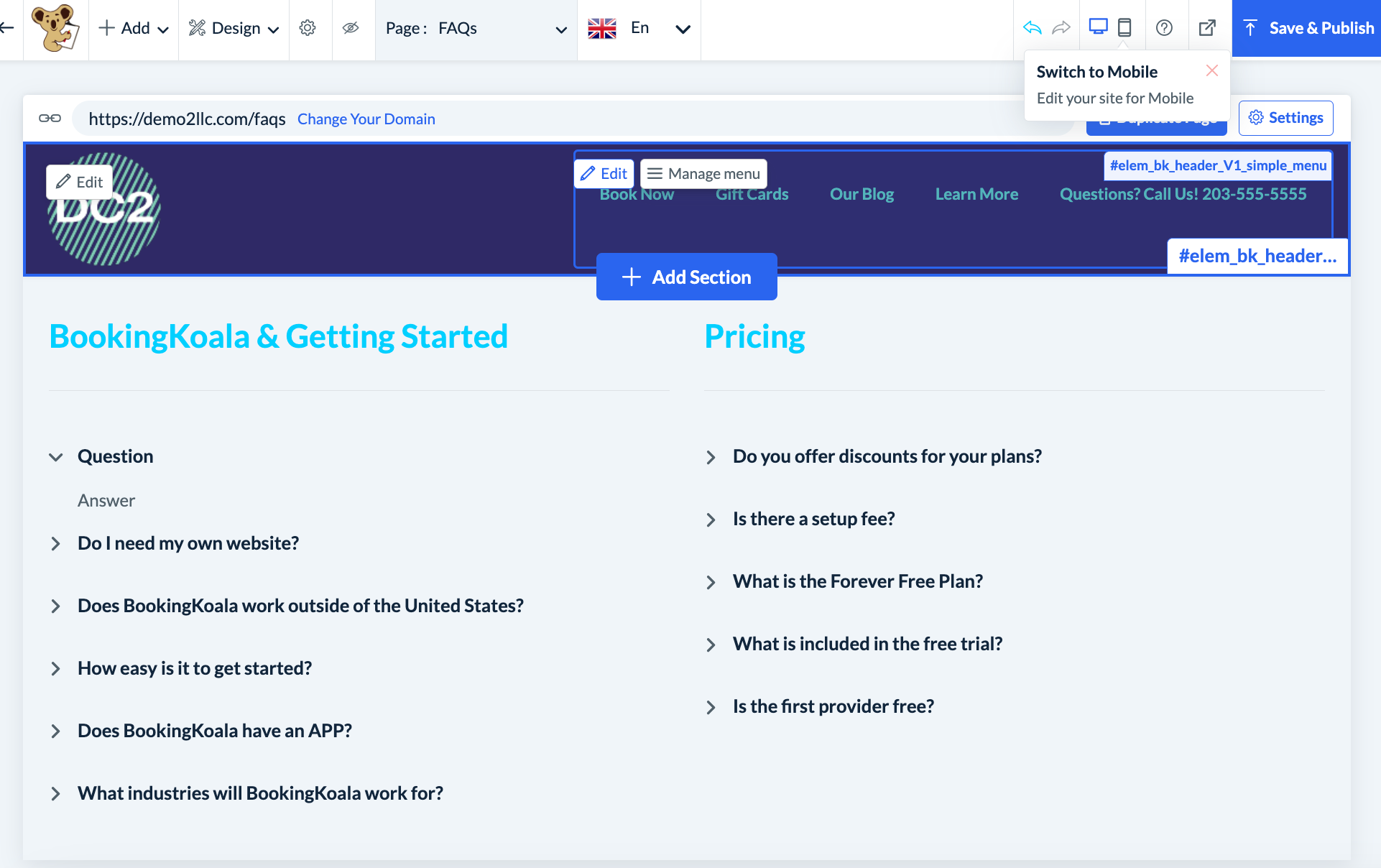
Once the FAQ section is added, you will see four sections each with several questions and answers listed for each section.
Edit the FAQ Section
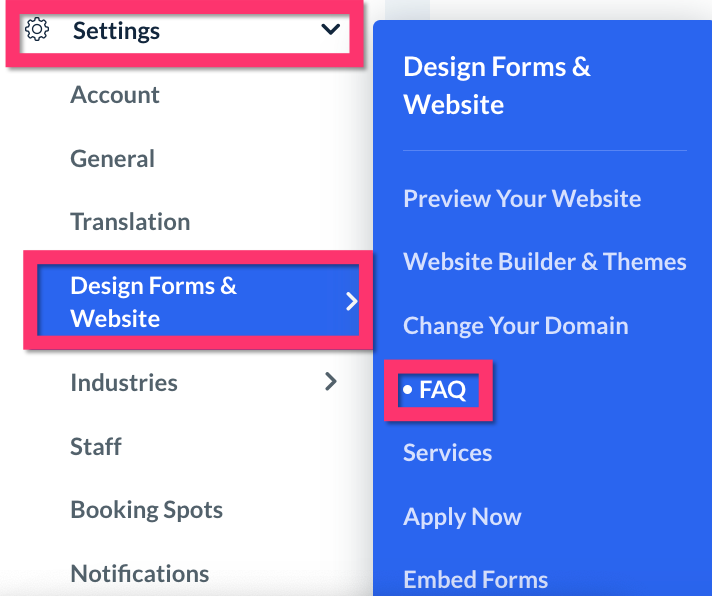
To edit the dynamic FAQs content, please visit:
Settings > Design Forms & Website > FAQ
To edit an existing FAQ, select "Options" under the Actions column, and select "Edit".
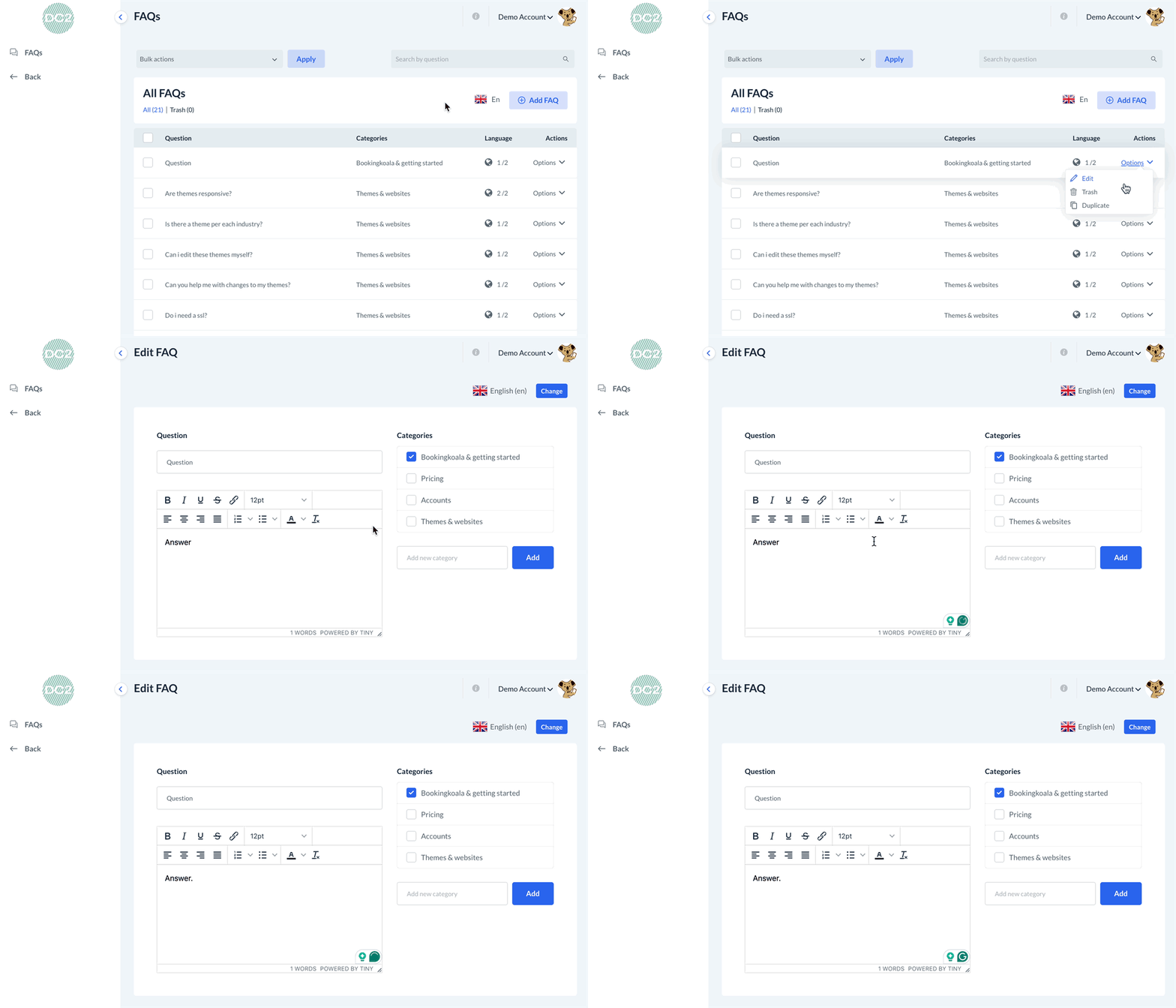
From here, you can do the following:
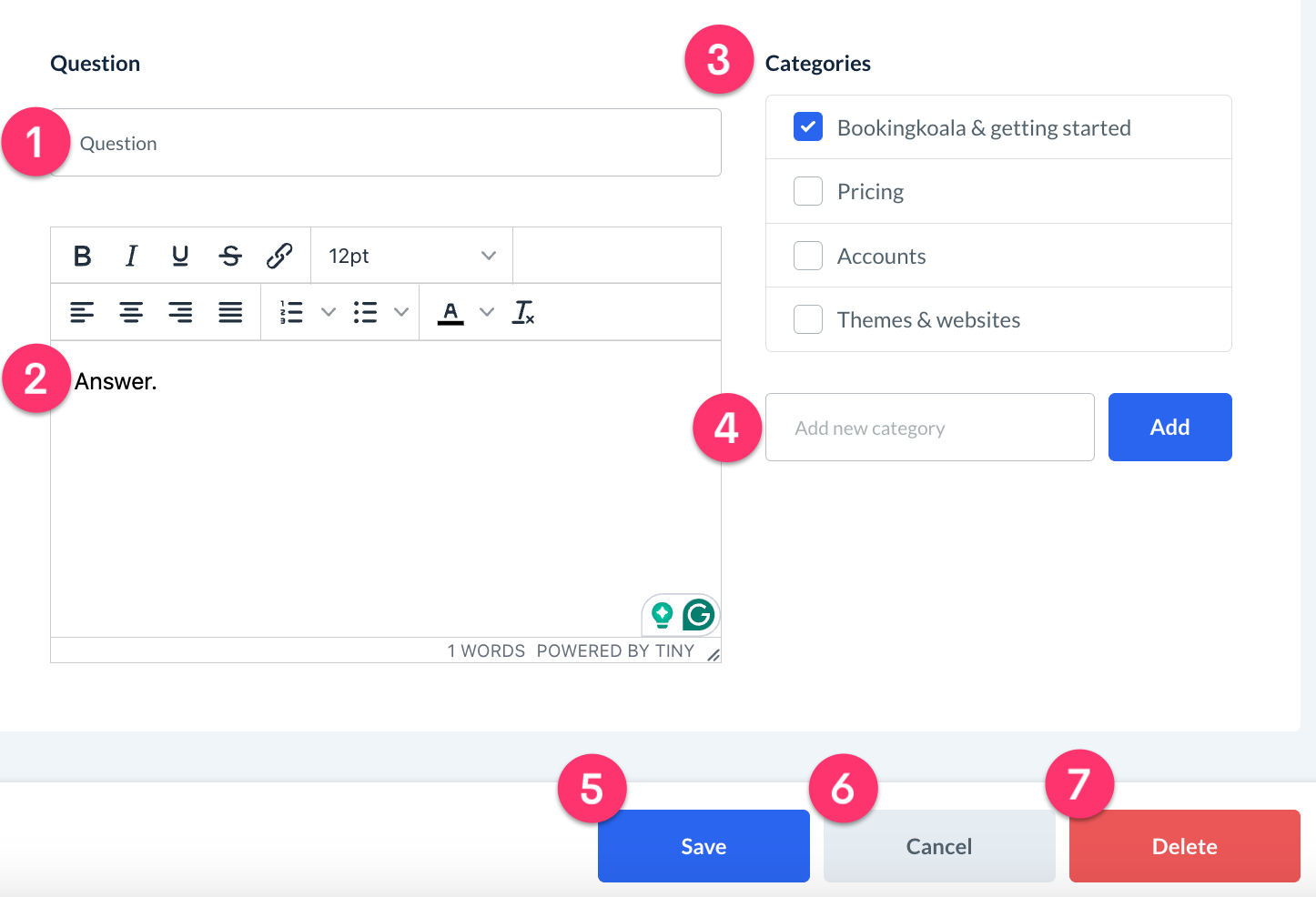
Edit the question field.
Edit the answer field.
Select an existing category.
Add a new category.
Save your changes.
Return to the previous screen.
Delete this FAQ entirely.
To add a new FAQ, go to:
FAQs > Add FAQ
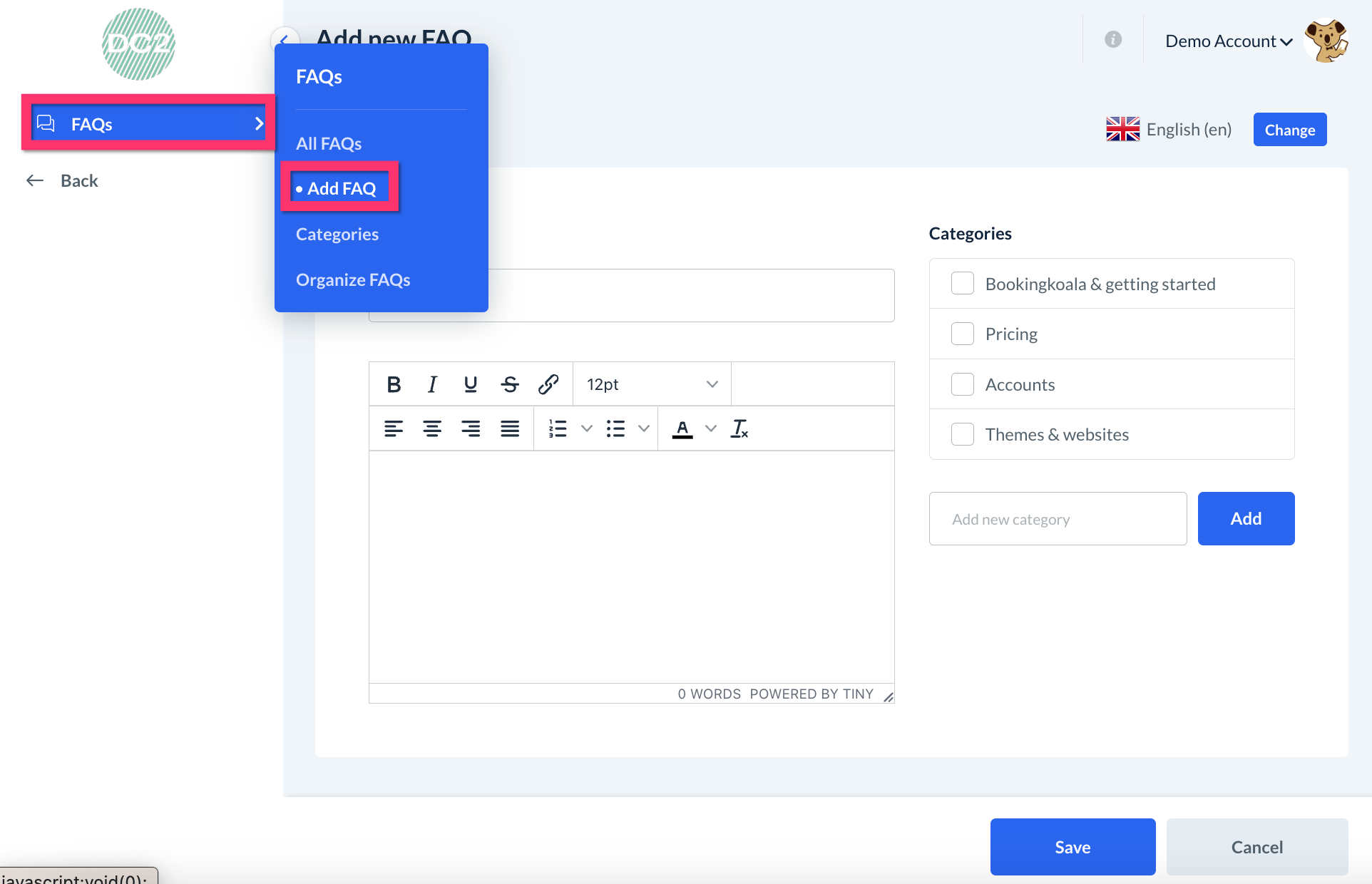
Be sure to click the "Save" button at the bottom of the page once you have finished creating your FAQ.
You can manage FAQ categories by going to:
FAQs > Categories
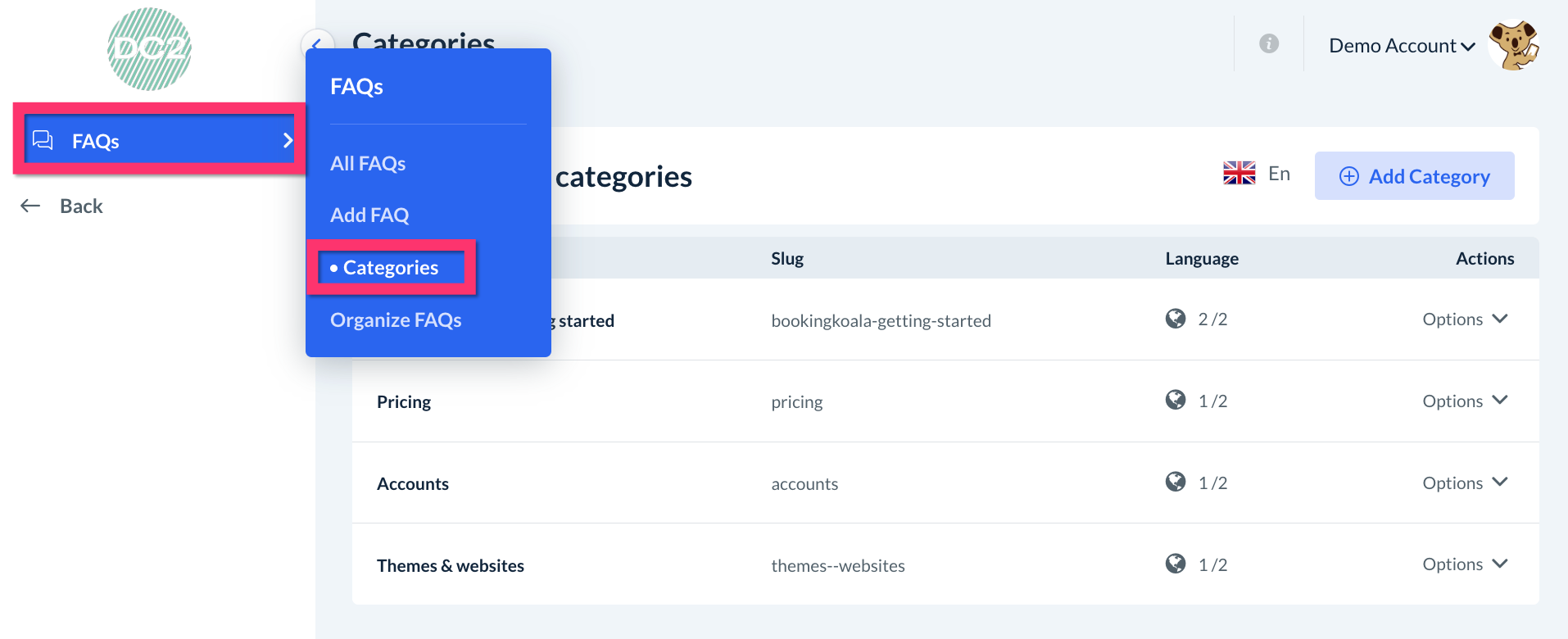
Here you can Edit or Delete a category by selecting "Options" under the Actions column.
To change the order in which your FAQs appear in the dynamic FAQs section, go to:
FAQs > Organize FAQs
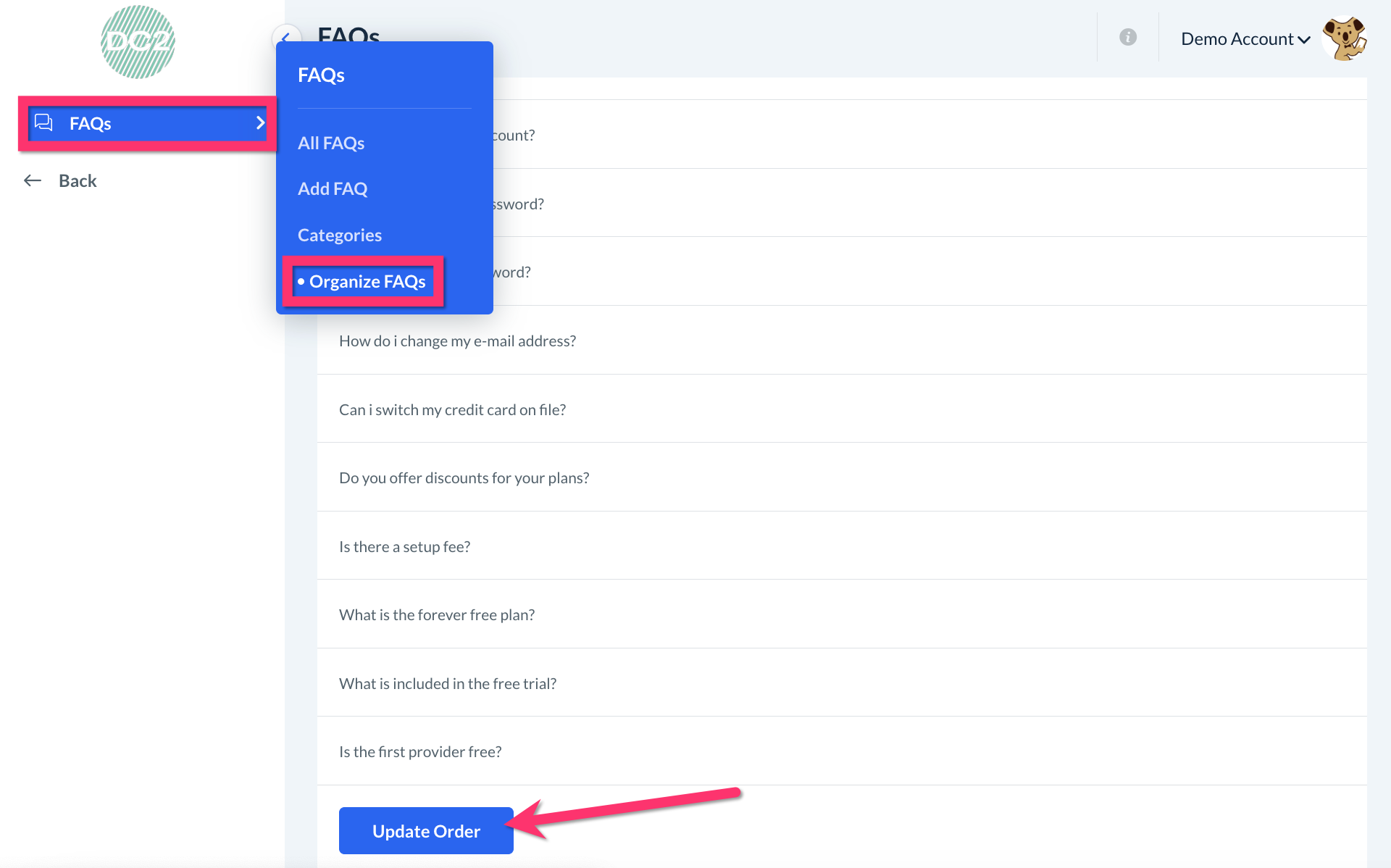
Drag and drop the questions into whatever order works best, then click the "Update Order" button at the bottom of the page.