The purpose of this article is to help you understand:
How to embed your lead form(s) on your website
Getting Started
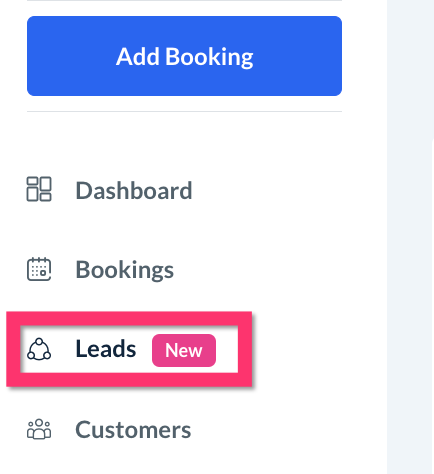
To locate your lead form, click on Leads from the left side menu to open the Leads Module.
Next, click on "Forms" from the top menu.

This is where all your lead forms are stored and new forms can be created.
To learn how to build a new lead form, click here.
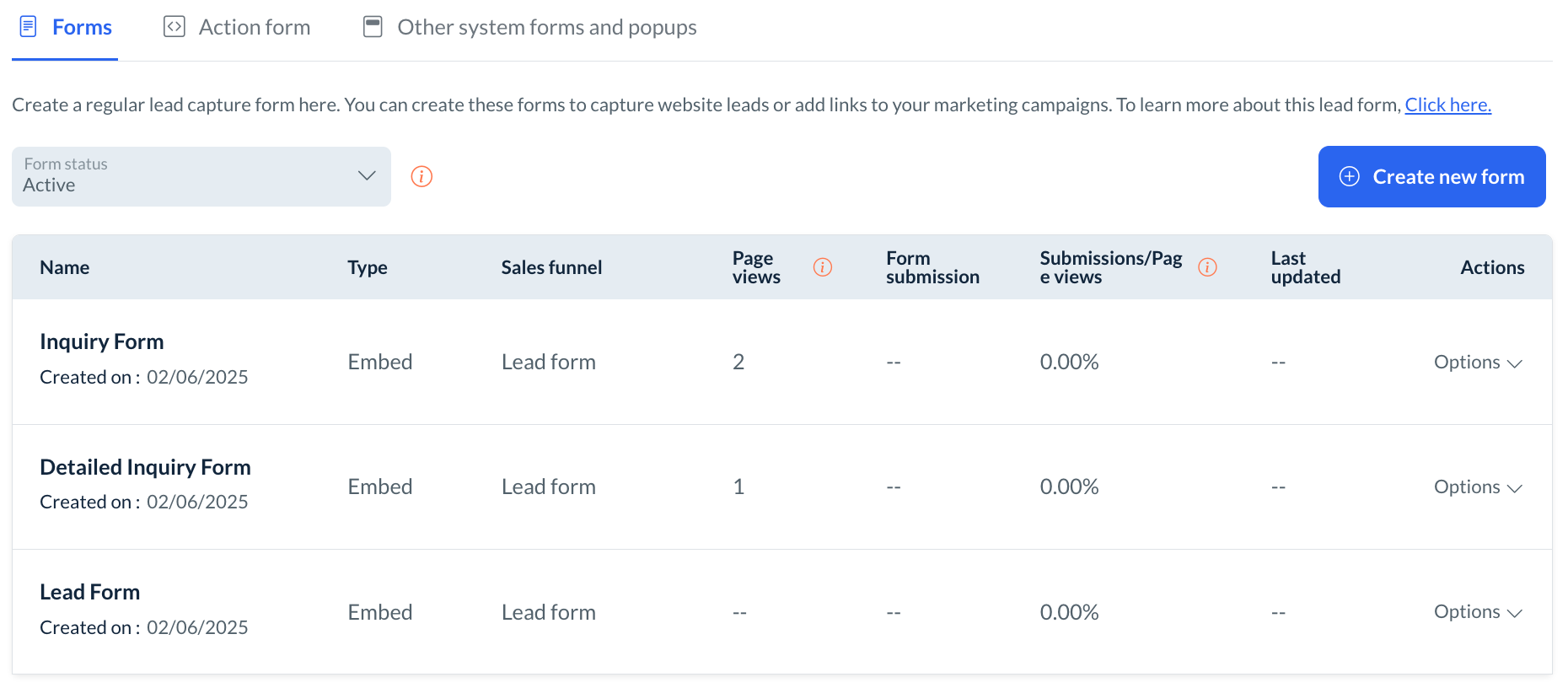
A default lead form has been generated for you and is connected to the "Lead Form" funnel under the funnels section.
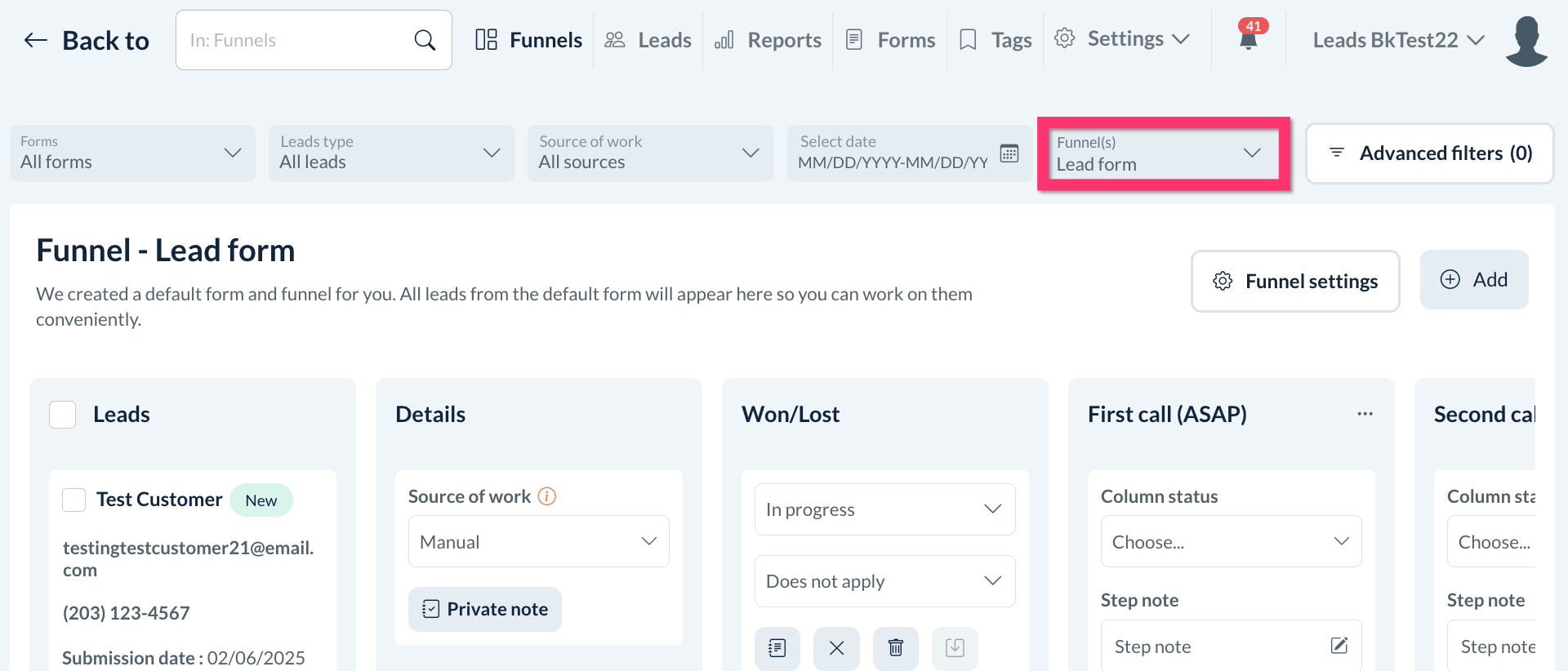
From here you can further modify the form and/or funnel to your liking.
To learn how to build or edit a funnel, click here.
Embedding Your Form(s)
Once you've gotten your lead form(s) to your liking, it is time to put them to use. To add a lead form to your website, you will copy an embed code and paste it into a custom CSS section in your website builder.
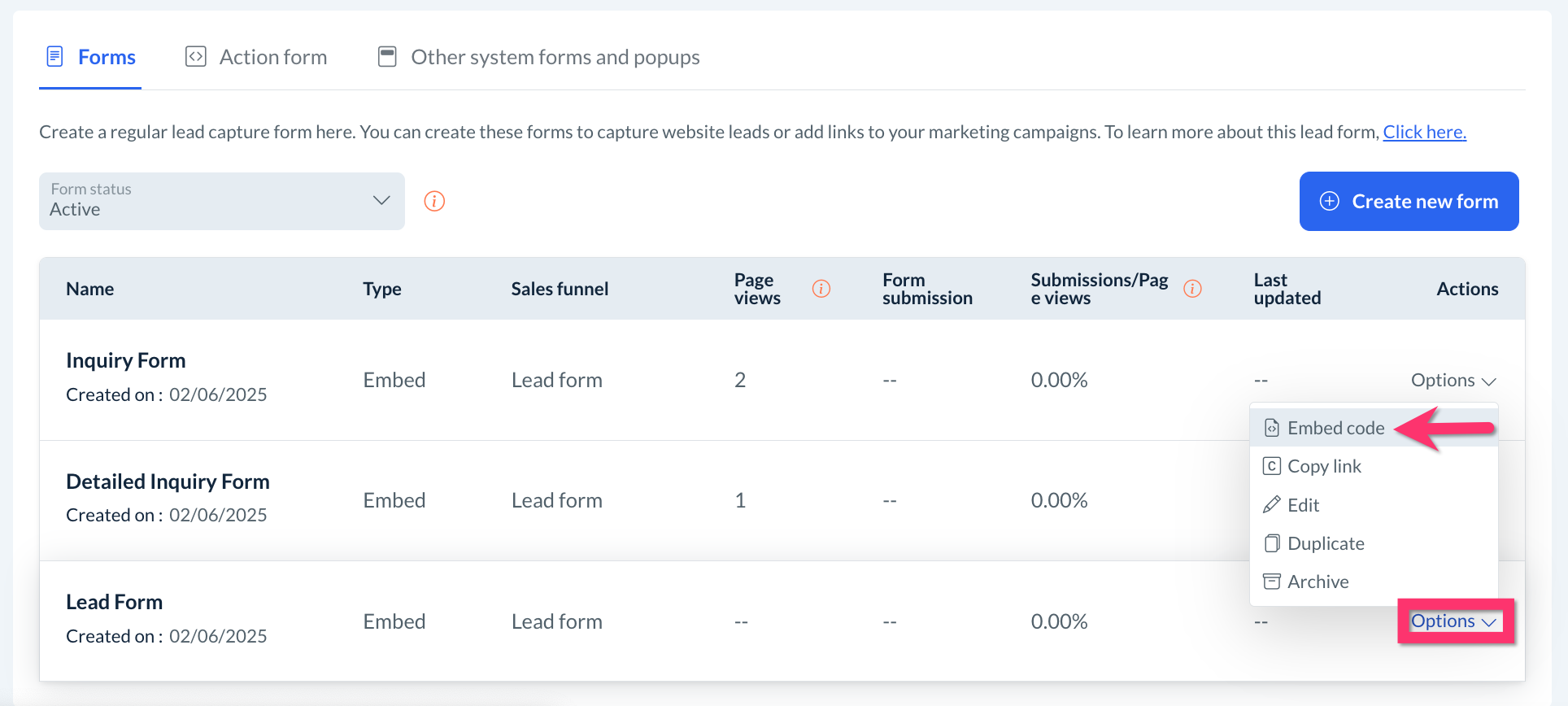
To get the embed code, go to the Forms section, select Options from under the Actions column, and then select Embed Code.
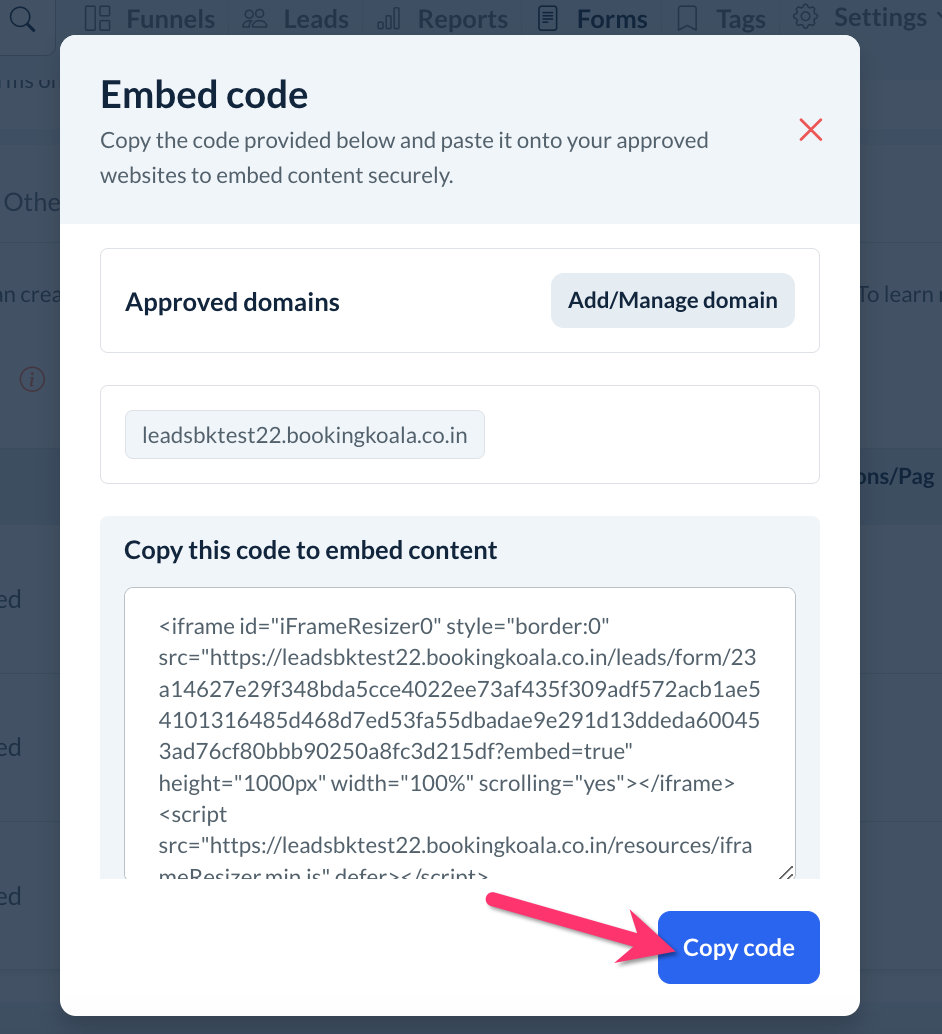
A pop-up window will appear with the embed code in it. Click the Copy Code button at the bottom of the window to copy the entire code.
Adding a Lead Form to a Third-Party Website
Once your embed code has been copied, navigate to your third-party website builder and follow the instructions in the links below to embed the form. Here are instructions for some of the most common website builders our clients use:
If you do not see your website builder listed here, please email us at [email protected] and let us know so we can update our article and provide assistance with embedding your forms. If you permit us, we are also happy to embed your forms on your behalf. We just need access to your website builder and must know where you want each form embedded.
Adding a Lead Form to BookingKoala
If you are using the BookingKoala website builder for your website, there are a few different ways you can add a lead form to your site. All options take place inside the BookingKoala website and theme builder.
To begin, open your admin dashboard and go to:
Settings > Design Forms & Website > Website Builder & Themes
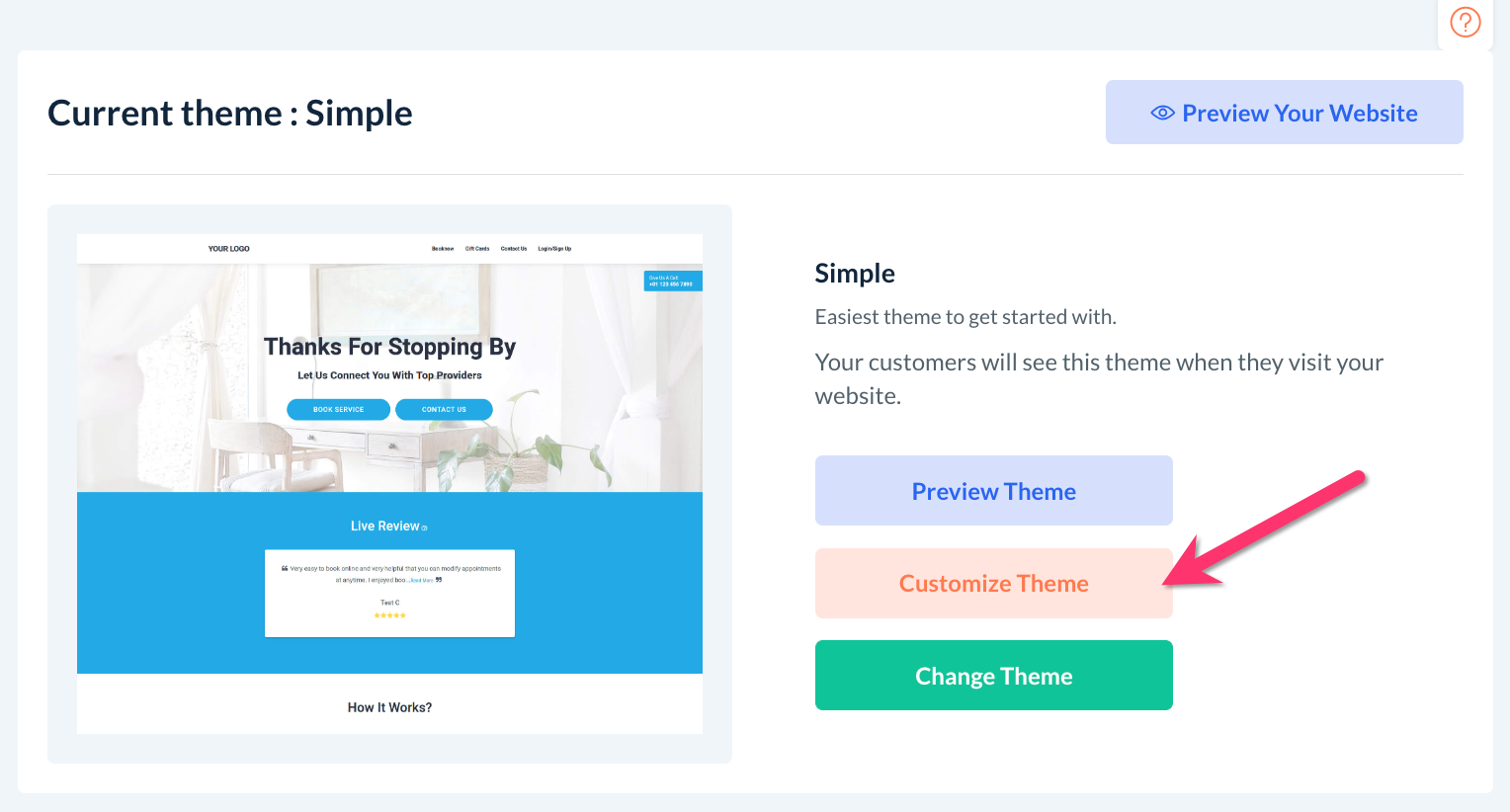
Click on "Customize Theme" to open the builder.
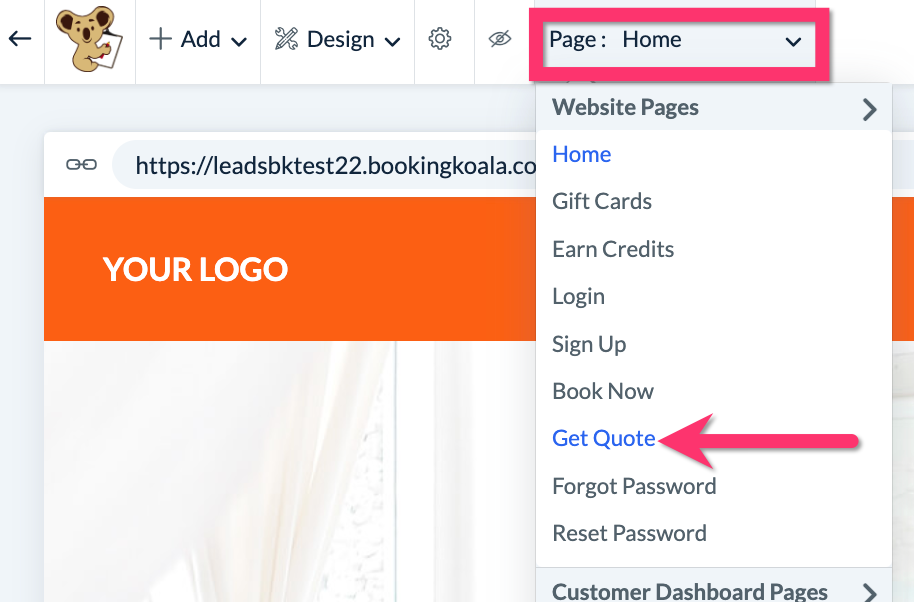
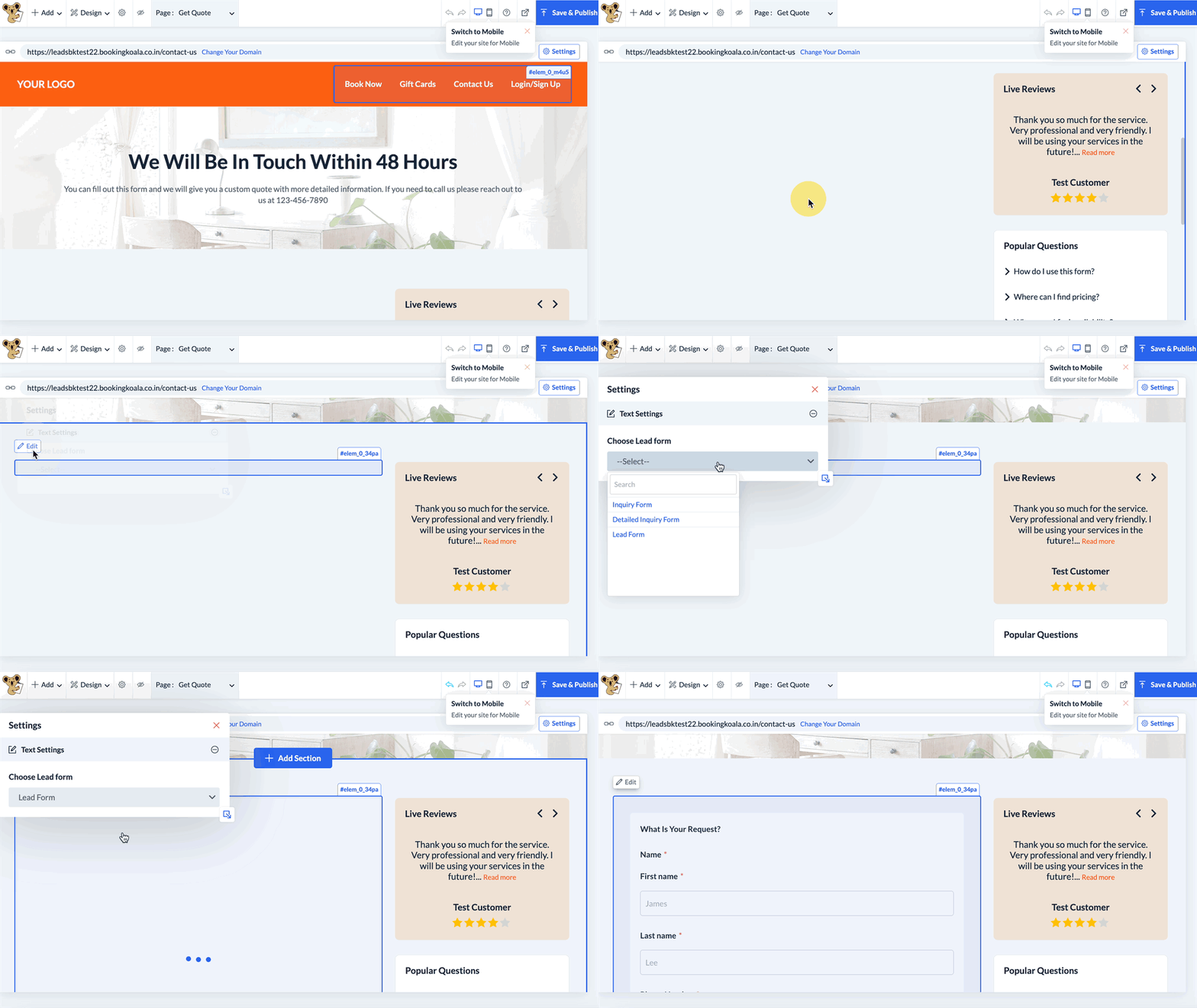
Next, navigate to the "Get Quote" page, created to display your primary lead form.
Scroll down the page and click in the space below until you locate a long rectangle shape. Click to reveal the Edit button in the top left corner, then click Edit to select which lead form you would like to use.
After making a selection, that form will be imported into the space.
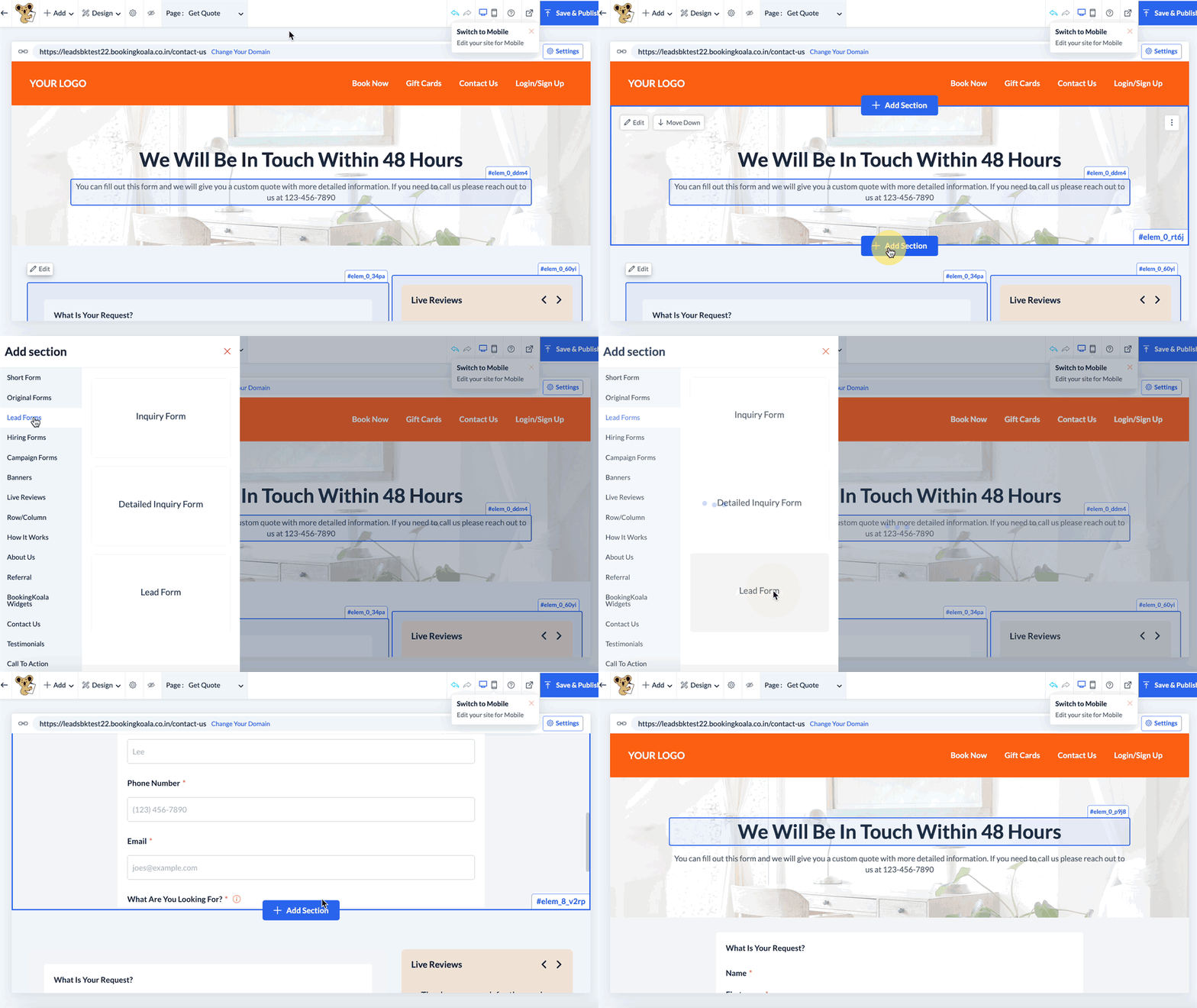
You can also add your lead form to any other page by adding a new section and then selecting "Lead" from the left-side menu. All of the forms you've created will be displayed. Click on a form to add it to the section.
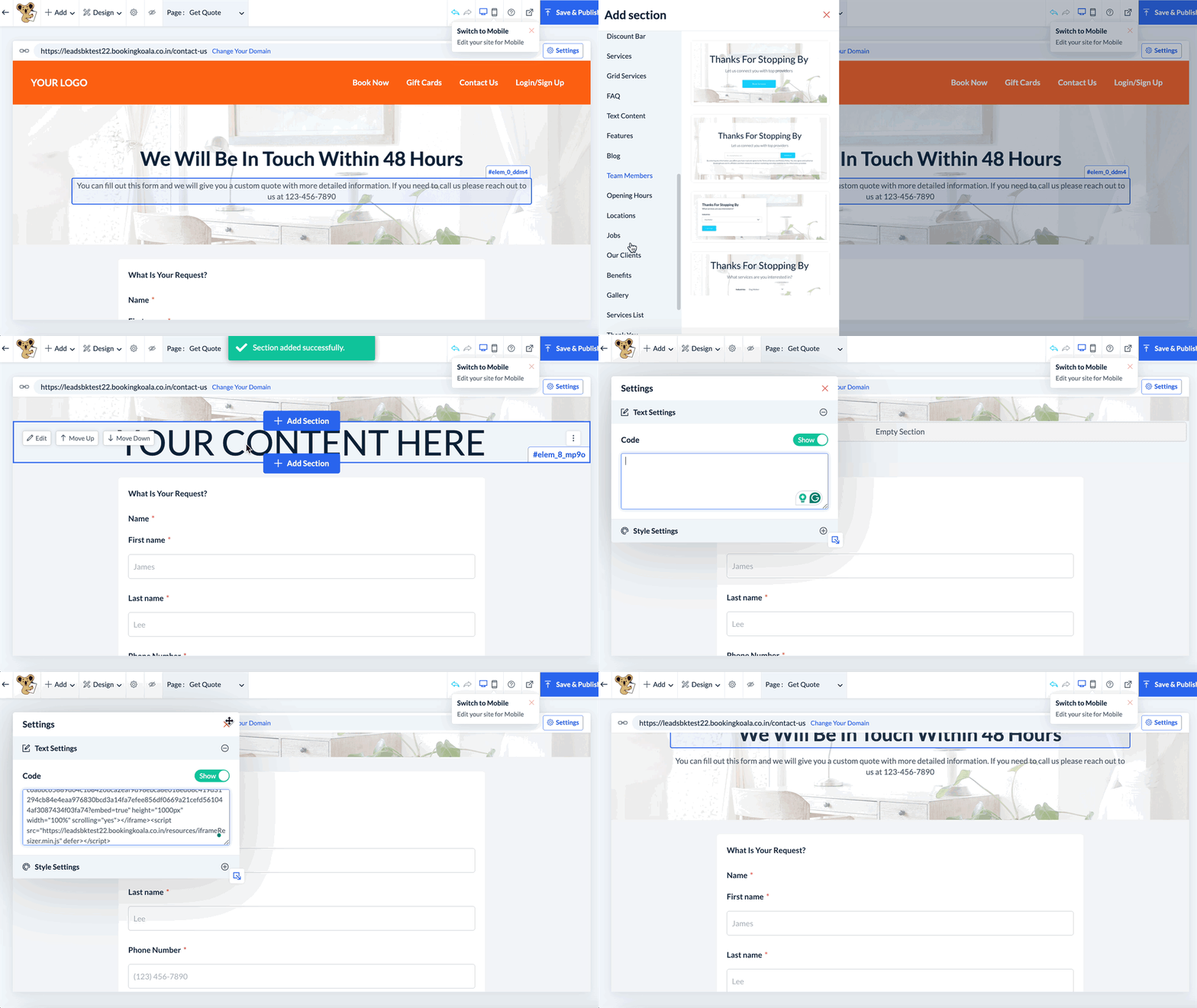
You can also utilize the "Custom" option from the left-side menu which allows you to paste the embed code for the lead form into a field for custom CSS.
Once you've finished making any changes, just be sure to click the Save & Publish button in the top right corner of the page.