

The purpose of this article is to help you learn more about:
Integrating Google ads with your leads module
Accessing and analyzing Google ad reports effortlessly
Improve your marketing strategies with detailed insights
Overview
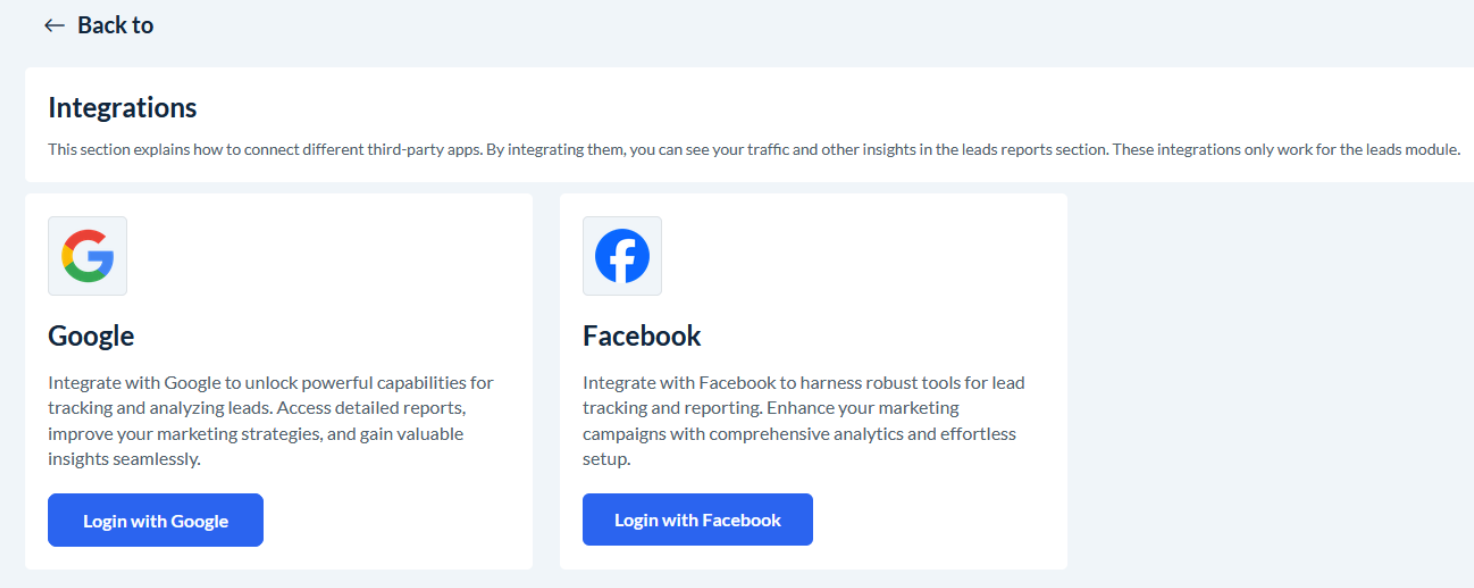
Integrating Google ads with your leads module enables powerful tracking and reporting capabilities. You can monitor lead performance, optimize campaigns, and make data-driven decisions effortlessly by linking your Google ad account
.
Prerequisites
Before proceeding with the integration, ensure you have:
A Google account.
Access to Google Ad Manager to manage your reports and data
How to Integrate Google Reports
Step 1: Access the Leads Module
Log in to your BookingKoala admin account.
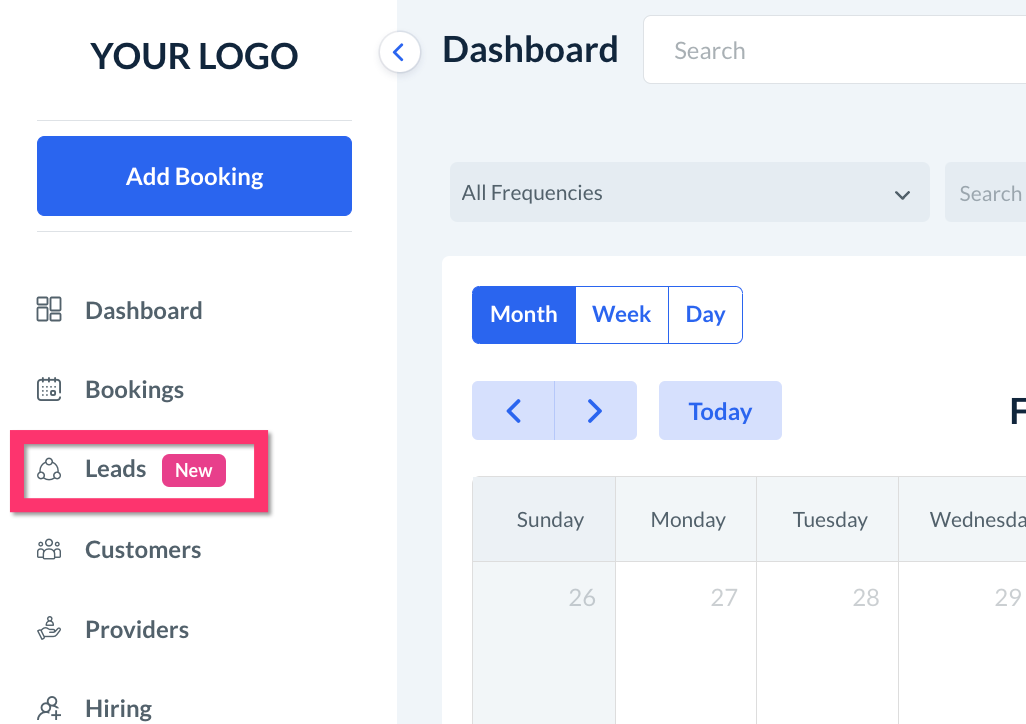
From the sidebar menu, go to the Leads.
Step 2: Navigate to Integrations
Once the Leads module opens, locate the Settings option in the header navigation.
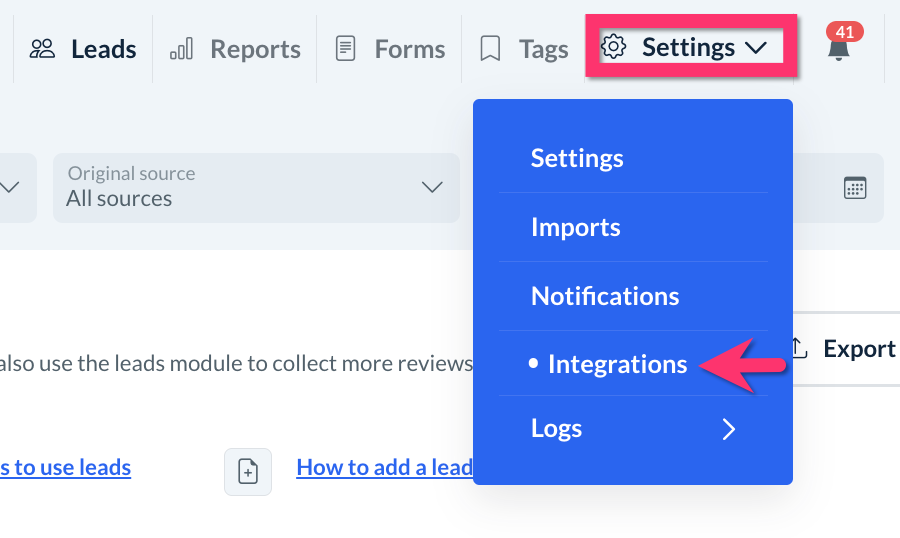
Hover over the Settings menu and search for Integrations.
Click on Integrations, and the integration settings page will open.
Step 3: Connect Google Account
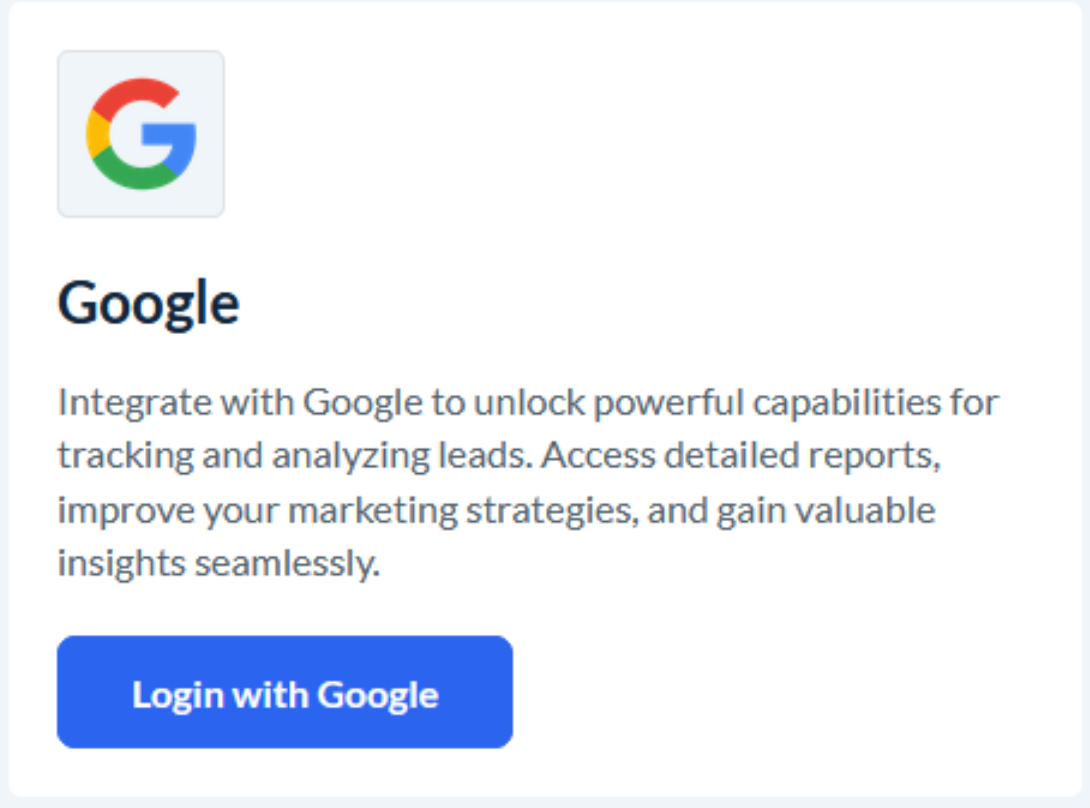
Click on the Login with Google button.
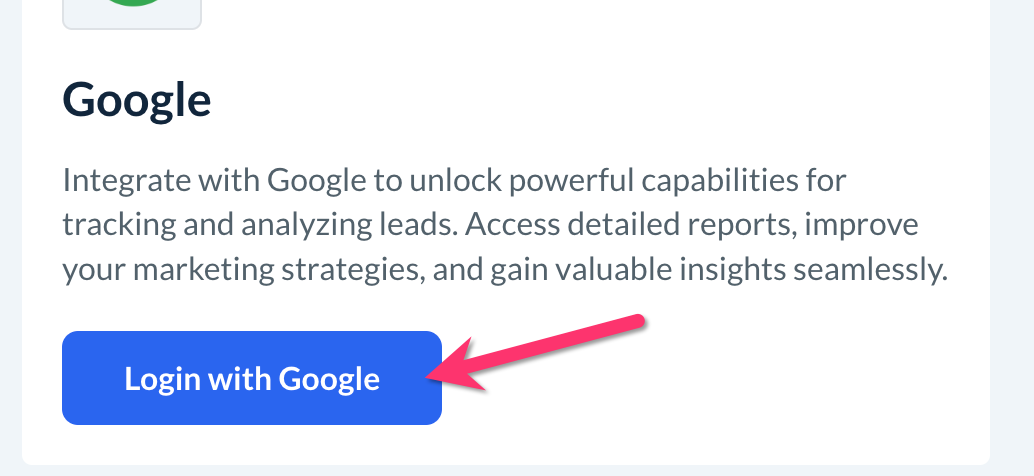
A small pop-up window will appear.
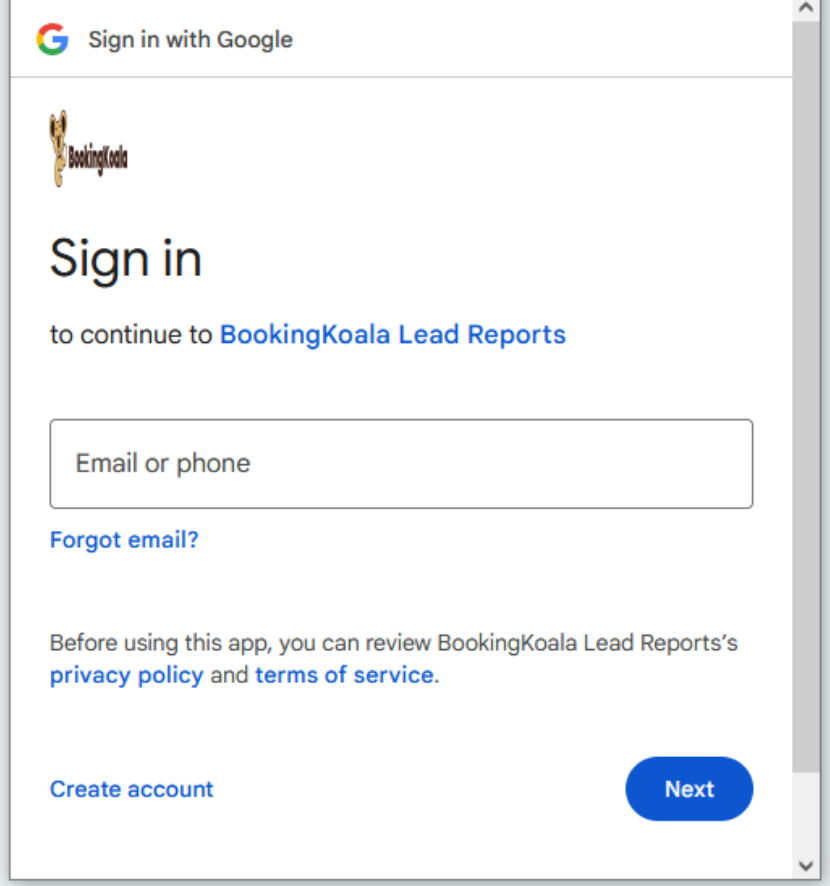
Enter your Google email and password.
After filling in the credentials, another pop-up window will appear, asking permission to continue.
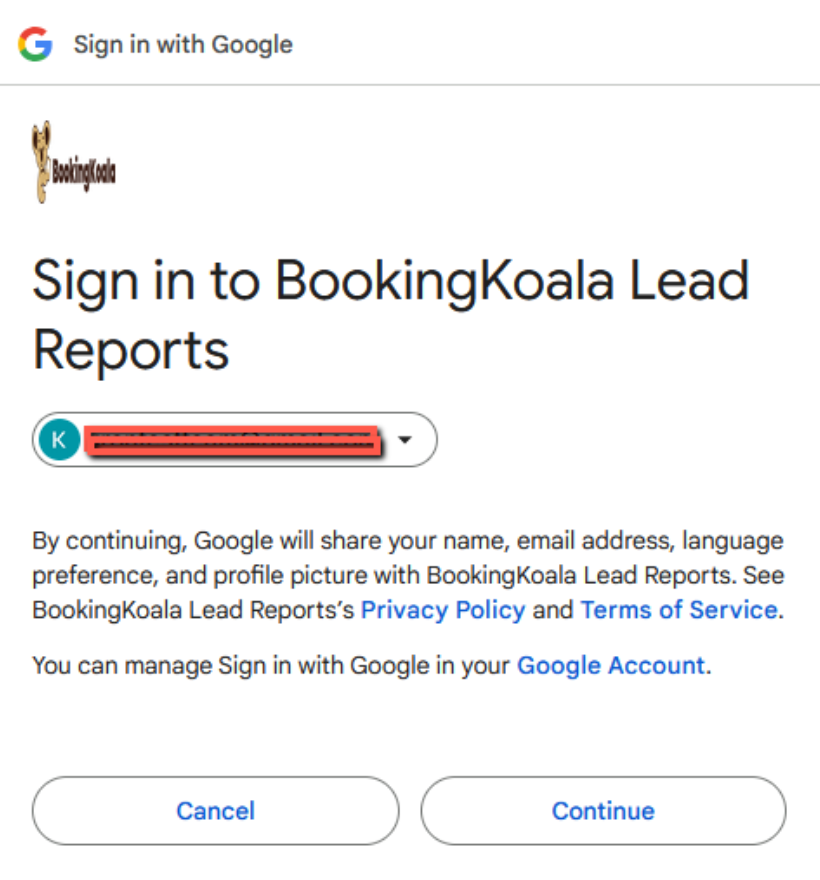
Click **Continue** to grant access.
Step 4: Confirm Integration
Once the integration is successful, you will be redirected to the integration settings page.
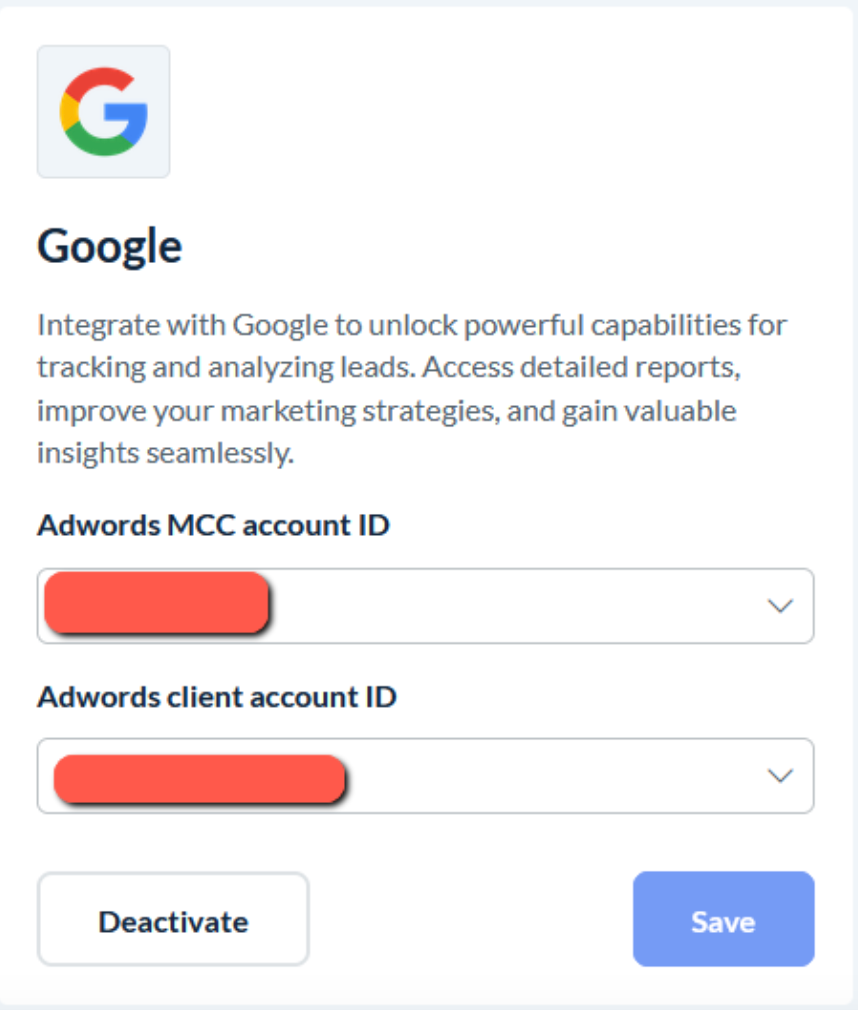
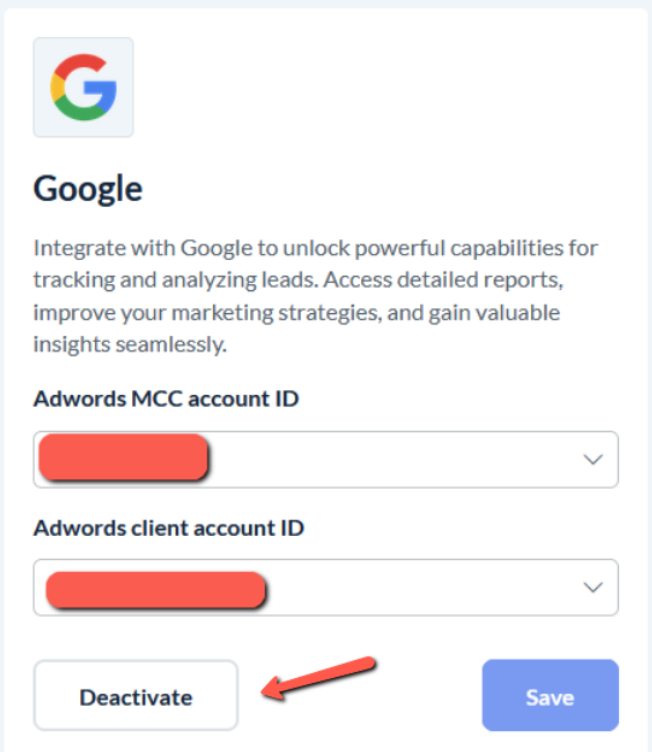
Now, please select the AdWords MCC account ID and the AdWords client account ID, then save.
You can now access Google reports by navigating to Reports and then go to Google Ad.
The Google section in the integration page will be updated to reflect the successful connection.
Managing the Google Integration
Deactivate Integration: You can disable Google integration at any time by clicking the Deactivate button on the Integration Settings page.
By following these steps, you can efficiently set up Google Ad Reports in your leads module and make the most of your marketing analytics.