

This guide will help you:
Connect Facebook with your Leads Module
Track leads directly from Facebook Lead Ad forms
Access and analyze Facebook ad reports with ease
Improve your marketing strategies through detailed insights
Overview
Integrating Facebook Ads with your leads module unlocks advanced lead tracking and reporting features. By connecting your Facebook ad account, you can easily track lead performance, optimize your campaigns, and make informed, data-driven decisions. With this connection, Booking Koala enables you to:
Capture leads instantly in your Leads Module
View campaign performance and key ad metrics
Make informed marketing decisions without switching tools
Prerequisites
Before proceeding with the integration, ensure you have:
A Facebook account.
Admin access to the Facebook Page(s) you want to track leads from
Access to Facebook Ad Manager to manage your reports and data. The admin must have at least one active ad account connected to the business profile.
How to Integrate Facebook Lead tracking and Ad Reports
Step 1: Access the Leads Module
Log in to your BookingKoala admin account.
From the sidebar menu, go to the Leads module.
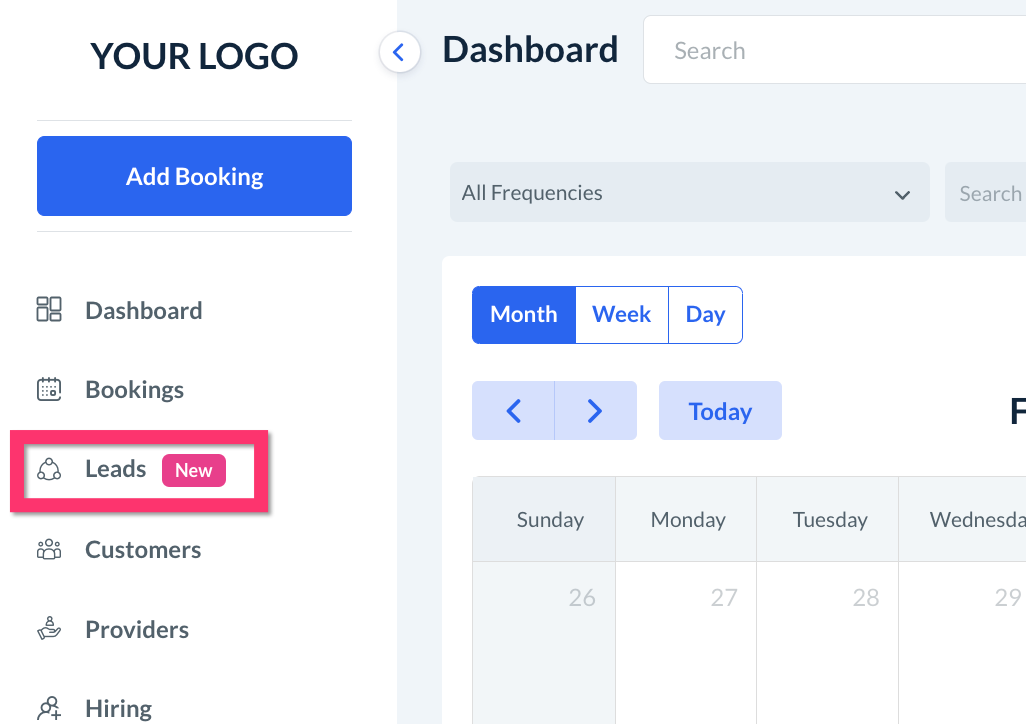
Step 2: Navigate to Integrations
Once the Leads module opens, locate the Settings option in the header navigation.
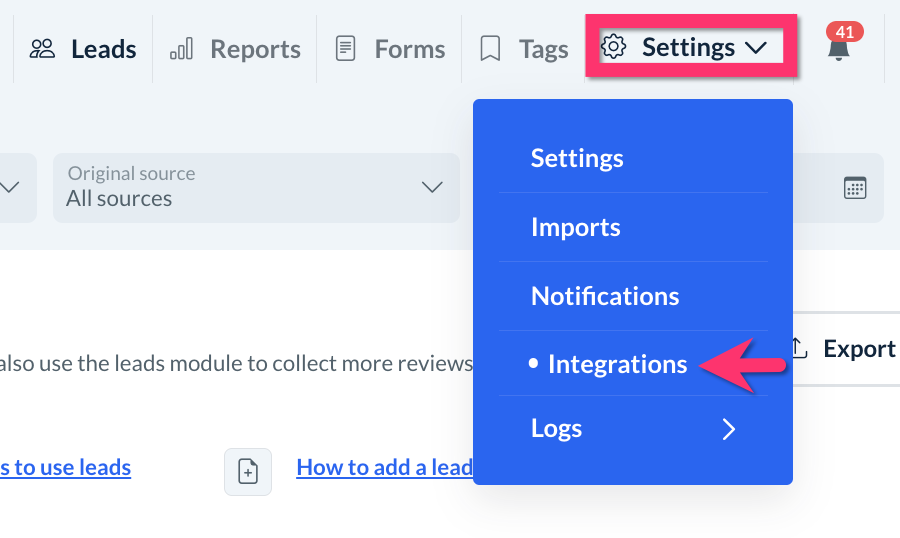
Hover over the Settings menu and search for Integrations.
Click on Integrations, and the integration settings page will open.
Step 3: Connect Facebook Account
Click on the Login with Facebook button.
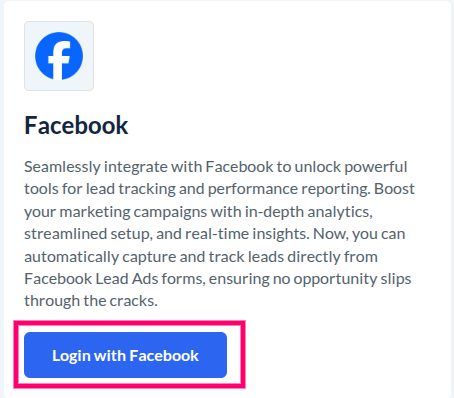
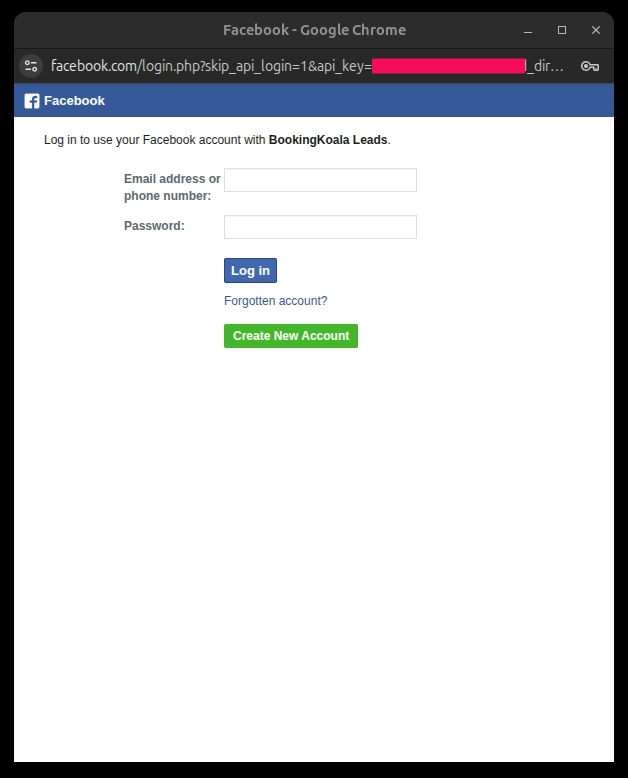
If you are not already logged into Facebook, a popup will appear asking you to log in.
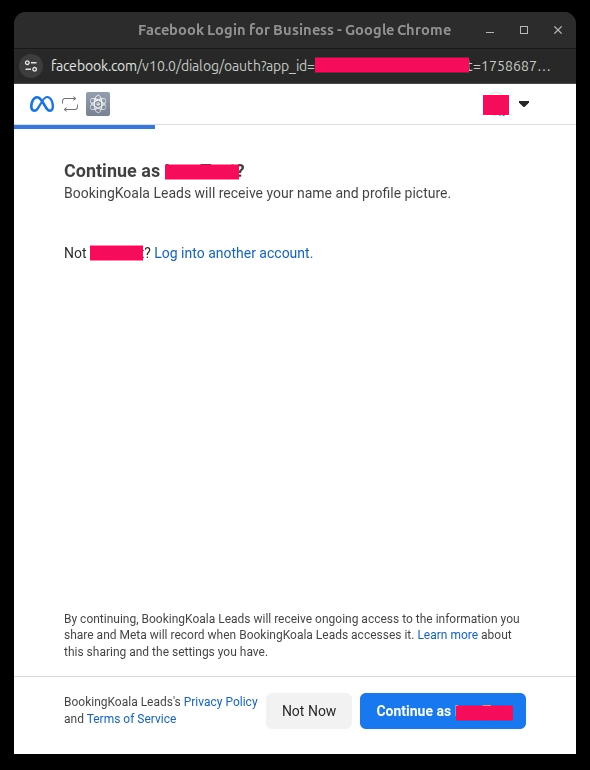
After successfully logging in, you will be redirected to the following popup window. This popup will need your confirmation like your name.
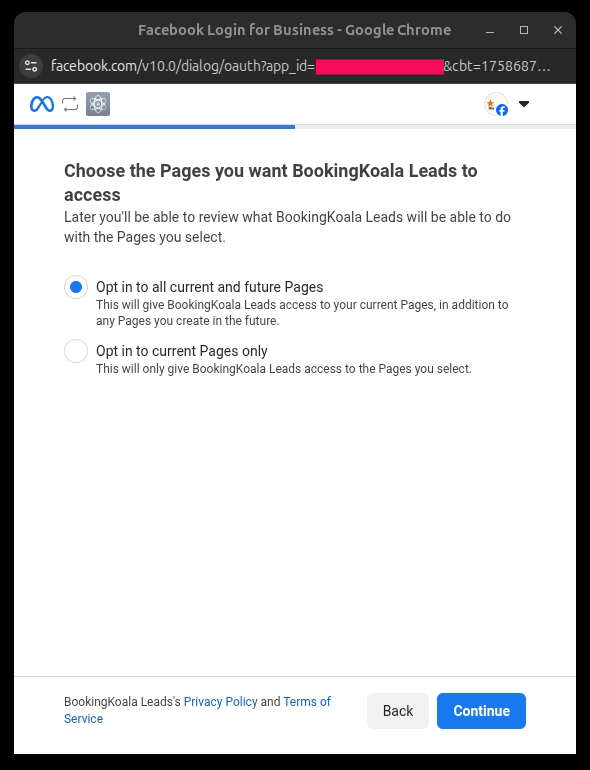
The next popup window will prompt you to "Choose the pages you want BookingKoala Leads to access."
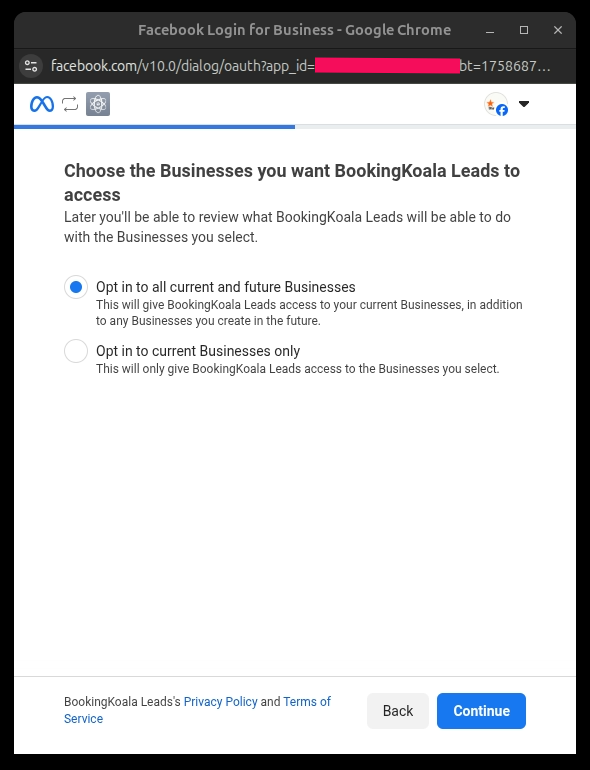
Select the businesses you want Booking Koala to access for lead tracking and ad insights
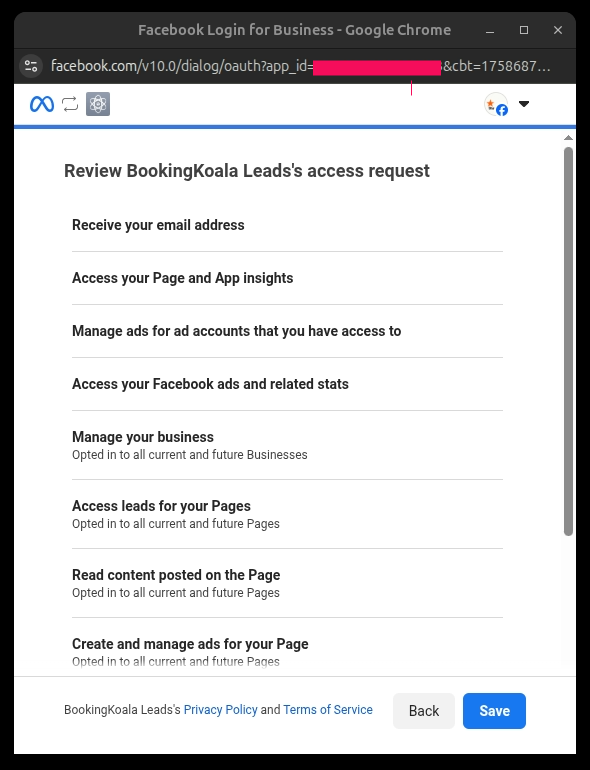
The next popup window will request your access permissions as outlined below.
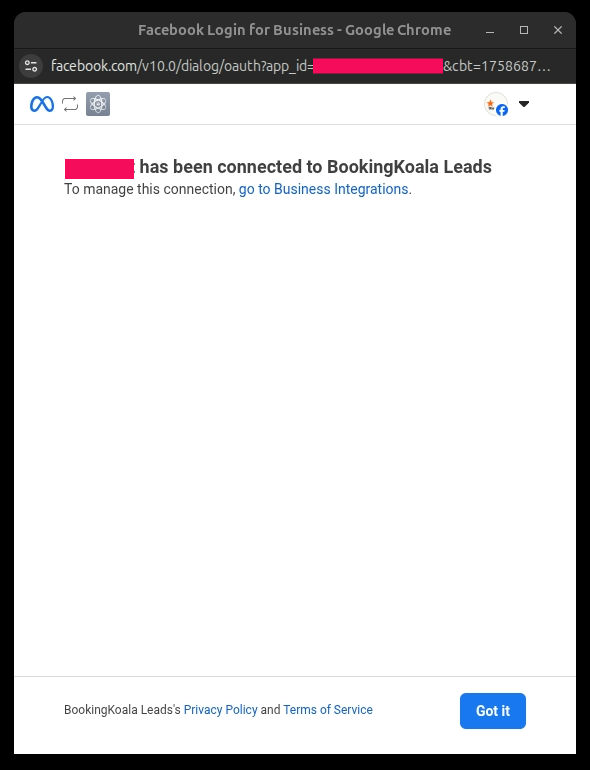
A final confirmation popup will confirm that [Your Account Name] has been connected to BookingKoala Leads.
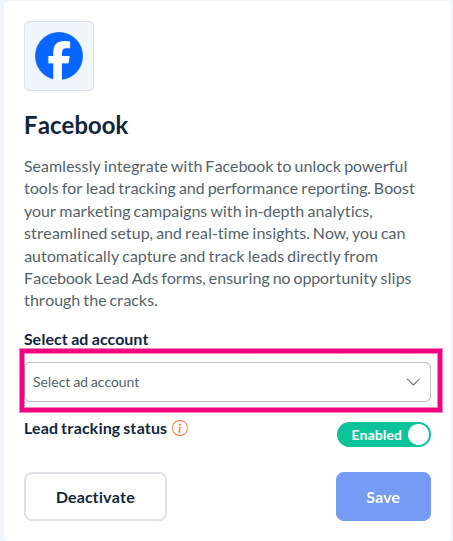
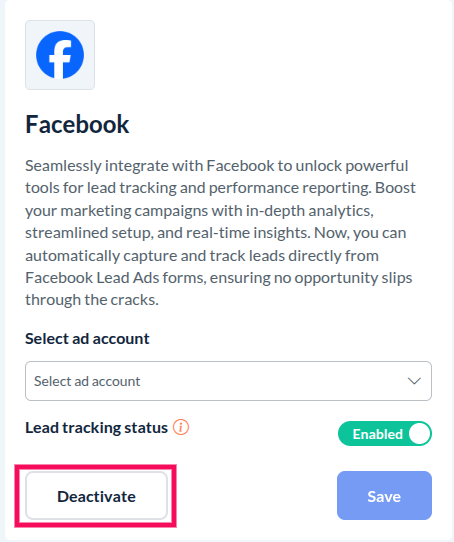
Navigate to the Leads Integration section in the leads module. You will see that the field is now enabled to get started.
Select the Ad Account for which you want to see Facebook reports in the reports section.
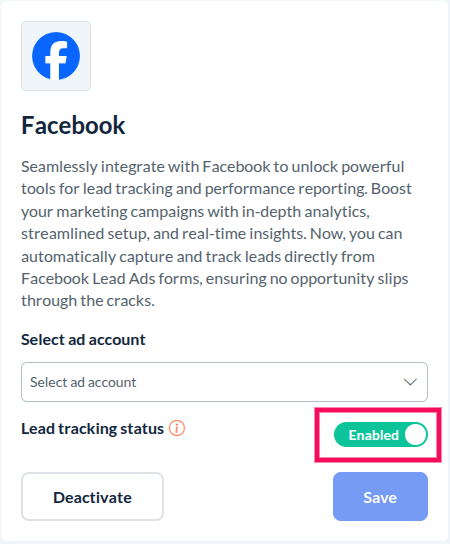
Lead tracking has been automatically enabled for the Facebook pages selected during login. You can enable/disable it any time you want.
You have now successfully integrated Facebook with BookingKoala Leads.
How things work
The Leads Module starts receiving leads from Facebook Lead Ads instantly, which appear in the Leads Listing page.
Leads will only be captured from the Facebook Pages you granted access to during login.
You must be an admin of the selected Facebook Pages to track leads.
To view reports, select the Ad Account in the integration settings, then go to the Reports page and switch to the Facebook tab.
Managing the Facebook Integration
Reports – You can change the connected Facebook Ad Account in the integration settings anytime.
Leads Tracking – You can enable or disable lead tracking from the integration settings anytime.
Page Access: To update which Pages are connected, deactivate the integration and log in again.
Troubleshooting (Fallback mechanisms)
If leads are not being tracked, confirm that your integration is active and lead tracking is enabled.
Please note that, only admins of the connected Facebook Pages can track leads.
If you see dummy data in reports, ensure you’ve selected an Ad Account in the integration settings.
If issues persist, try Deactivate and re-logging into Facebook.
Deactivating the Integration
You can disable this Facebook integration at any time by clicking the Deactivate button on the integration settings page. This revokes permissions and stops Lead capture and reporting.
By following these steps, you can efficiently set up Facebook lead tracking and Ad reports in your Leads module and make the most of your marketing analytics.