The purpose of this article is to help you understand:
Where to locate the customer dashboard pages in the website builder
How to edit the customer Dashboard page
Getting Started
Whenever you book or create a customer profile in BookingKoala, that customer gains access to a customer dashboard on your website.
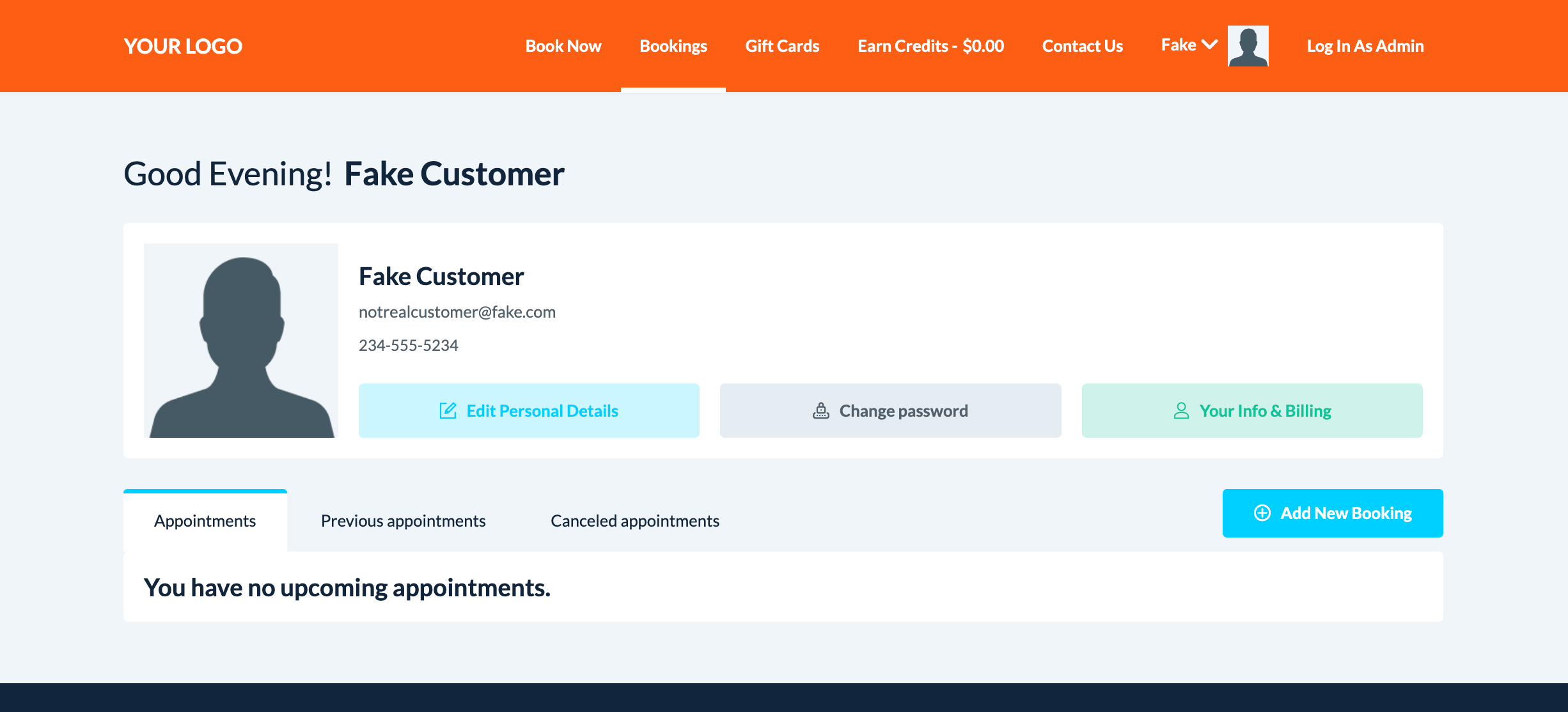
To modify the appearance and enable/disable some of the features used on these pages, you must access the BookingKoala Website & Theme Builder. To do so, please go to:
Settings > Design Forms & Website > Website Builder & Themes > Customize Theme
Edit the Customer Dashboard Page
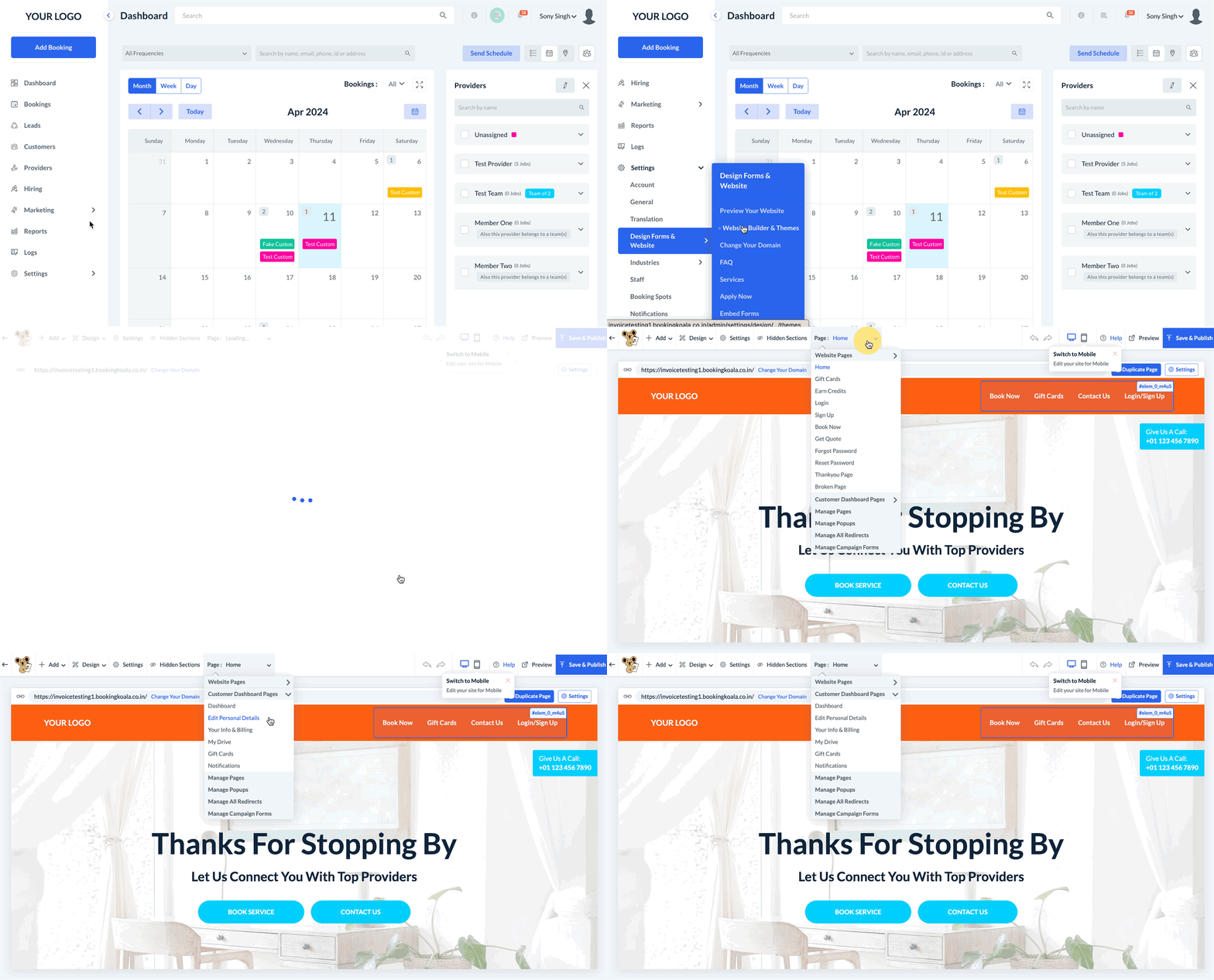
To edit the customer dashboard page, click on the top center Pages menu, select Customer Dashboard Pages, and click on the Dashboard page.
Background Color & Padding
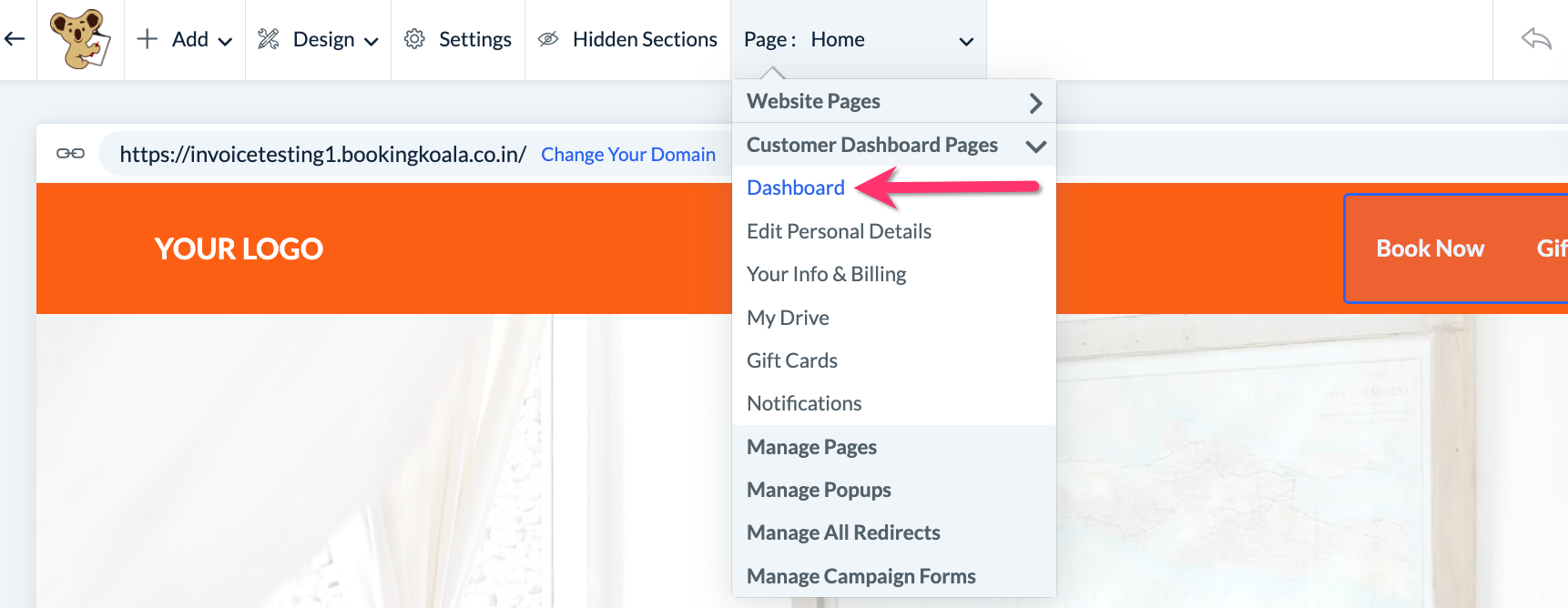
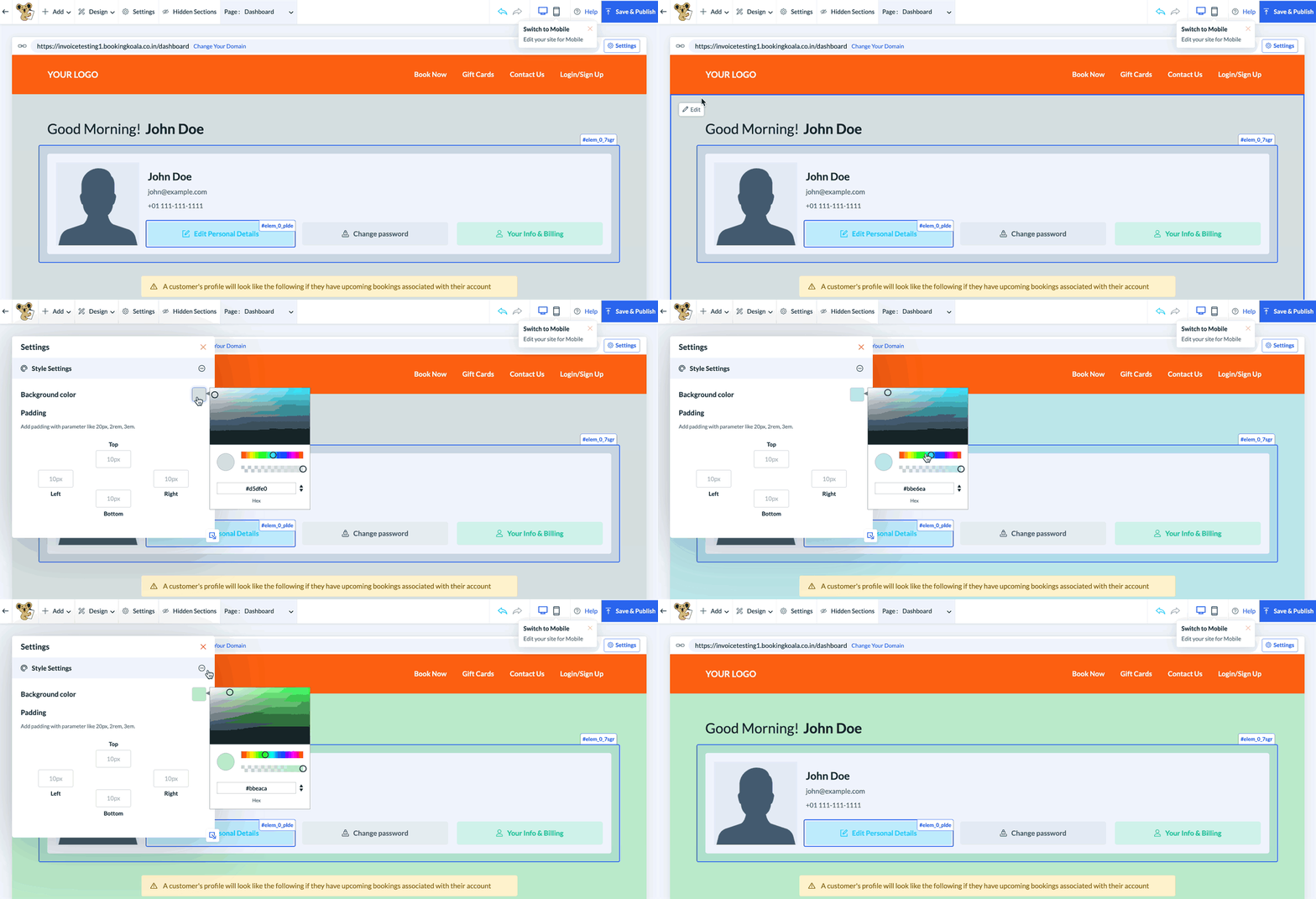
To change the background color of the customer dashboard, click on the background and select the white Edit button that appears in the top left corner of the section.
Click the box to the right of where it says Background color and use the color popup to select a color.
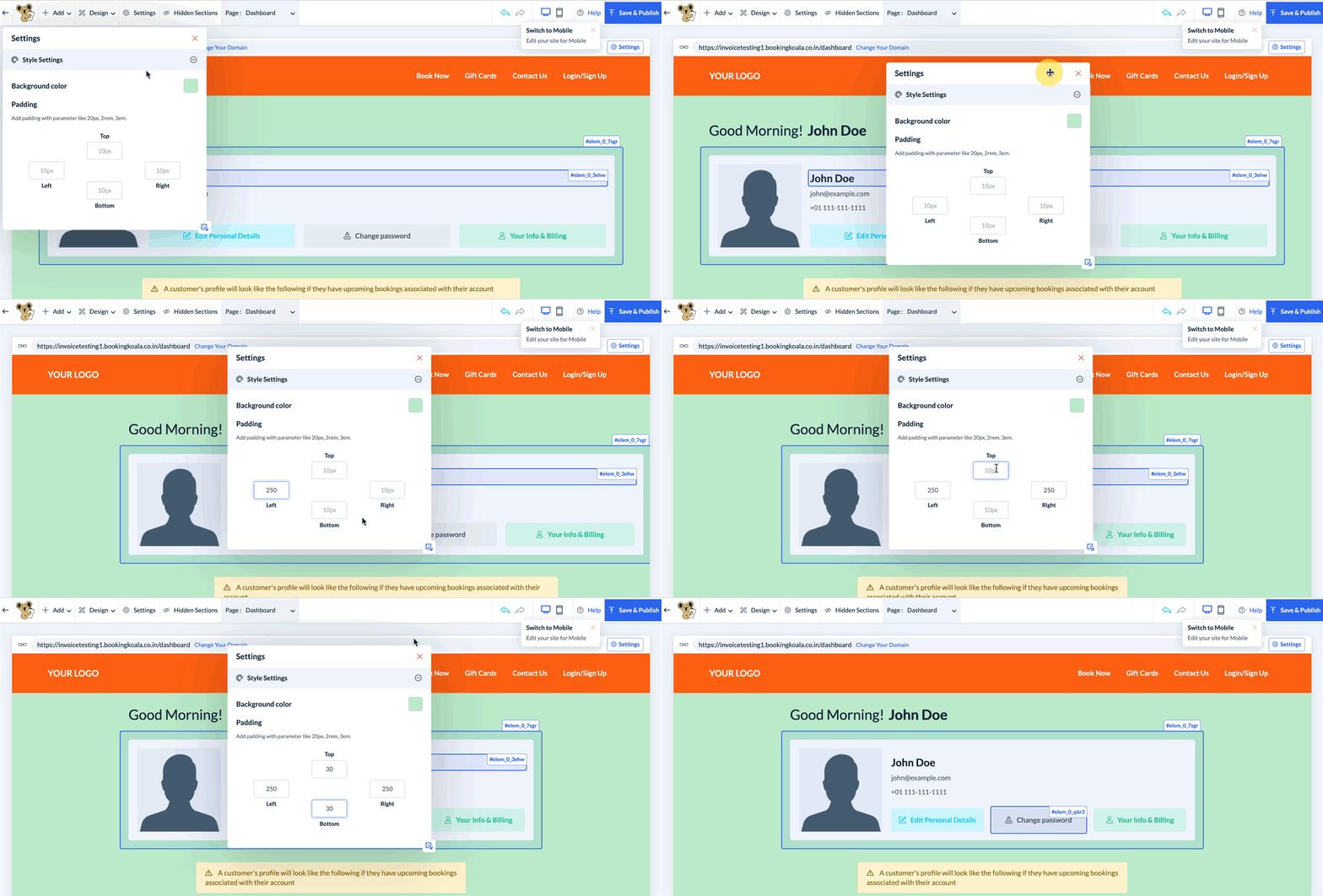
To adjust the padding on each side of the customer dashboard, enter a number for the number of pixels you would like between the edge of the page and the page content.
Customer Details Box Colors, Font & Buttons
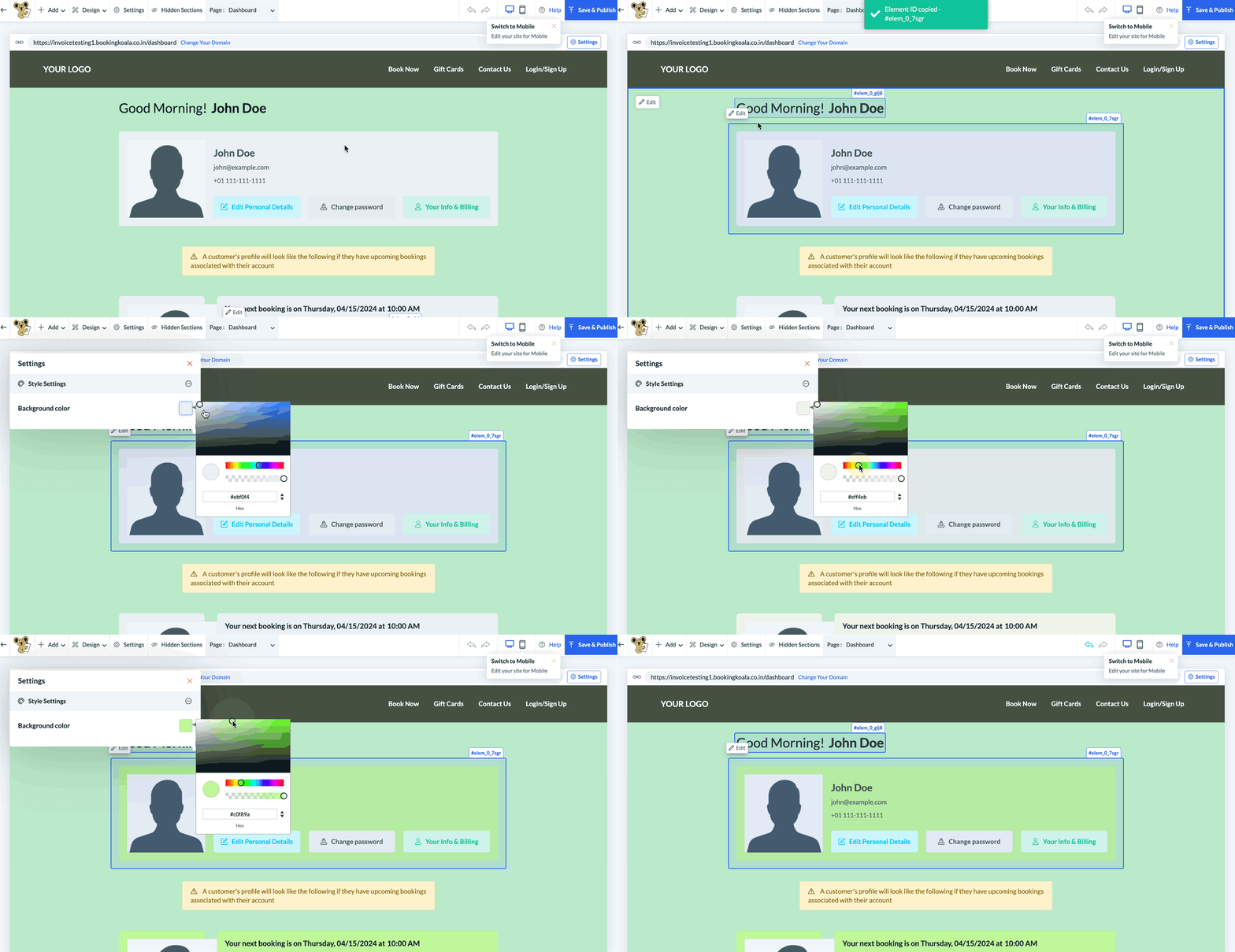
To edit the background color of the customer details box, click the background or element number on the upper right corner of the box and then select the Edit button.
Click the box to the right of where it says Background color and use the color popup to select a color.
The text color and font size within this section can also be changed by clicking on the customer name, email address, and/or phone number and selecting another color from the color popup and font size menu.
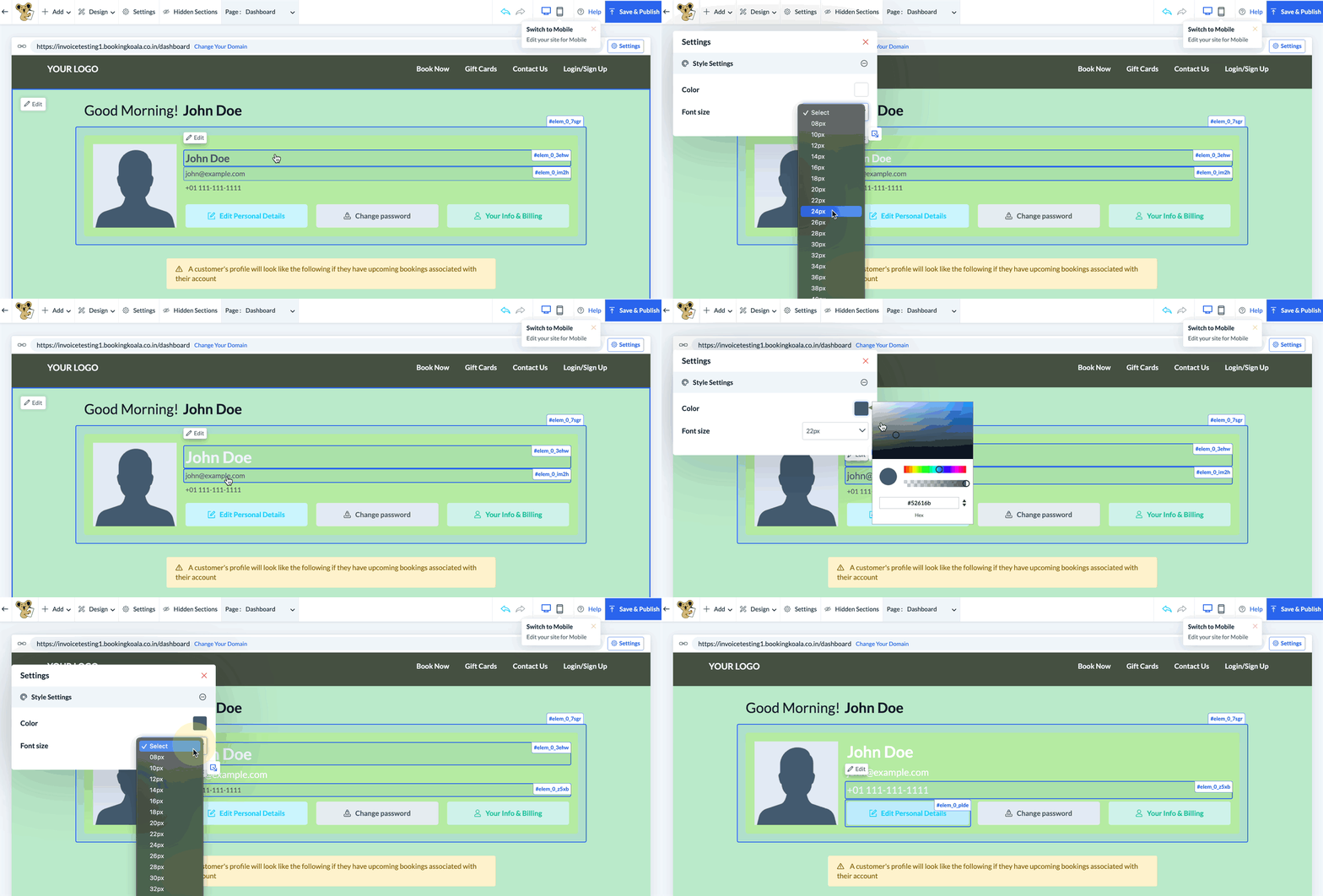
The button color, style, and text content can be altered by clicking on a button and selecting the Edit button that appears.
Click on the Text Settings section to alter the text displayed on the button.
Click on the Style Settings section to alter the colors of the button's background, border, text color, and font size.
Click on the Design button to change the button's shape/style.
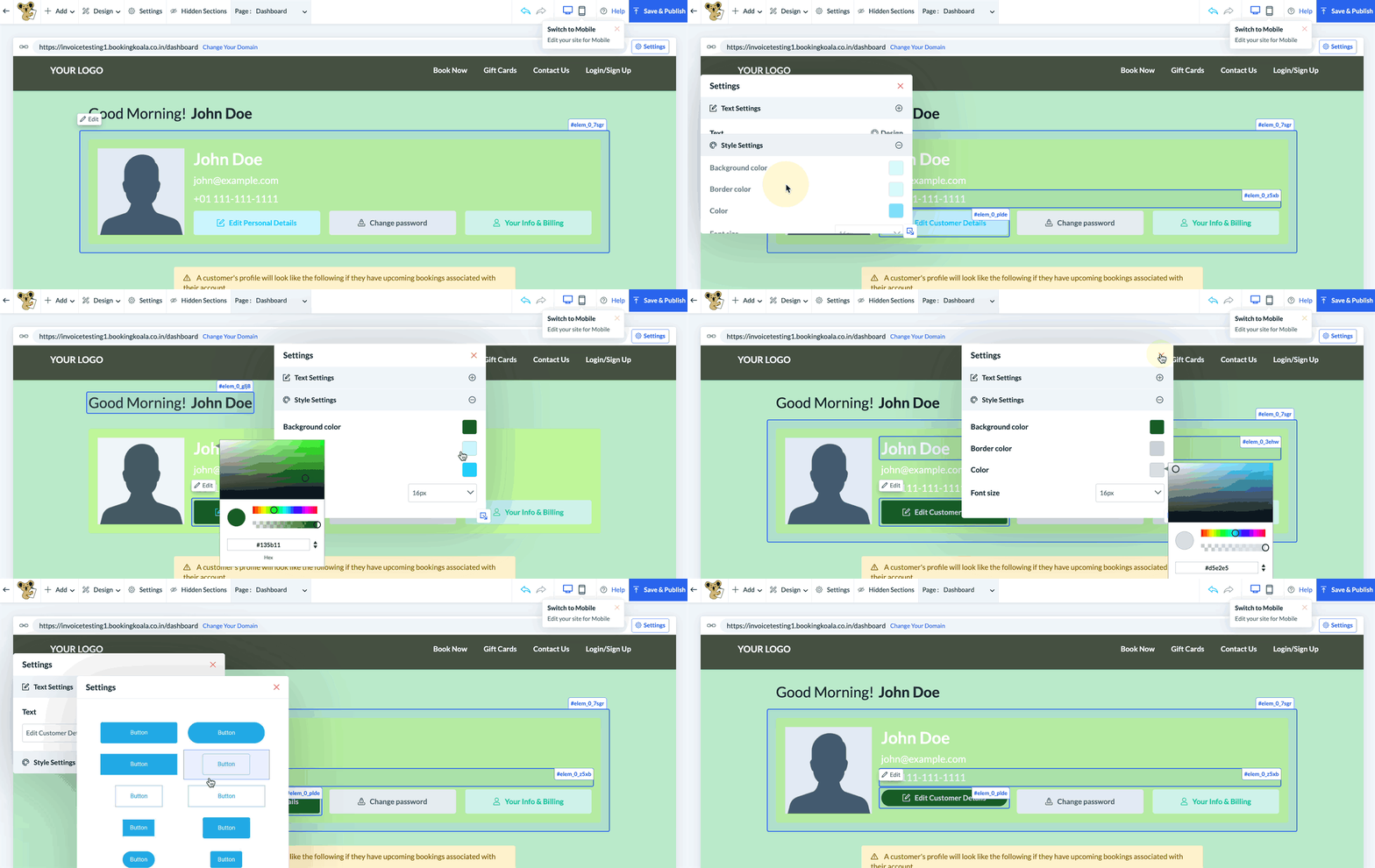
Text and buttons in other sections of the customer dashboard can be edited in the same manner.
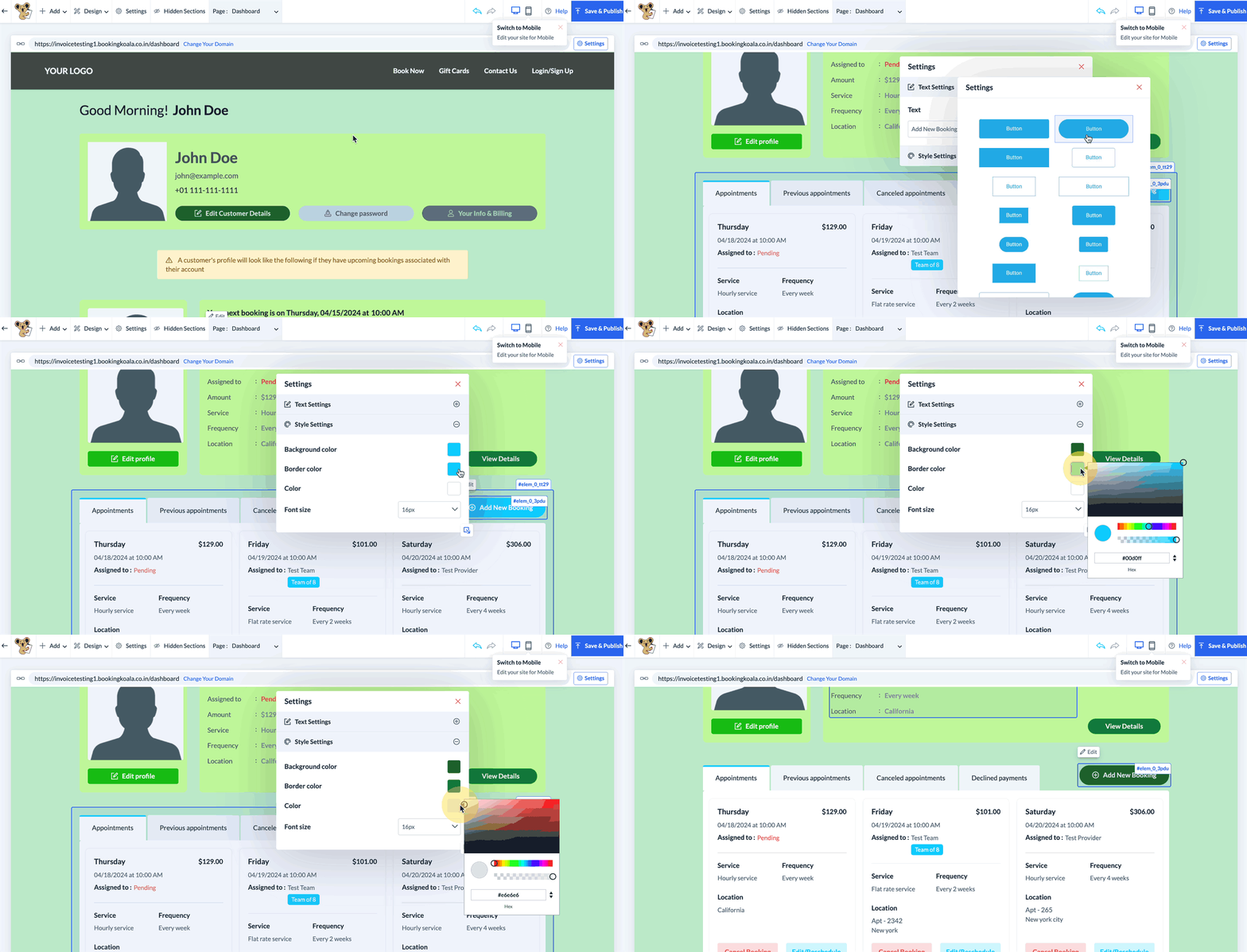
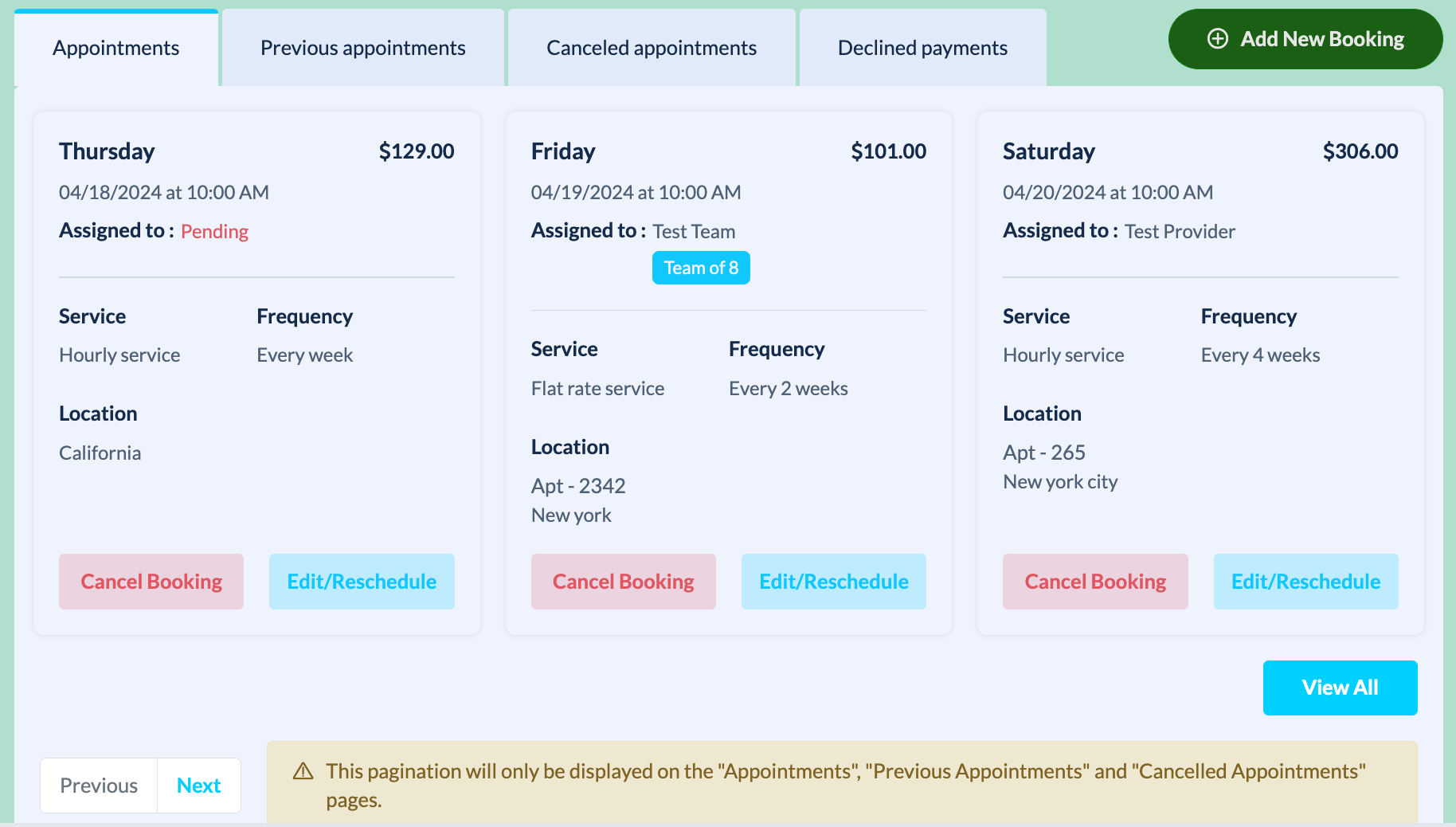
If the customer has upcoming appointments, previous appointments, canceled appointments, and/or declined payments, they will see the following section on their dashboard.
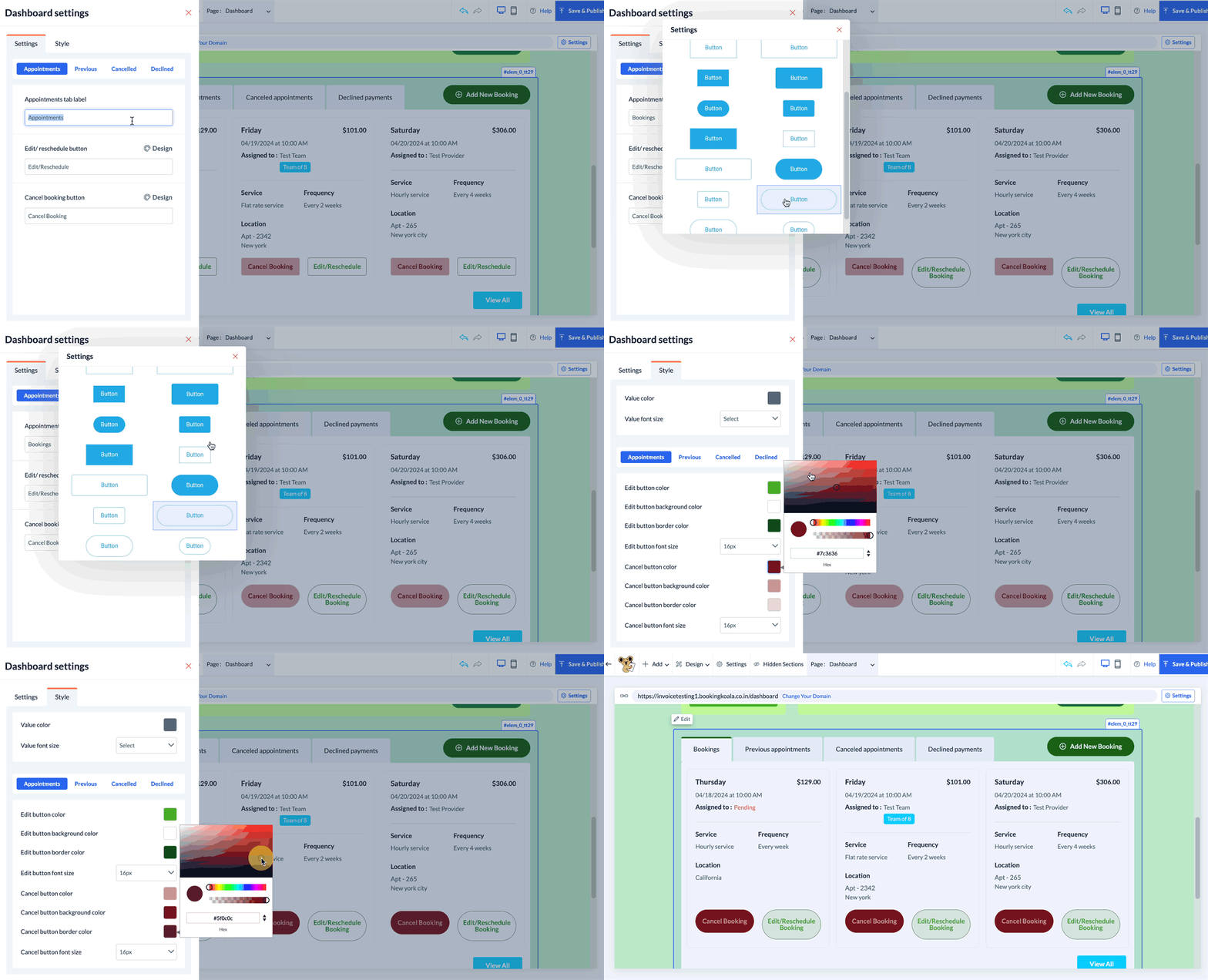
To edit the text, colors, and buttons for these sections, click anywhere within the section to reveal the Edit button in the top left corner of the section.
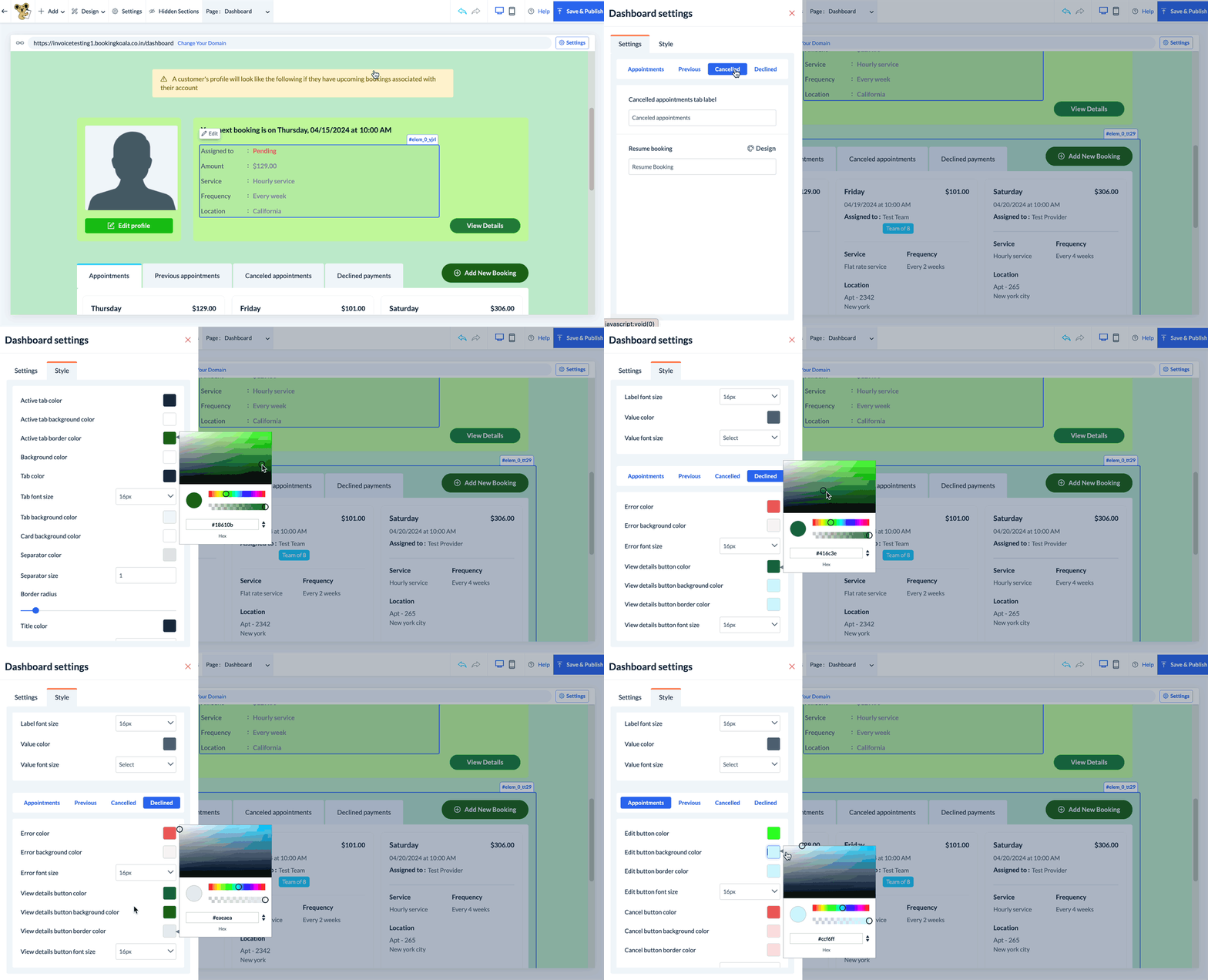
Each tab has its own settings and style tabs which control the text color, font size, button color, button style, and tab colors.
Save & Publish
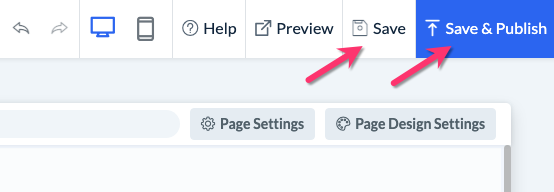
When you are finished making edits to your page, please be sure to click the "Save" button to save your changes to the backend, or "Save & Publish" to push your changes live to your site.