The purpose of this article is to help you understand:
How to edit the Invoice Thank You page
Getting Started
The customer Invoice Thank You page is displayed after the customer submits payment by clicking the Pay Now button on the Invoice Payment page.
To modify the appearance of this page, you must access the BookingKoala Website & Theme Builder. To do so, please go to:
Settings > Design Forms & Website > Website Builder & Themes > Customize Theme.
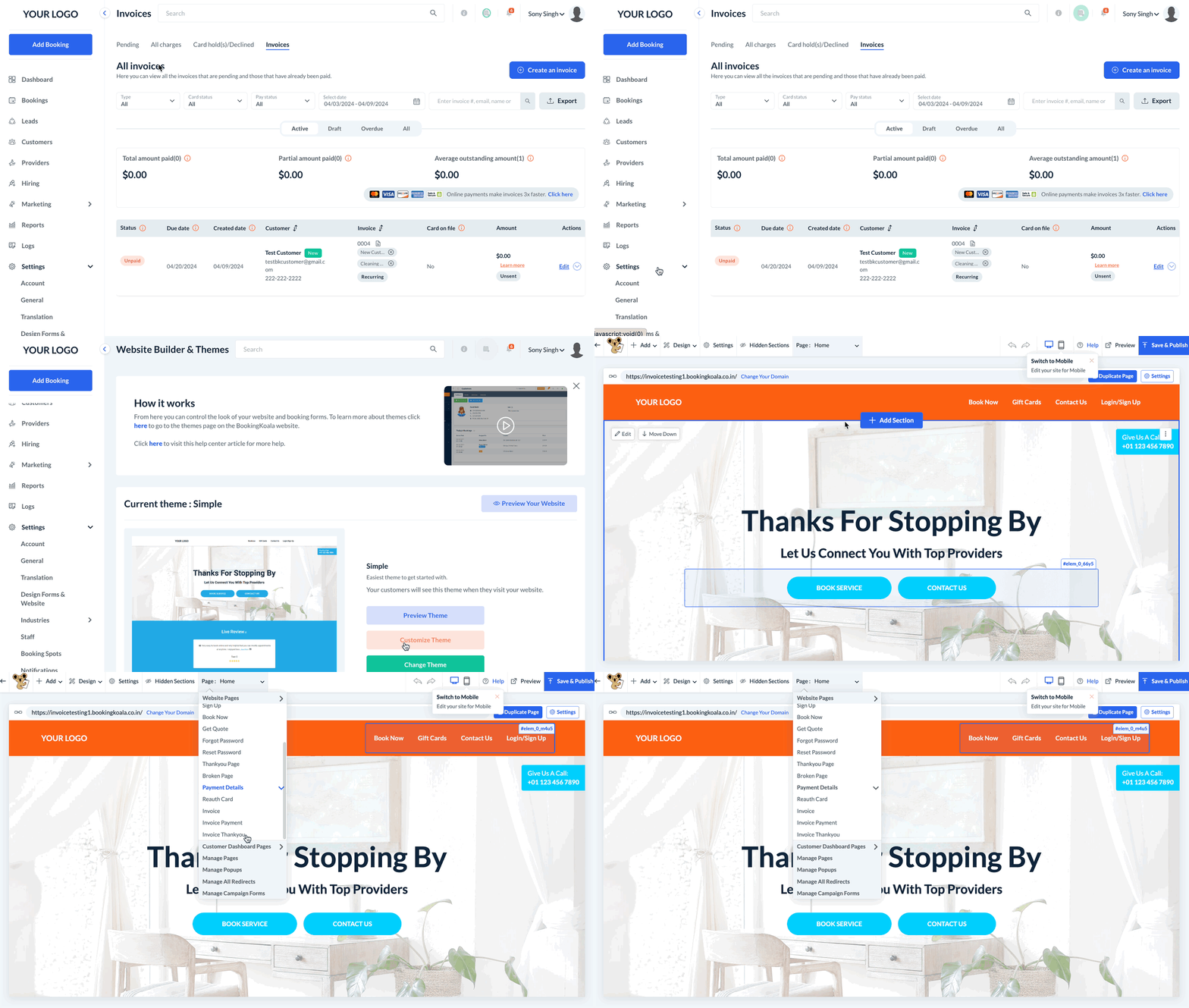
Edit the Invoice Thank You Page
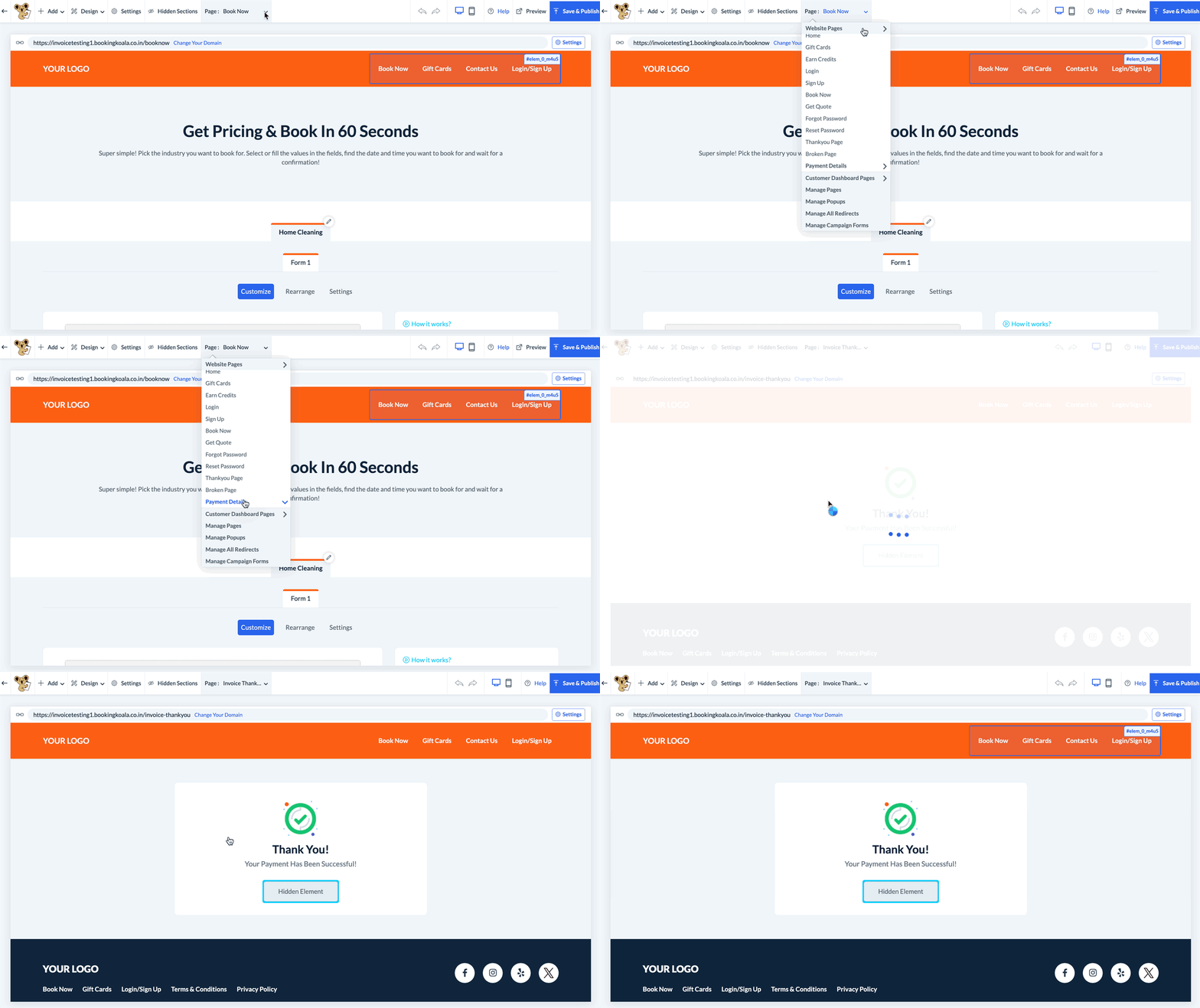
To edit this page, select the top center Page menu, select Payment Details, and click on Invoice Thank You.
The Thank You page contains several optional elements that can be shown, hidden, or edited depending on your preference. To make changes, click each element to reveal the Edit buttons.
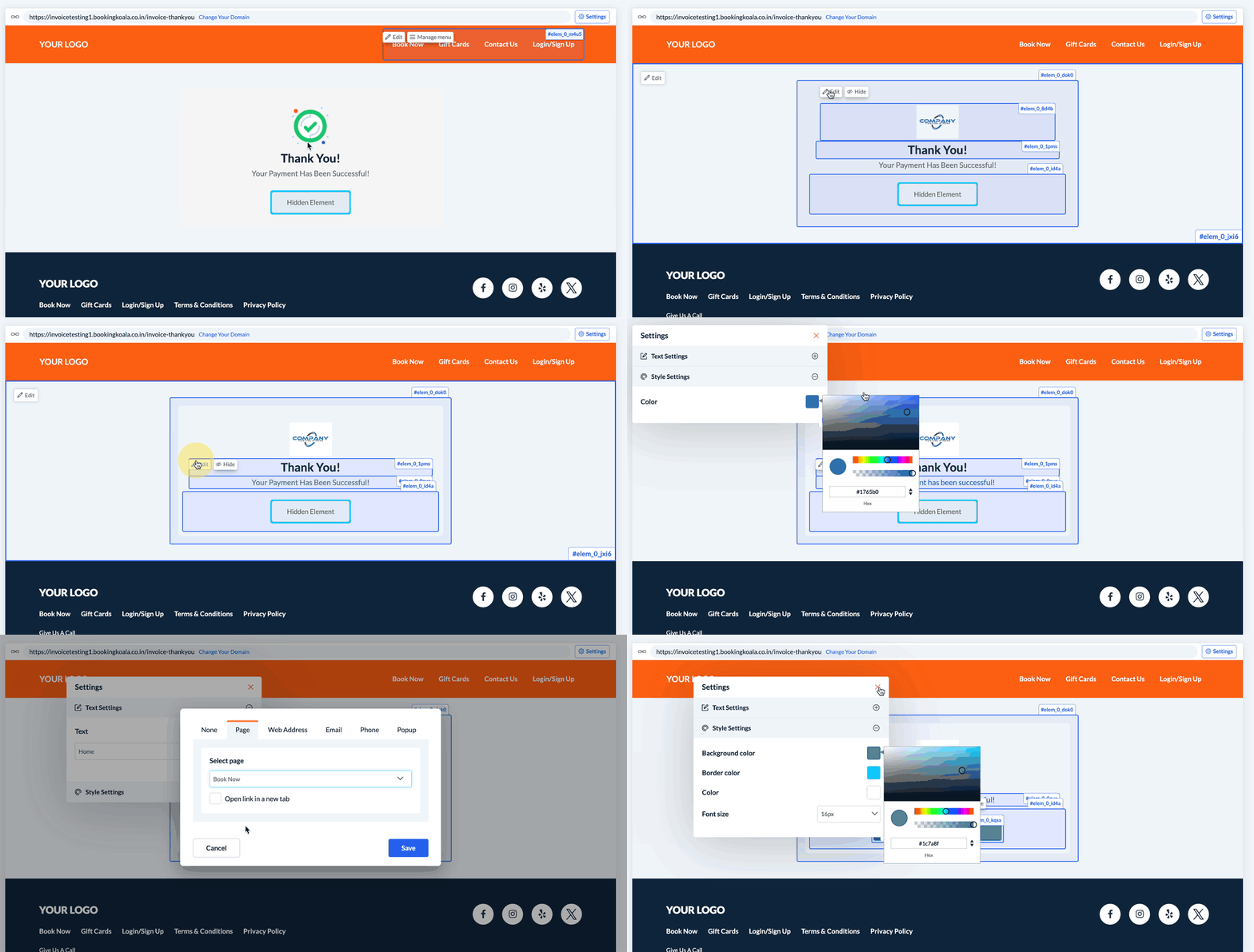
There is an optional button at the bottom of the page that when shown is linked to the home page of your website. This can be modified and switched to any other page such as the Book Now page.
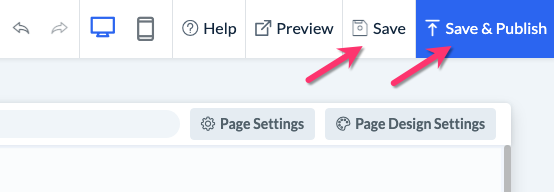
Save & Publish
When you are finished making edits to your page, please be sure to click the "Save" button to save your changes to the backend, or "Save & Publish" to push your changes live to your site.