The purpose of this article is to help you understand:
How to edit the Invoice Payment page
Getting Started
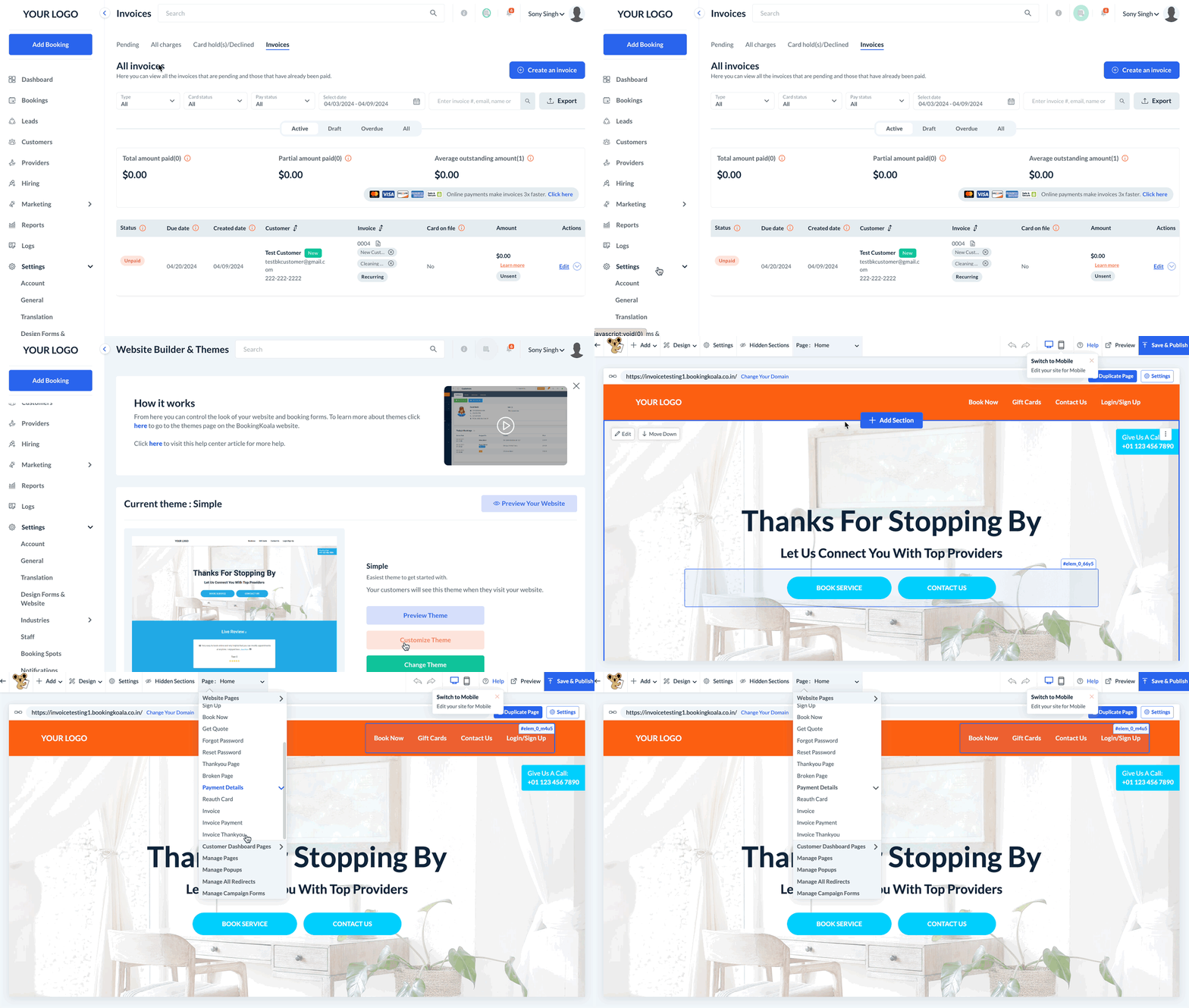
The Invoice Payment page is displayed when the customer clicks the Pay Invoice button at the bottom of their invoice.

To modify the appearance of this page, you must access the BookingKoala Website & Theme Builder. To do so, please go to:
Settings > Design Forms & Website > Website Builder & Themes > Customize Theme
Edit the Invoice Payment Page
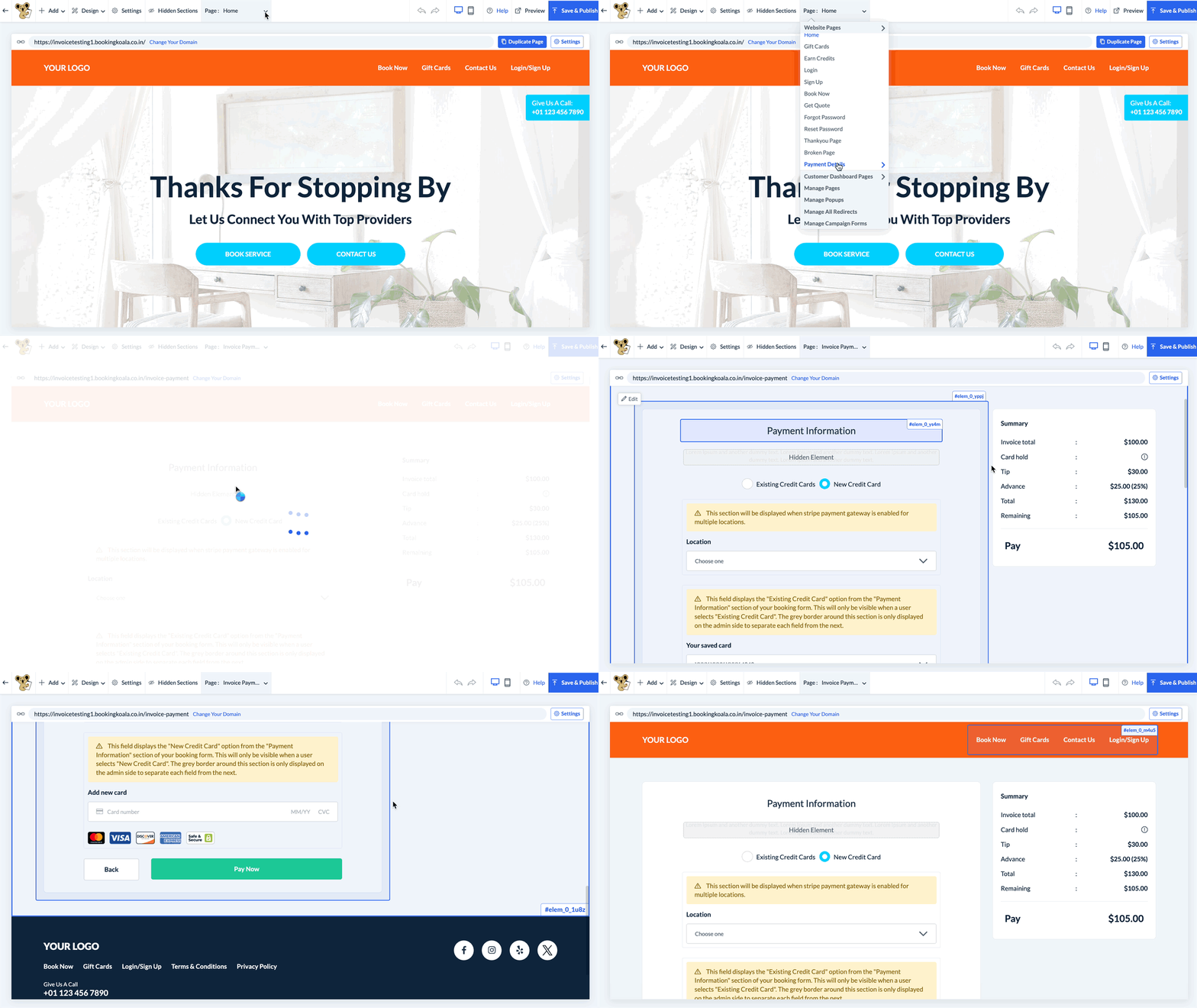
To edit this page, select the top center Page menu, select Payment Details, and click on Invoice Payment.
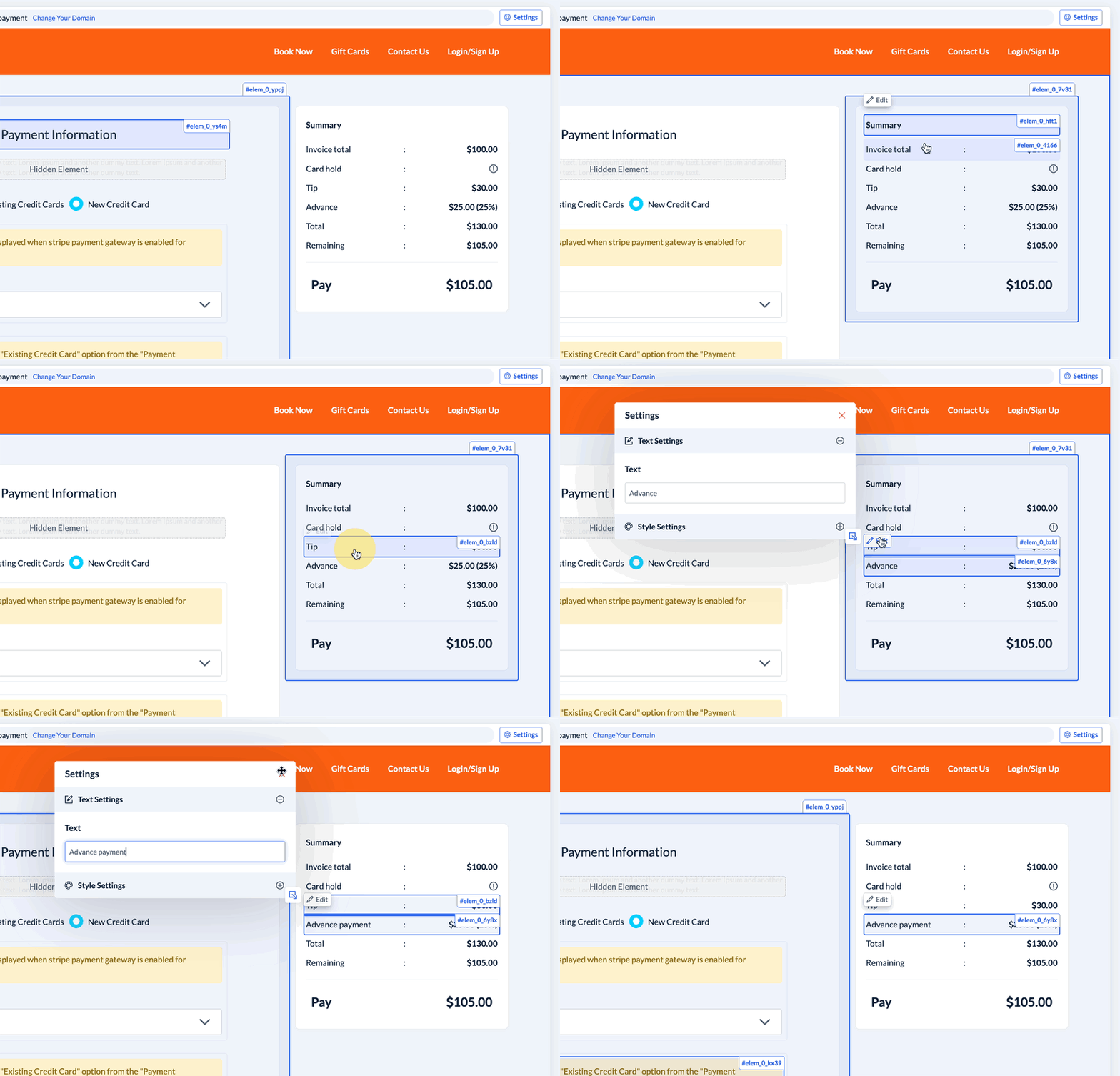
The right side of the page will display the payment summary section for the customer. To edit this section, click on each label to reveal the Edit button.
On the main section of the page, the page title and description can be edited, shown, or hidden by clicking on the text.
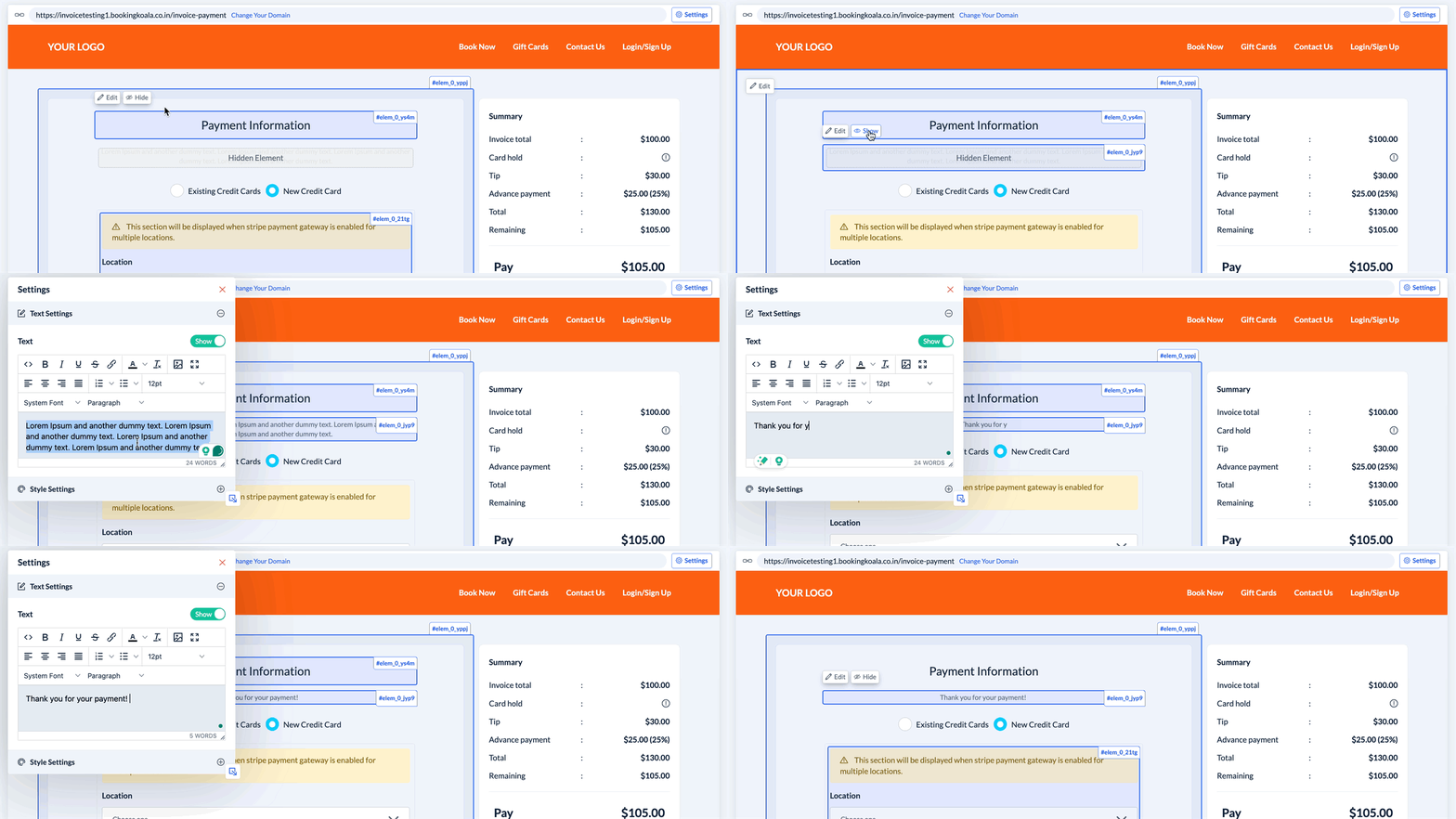
Below, there are several different sections depending on the payment being made.
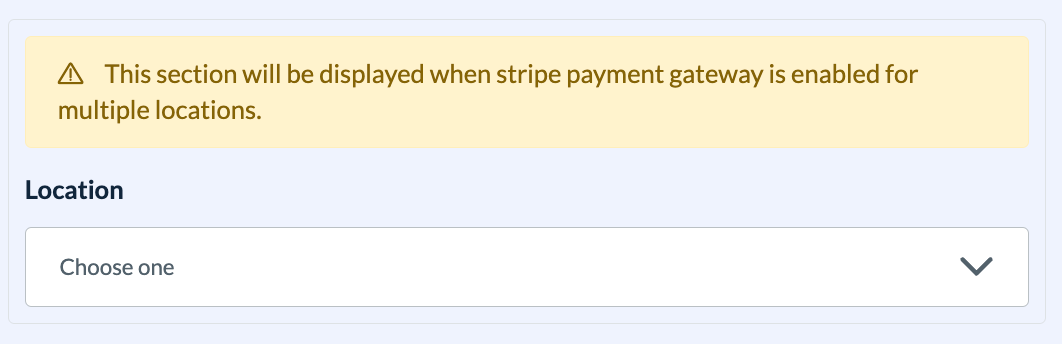
The topmost section is only displayed if Stripe is your payment processor and you have enabled Stripe for multiple locations. In this case, the customer will select which location they are adding a card for prior to entering their card information.
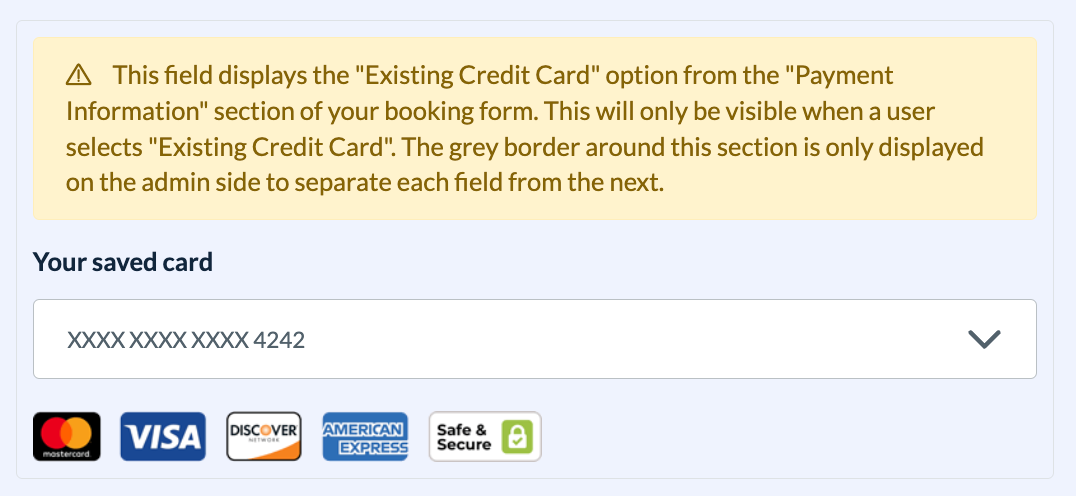
The next section is displayed if the customer has a card on file already and selects the Existing Credit Card option from the invoice form.
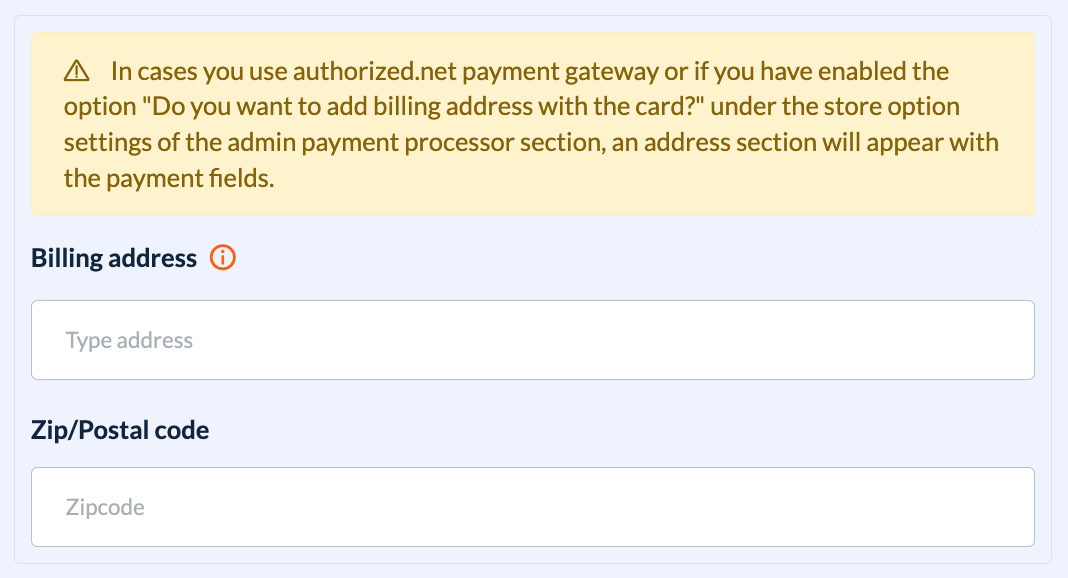
In case you use the authorized.net payment gateway or if you have enabled the option "Do you want to add billing address with the card?" under the store option settings of the admin payment processor section (Settings > General > Store Options > Admin), an address section will appear with the payment fields.
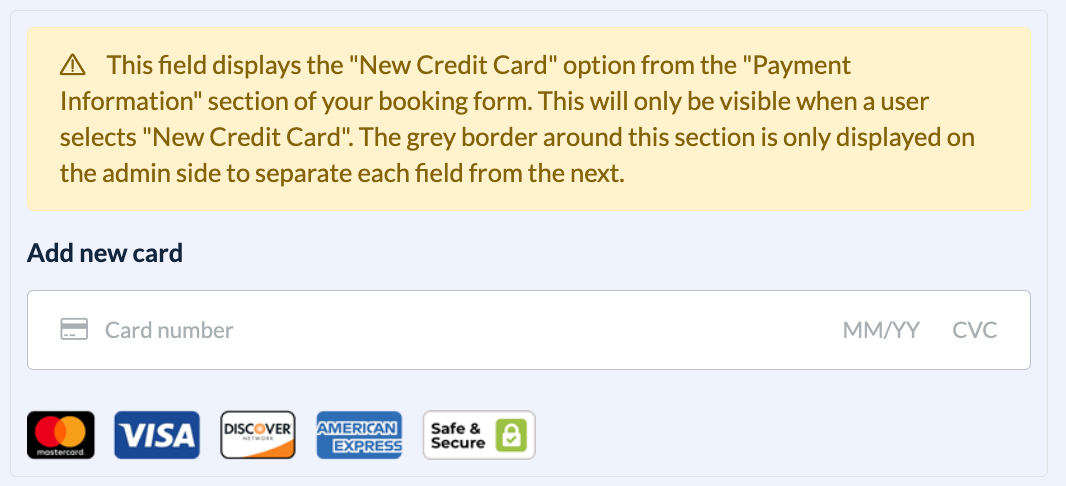
The following section is displayed if the customer does not already have a card on file or selects the New Credit Card option from the invoice form.
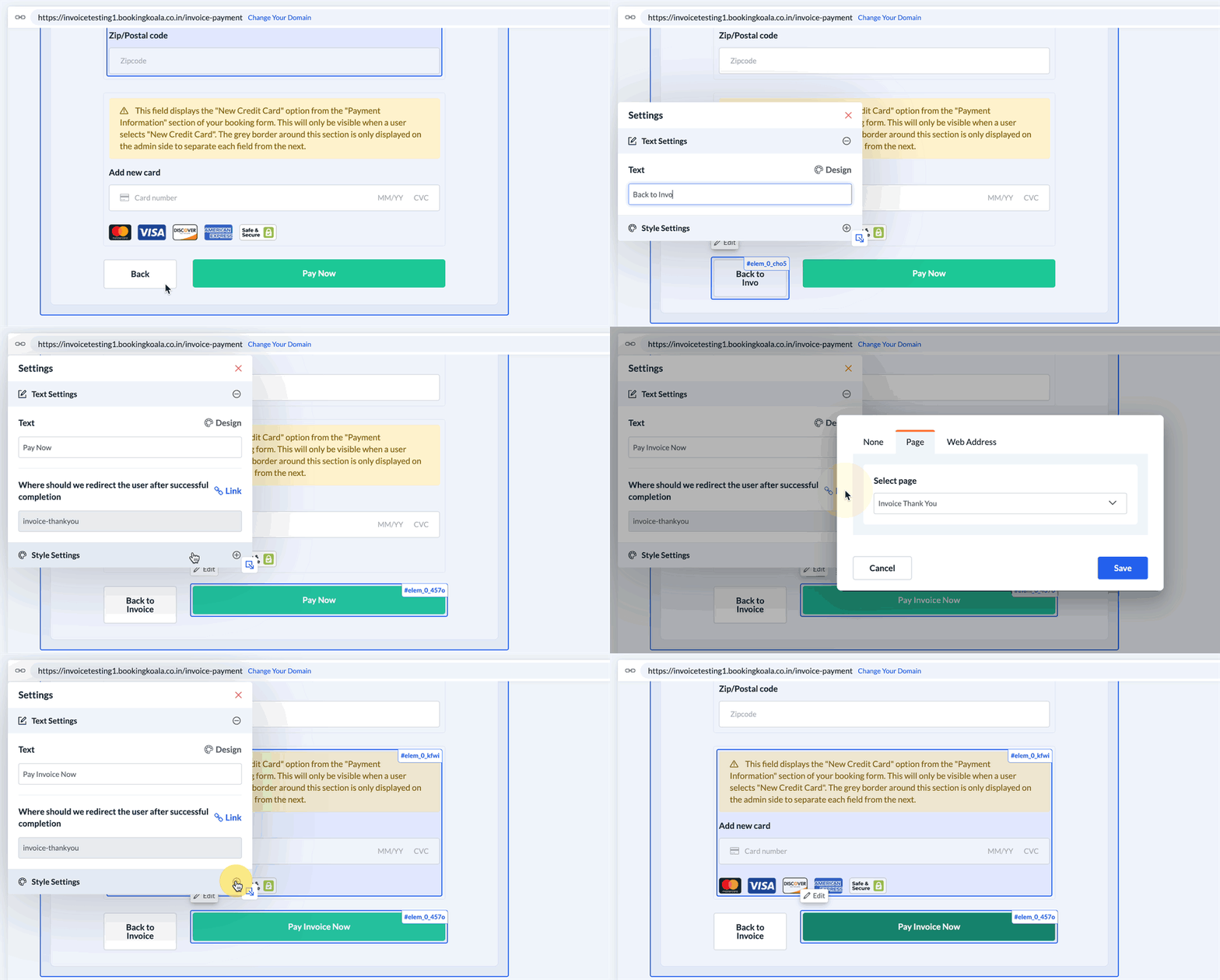
At the bottom of the page, there is a Back button to direct the client back to their invoice, and a Pay Now button to submit their payment. The Pay Now button is linked to the Invoice Thank You page discussed in the following section.
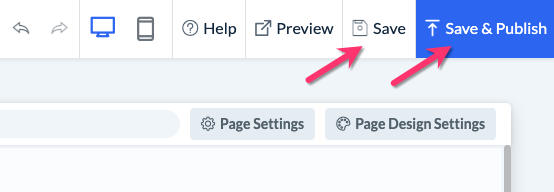
Save & Publish
When you are finished making edits to your page, please be sure to click the "Save" button to save your changes to the backend, or "Save & Publish" to push your changes live to your site.