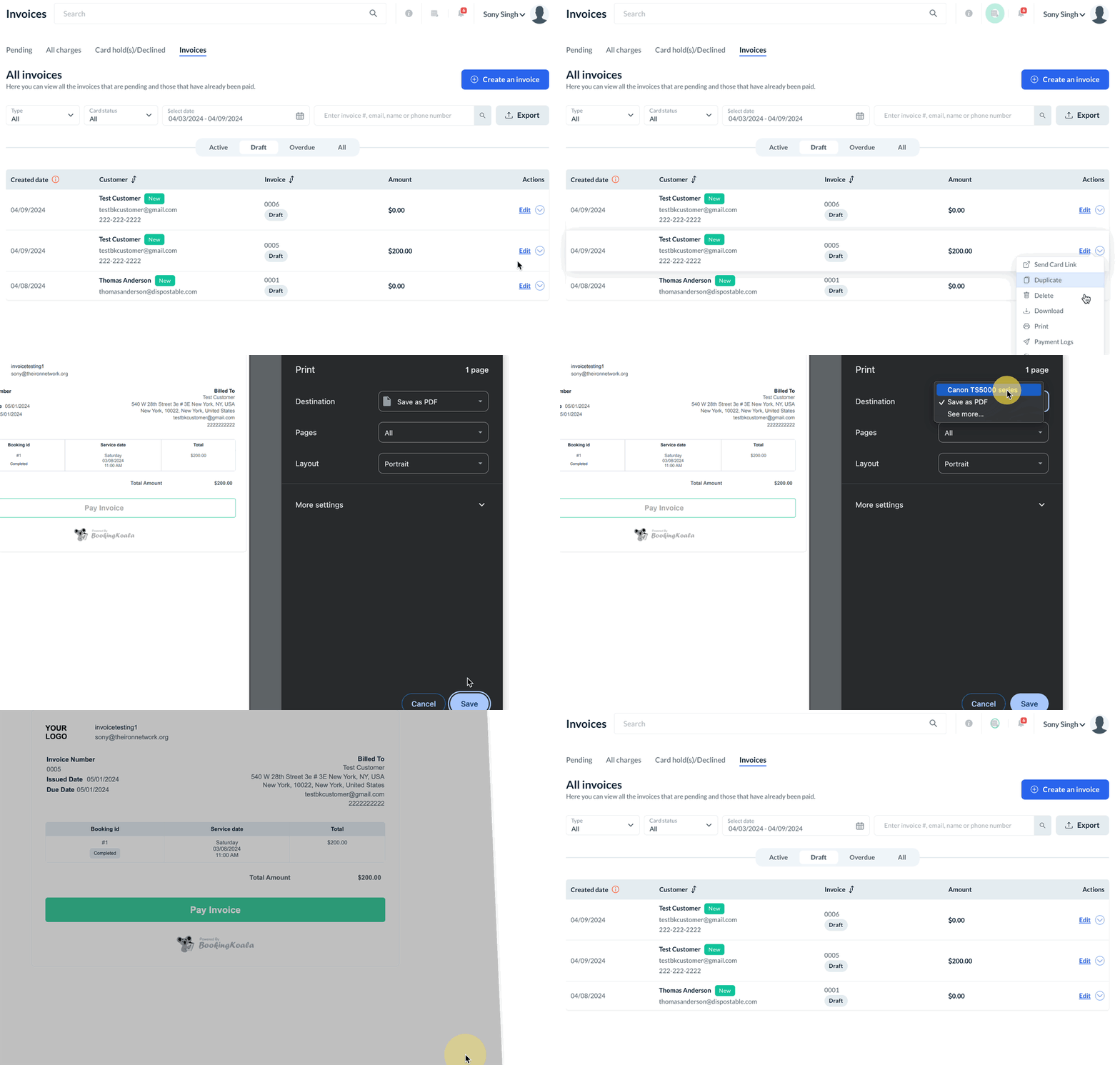
The purpose of this article is to help you understand:
How to download an active or draft invoice
How to print an active or draft invoice
Getting Started
To begin, go to the Invoice Dashboard under:
Bookings > Booking Charges > Invoices tab.
Download an Invoice
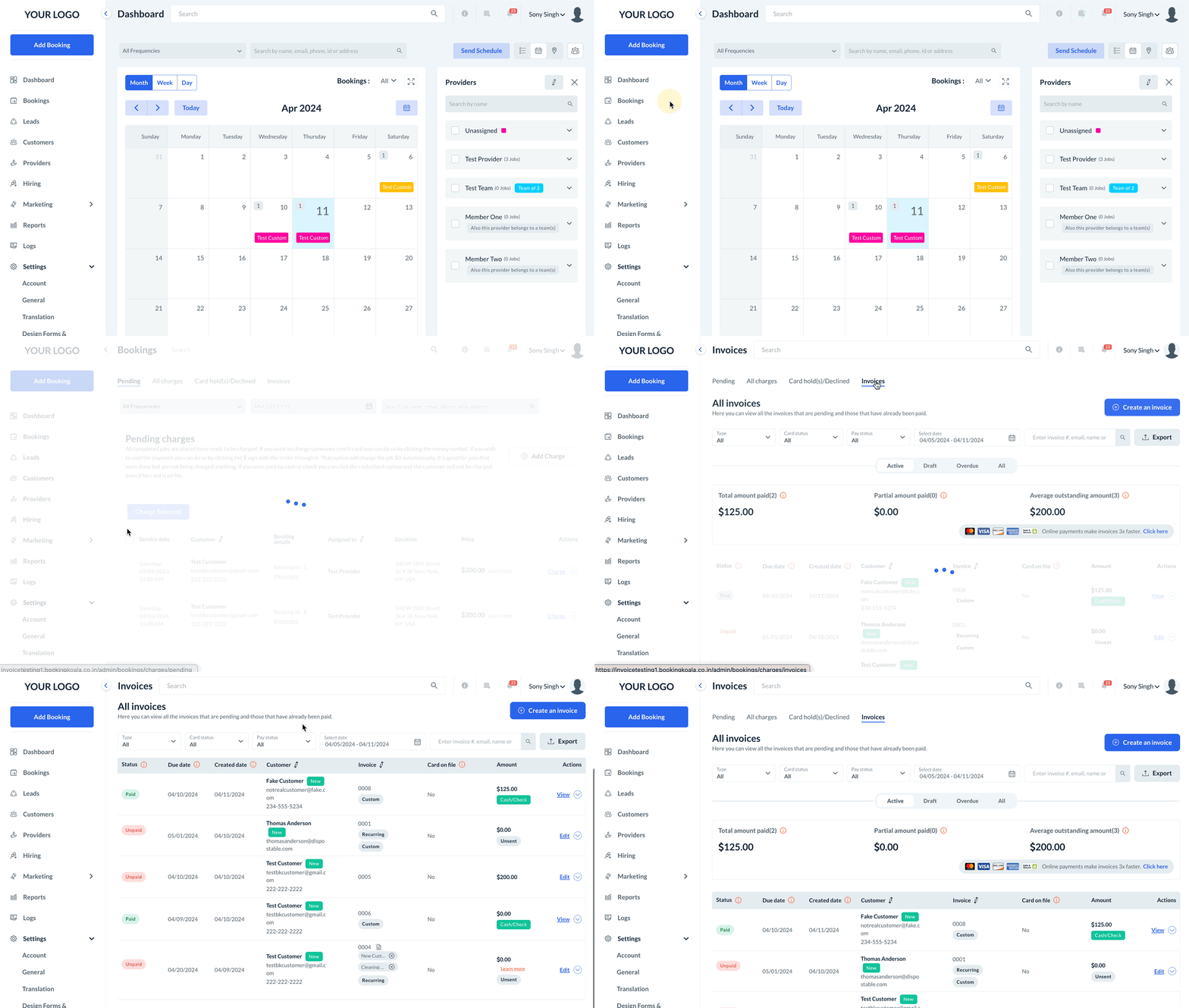
To download an invoice, locate an invoice in the dashboard and click the down arrow in the Actions column to reveal the Download option.
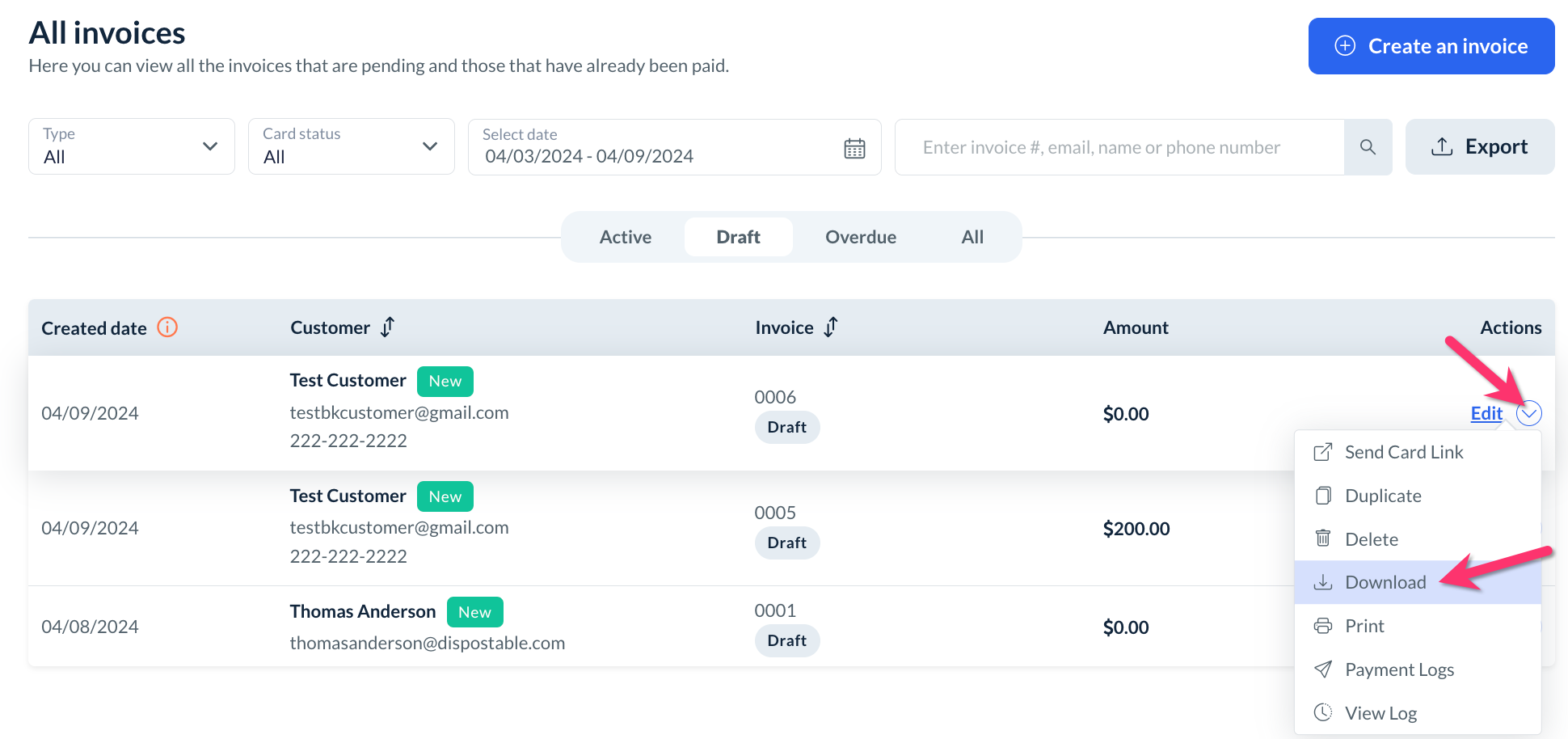
A pop-up will ask if you are sure you want to download this invoice. Click the blue Confirm button to proceed.
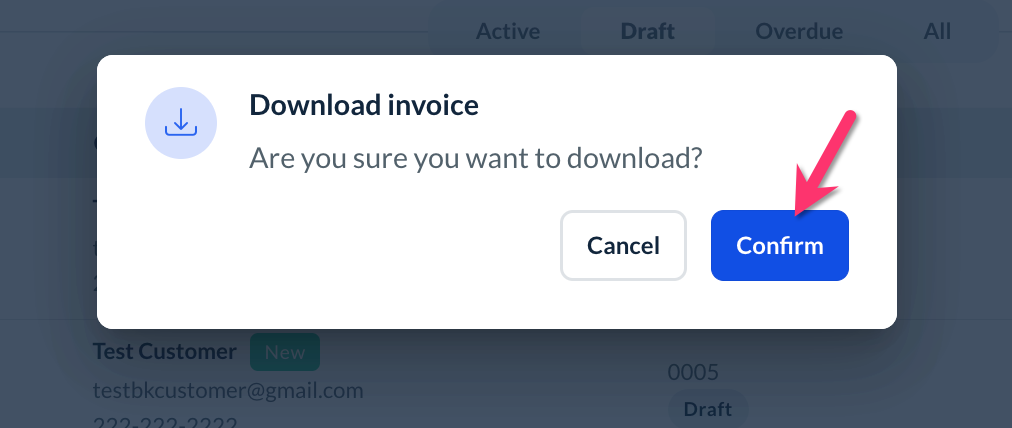
A copy of the invoice will be downloaded as a PDF to your device.
Print an Invoice
If you would like to print an invoice, locate the invoice in the dashboard and click the down arrow in the Actions column to reveal the Print option. This will automatically launch the print option for your device.
Set the printer next to Destination and then click Print, or select Save as PDF and then click Save to save the file to your device.