

The purpose of this article is to help you understand:
Where to locate the payment details pages in the website builder
How to edit the Reauth Card page
How to edit the Add Payment page
How to edit the Invoice page
How to edit the Invoice Payment page
How to edit the Invoice Thank You page
Website Builder Payment Details Pages
Whenever you send a customer a new invoice, an invoice payment link, or a card payment link, they are directed to one of several pages located on your BookingKoala website. Click here to learn how to create a new invoice.
To modify the appearance and some of the features used on these pages, you must access the BookingKoala Website & Theme Builder. To do so, please go to:
Settings > Design Forms & Website > Website Builder & Themes > Customize Theme.
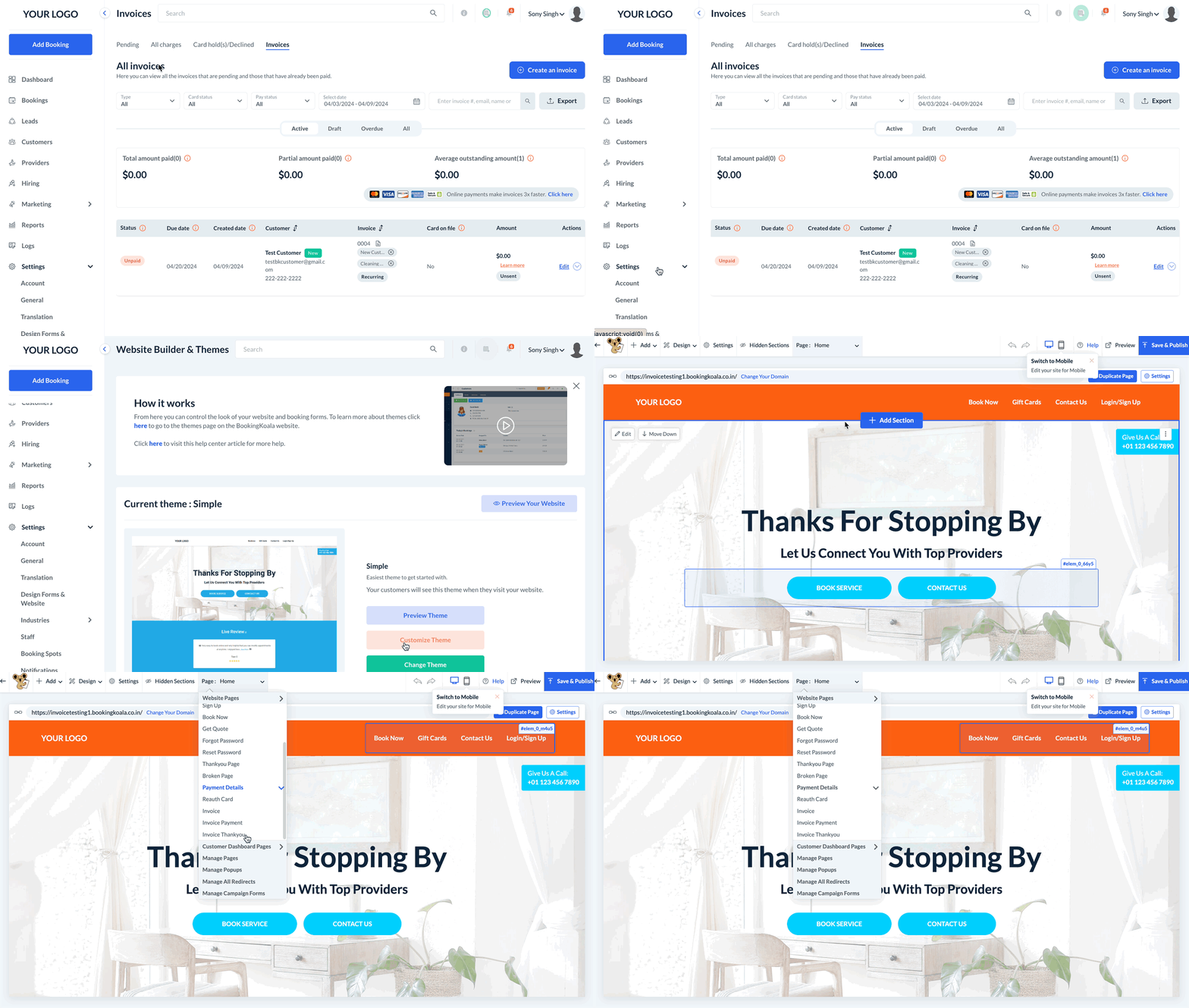
Next, click on the top center Pages menu and select the Payment Details option. The pages listed below this section represent the following steps of the customer payment process.
Reauth Card page - This page is displayed when the 3DS option is enabled on your account in store option settings and a card payment link is sent to the customer to reauthorize an existing card or add a new card as detailed in this article. Click here to learn how to edit the customer Reauth Card page.
Add Payment - This page is displayed whenever a customer adds a new card to the Your Info & Billing section as shown in this article. Click here to learn how to edit the customer Add Payment page.
Invoice page - This page displays the customer's invoice and an optional contract pop-up to collect and verify the customer's signature upon reviewing and paying the invoice. This page is displayed when a customer is sent an invoice link as detailed in this article. Click here to learn how to edit the customer Invoice page.
Invoice Payment page - This page is displayed when the customer clicks the Pay Invoice button at the bottom of their invoice. Click here to learn how to edit the customer Invoice Payment page.
Invoice Thank You page - This page is displayed once the customer has successfully paid their invoice on your website. Click here to learn how to edit the customer Invoice Thank You page.